We need the username of the account, in this case PalmValleyGM.
Connect via ScreenConnect to Wedg-RDS-CB2.
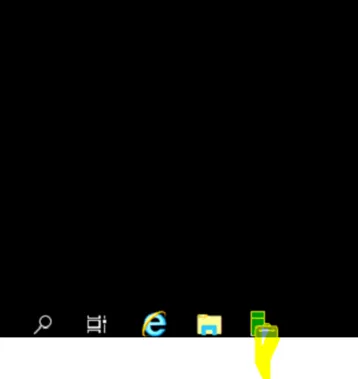
Launch “Server Manager”.
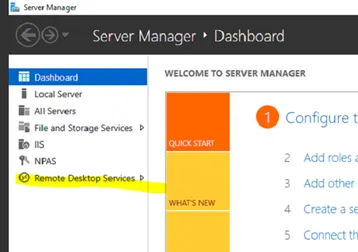
Go to “Remote Desktop Services”.
Then “Wedgewood RDS” under “Collections”.
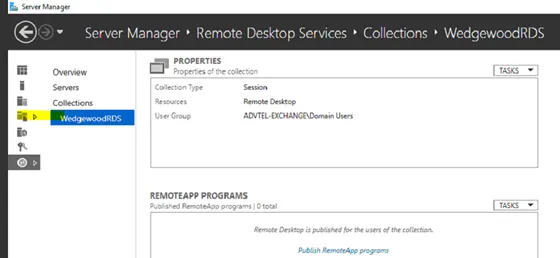
Find the account.
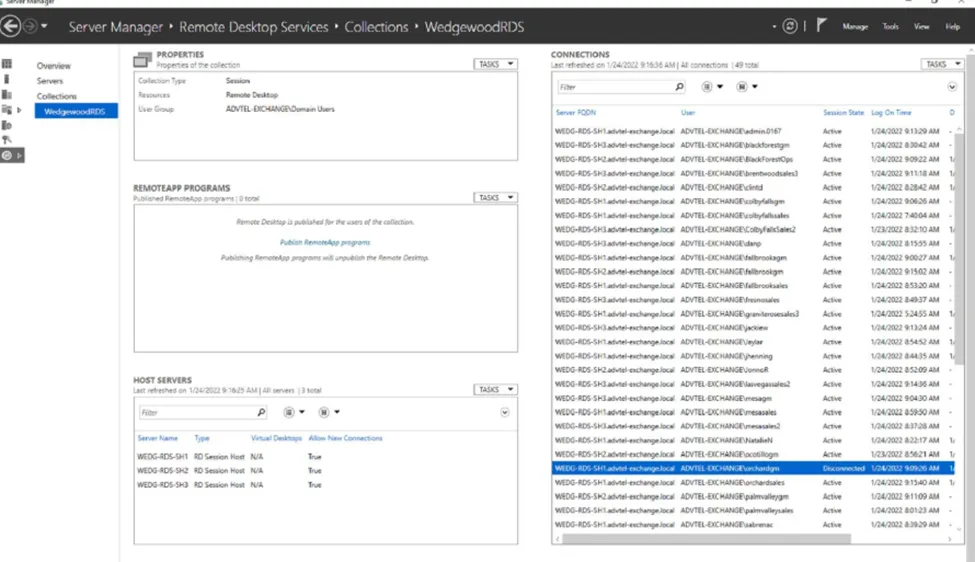
Right-click the account and select “log off”.

Refresh the page to ensure the account no longer shows.
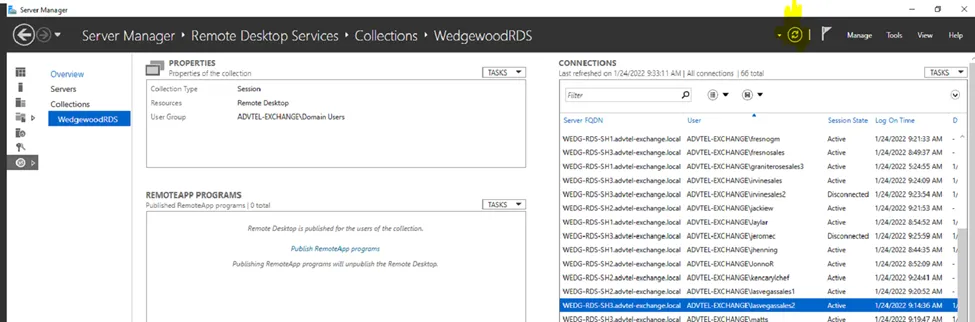
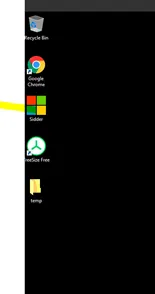
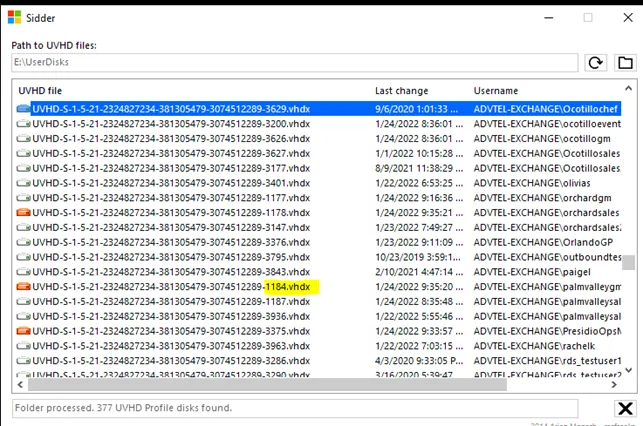
Next, log in to “WEDG-FS1” and launch “Sidder”.
Sidder will show the active profile disks. White is not active and not in use, Orange is active and in use. After you log them off via the Change Broker and they show White in Sidder, have them login again. If Orange, follow the next steps.
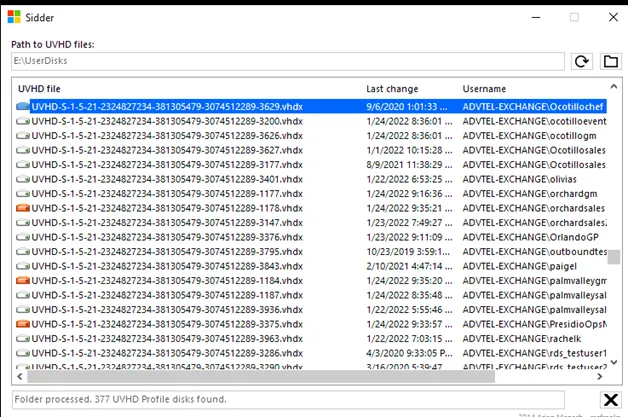
Notate last four digits of the disks you need to close.
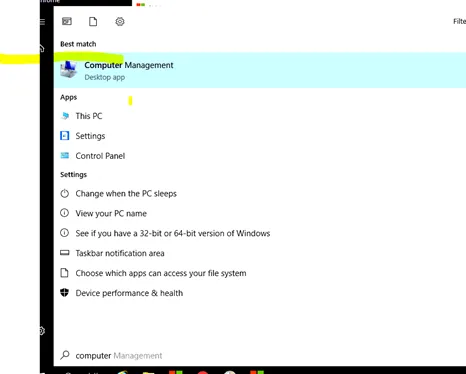
Launch “Computer Management”.
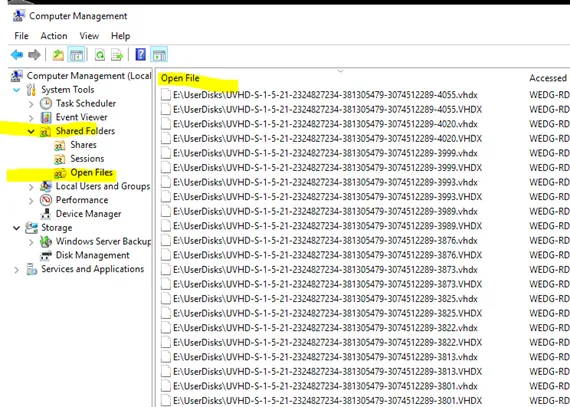
Browse to Shared Folders>Open Files, then sort by “Open File”.
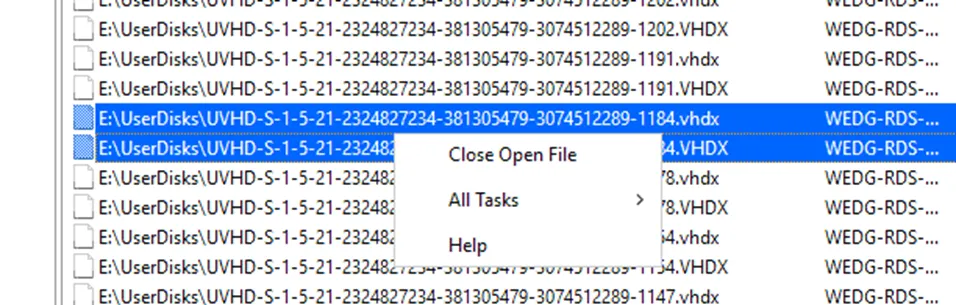
Find the user by using the last four digits of the VHDX. Once found, there should be 1-2. Highlight both and select “Close Open File” from the drop-down.
Refresh Sidder and see if disk is White, then have the user login; they may see a black screen for up to 5 minutes.