WI – Joining Arizona laptops to Western Pump Active Directory Domain
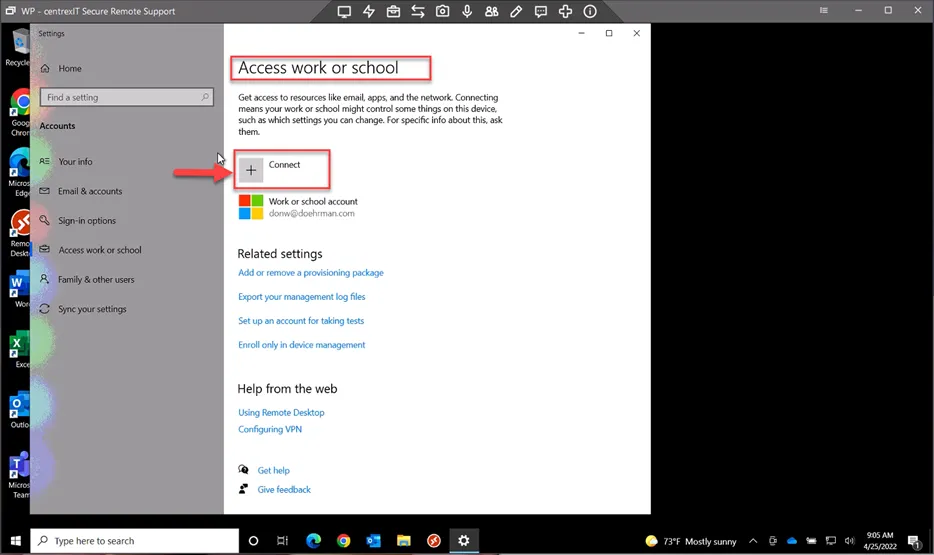
Section titled “WI – Joining Arizona laptops to Western Pump Active Directory Domain”From the laptop, go to “Access work or School,” then click + Connect.
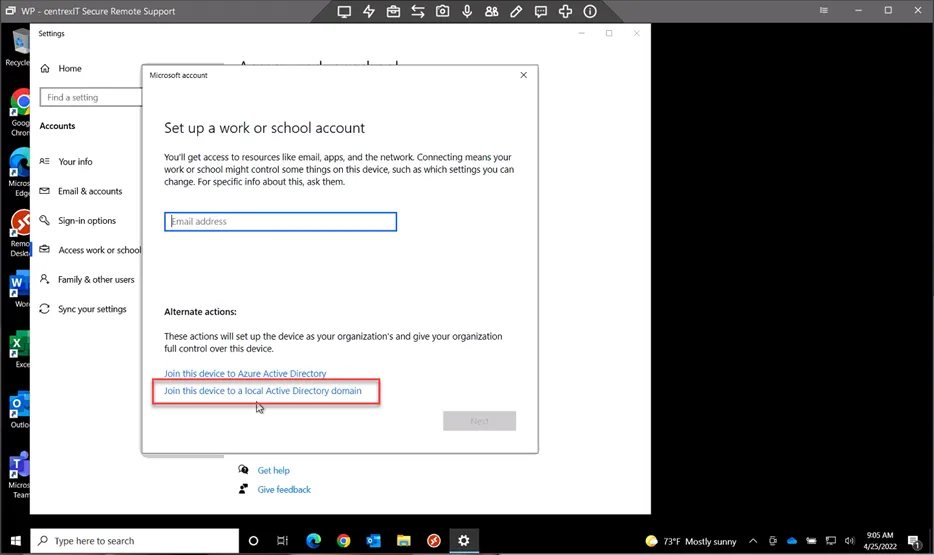
Click “Join this device to a local Active Directory domain.” Note: if this is not available, then you must log in with a local administrator account.
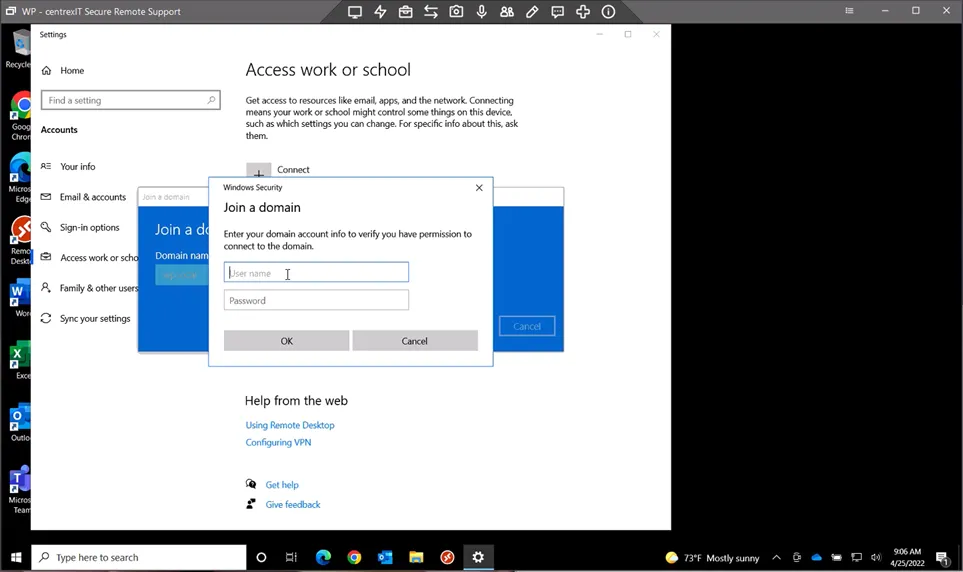
Type in your WP.local Admin Credentials and click Ok.
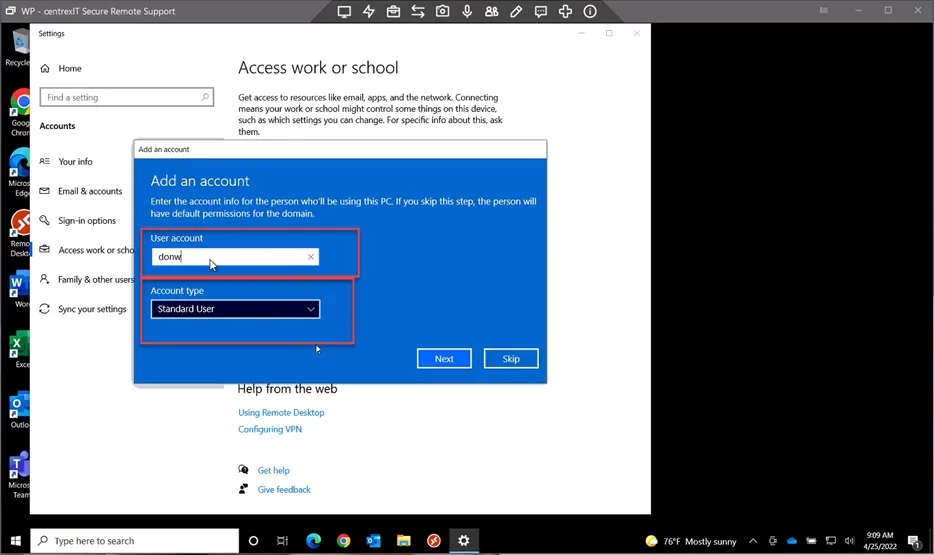
Type in the Western Pump username for the user assigned to the laptop. In this example, we are typing in “donw” in the user account field since this laptop is assigned to Don Watters. Set the Account Type to “Standard User.” Click Next.
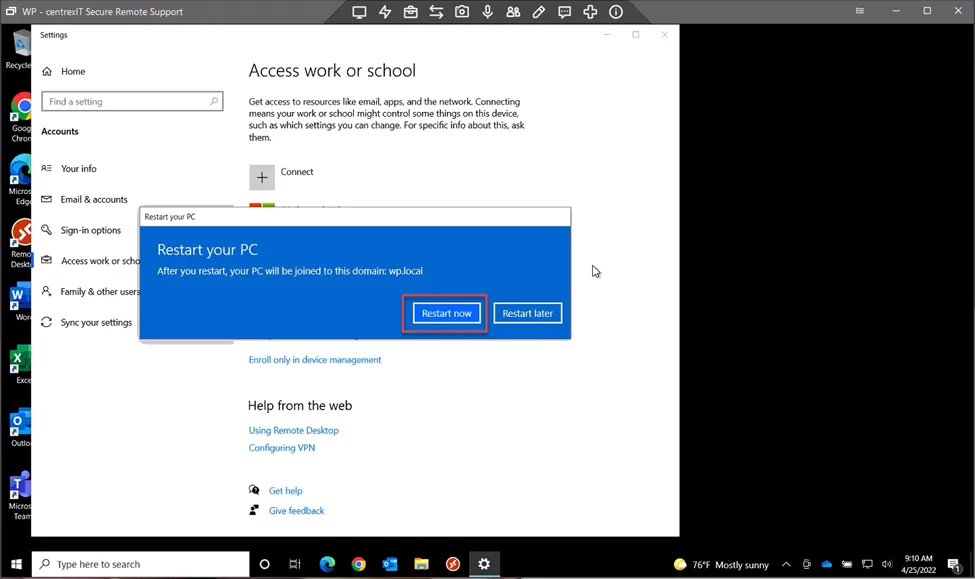
Click Restart Now
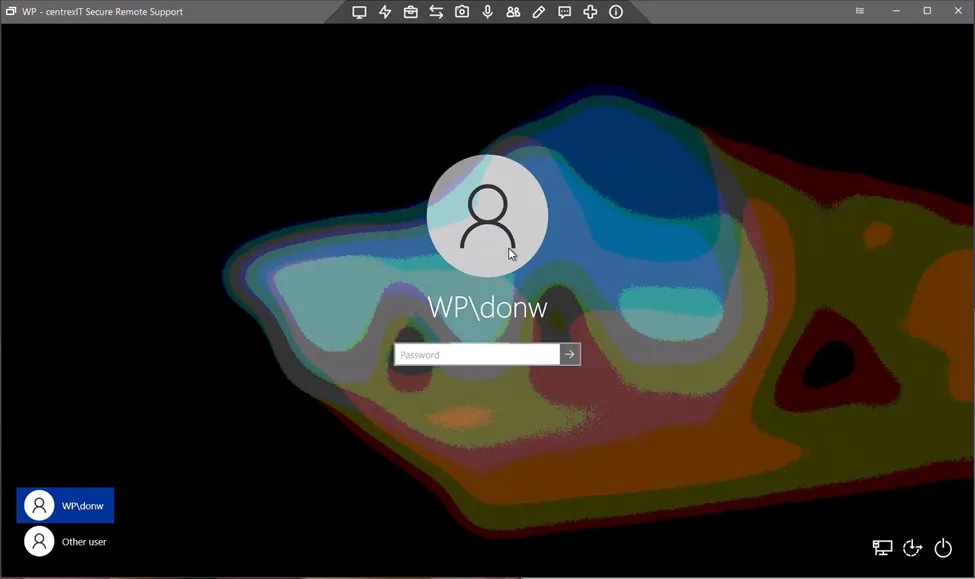
Once the computer has restarted, login as the “WP\username” account, where the username is the username for the assigned user.
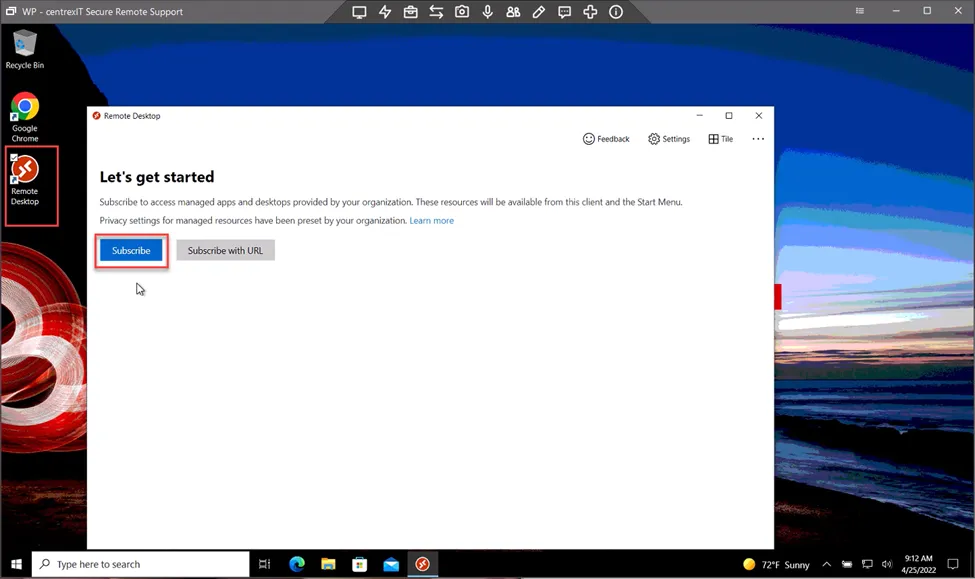
A new user profile will be created. Once the desktop load, click on the Remote Desktop application to set up the Jonas Application. Click Subscribe.
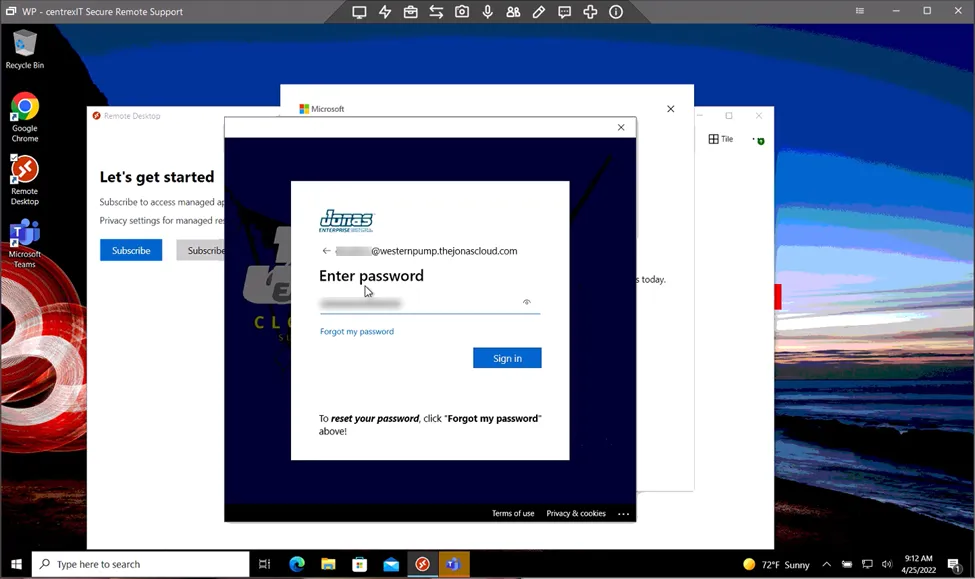
Enter in the Jonas Cloud credentials for the user.
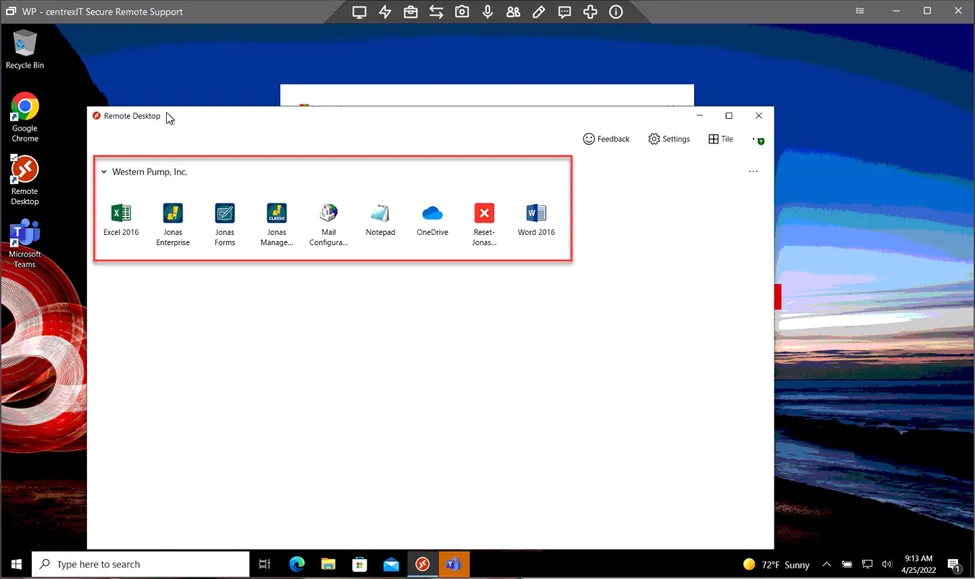
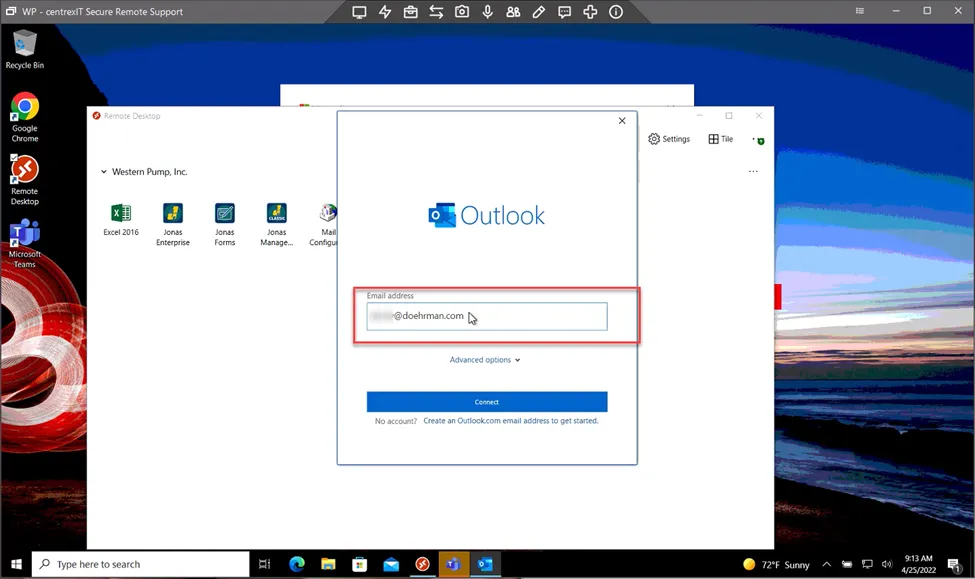
Next, we’ll set up Outlook. Open Outlook, and type in the user’s email address. Click Connect.
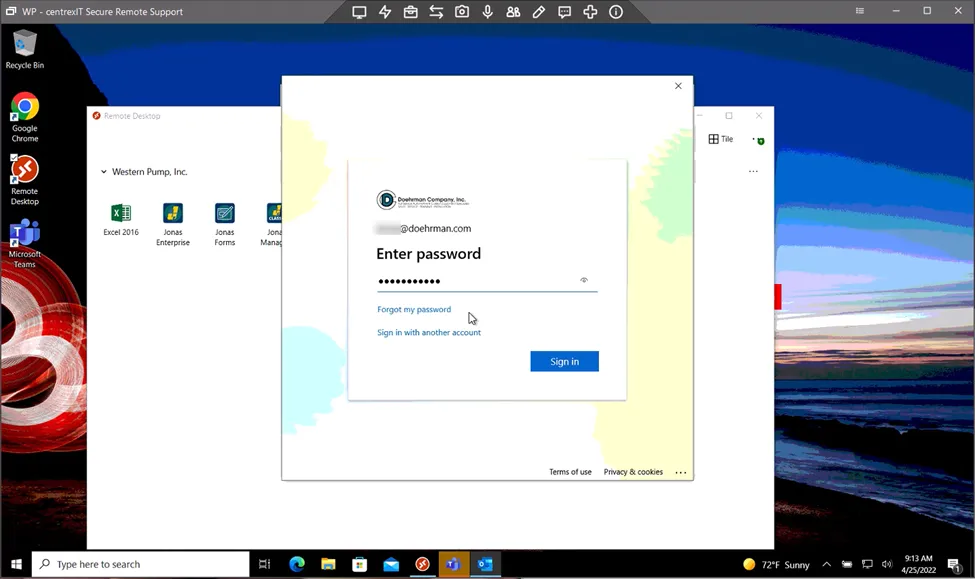
Type in the user’s password.
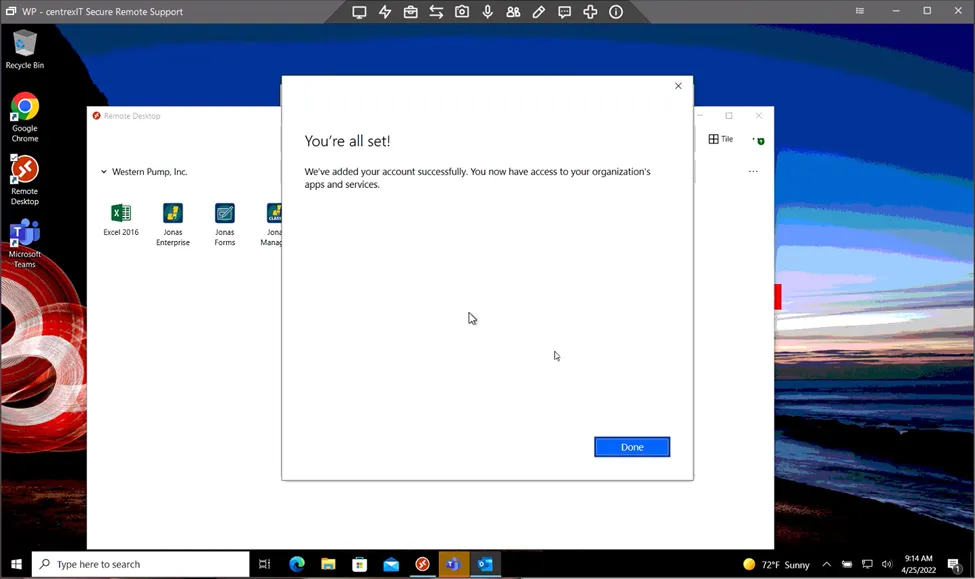
Uncheck “Allow my organization to manage my device,” and then click Ok.

Outlook configuration will complete. Be sure to unpin the Mail app, and pin the Outlook app to the taskbar.
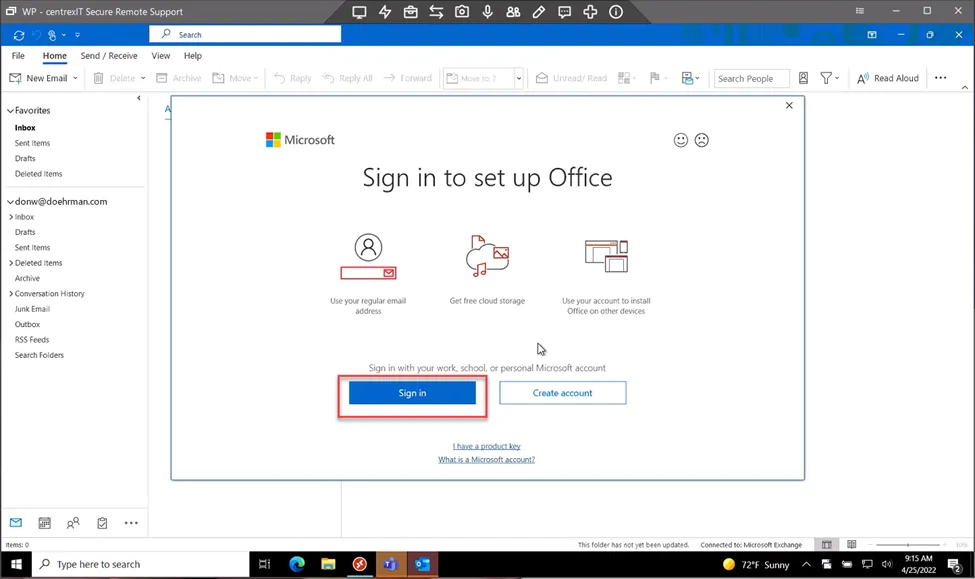
Next, we’ll sign into Office to activate the Office apps. Open Outlook, Word, or Excel. When prompted, click Sign in.
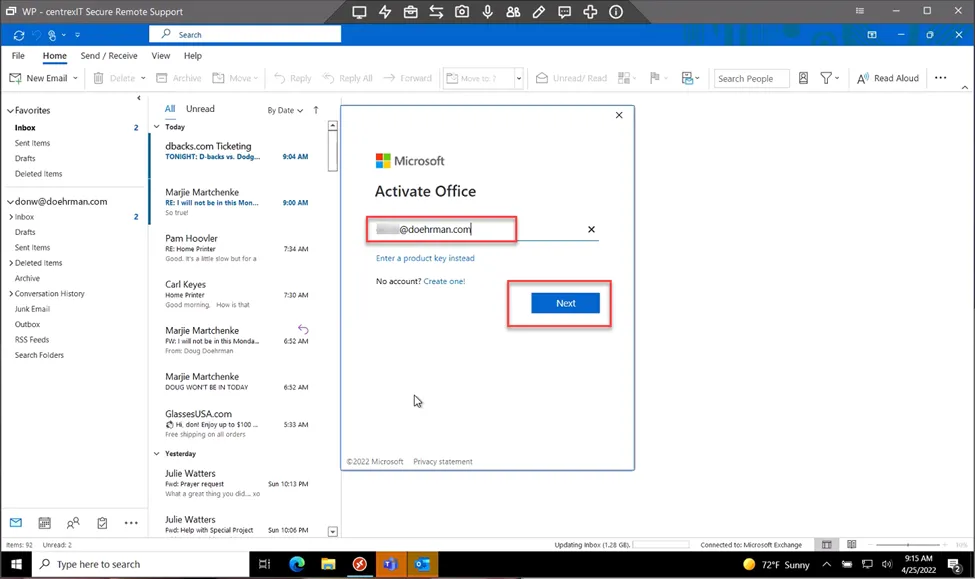
Type in the user’s email address, and click Next.
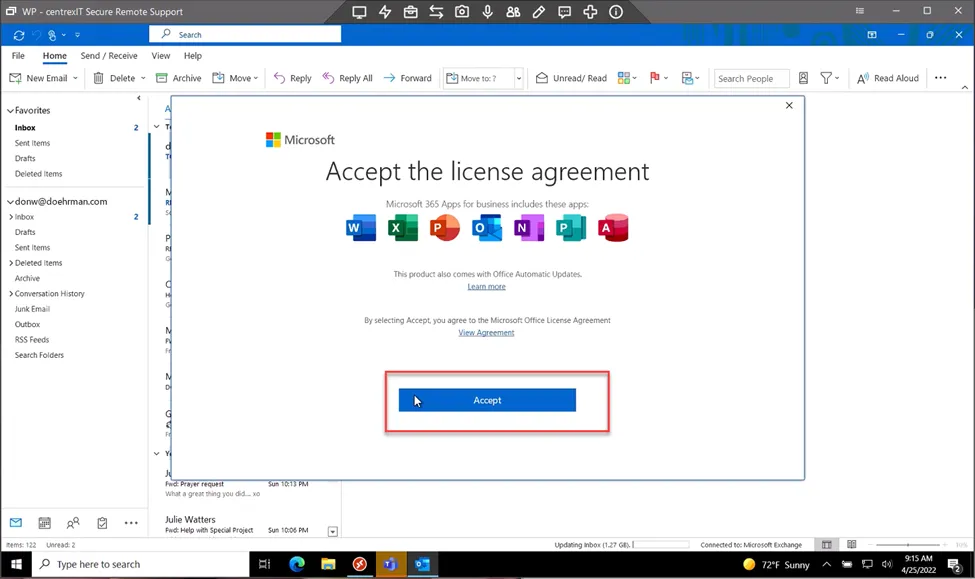
Click Accept. Office will now be activated.
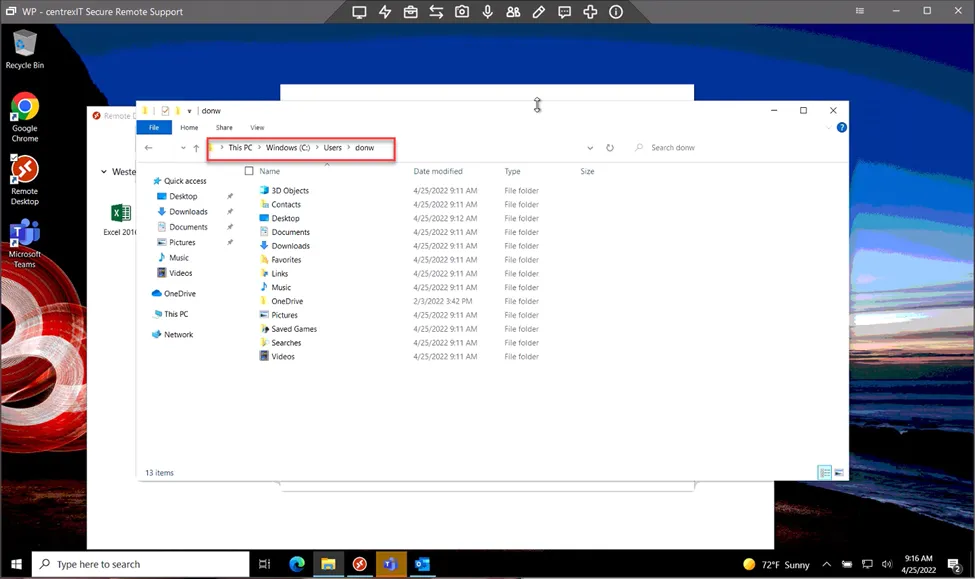
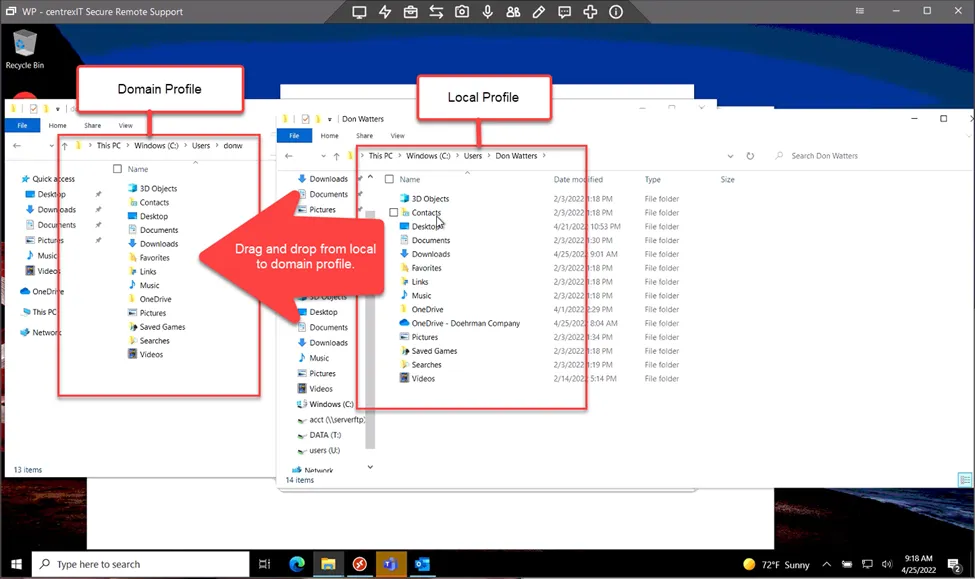
Next, we’ll need to move the local user profile data to the domain user profile. Open File Explorer and navigate to “c:\users\domainusername.” This is usually in the format of the username, which is “firstnameLastinitial.” This will be the new domain profile and usually has a newer “Date Modified” date.
Open another file explorer window and navigate to “c:\users\localprofilename.” This may be the first name or full name of the user. This will be the old local profile and may have an older “date modified” date. If prompted for elevated permissions, click continue and enter in the old username and password for the local account. The old username should be in the format of “.\olderusername.” In this example, the old username was “.\Don Watters”
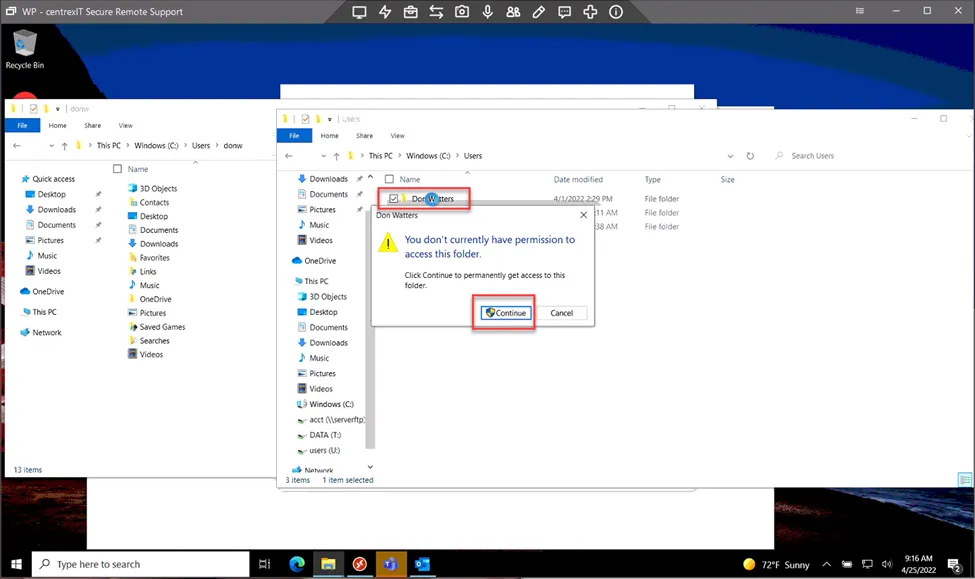
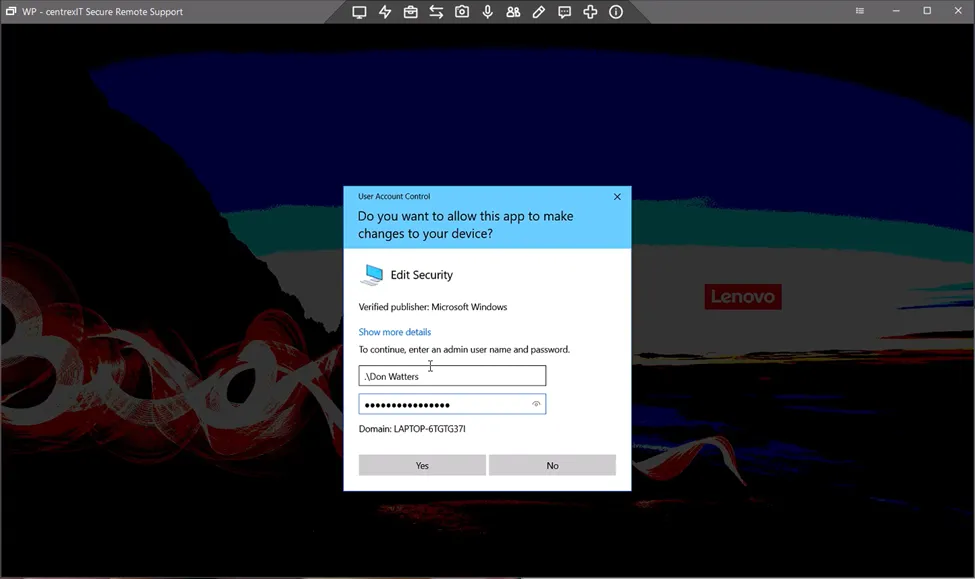
Drag and drop folder from the local profile to the domain profile to move the user’s data.
Next, we’ll set up OneDrive. Open OneDrive, and type in the email address. Click Sign in.
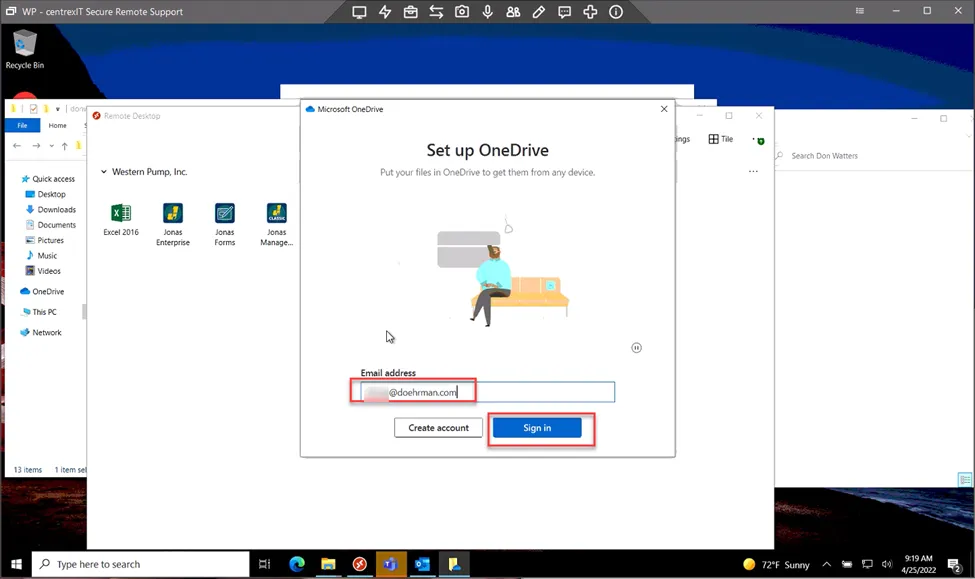
Type in the password. Click Sign in.
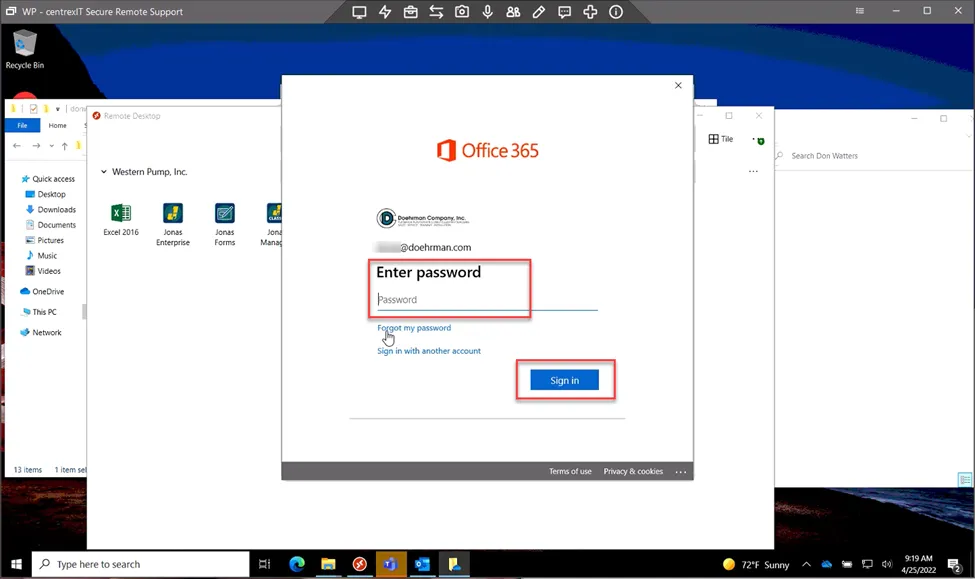
OneDrive will be set up. Click next through the prompt until completed.
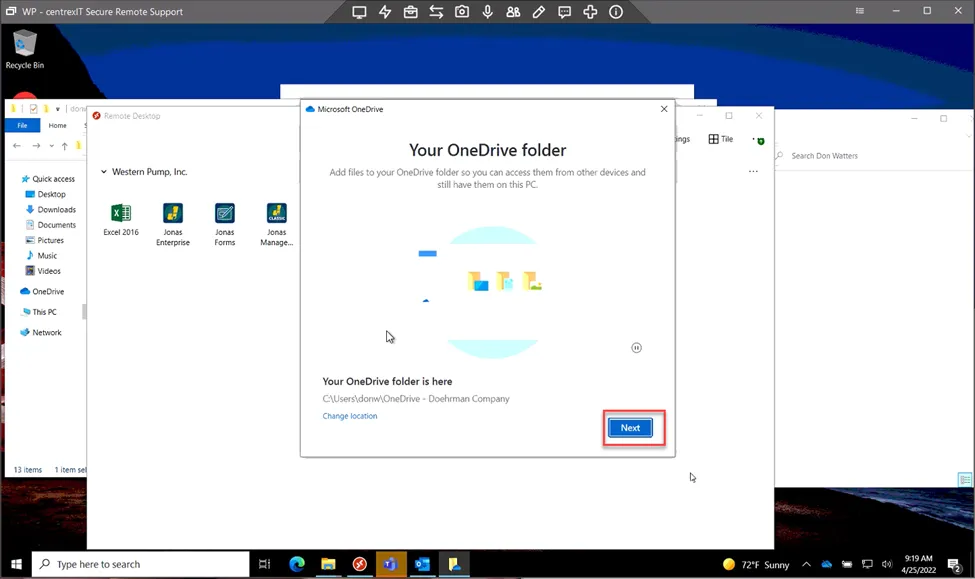
Once completed, notify us with the hostname so we can move the Active Directory object to the Arizona Computers OU. That completes the set up.