Sending Encrypted Messages
Sending an encrypted message is simple and convenient. There is no end-user change in behavior and no software to install or configure. Encryption is initiated in one of three ways:
It can be used on-demand by using a force phrase keyword in the subject or body of the message. San Diego Humane Society’s force phrase keyword is: “SDHSENCRYPT” (without quotations).
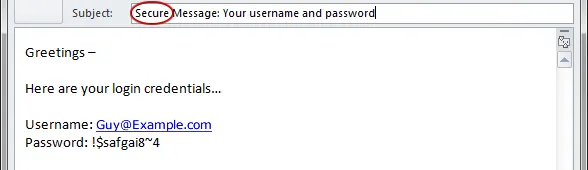
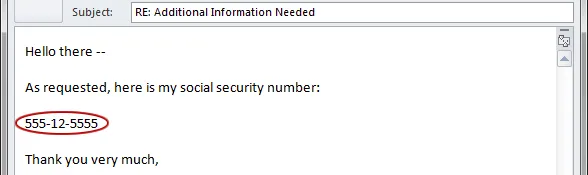
It can be used automatically by tripping one of the preselected encryption policies. For example, if the body of a message contains a social security number, the message will be encrypted automatically.
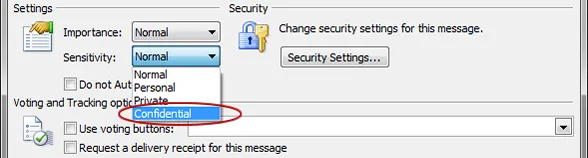
Finally, a message can be manually encrypted by marking it as confidential in Outlook under the Properties menu of the message.
Recipient Message Retrieval
Regardless of the initial encryption method used, the recipient will receive an email indicating the presence of an encrypted message and will be prompted to click a link to retrieve it.
The user will be sent to the secure portal to retrieve the message.
First-time recipients accessing the encryption portal will need to create an account to retrieve the secure message.
After one-time registration and activation, recipients can navigate the Secure Message Center using the tabs at the top of the page.
The Inbox tab lists all of the unexpired, encrypted email messages that have been received. From the Inbox, the user can view the details of each message by clicking the subject.
The Address tab allows users to add and manage email addresses of frequently contacted correspondents, add and manage groups of contacts, and send messages to current contacts.