Purpose: Allow Access to limited resources for Volunteers. Examples include access to shared mailboxes and Teams spaces. This process is create an O365 account that is not AD synced.
1. Login to admin.microsoft.com with your ADM account xxxxxx.adm@sdhumane.org
2. Under Users click on Active Users
3. Click “Add a user”
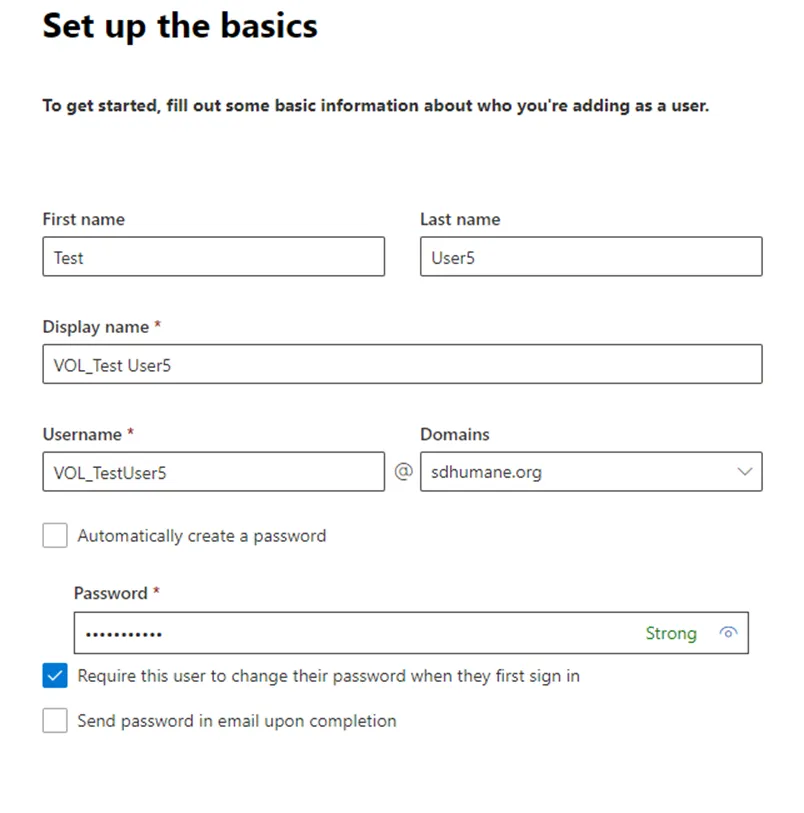
4. Fill out information with appropriate information:
a. Proper First name and Last Name
b. Add VOL_xxxxxxxx to display name
c. Username should be VOL_xxxxxxx@sdhumane.org
d. Set PW and Require user to change PW
Example below:
5. Click Next
6. Product License
a. Assign Office 365 E1
b. Click next
7. Optional Settings
a. (No changes) Click Next
8. Review and finish
a. Review information and click “Finish Adding”
Granting Permissions
Grant access to the appropriate shared mailbox
a. Under Members click Edit
a. Add the new user to the group
b. Under “Manage Mailbox Permissions” add them to Send as permissions.
c. Allow up to 1 hour to replicate the permissions
Reasoning: This will allow the user to access the shared mailbox they need access to while being able to manage their account and limit access.
User Instruction:
a. Login to office.com with provided email address and password
b. Signing in will require you to set up MFA (Multi-Factor Authentication)
c. Follow the steps to complete and set up using phone number with text messages
d. Once you are signed in go to outlook app icon on the side ribbon
e. Sign in and you will have access to email
f. Click on your profile in top right corner and click on “Open another mailbox”
g. Enter the name of the mailbox that your manager has assigned
h. A new window will appear which will be this new inbox
Conclusion:
This will provide Volunteers with the ability to access the essential shared mailboxes without compromising MFA registrations. This will also prevent volunteers from signing in directly to the shared inboxes which is a bypass in security. Adding Volunteers this way will also prevent them from being added to our domain. They will have NO access to internal documents, distribution lists or groups outside of the shared inbox. We will also be able to control which applications they can use and track what actions these accounts take.