Click on the 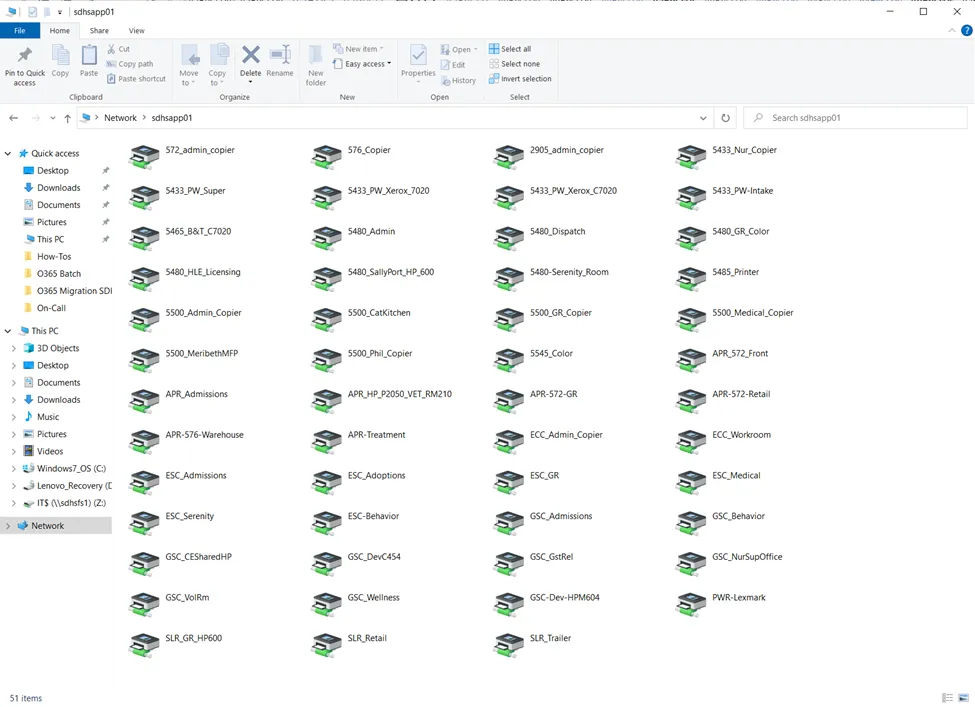 button. The Windows menu will appear.
At the top of the window where it says Search, type \\sdhsapp01 and press Enter. You will then enter the printer list.
Right-click on the printer you want and select Connect. It will download and install the drivers for the printer.
Double-click on the printer again in the printer list (shown above).
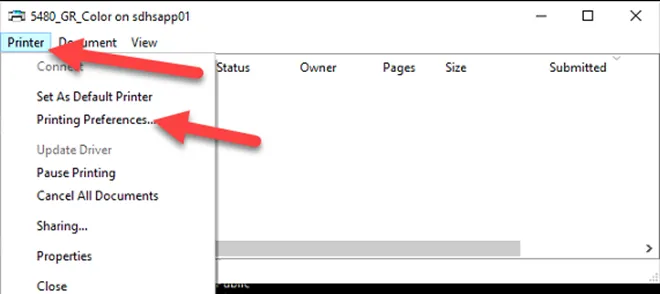
On the main window, click on “Printer” then click “Printing Preferences”.
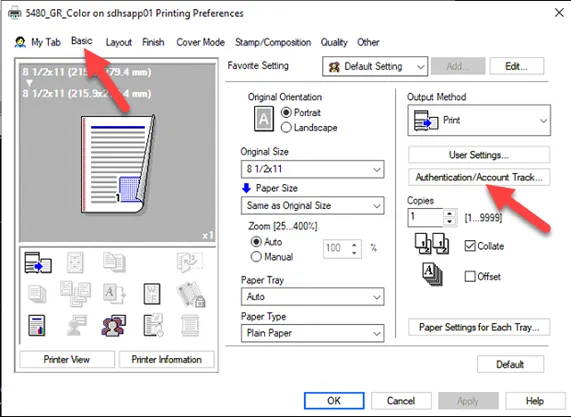
Click on “Basic” Tab, then Click on “Authentication/Account Track…”
1. Verify that the username is correct.
2. Type in GR or HLE depending on which department it goes to.
3. Type in PW 1556 for GR or 3693 for HLE.
4. Click “Verify”.
5. Click “OK”.
6. Click “Apply”.
Exit the window and you should be good to go. If you have any issues, please contact IT at x2661.