Client End-Point Details:
Client name: Ryan Young Interior (RYI)
Standard Make & Model: Dell Laptops
Sandra normally buys the end-points for Ryan Young.
Alternate Make & Model: Lenovo Laptops (Rare these are used)
Default naming schema: RYI-Number
Number will be provided by Sandra, as she tracks the end-points, and assignment issued to the end-user.
Minimum Windows OS Version: Windows 10 21H2
Domain: ad.ryan-young.com
VPN: vpn.ryan-young.com
N-Central Specifications N-Central Agent link:
Other software and installer links (installers must be present on the ncentral probe and CS must add these to the onboarding scripts to be deployed via ncentral):
Office x64 bit
Adobe Reader (set as Default)
AnyConnect
Zoom Meeting launcher
Google Chrome (set as Default)
OpenDNS
MS Teams
N-Able (Windows Agent)
AV Defender
List all other applications used by the client that need to be installed (If needed recreate this form for specific roles if application lists differ by role.
Specific End-Point provisioning Instructions:
The following items need to be installed, and configured for all Ryan-Young computers
Computer configuration (If the computer in on the Ryan Young Network: Skip Steps 4 & 5)
- Work with Sandra to gain access to the end-point through Screen Connect
- Create account “localuser”, and add it to the Local Administrators Group
- Set password to the standard in Password state for the client.
- Login to the end-point as “Localuser”
- Install the AnyConnect VPN
- Login to the VPN
- Add computer to domain: ad.ryan-young.com
Software install
- Install the following software on the end-point
- Office365 x64
- Login into OneDrive (if possible)
- Adobe DC
- Set as the default PDF Reader
- MS Teams
- Zoom Meeting Launcher
- N-Able (Windows Agent)
- AV Defender
- Chrome
- Remove Add\Bloatware
- Pin Word\outlook\excel\Power-Point to the taskbar
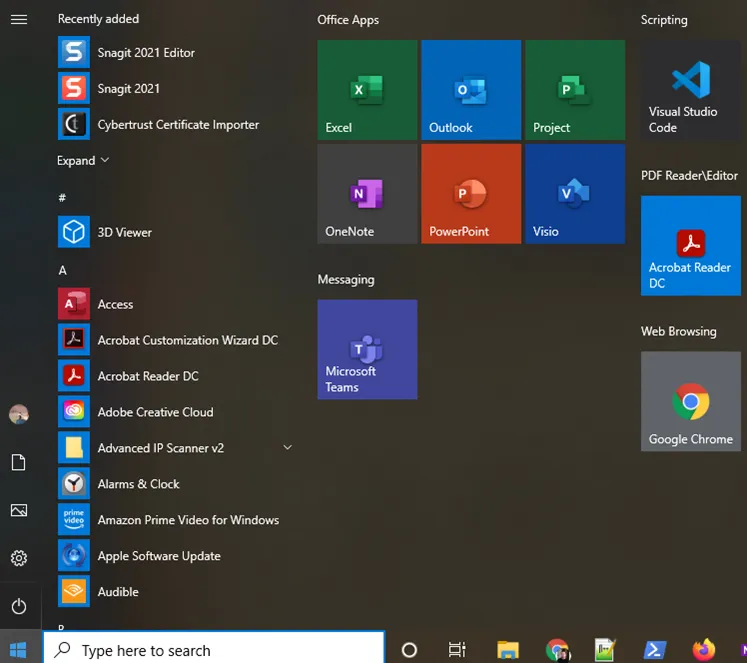
- Cleanup start menu to show only production applications
- Example:
User specific setup
- While connected to the VPN select switch user
- This step can be skipped if the End-Point is on the Ryan Young Network.
- Login to the end-point using the users AD credentials.
- This will build the users profile on the end-point, and cache their credentials
- add the end user into the local Administrators group
- Once the users AD Profile has been configured on the end-point setup the following applications
- Setup outlook
- Setup teams
- Sync Share-point pages user has access to. “Company Shares’
- Verify all required\requested Shared Drives have been mapped
- Remove Cortana task view buttons
- Set Chrome as the default browser
- Configure AnyConnect
- Add users AD account to the Local administrators group.
- Add the below Icons to the desktop
- Office Suite
- Word
- Power-Point
- Outlook
- Excel
- Adobe Reader
- Chrome
- Pin the below applications to the task bar
- Office Suite
- Word
- Power-Point
- Outlook
- Excel