Client name: RCP Block and Brick Standard Make & Model: Dell Latitude/Lenovo Thinkpad
Alternate Make & Model: Lenovo T16/E16
Default naming schema: RCP-Serial Number
Minimum Windows OS Version: Windows 11
Domain: RCPINC.TLD
VPN: RCP.centrexcloud.com
**Print Server: \\**RCP-MFP
Standard installation:
Section titled “Standard installation:”-
N-Central Agent
-
Cisco Secure Client
-
Cisco Secure Umbrella
-
Adobe Reader
-
Microsoft Office Suite
-
Google Chrome
Available upon request:
Section titled “Available upon request:”-
P21 Web and/or desktop version URL only
-
Crystal Reports
-
Mitel Connect -H:\Install\SHoreTel Software\MiVC_Connect_Client_19.3-SP3-HF2_214.100.3180.0 (On the Mitel HQ server 192.168.0.15)
-
3 of 9 barcode font H:\Install\Epicor\Current Installers\Fonts
Schedule a time with the user and connect to the user’s old device
Section titled “Schedule a time with the user and connect to the user’s old device”-
Mirror as much as you can on the new device
-
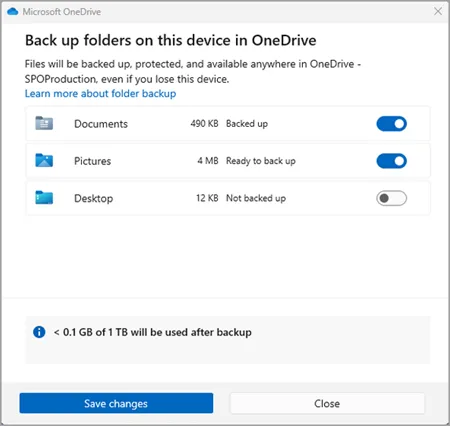
Make sure OneDrive is signed in, and that saving Desktop/Documents/Photos is Backup enabled for easy transfer.
-
Ensure that the old device has documents and desktop backup enabled as well for two-way easy sync for the user’s desktop files.
-
Note any extra apps they may need that aren’t part of the base provision. Eg: Zoom outlook Plugin, Slack,
-
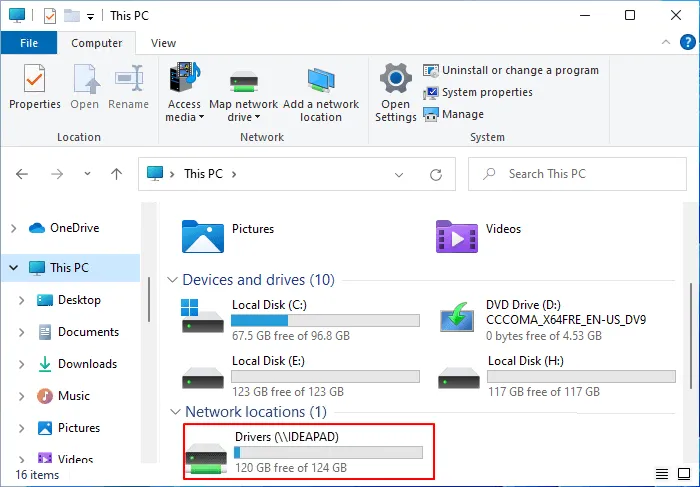
Note the drives mapped in File Explorer
-
Note the printers
-
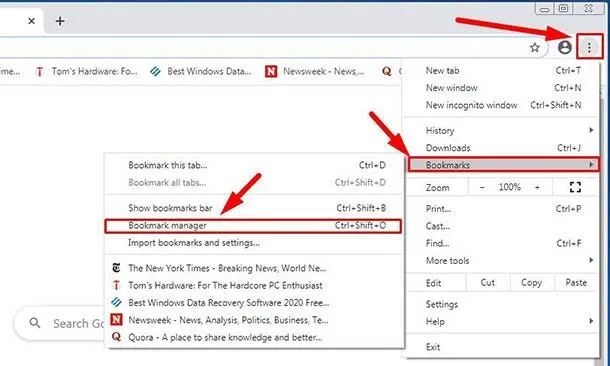
Make sure Browser bookmarks are moved over. Ask if they have a Google sign-in for Chrome (Edge should be a work sign-in if they use it)
-
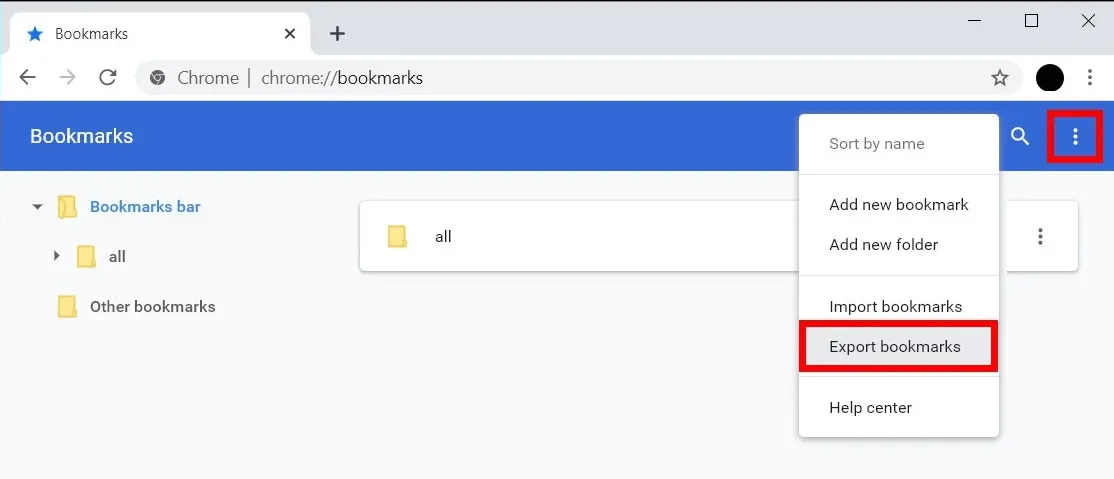
Or offer to manually move the bookmarks by utilizing the Google bookmark manager to export the file to the desktop. OneDrive should pick it up so you can apply it to the new machine once the sync has been completed
-
User-Add on the New Device
Section titled “User-Add on the New Device”-
Sign Into work or school with user credentials within localuser account after joining the domain
-
This will begin to apply Intune Compliance policies
-
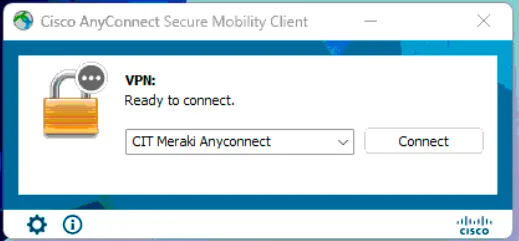
Activate the RCP-VPN
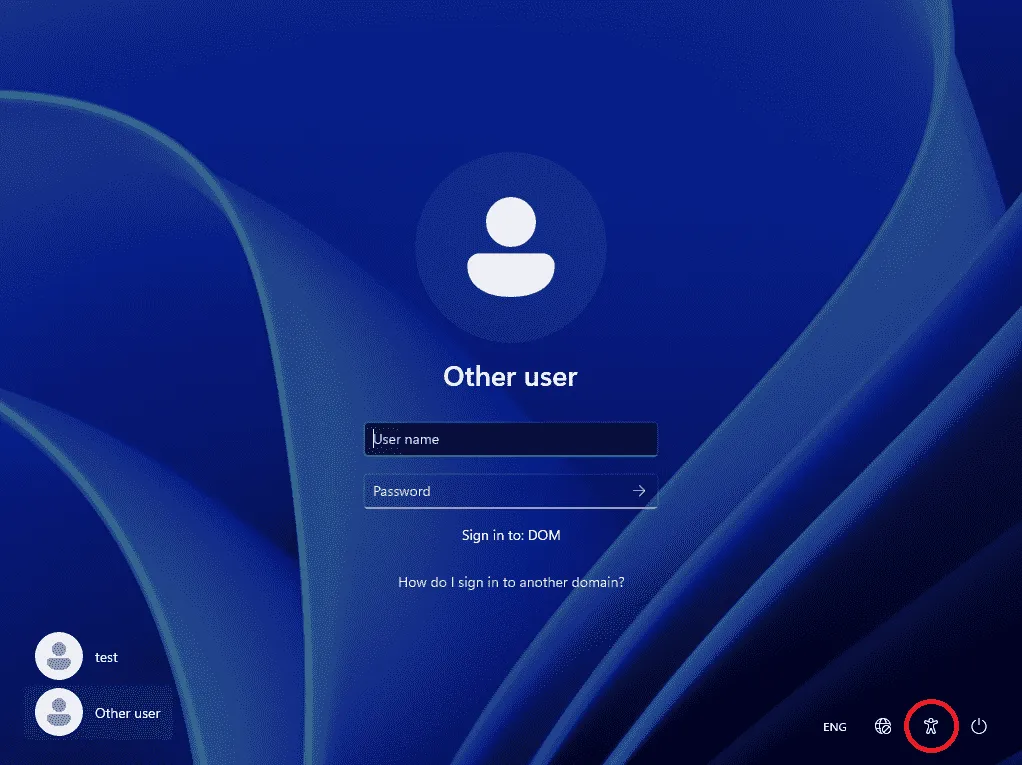
- Switch user accounts
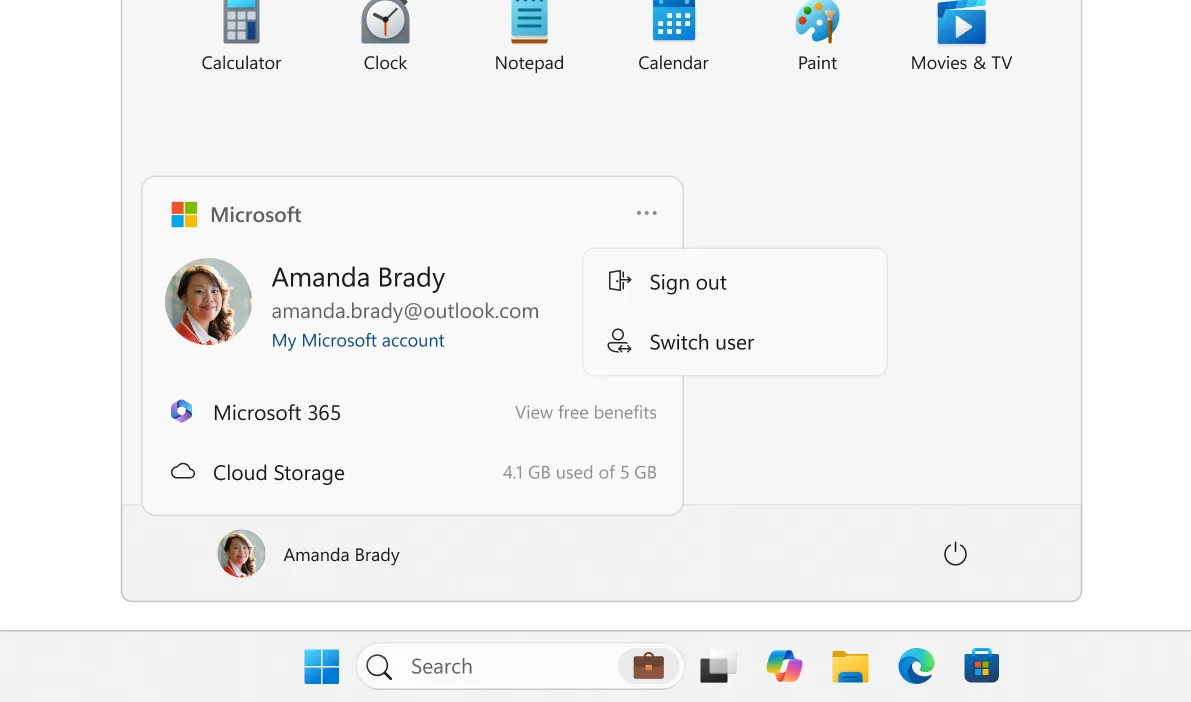
- Sign in with the user’s domain credentials.
-
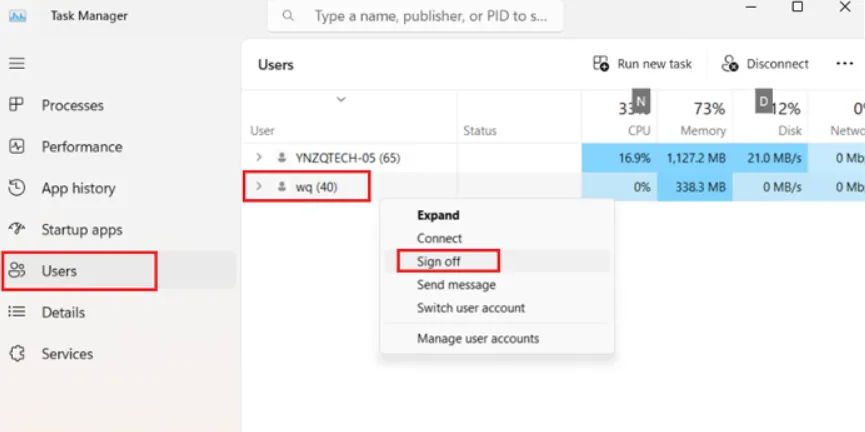
Once you are signed into the user account, launch task manager as admin
-
Switch to the signed-in user’s tab, right-click on localuser, and select Sign Off.
-
You can now launch the VPN and sign in with the user’s credentials
-
Sign in to the VPN before attempting Microsoft 365 app sign-ins.
User Account Configuration:
Section titled “User Account Configuration:”-
Setup the user profile
-
Sign in to Outlook, pin it to the taskbar
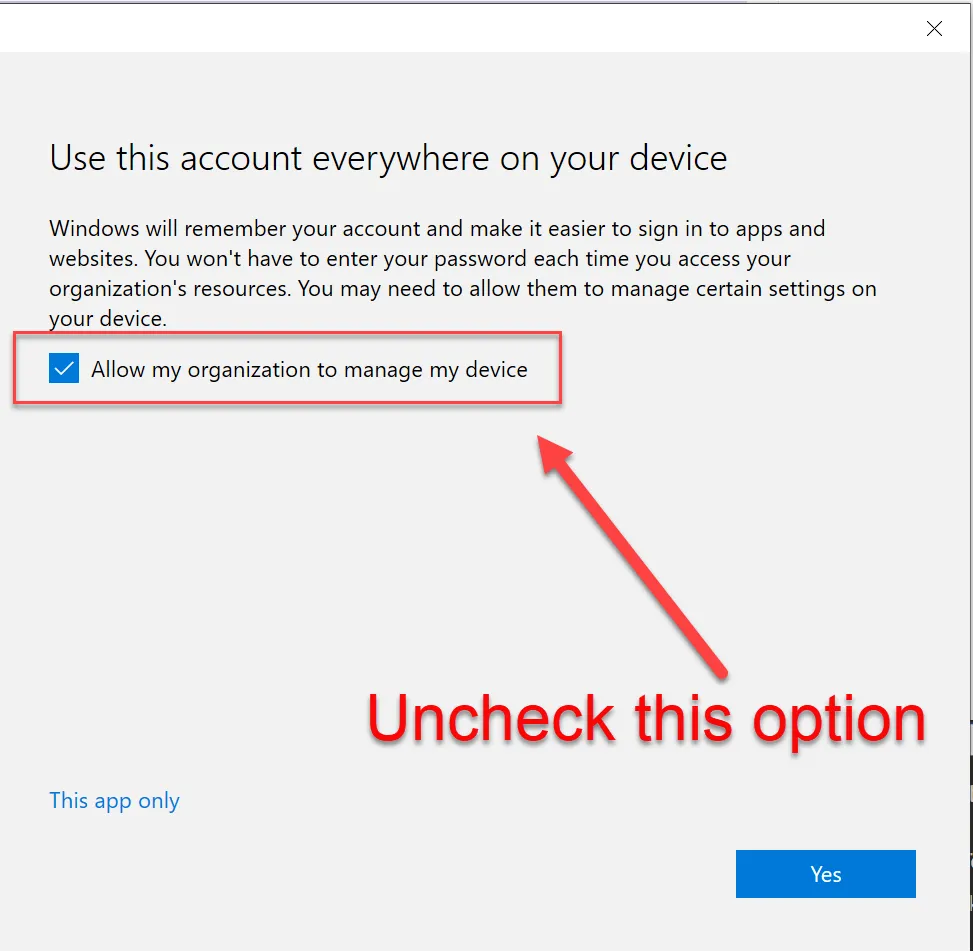
- When presented with this screen, uncheck the box that “Allows this organization to manage my device” as it tends to cause authentication issues with TPM.
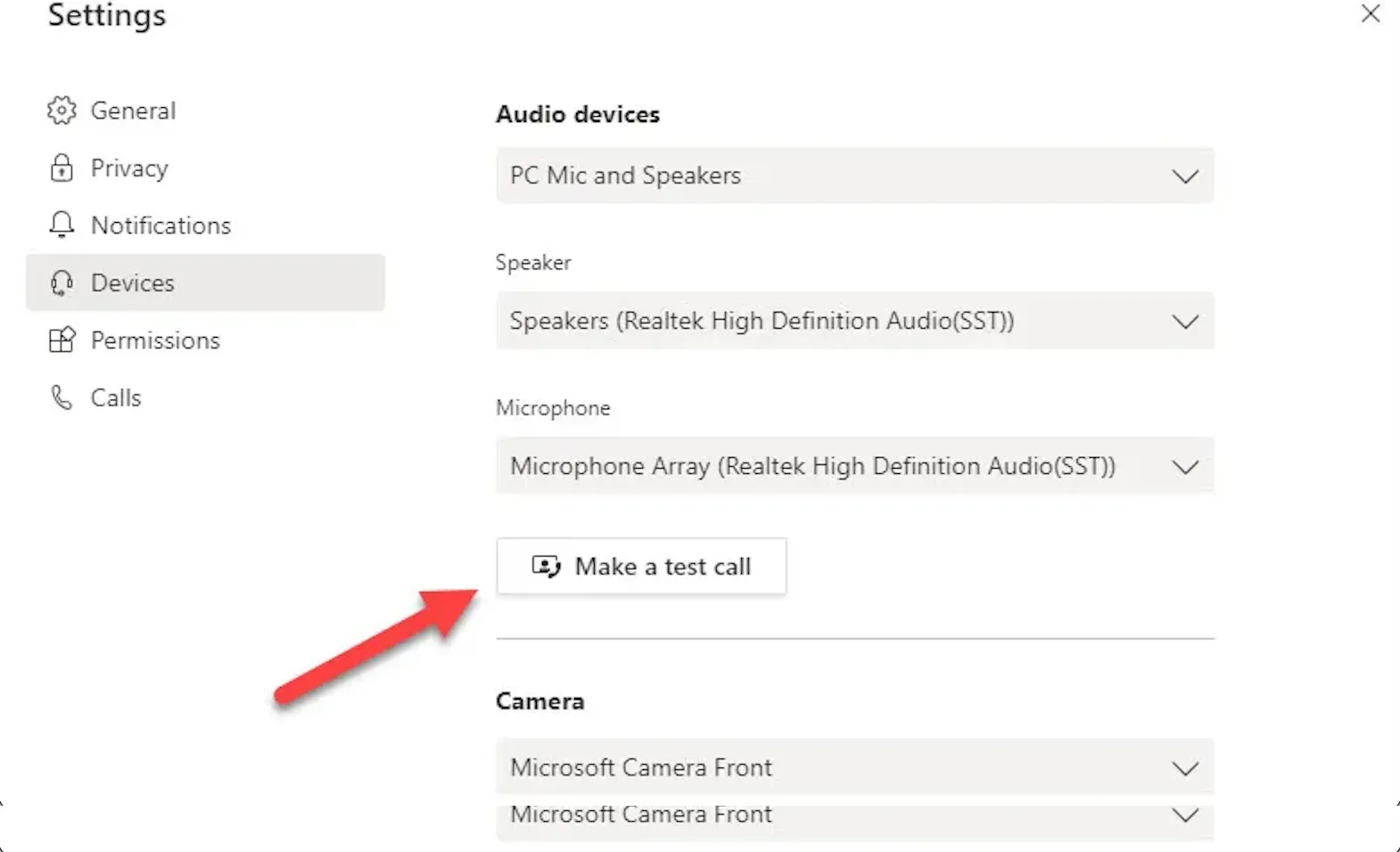
- Set up Teams, and perform a test call to ensure the camera and mic work and that no network authentication message pops up during the user’s first meeting.
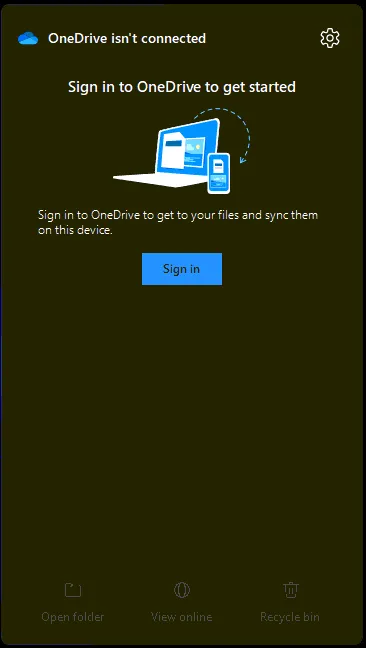
- Setup OneDrive from the taskbar shortcut
-
Set App defaults with Settings
-
Set system sleep times 15-30-30-1Hr.
-
Clean up the taskbar and Start menu bloat if needed.
-
Verify drives have been mapped or manually map them
-
Apply the user’s bookmark files
-
Install additional apps the user may need/has on the other device
Company Portal & Compliance
Section titled “Company Portal & Compliance”-
Install the Microsoft Company Portal app from the Microsoft Store
-
Sign in with the User’s M365 credentials
-
Note that the device is corporate-owned
-
Ensure that all policies apply
-
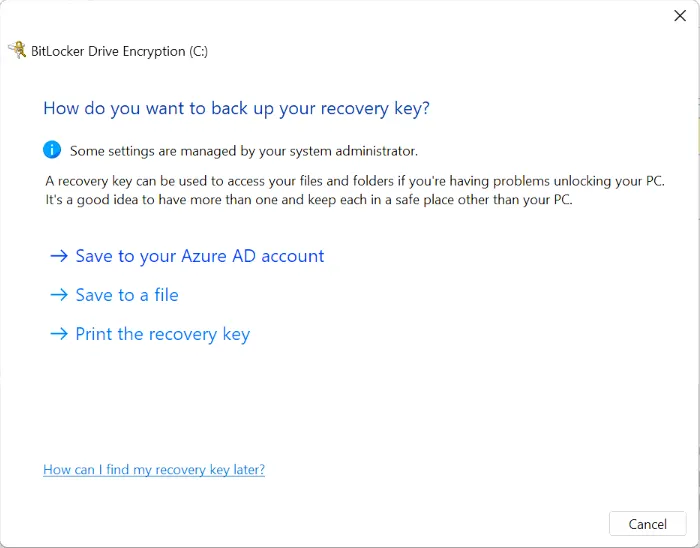
Enable BitLocker encryption in the Control panel
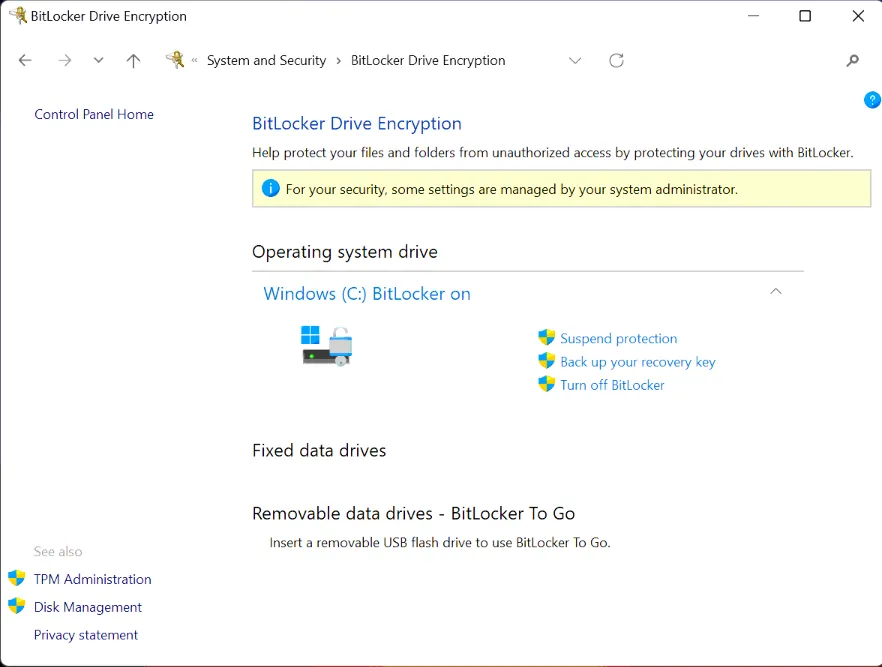
- Save the Bitlocker key to the AzureAD Account
-
Ensure that the Bitlocker Key is backed up to the user’s AzureAD account
-
Check the status of the device within Intune and ensure compliance policies are met
- Perform a Quality Check with the user and ensure they are pleased with the new setup.