Download and Upload of new Firmware
1. Browse to the Dell Support Page
2. Using a Serial Number from one of the Wyse 3040 Thin Client
a. Can be found in the Wyse Management Console
3. Click on Drivers, and Downloads tab
4. Click on Category, and select “Operating System”
a.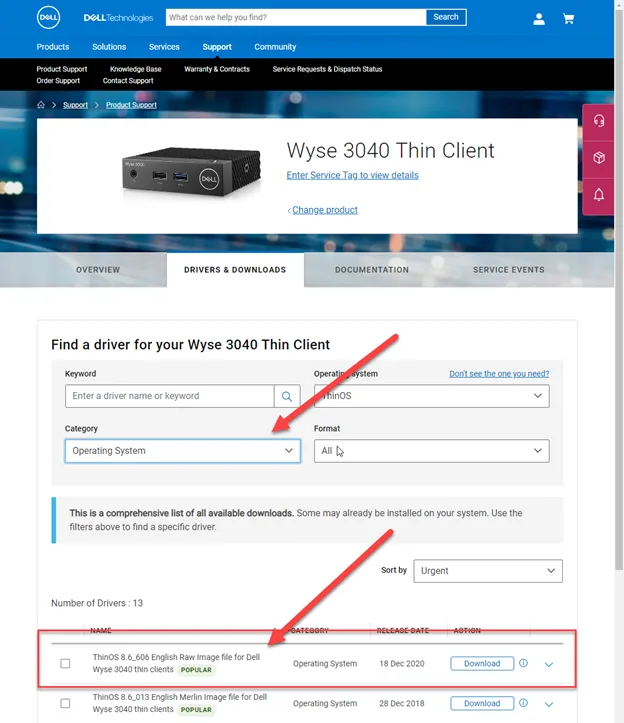
5. Download the latest version
6. Unzip the file
7. Login to the Wyse Management Console
a. Creds can be found in Password State under: Website\Dell Wyse Management Suite
8. Click on the Apps & Data tab
a. Add Screen shot of Tab
9. Click on ThinOS
a.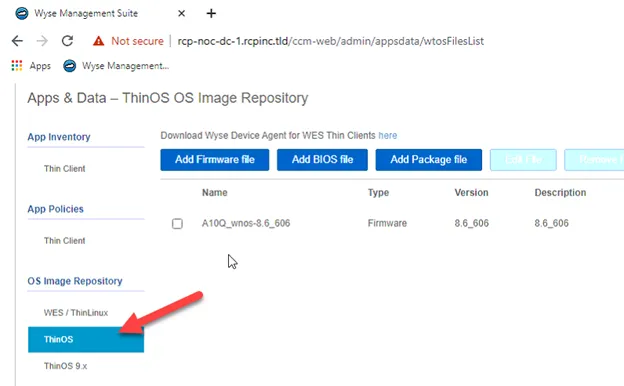
10. Click “Add Firmware file
a.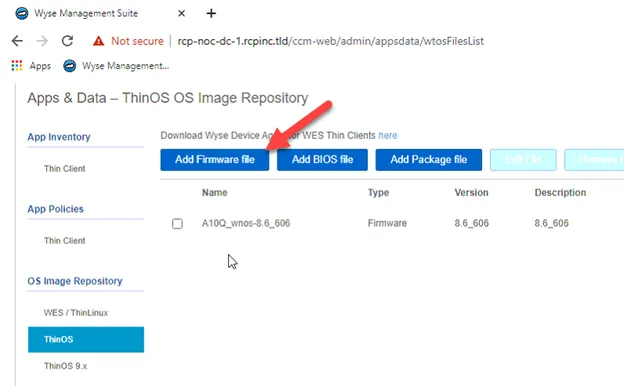
11. Click Browse
a. Browse to the directory you unzipped the firmware file to
b. Select the file, and click open
c.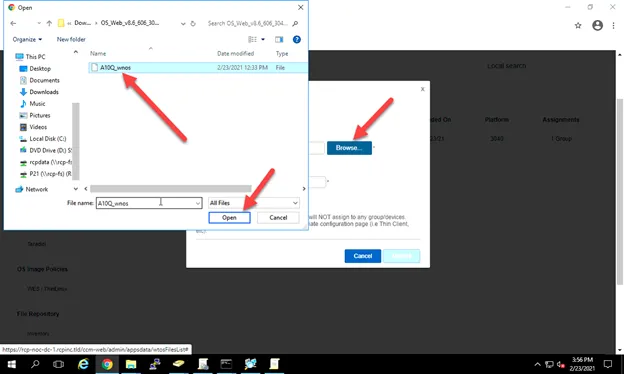
12. Name the file after the version number, and click upload
a. Description should match the version number
b.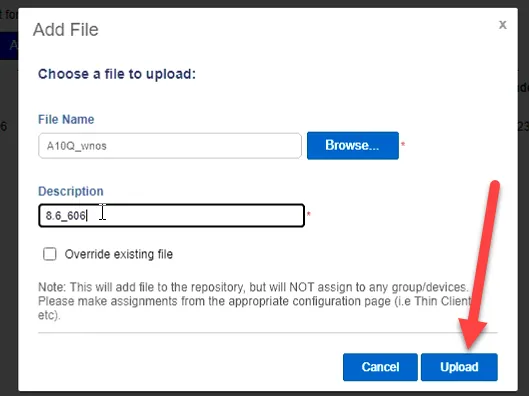
13. You should now see the firmware version you will be applying.
a.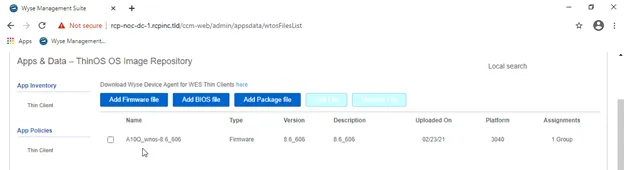
Apply new firmware to test group
1. Login to the Wyse Management Console
2. Navigate to Groups, and Configs
a.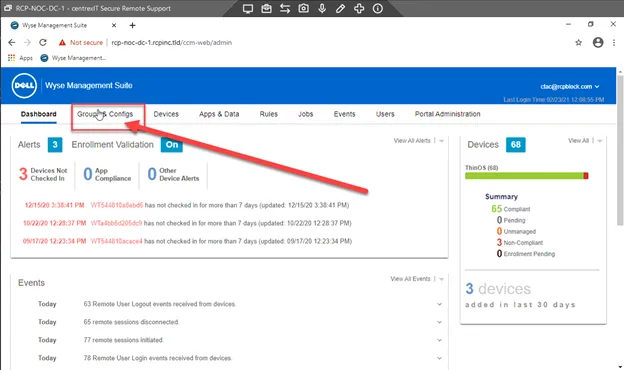
3. Select “Settings Test”
a.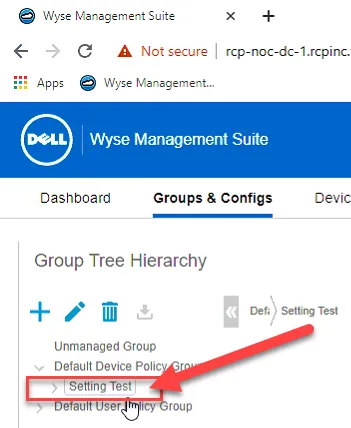
4. Click on Edit Policy, then click on Thin OS
a.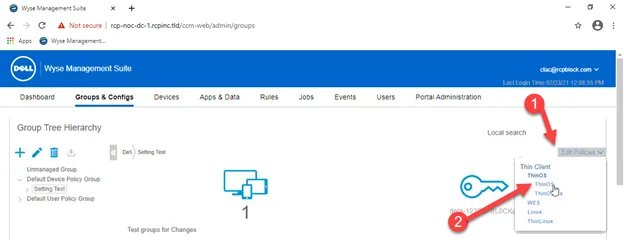
5. Scroll to Firmware Update
a.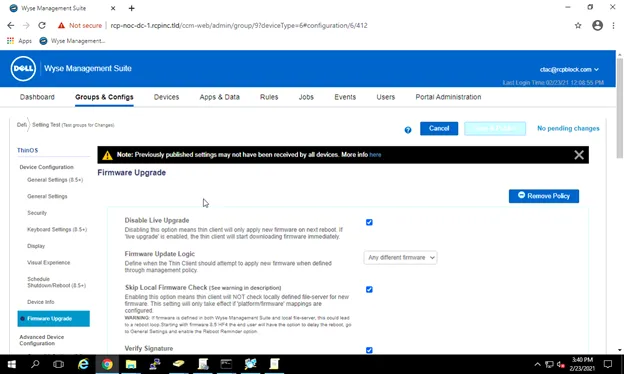
6. Scroll down to till you see Platform, and Firmware to auto-deploy
a. Click Platform Type, and Select 3040
b.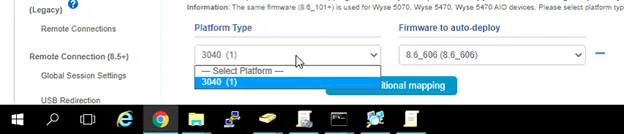
c. Click “Firmware to auto-deploy” and select the firmware version your wish to Deploy.
i. Example: 8.6_606
d.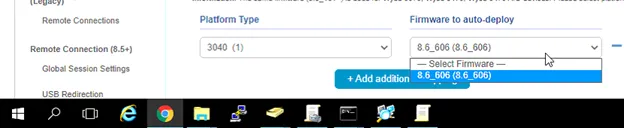
7. Scroll to the top of the page, and click Save & Publish
8. Click on Devices, find the device in the search by Configuration Group, by selecting “Setting Test”
9. You should see one device in this group
a. Check the box next to the Device Name, and then click restart. This will force a reboot of the Thin Client to apply the firmware. It will take about ten minutes for the new OS to apply, and register with the management console
b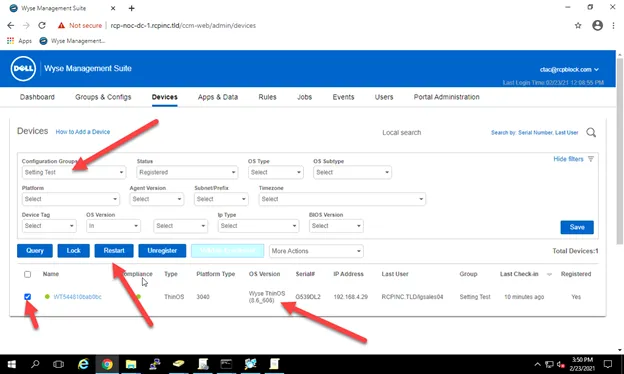 .
.
10. Let POC know Firmware has uploaded, and Deployed to test computer.
Apply new firmware to Default Device Policy Group
1. Login to the Wyse Management Console
2. Navigate to Groups, and Configs
a.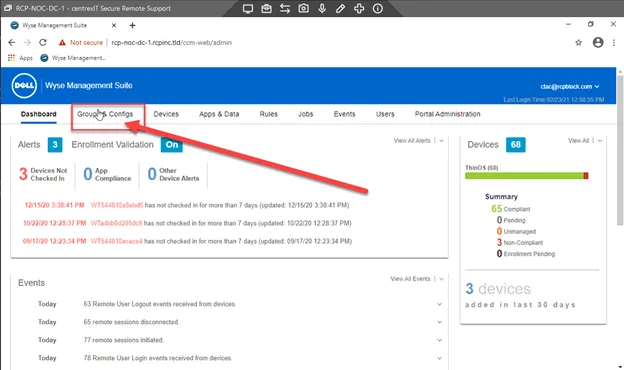
3. Select “Default Device Policy Group”
a.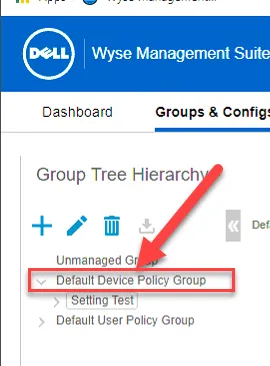
4. Click on Edit Policy, then click on Thin OS
a.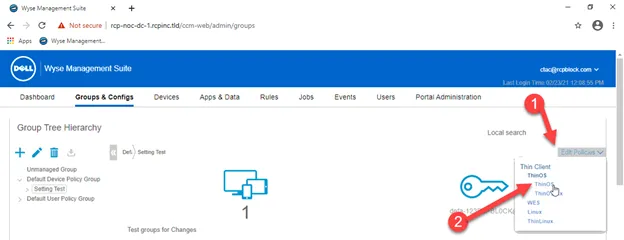
5. Scroll to Firmware Update
a.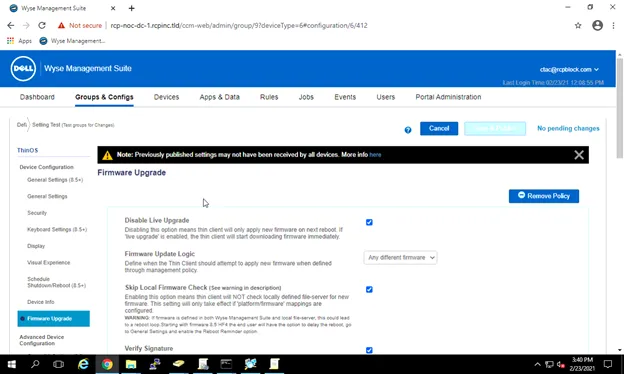
6. Scroll down to till you see Platform, and Firmware to auto-deploy
a. Click Platform Type, and Select 3040
b.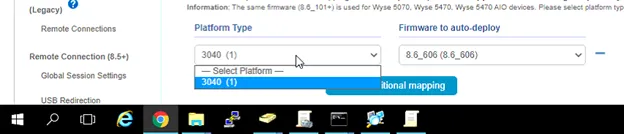
c. Click “Firmware to auto-deploy” and select the firmware version your wish to Deploy.
i. Example: 8.6_606
d.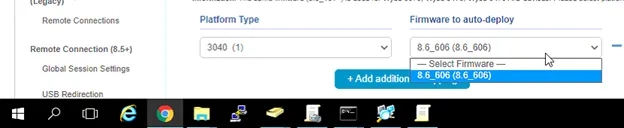
7. Scroll to the top of the page, and click Save & Publish
8. Click on Devices, find the device in the search by Configuration Group, by selecting “Default Device Policy Group”
9. You should see one device in this group
a. Check the box next to the “Name” to select all devices in the this group, and then click restart. This will force a reboot of all Thin Clients to apply the firmware. It will take about ten minutes for the new OS to apply, and register with the management console
b.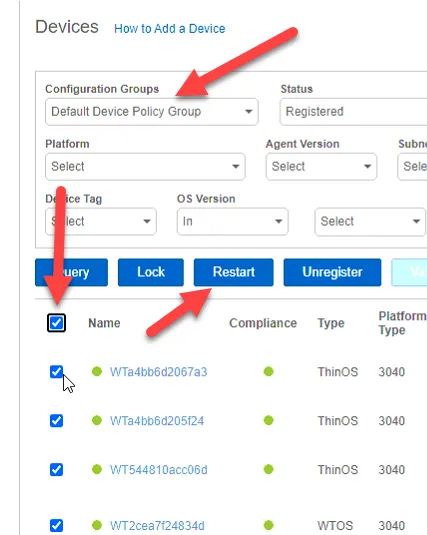
10. Update the POC to confirm this has been completed.