1. Login to vcenter (CIT Private Cloud)
2. Take Snapshot of RCP-DOCSTAR, and RCP-DOCSTAR-SQL
3. Login to https://epicweb.epicor.com/
a. Use Ed’s credentials in 1Password
4. Navigate to products\EpicorECM(DocStar)\Downloads
a. 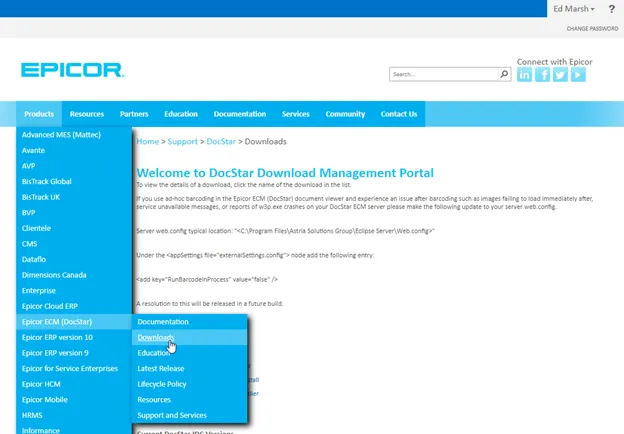
5. Find eclipseserversetup.exe and download to RCP-DOCSTAR
6. Open ISS, and stop the service
7. Run eclipseserversetup.exe
8. Check “I Agree to the license terms and conditions” then click “Install
a. 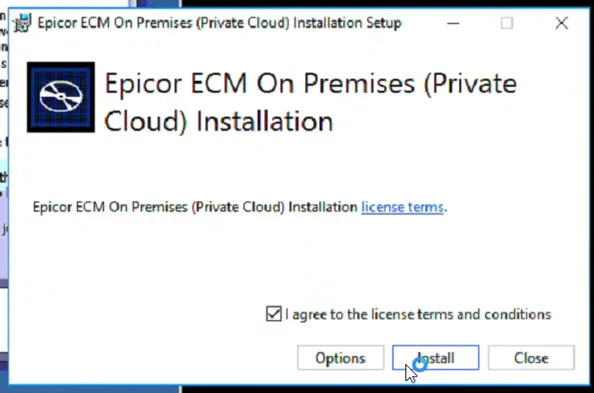
9. Once the installer loads you should see the following screen
a. 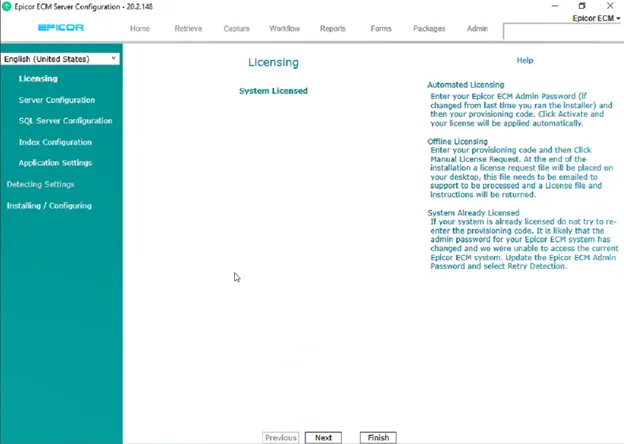
10. Click next
11. Verify Server Configuration
a. 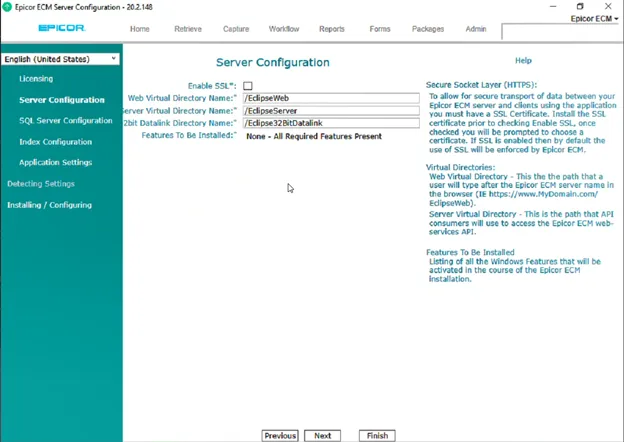
b. Then click next
12. Verify “SQL Server Configuration”
a. 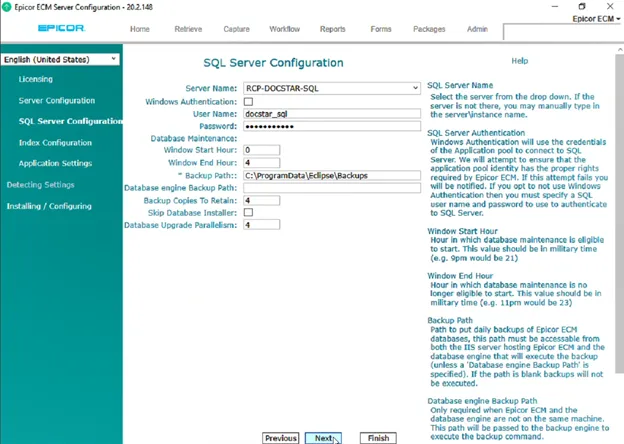
b. Then click next
13. Verify “Index Configuration”
a. 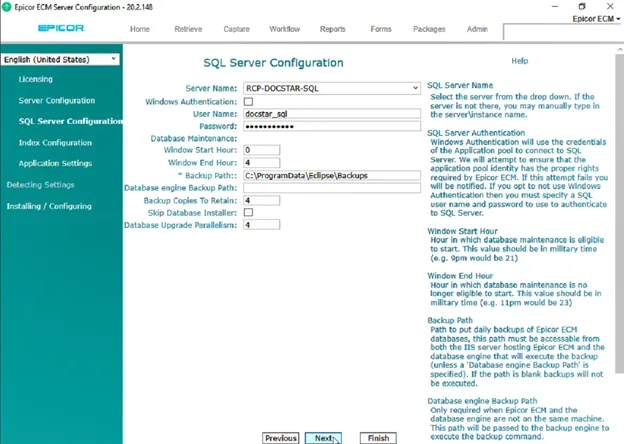
b. Click Next
14. Verify “Application Configuration”
a. 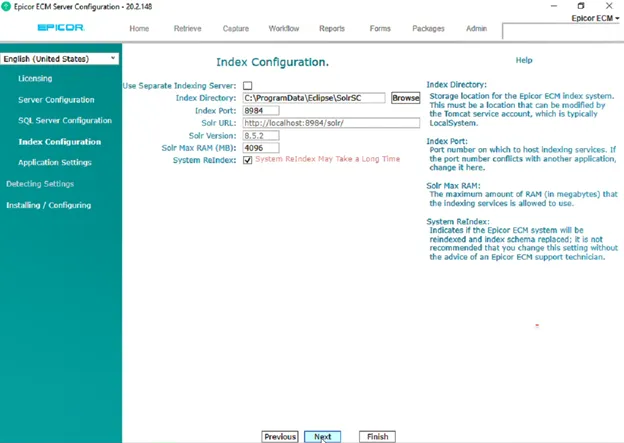
b. Click Finish
15. The install should start running:
a. 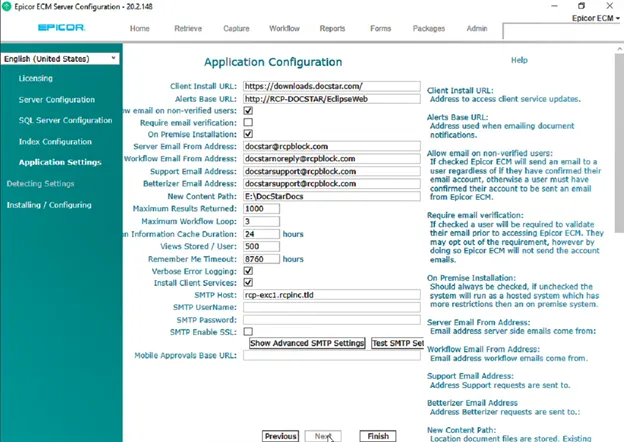
16. Once completed you should see the following:
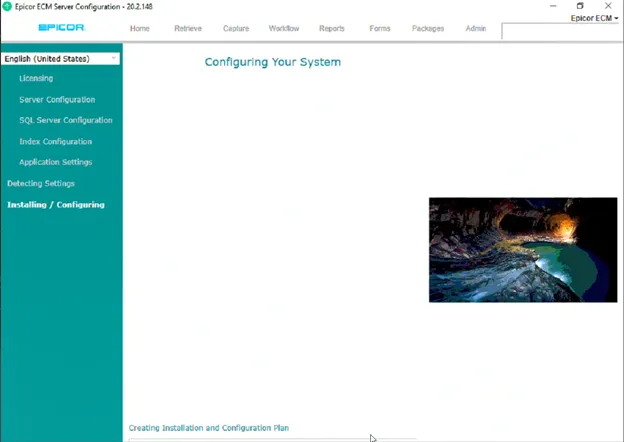
17. Close the application
18. Restart ISS Services
19. Have the POC check login, and verify all functionality in the system is working as need.
20. If not, Work with POC to open case with Epicor Support.
21. Once confirmed all is working. Remote snapshot form RCP-DOCSTAR, and RCP-DOCSTAR-SQL