Nura Bio – PC Provisioning Checklist Computer naming standard NURA-SerialNumber)
Domain: AzureAD/EntraID
Software:
Section titled “Software:”-
Cisco Secure Client
-
Cisco Umbrella Agent
-
Google Chrome
-
Microsoft Office 365 Apps for Business
-
Adobe Reader Install (https://get.adobe.com/reader/)
-
Zoom Install (https://zoom.us/download)
-
Box Install (https://www.box.com/resources/downloads)
-
Additional program installers based on Client / Follow Spec Sheet
Setup Steps:
Section titled “Setup Steps:”-
Create localuser admin account
-
Restart the device
-
Computer fully updated (IOS / Windows Updates)
-
System Updates (Dell/Lenovo Updates)
Add the user to the device with Work or School EntraID Sign-In
Section titled “Add the user to the device with Work or School EntraID Sign-In”-
Navigate to Settings
-
Navigate to Work or School settings
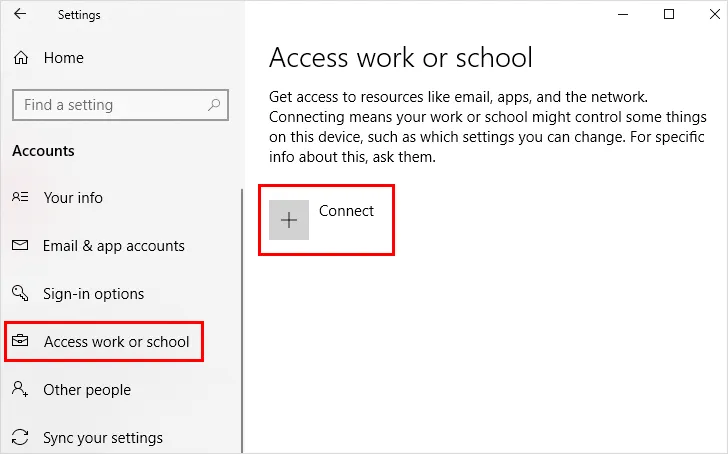
- Select “Sign-In” to work or school
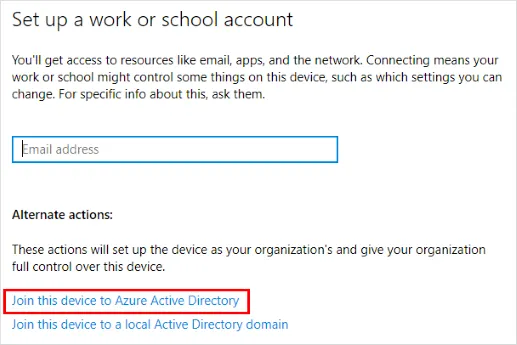
-
Once the Microsoft sign in panel appears, select the blue “EntraID/AzureAD Corporate Sign in” link
-
Sign in with the user’s Microsoft credentials
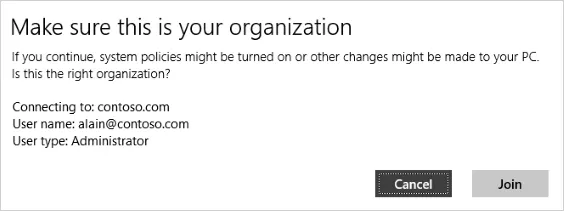
- Agree to join the organization
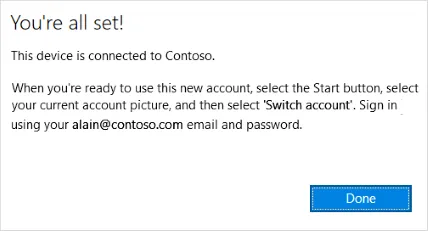
-
Navigate to the start menu and select switch user
-
Sign in with the users Microsoft 365 e-Mail and password
-
The user will likely be required to setup a pin, faceID, or fingerprint.
-
Users can forgo biometrics but must have a pin. usually 6 digits.
Once the user is signed in:
Section titled “Once the user is signed in:”-
Setup the user profile
-
Sign into Outlook, pin it to the taskbar
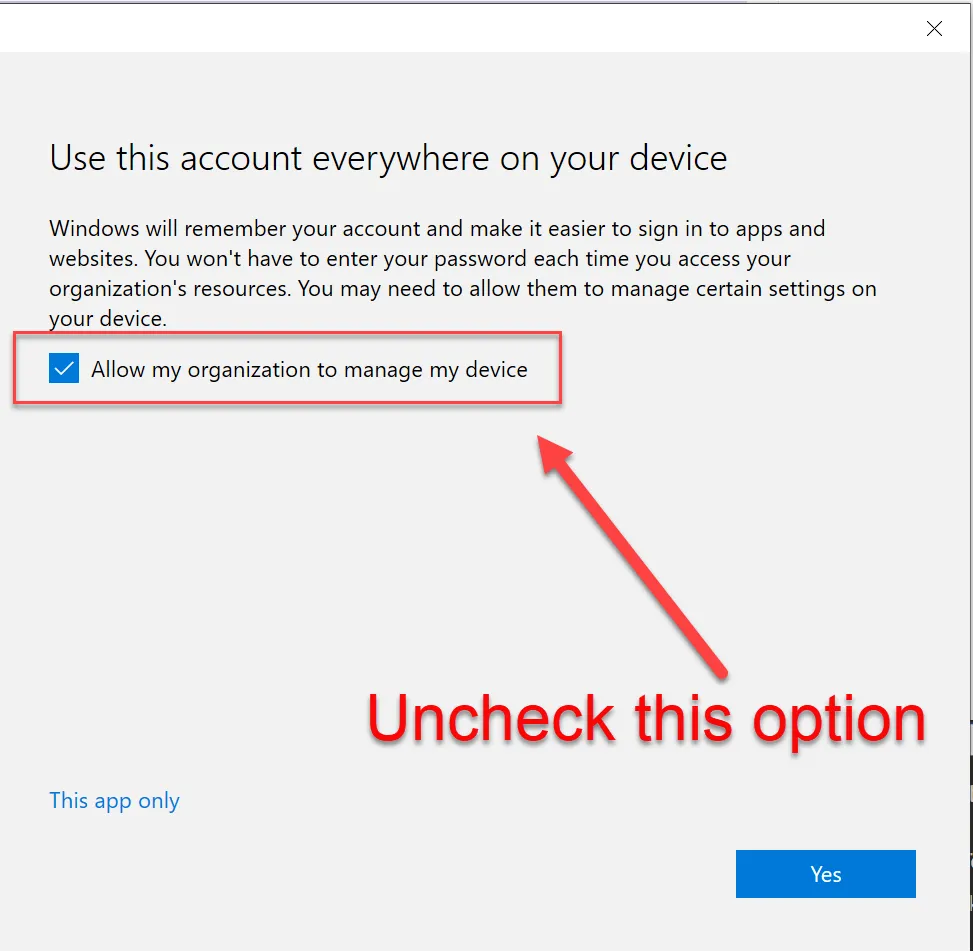
- When presented with this screen, uncheck the box that “Allows this organization to manage my device” as it tends to cause authentication issues with TPM.
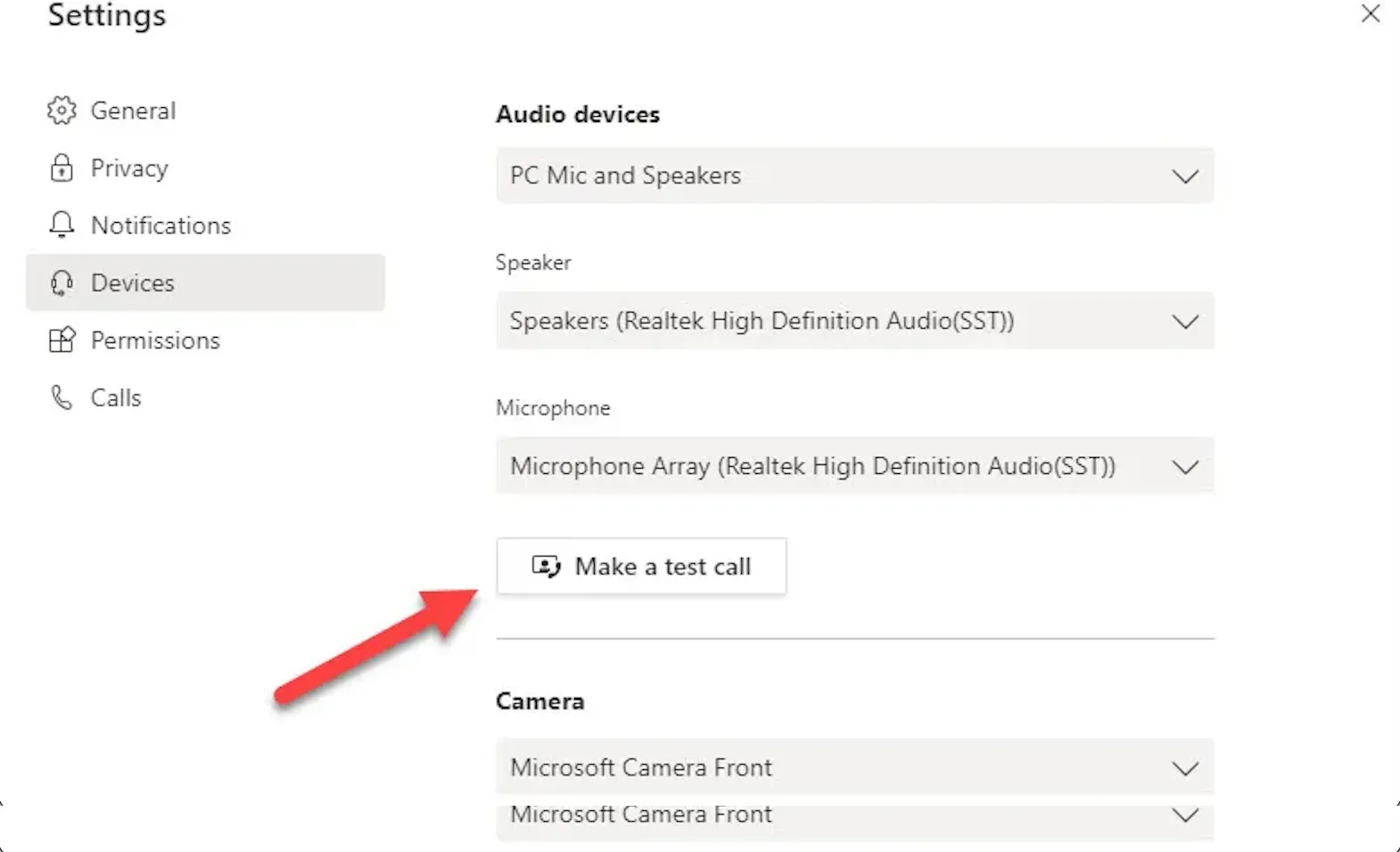
- Setup Teams, perform a test call to ensure the camera and mic work and that no network authentication message pops-up during the users first meeting.
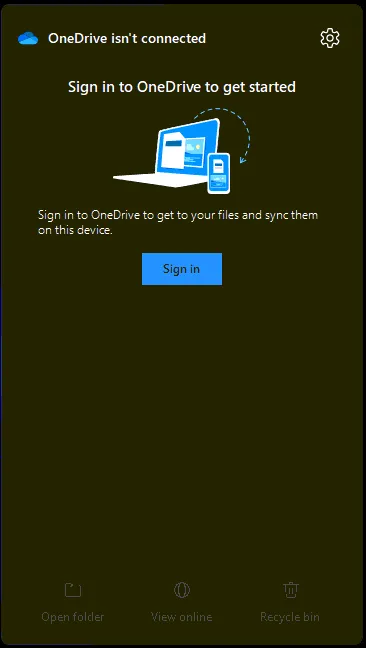
- Setup OneDrive from taskbar shortcut
 s
s
-
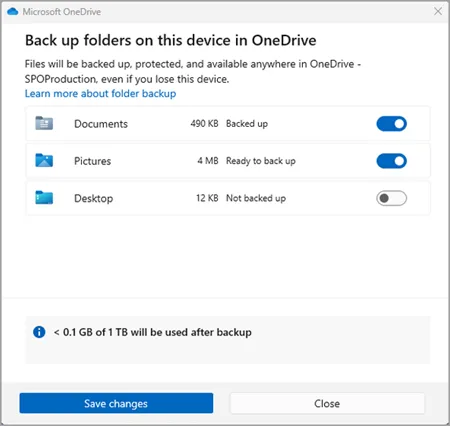
Enable OneDrive Desktop, Documents and Pictures backup
-
Clean up taskbar and Start menu bloat
-
Remove Widgets, CoPilot, Shrink the Search menu
-
Pinned apps: File Explorer, Google Chrome, Outlook, Teams
-
Sign in to Office
-
Setup Outlook
-
Setup Teams
-
Setup OneDrive
-
Setup App Defauls
-
Setup Device Sleep 15m-30m-30m-1Hr for the 4 sequential sleep settings.
-
Coordinate shipment with the client Additional Notes:
- Chemistry users will have two computers set-up