MAIA PC Provisioning and Setup Guide
Section titled “MAIA PC Provisioning and Setup Guide”Standard Make & Model: Lenovo (model N/A)
Alternate Make & Model: Dell (model N/A)
Default naming schema: MAIA-(SN)
Domain: Azure/Entra
Immy.bot Configuration: Configured, Ready to Deploy to skip Out-Of-Box-Experience+Software and localuser configuration. Ref: KB00038353
NOTE: If a user has an Exchange Online license, we will not be able to Azure join them on their new laptop. They will need a Business premium license that offers device management features.
Completion Criteria
Section titled “Completion Criteria”-
Device join to MAIA’s Entra Tenant
-
The device has been renamed MAIA-SerialNumber
-
The user is signed in with user M365 Credentials
-
User’s Office apps, Outlook, Teams, and OneDrive are signed in
-
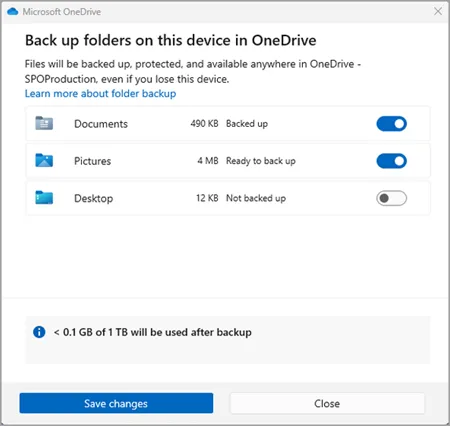
OneDrive Backup is enabled for Desktop, Documents, and Pictures
-
Umbrella module configured with OrgInfo.json
-
Default Apps Set: Mail: Outlook, Browser: Chrome:, PDF: Adobe Reader
-
Apps and Utilities loaded onto the device: per client WI
-
N-Able Windows Agent Take Control Tested
-
Device and drivers have been updated (Windows Update, Lenovo Vantage/System Update)
-
Perform Mic and Camera check with a Teams test call
-
Perform quality checks against the manager’s request and the provisioning Work instruction
System Applications:
Section titled “System Applications:”-
N-Central Agent link: https://ncentral.centrexit.com/downloadAgentOrProbeSoftwareDownloadAction.action?customerId=494&softwareId=101&ncentralTabId=1649192638539
-
Cisco Secure Umbrella
-
Microsoft Office 365 Apps for Business - portal.office.com
-
Microsoft Teams - https://www.microsoft.com/en-us/microsoft-teams/download-app
-
Google Chrome - https://www.google.com/chrome/
-
Set EDGE as default browser
-
Uninstall any Acrobat Reader
-
Install Acrobat Pro if specified
Setup Steps:
Section titled “Setup Steps:”-
Create “localuser” account with the credentials in 1Password.
-
Decline Windows 11 Upgrades
-
Add user to the system via Azure Active Directory
-
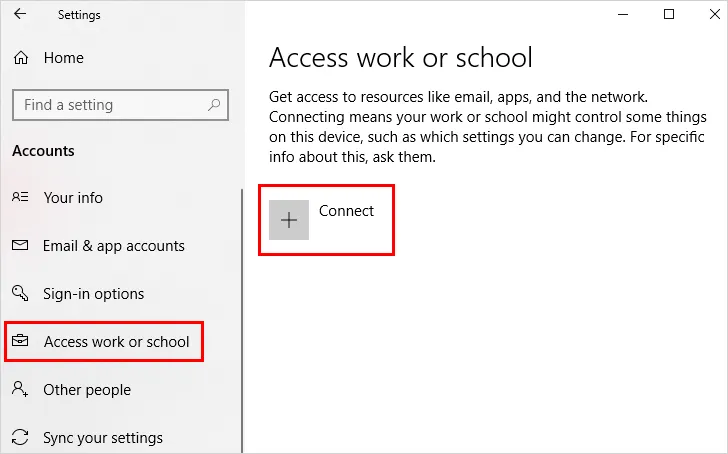
Windows Settings>Search “Work and School”> Sign into a work account
-
Click “Connect”
-
Select “Join this device to “Azure Active Directory”
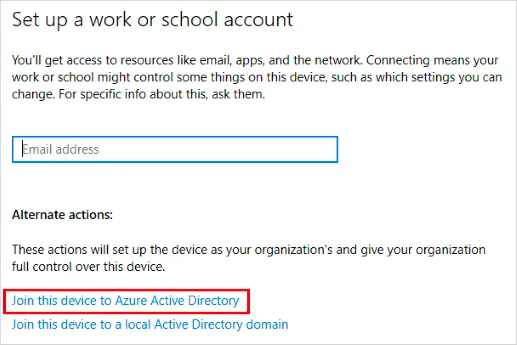
- Sign in with the user’s credentials.
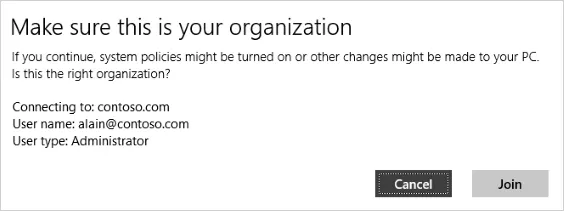
- Agree to join the organization
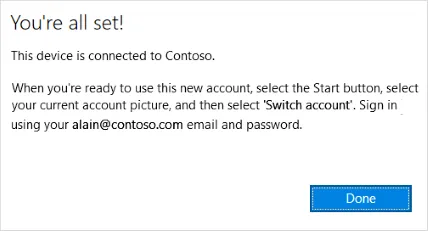
-
Navigate to the start menu and select Switch user
-
Sign in with the user Microsoft 365 e-mail and password
-
The user will likely be required to set up a pin, face ID, or fingerprint.
-
Users can forgo biometrics but must have a pin. usually 6 digits.
Once the user is signed in:
Section titled “Once the user is signed in:”-
Setup the user profile
-
Sign in to Outlook, pin it to the taskbar
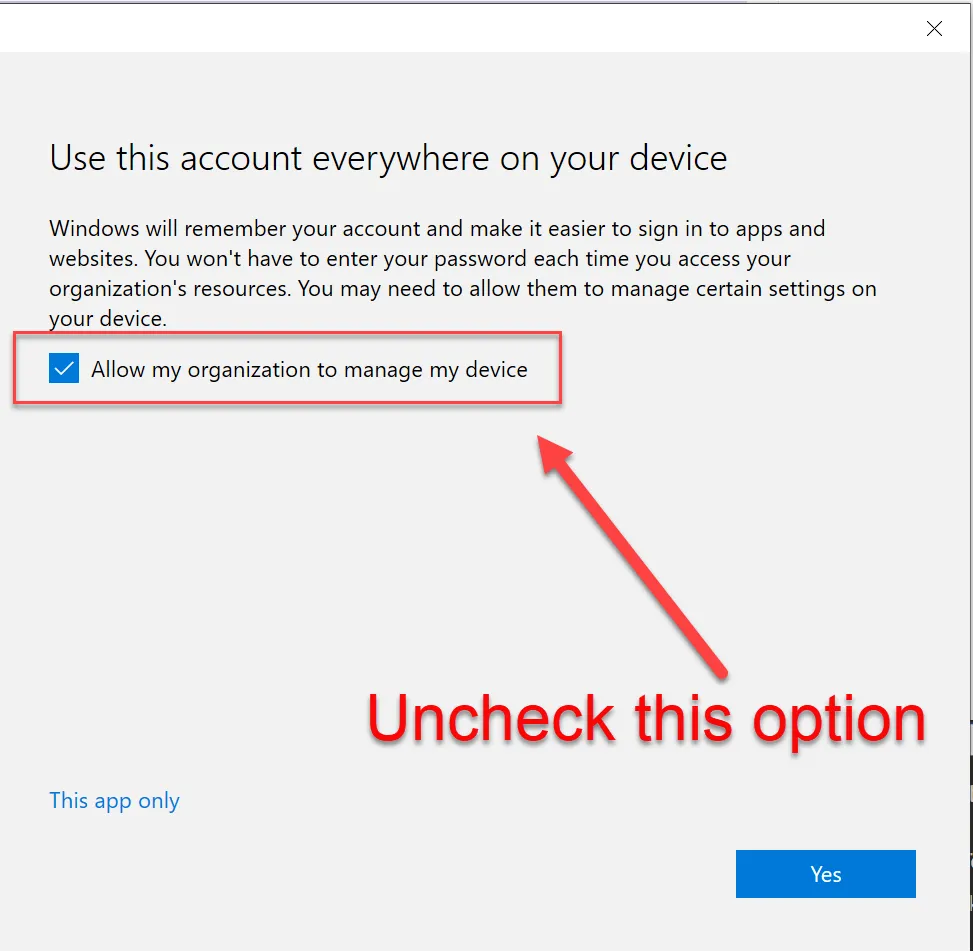
- When presented with this screen, uncheck the box that “Allows this organization to manage my device” as it tends to cause authentication issues with TPM.
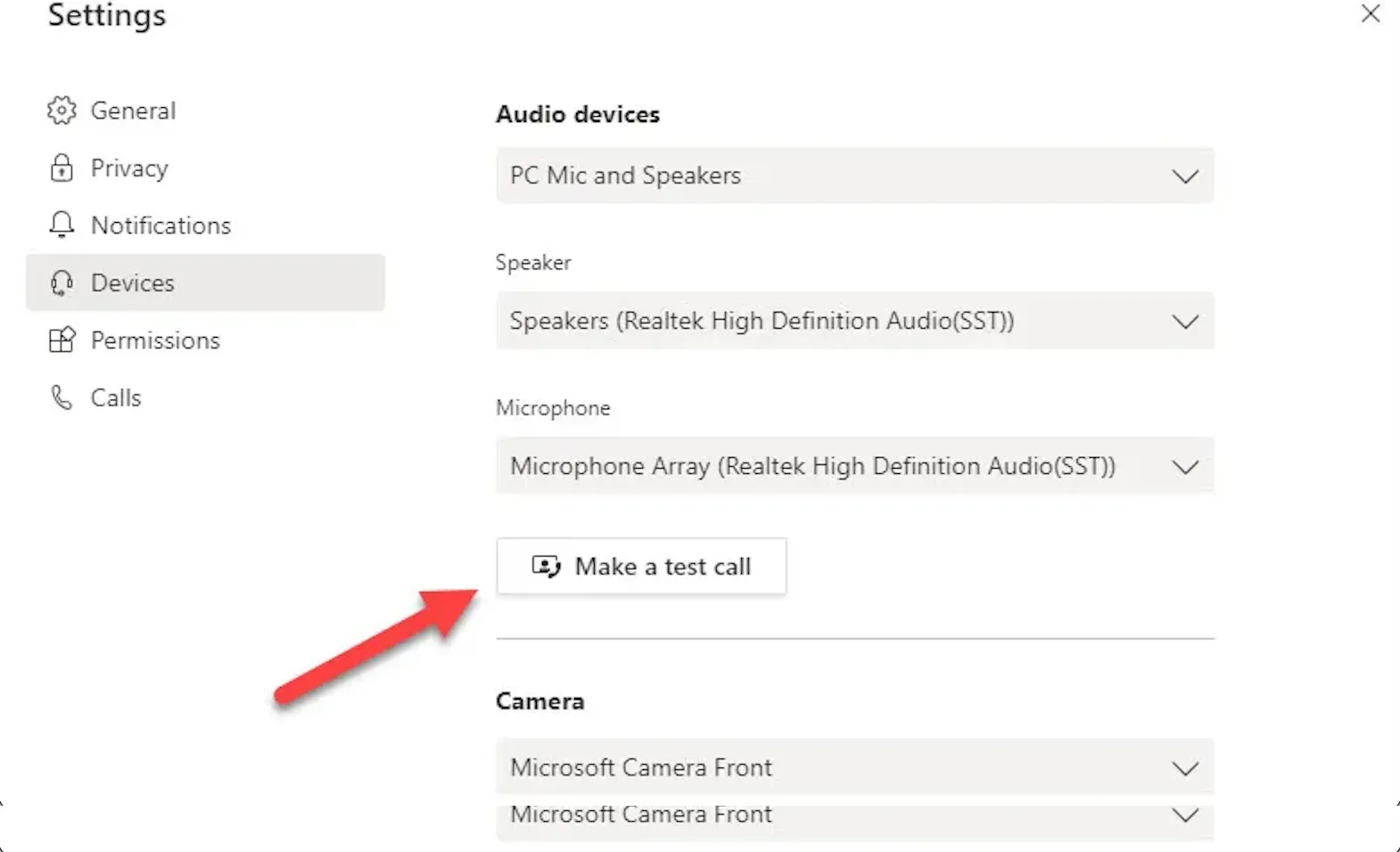
- Set up Teams, perform a test call to ensure the camera and mic work and that no network authentication message pops up during the user’s first meeting.
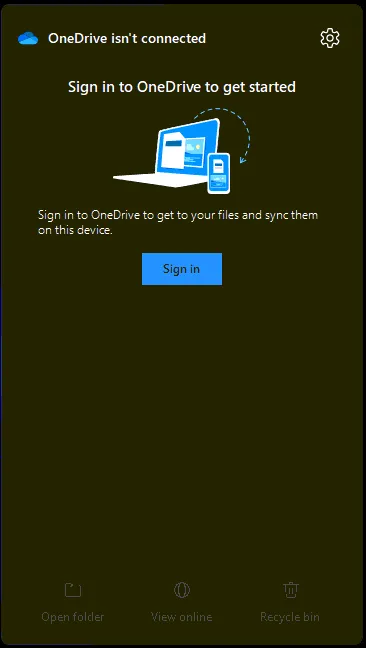
- Setup OneDrive from taskbar shortcut
-
OneDrive Backup is enabled for Desktop, Documents, and Pictures
-
Set App defaults within Settings
-
Uninstall bloatware
-
Clean up the taskbar and Start menu bloat
-
Remove Widgets, CoPilot, Shrink the Search menu
-
Pinned apps: File Explorer, Google Chrome, Outlook, Teams
-
Set system sleep times 15-30-30-1Hr.
-
Run All Lenovo Vantage updates
-
All Windows updates/patches
Shipping:
Section titled “Shipping:”-
Ship the device using the MAIA FedEx account info included in the PC Provisioning request. Radu generally wants $1000 Insurance, FedEx Home Delivery, and a Direct Signature Required.
-
Radu will provide the shipping address for the user
-
Confirm tracking in the Provisioning ticket and with Radu directly in the public channel