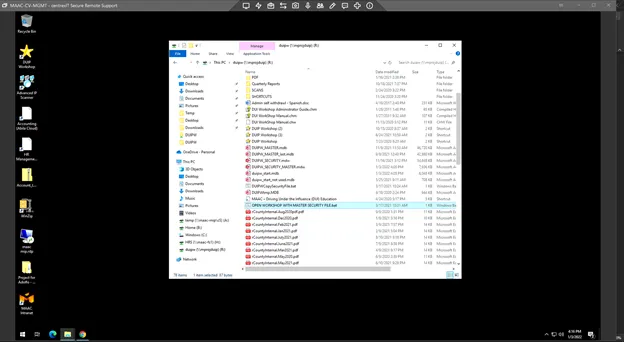
How to change or set DUIPW passwords for users Start off on MGMT PC and on the DUIPW or R drive share, open the bat file shown below (OPEN WORKSHOP WITH MASTER SECURITY FILE.bat).
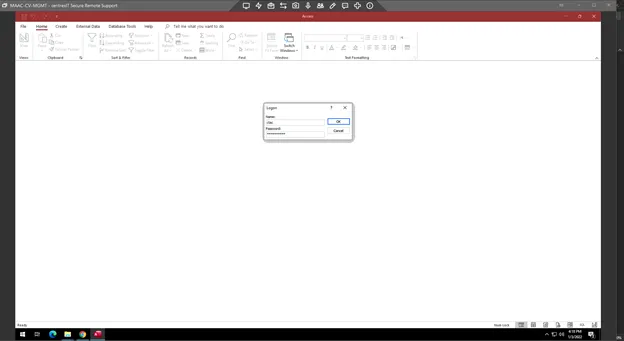
Log on with ctac creds
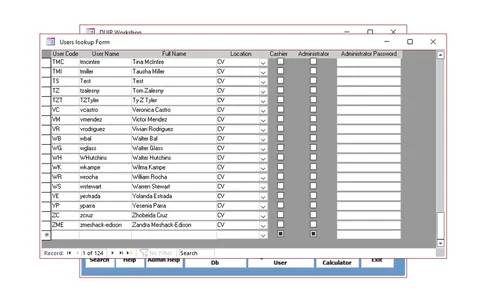
For new users: Under program setup click on users to add them to the database.
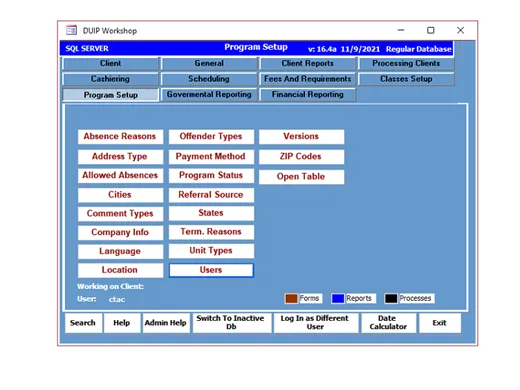
Add the user code (first & last initial or a combo that isn’t used yet), username (as in AD), full name, location (CV), and check the box for cashier and/or admin if needed.
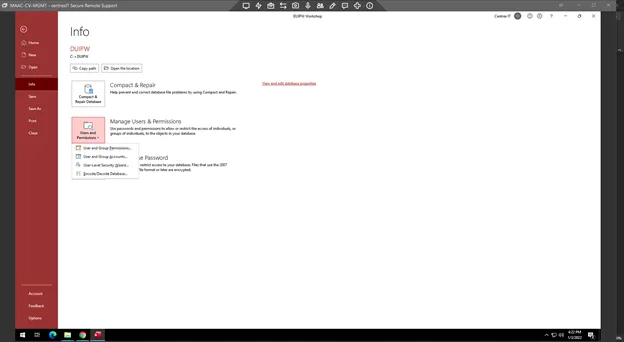
Next, click on File, then info, then users and permissions, then user and group accounts.
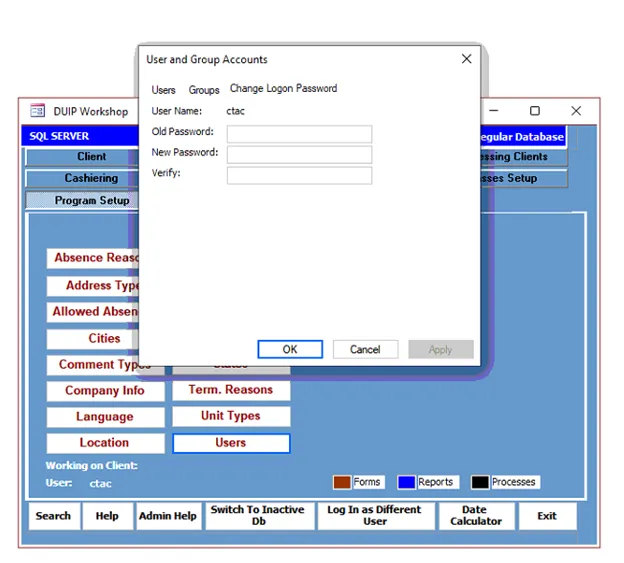
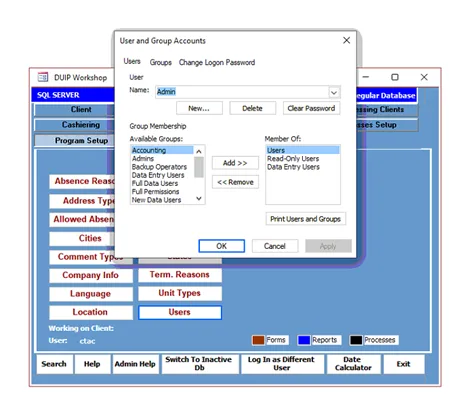
If the user is new, click on new, if they are existing and need to change their password, click on change logon password (while logged in as them).
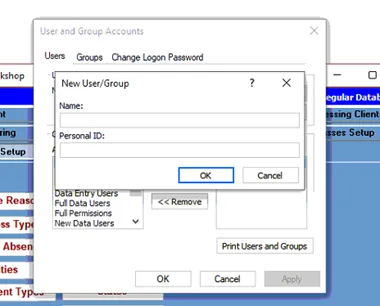
For new users, add their username (AD name) in both fields and click ok.
Then add the appropriate groups to the user if new (e.g., Admins, or full data users).
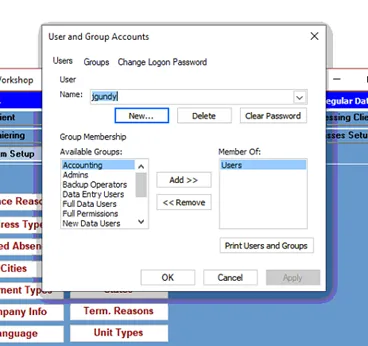
Lastly, for a new user, log out of ctac and into that user. Navigate back to the change logon password area and leave old password blank. Then add the new user password for the next two fields and click apply to set a new user password.
For an existing user (while logged in as them), use their old password and then the next two fields will contain the new password.
If the existing user has forgotten their password, logon with ctac then click on the user in that area and click ‘clear password’. Then logon with their username and no password. Set a new password as if they were a new user.
NOTE: all of these changes to passwords must be done through the .bat file, not the DUIPW (star icon) shortcut!