1. Log on to ScreenConnect.
2. Go to MAAC.
3. Go to the Finance server (MAAC-MIP).
4. Connect to MAAC-MIP using the Domain Admin credentials in PWDState.
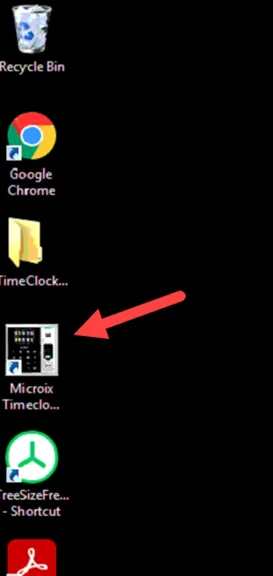
5. Click on the Microix Timeclock icon on the desktop.
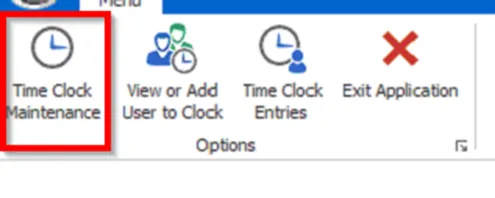
6. Click on Time Clock Maintenance.
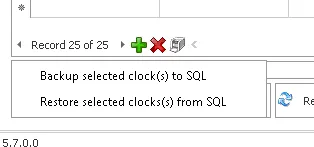
7. First, back up the NC - Master clock (the master clock). Click on the down arrow next to Backup/Restore, then click on Backup selected clock(s) to SQL.
8. After it’s finished backing up, you can now sync the other clocks (the child clocks) from all the centers. Note: You only need to sync with the clocks that have the prefix “NC”; the CV ones are on another network and can’t sync with the North County clocks.
Before doing the restore, you will want to click the Device Info button to show the current number of registered users and fingerprints on NC - Master. You will want to note those two numbers down/take a screenshot to make sure that the child clocks have the same number after the restore.
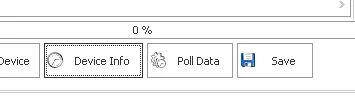
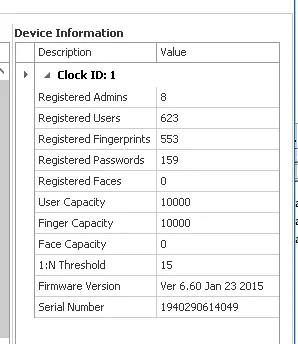
9. Select the first child clock from the list. Click on the down arrow next to Backup/Restore, then click on Restore selected clock(s) from SQL.
10. After the restore completes, click on Device Info to confirm that the number of users and fingerprints updated. If it doesn’t match up with the master clock, run the backup on the master clock again and then run the restore again on the child clock.
11. Proceed to do the restore for all NC child clocks.