Johnson and Jennings PC Setup Guide
Section titled “Johnson and Jennings PC Setup Guide”Please reference the submitted new user or new laptop spec sheet
Section titled “Please reference the submitted new user or new laptop spec sheet”Client name: Johnson and Jennings General Construction
Standard Make & Model: Lenovo Thinkpad
Default naming schema: JJGC-(serial number)
Domain: jandjdomain.loc
VPN: JandJ_VPN.xml (Attached)
Completion Criteria:
Section titled “Completion Criteria:”-
Device join to JJGC domain
-
The device has been renamed JJGC-SerialNumber
-
A user signed in with Domain Credentials
-
User’s Office apps, Outlook, Teams, and OneDrive are signed in
-
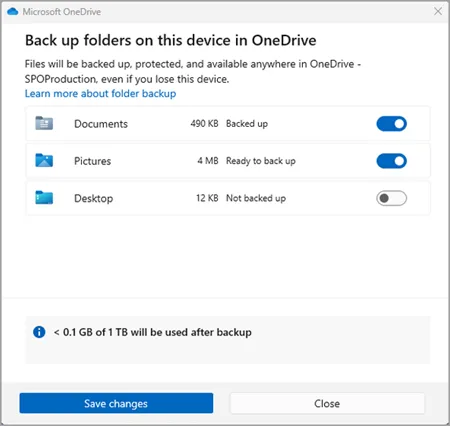
OneDrive Backup is enabled for Desktop, Documents, and Pictures
-
VPN Configured with JJGC VPN XML
-
Umbrella module configured with OrgInfo.json
-
Default Apps Set: Mail: Outlook, Browser: Chrome:, PDF: Adobe Reader
-
Apps and Utilities loaded onto the device: per client WI
-
N-Able Windows Agent Take Control tested
-
Device and drivers have been updated (Windows Update, Lenovo Vantage/System Update)
-
Perform Mic and Camera check with a Teams test call, with user’s permission
-
Perform quality checks against the manager’s request and the provisioning Work instruction
Setup Steps:
Section titled “Setup Steps:”-
Create “localuser” account with the credentials within 1Password.
-
Rename device
-
Setup the VPN and connect with admin creds
-
Add the device to the jandjdomain.loc domain
-
Restart the device
-
Grant domain users local admin rights.
-
Activate the vpn
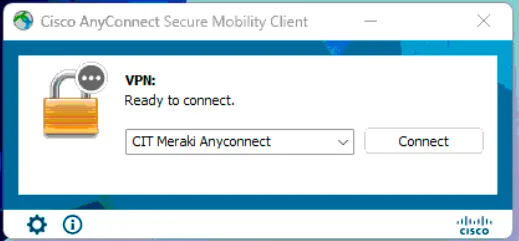
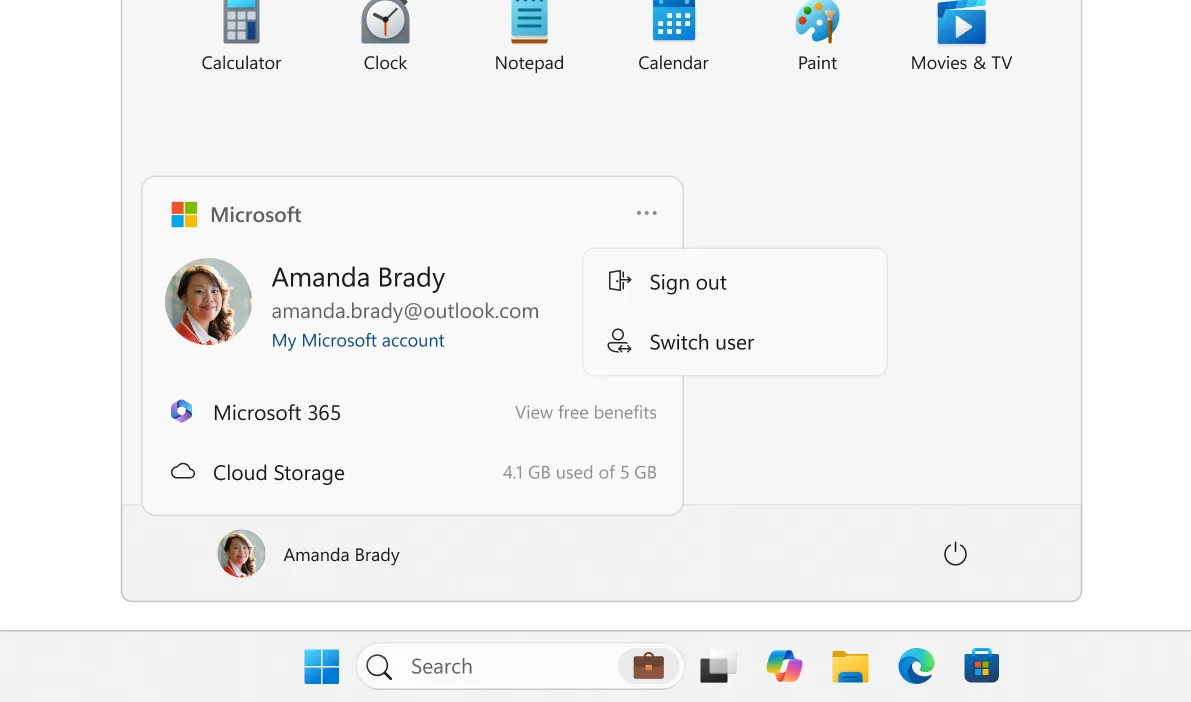
- Switch user accounts
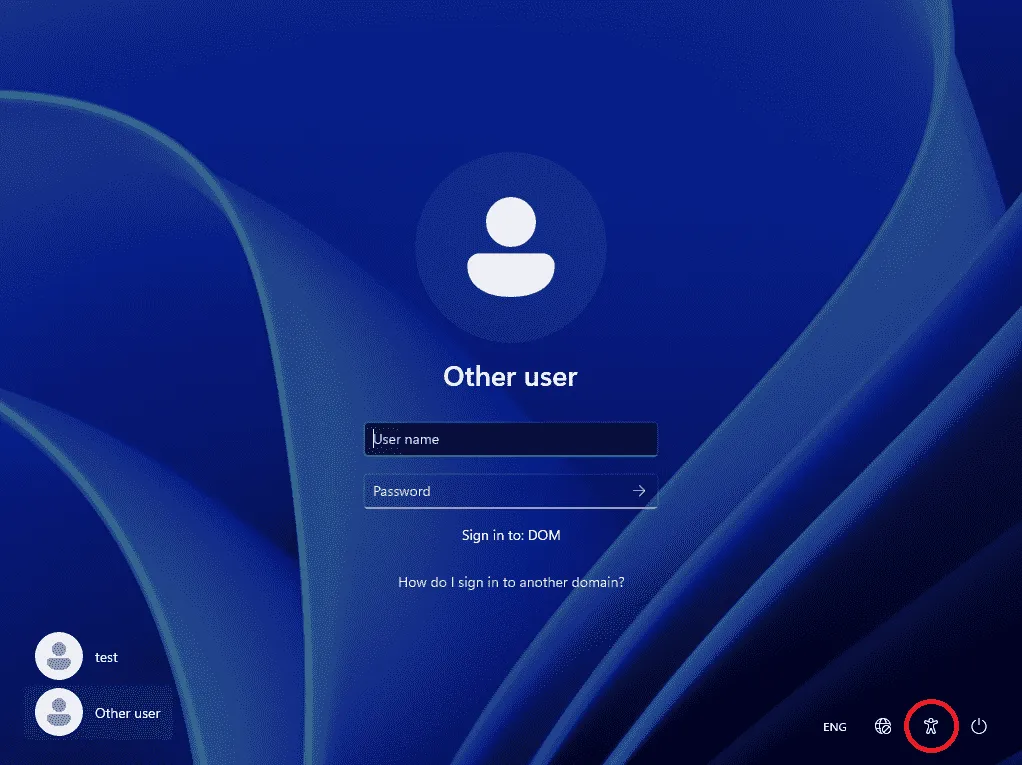
- Have the user sign in with their domain credentials.
-
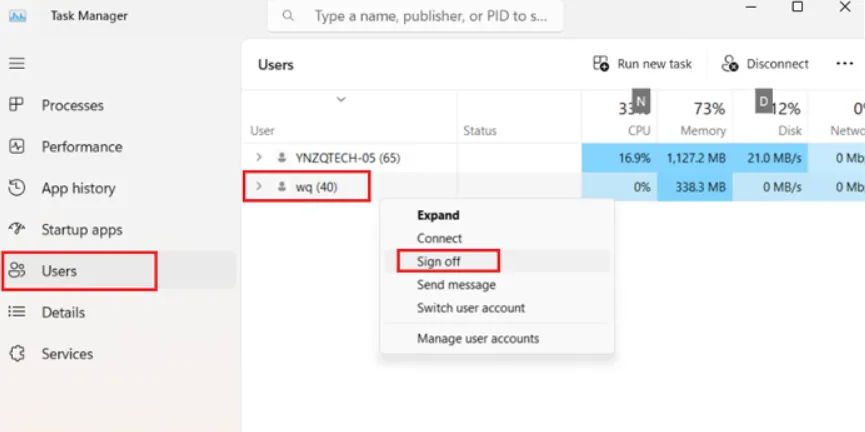
Once you are signed into the user account, launch task manager as admin
-
Switch to the signed-in user’s tab, right-click on localuser, and select Sign off.
-
You can now launch the VPN and sign in with the user’s credentials
-
Sign in to the VPN before attempting Microsoft 365 app sign-ins.
Setup the user profile
Section titled “Setup the user profile”- Sign in to Outlook, pin it to the taskbar
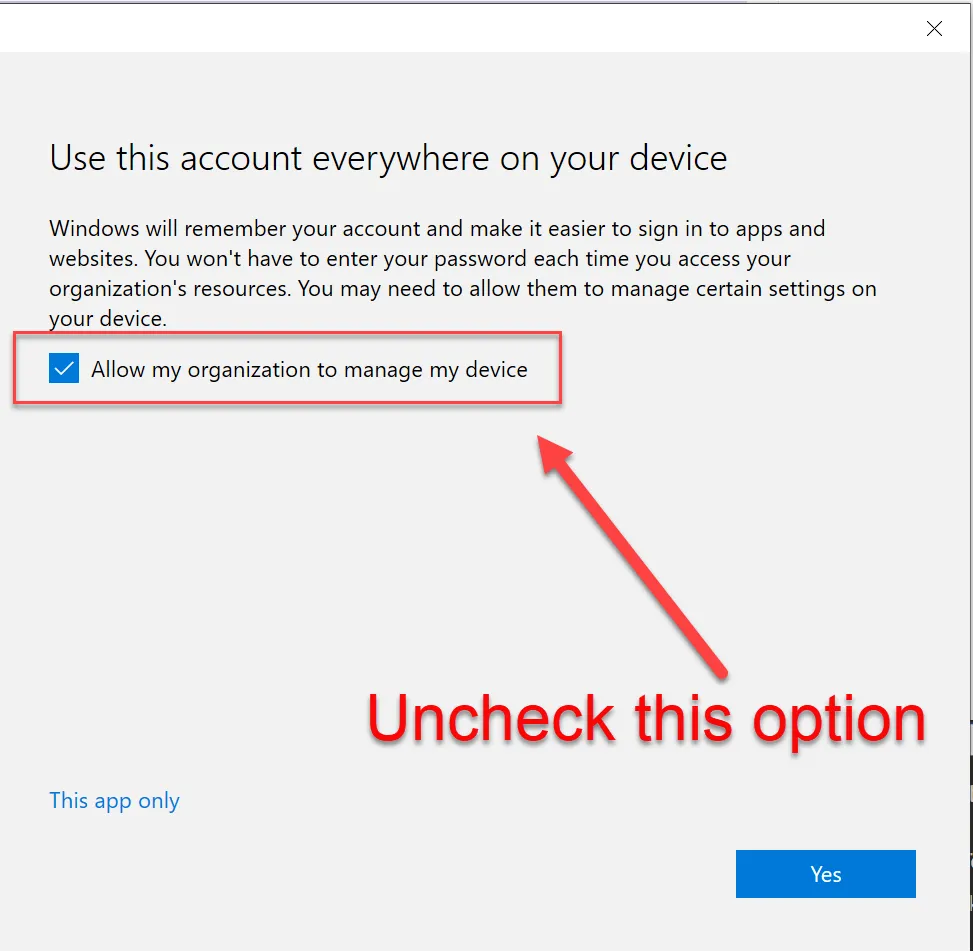
- When presented with this screen, uncheck the box that “Allows this organization to manage my device” as it tends to cause authentication issues with TPM.
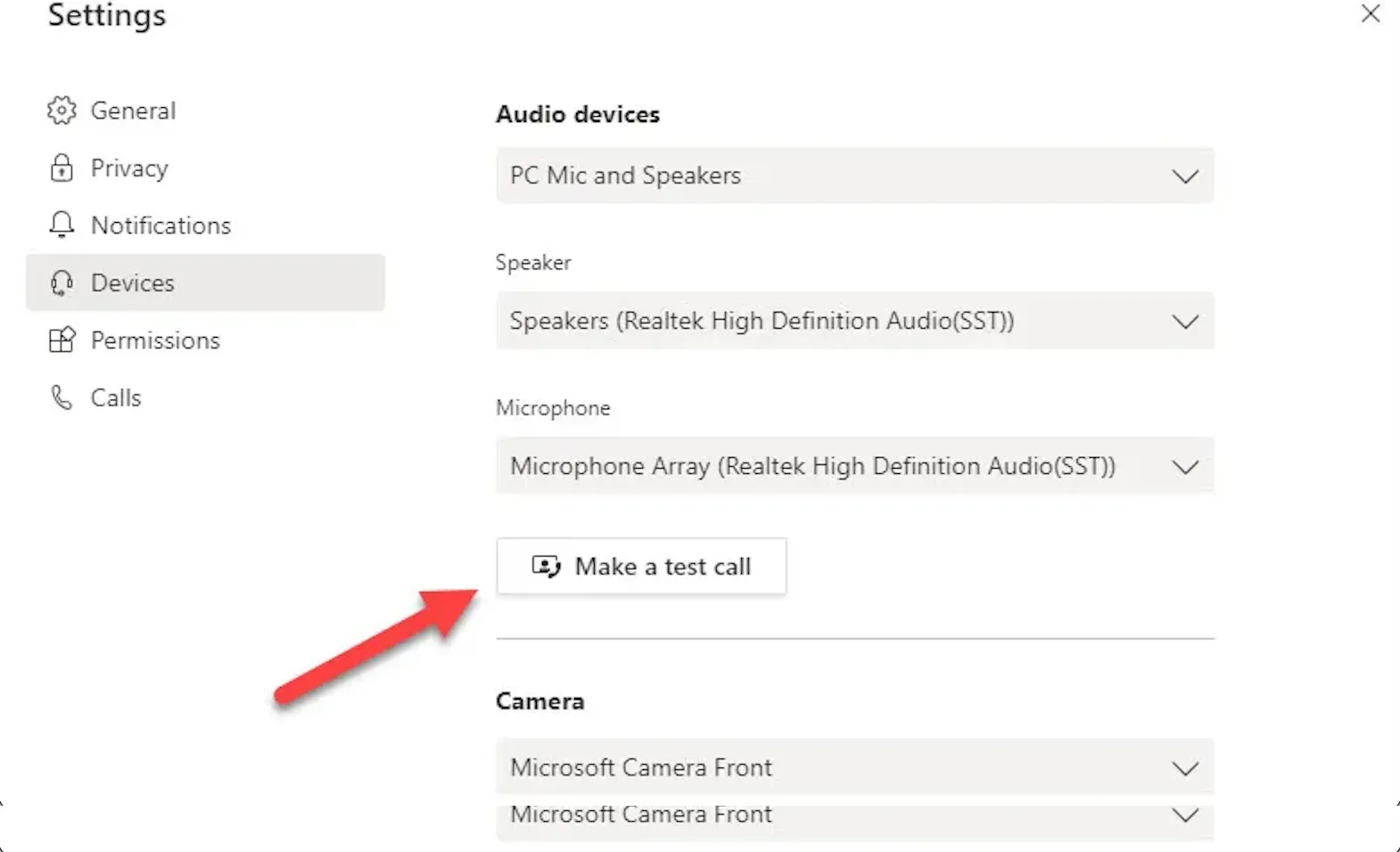
- Set up Teams, perform a test call to ensure the camera and mic work and that no network authentication message pops up during the user’s first meeting.
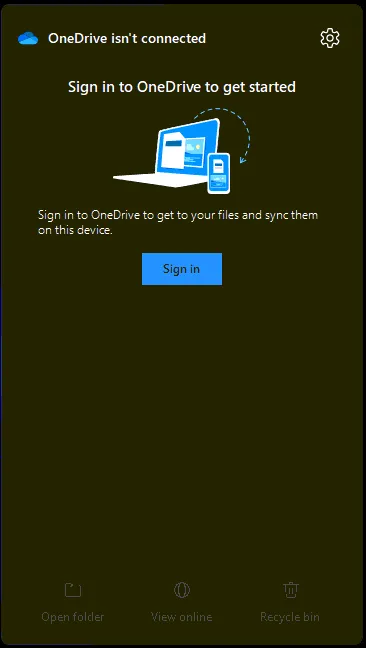
- Setup OneDrive from the taskbar shortcut
-
Ensure OneDrive Backup is enabled for Desktop, Documents, and Pictures
-
Set App defaults within Settings
-
Uninstall bloatware
-
Clean up the taskbar and Start menu bloat
-
Remove Widgets, CoPilot, Shrink the Search menu
-
Pinned apps: File Explorer, Google Chrome, Outlook, Teams
-
Set system sleep times 15-30-30-1Hr.
Software:
Section titled “Software:”-
Install N-Central. Agent link: https://ncentral.centrexit.com/downloadAgentOrProbeSoftwareDownloadAction.action?customerId=131&softwareId=101&ncentralTabId=1657728135557
-
Google Chrome - Chrome.google.com
-
Cisco Secure Client - JJGC XML attached, placed in C:\ProgramData\Cisco\Cisco Secure Client\VPN\Profile) ref: KB00021943)
-
Cisco Secure Umbrella - JJGC JSON file attached, installation path: C:\ProgramData\Cisco\Cisco AnyConnect Secure Mobility Client\Umbrella
-
Microsoft Office 365 Apps for Business
-
Microsoft Teams - https://www.microsoft.com/en-us/microsoft-teams/download-app
-
Mitel Phone Manager - \\jjdc01\Software
-
Adobe Reader - If the user needs BlueBeam Revu_, Please DO NOT_ install Adobe Reader
Additional Software:
Section titled “Additional Software:”-
BlueBeam Revu - Ask Naomi for a license if it has not been provided. It may be at the bottom of the new user form.
-
Construction Partner - WI attached, the RDP shortcut is in the provisioning folder: O:\cTAC\Software\client_specific\JJGC Setup Apps
-
Microsoft Project - Assign a license to the user in the 365 Admin portal, download it from the user’s 365 account at portal.office.com and install.
-
JJCafe - Reference KB00002112 “Johnson & Jennings - JJCafe Set-up Process”