Review and use the new user spec form to setup the user.
-Login to the domain controller (DC04/DC05)
-Open Active directory users and computers
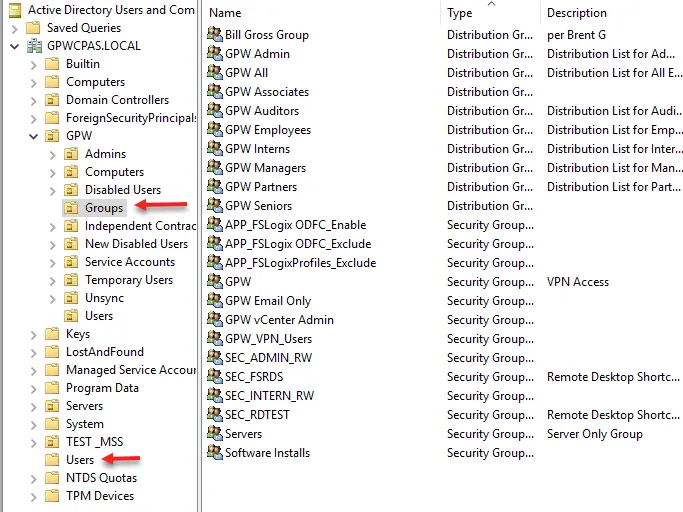
-All new users are created in the GPWCAPS.LOCAL>GPW>Users OU
-Create the new user with the information on the spec form.
-Add the Job Title to the users description.
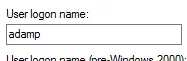
-Username prefix is first name, last name initial.
-Password can be generic no standard set.
-Make sure you select the correct domain for the username, gpw.cpa
-For the Mitel account setup please look for that KB article.
-Go to the GPW Microsoft 365 account to proceed with email setup if option is checked.
-Under Users>Active users find the account you just created.
-Select the user and navigate to License and apps tab.
-Check the Microsoft 365 E3 license for the user and save changes.
-Once the email license has been applied, back in active directory users and computers, you will proceed to add the user to the checked distribution lists. You can find most distribution list under the GPWCPAS.LOCAL>GPW>Groups OU
other distributions will be under GPWCPAS.LOCAL>Users
-If the Adobe Acrobat DC Standard software license is checked, please contact the vITM to allocate a license.
-If the user needs scan to email setup, proceed to login to the MFP and add him.
-Browse to the following machines and login with admin/admin
-192.168.1.213
-192.168.1.52
-192.168.1.134
-192.168.1.167
-192.168.1.173
Then go to the address book and click add
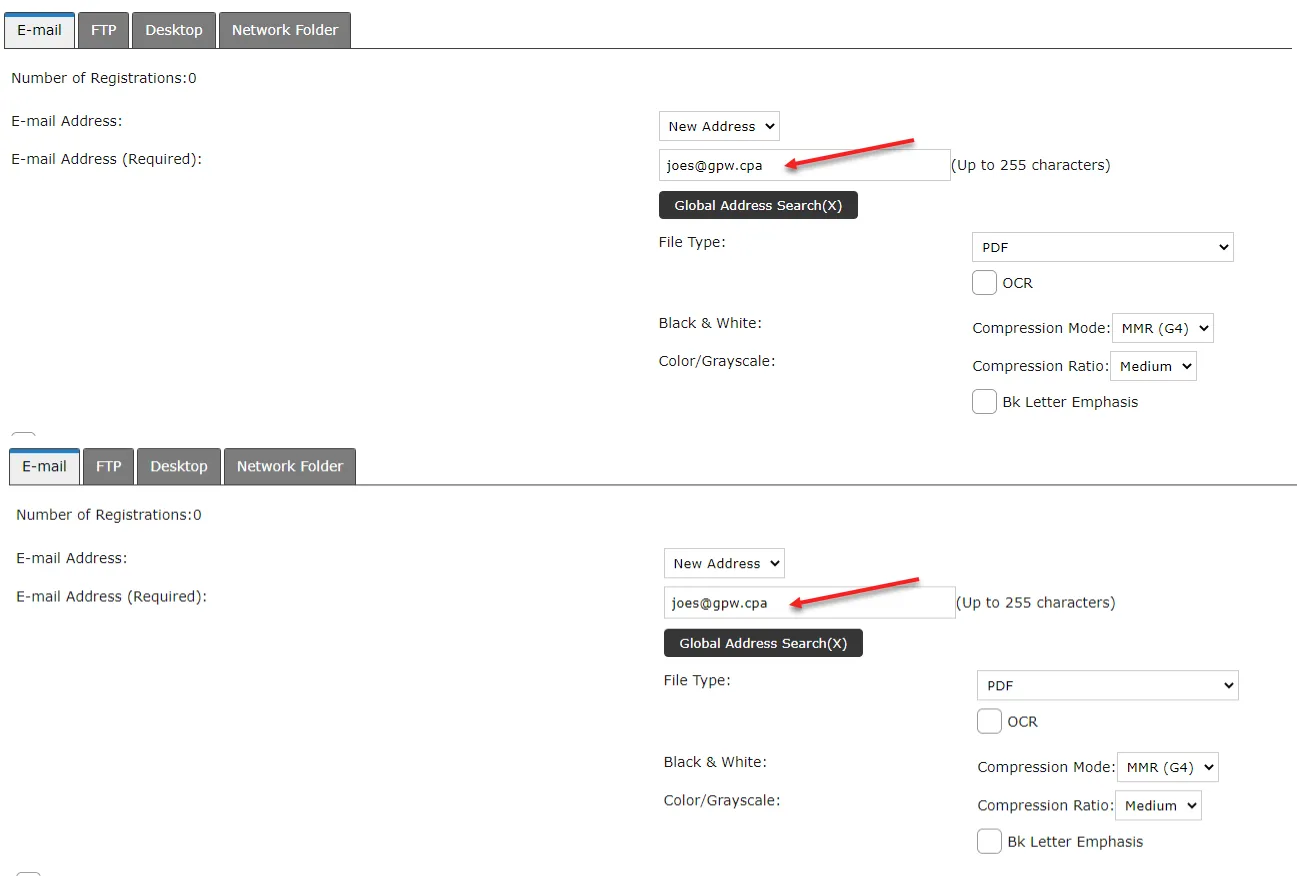
Then click Submit