Purpose:
Section titled “Purpose:”To provide the steps needed for employees with company credit cards to submit an expense report for business expenses incurred by the employee that will not be reimbursed
Scope:
Section titled “Scope:”For any employee with charges to a company credit card that needs to submit an expense report where the credit card charges will be paid by the company and not reimbursed to the employee
Responsibility:
Section titled “Responsibility:”Accounting All
Completion Criteria:
Section titled “Completion Criteria:”The Nexonia expense report is submitted. A report is considered submitted when a blue greater than symbol (>) appears in the status column for the report in Nexonia.
Records:
Section titled “Records:”An expense report in Nexonia
Steps:
Section titled “Steps:”– Due on the last business day of the month and only submit one report per month. Step 1: On your Nexonia (online) homepage, click the expenses tab.
Step 2: Click Add Report.
Step 3: Enter a Title (Title format: March 2024) for your new report and click Save.
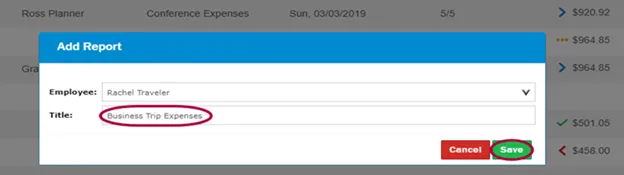
Step 4: Your expense report is created. From here, add expenses and receipts.
Step 5: Click Add from Card Transaction.
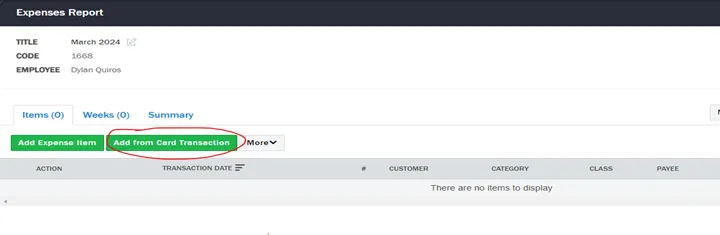
- DO NOT manually add expense items – ALWAYS add from card transaction.
Step 6: Choose a customer (if it is an internal cIT expense, leave it blank), category, yes for receipt, paid by company, no for reimburse, amount, class (generally your home group), and payee.
- If you don’t see the payee you want to use, select “Misc. Rest.” for meals, or “Misc. Vendor” for anything else. If using Misc. Rest. or Misc. Vendor, add the actual vendor’s name in the memo field.
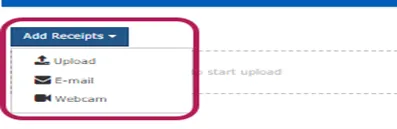
Step 7: Add any pertinent information to further describe the expense in the memo field. (i.e. Ticket #, Project #, or other description) Step 8: Click Add Receipts and use one of the three listed methods.**
-
If uploading, choose a receipt from your computer. When complete, click Save and Close.
-
All receipt attachments must be legible, showing the Vendor Name, Date, and Amount
Step 9: Select the green Save and Close button. Step 10: Select the green Submit button. The approval status field should now show a blue greater than (>) symbol, instead of the yellow ellipses. (…)
Process References:
Section titled “Process References:”- Create a relationship back to related process. Note: Please add KB relationships to core process, process, SOPs or other WIs on the right.