Prerequisites:
Section titled “Prerequisites:”-
You will need to have Immy.Bot access granted by the Automation Team
-
To provision an Endpoint, you will need to use the Rewst PPKG or EXE installer attached to this KB.
-
The EXE can be run from a currently active device to add it to immy.bot for a provision
-
The following steps cover the usage of the PPKG to set up a brand new provision
-
After installing the EXE, the steps for both paths will be realigned once we begin discussing Immy.Bot Sessions.
Immy.Bot PPKG Installation:
Section titled “Immy.Bot PPKG Installation:”-
You will be able to place the Rewst_Onboarding file on a flash drive, plug that drive into the new machine, skip the Default Out Of Box Experience (OOBE), and deploy the immyBot Agent.
-
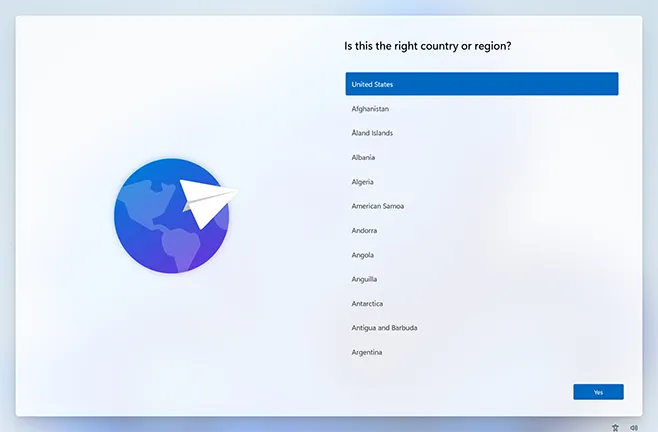
Once at the language setup screen, insert the USB
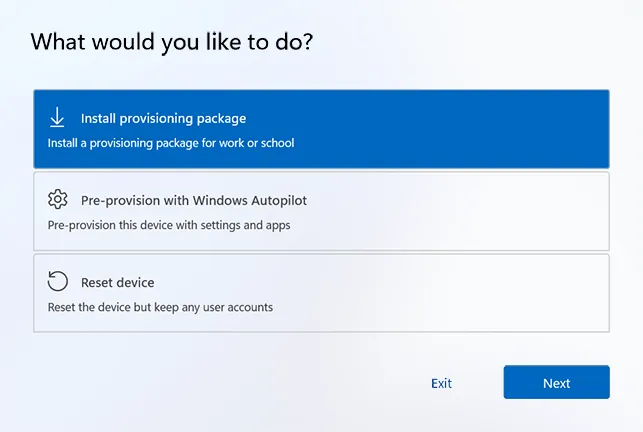
- You will then be presented with the following screen, select “Install Provisioning Package” and run your Immy.Bot PPKG file at the root of the USB drive
- Select the immy Agent
- Windows will begin to install the package. Follow the on-screen prompts. It will occasionally require a retry.
- The provisioning package will now add the device to the TechBench network, set up a localuser account, and skip the OOBE setup.
-
Windows will let you know when you can remove the drive and move on to the next device
-
Remove the USB Flash Drive once complete
-
The ImmyBot agent installer will soon find the device. It will be added to the Rewst Staging Tenant, ready for tenant assignment and onboarding.
Immy.Bot Onboarding:
Section titled “Immy.Bot Onboarding:”-
Navigate to the Rewst form: https://app.rewst.io/organizations/01983d3f-ecb7-7b80-9d05-726dbe1a90d0/form/0199bf8f-77ab-7e60-9025-364af475fd4f
-
Select the device from the drop-down:
- Select the target client from the drop-down
- Select the target tags from the drop-down
- submit
Immy.Bot Sessions
Section titled “Immy.Bot Sessions”-
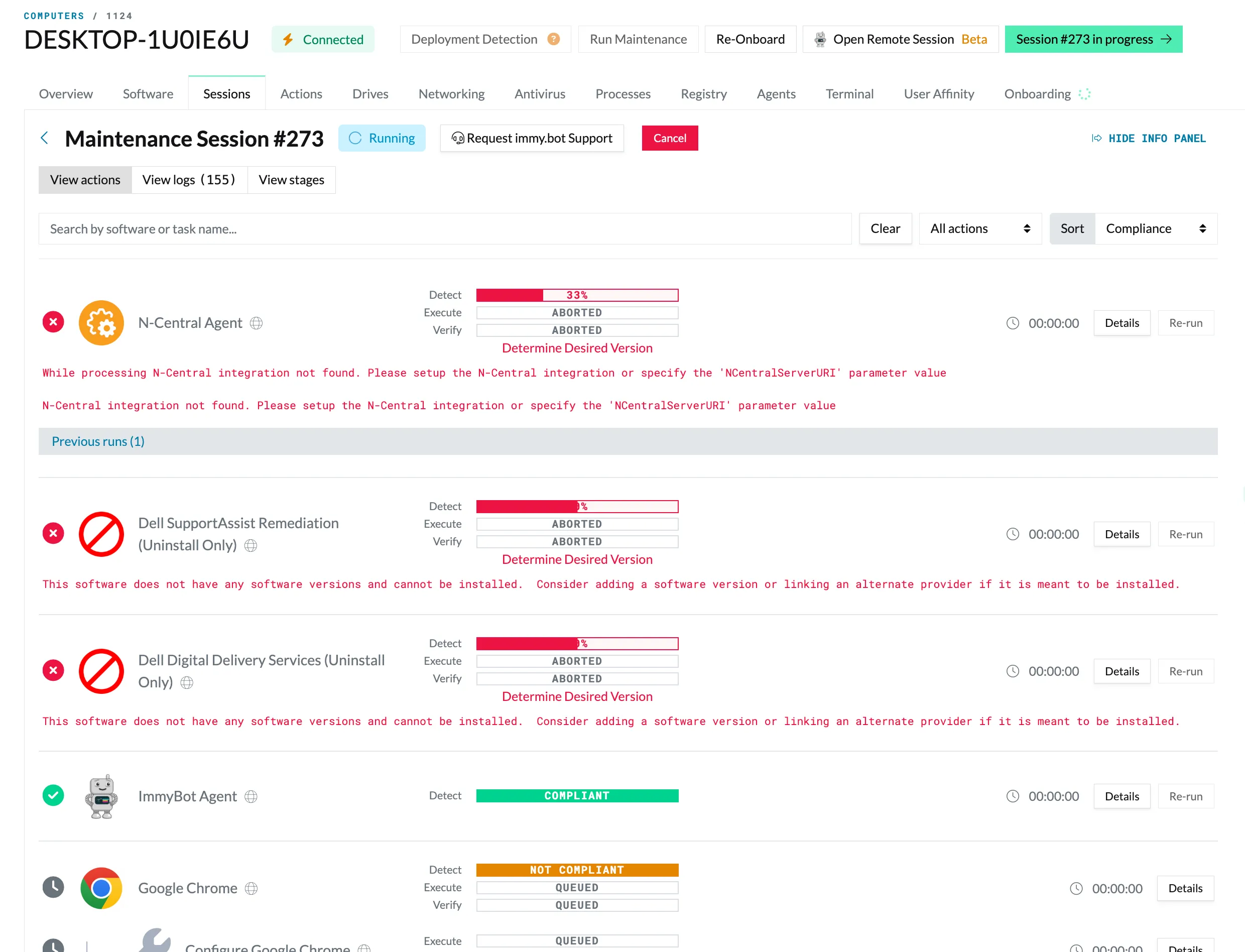
Below demonstrates a session in progress. The initial session will begin the automatic onboarding we selected earlier.
-
You see a lot of red right now because Immy performs three checks. It first must detect the software to pass; if it does not pass, it moves on to executing the installer and finishes by verifying that the deployment completed to spec.
-
Sometimes a deployment will install, but it will fail to configure the options. This is usually do to an incorrect configuration item not propagating correctly.
-
The above screenshot provides several good examples of how Immy.Bot Onboarding works and what to watch out for:
-
N-central Agent: You will see that it was aborted entirely. This is due to an N-central integration error within ImmyBot. This will not fix itself. You may see this for any deployment that suffers a fault, and they may require manual installation.
-
Dell Support Assist: This item required a configuration item to be selected to detect and execute properly.
-
ImmyBot Agent: You see that it is marked as a complaint. The agent was installed with our provisioning package before onboarding began, so it detected the agent, marked it as compliant, and now that item is marked as complete.
-
Google Chrome: You see that Immy detected that Chrome was not present on the system and then queued its installation and also queued the installation verification.
-
Make sure to note any deployment items that need adjustments, and manually adjust the deployment item to avoid the error in the future
-
Once the deployments have been completed, please remove the Immy Agent from the device via the Control panel
-
Please ensure that the firewall is enabled
-
Please ensure that sleep settings are set per the Client Work instruction
-
Please note all adjustments, changes, and issues within the provisioning ticket
Finally:
Section titled “Finally:”-
Please perform a Quality Check against Immy’s work, referencing the Client PC Setup Work Instruction for each respective provision
-
Each provision is completed against the VITM Approved Work instruction and the Client provided request.
-
Reference all available materials for a client before marking a provision complete.
Purpose:
Section titled “Purpose:”To train anyone who may need to be provisioned on how to use Immy.Bot to provision an endpoint
Scope:
Section titled “Scope:”Service Desk
Responsibility:
Section titled “Responsibility:”The Automation Team owns Immy.Bot and its documentation
Completion Criteria:
Section titled “Completion Criteria:”Successful provision within Immy.Bot
Records:
Section titled “Records:”Halo provisioning ticket, Immy.Bot, and Rewst.
Process References:
Section titled “Process References:”KB00038348: ImmyBot: How to Add a Tenant
KB00038352: WI - ImmyBot: How to Create a Deployment for a Tenant