Purpose:
Section titled “Purpose:”Updating emails that come in on intake so that information is accurate and up to date prior to sending to the correct team for additional assistance.
Scope:
Section titled “Scope:”Service Desk
Responsibility:
Section titled “Responsibility:”Service desk
Completion Criteria:
Section titled “Completion Criteria:”All needed information is filled out in the correct fields of the ticket.
Records:
Section titled “Records:”Within the ticketing system
Steps:
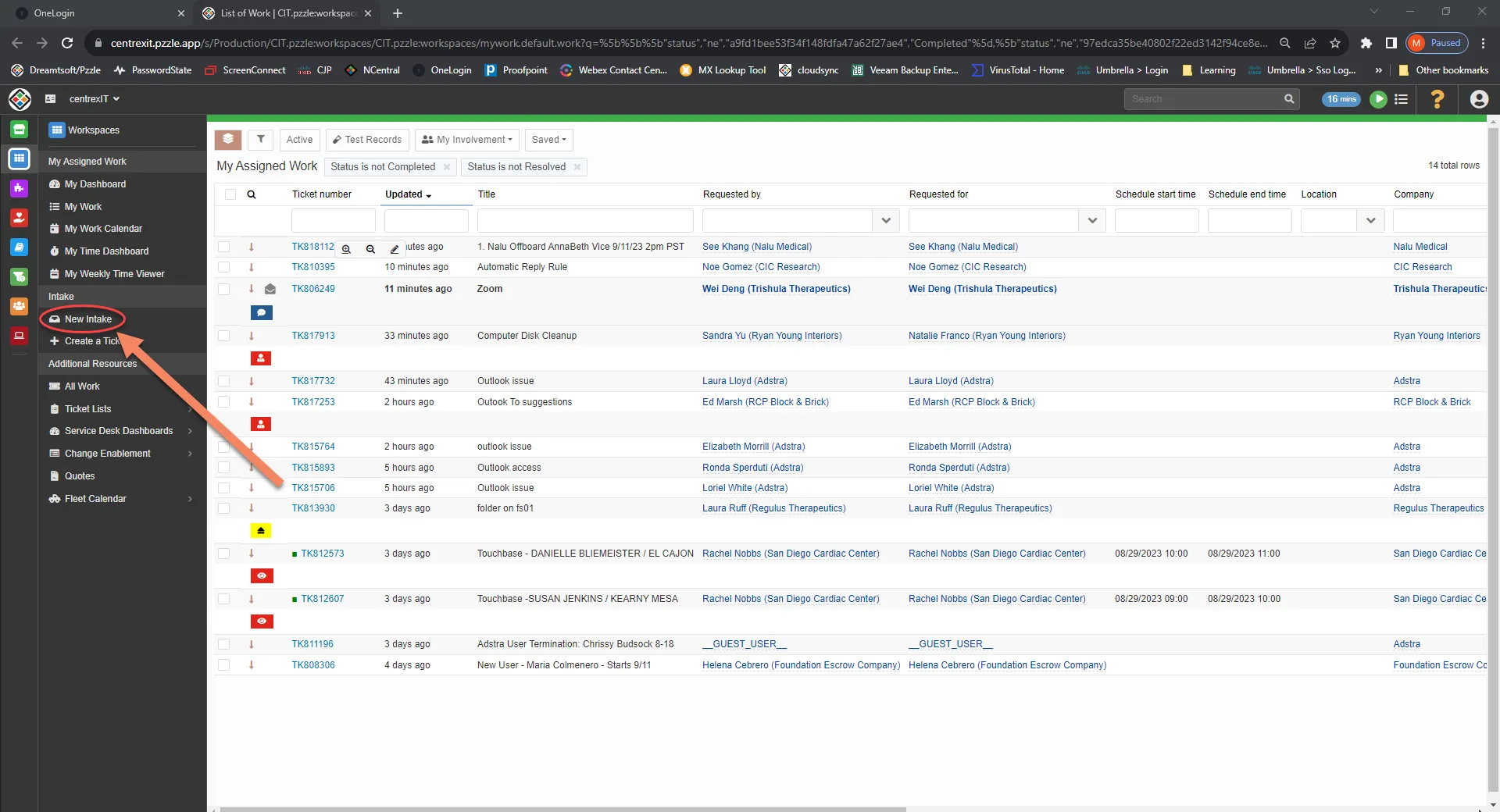
Section titled “Steps:”Log into Halo from onelogin, or click on this link https://centrexit.onelogin.com/client/apps/select/960140672 To see the intake board you can click on the New Intake icon from Halo
Read ticket to update title to summarize information provided by client such as:
-
Issue
-
Application
-
Impact
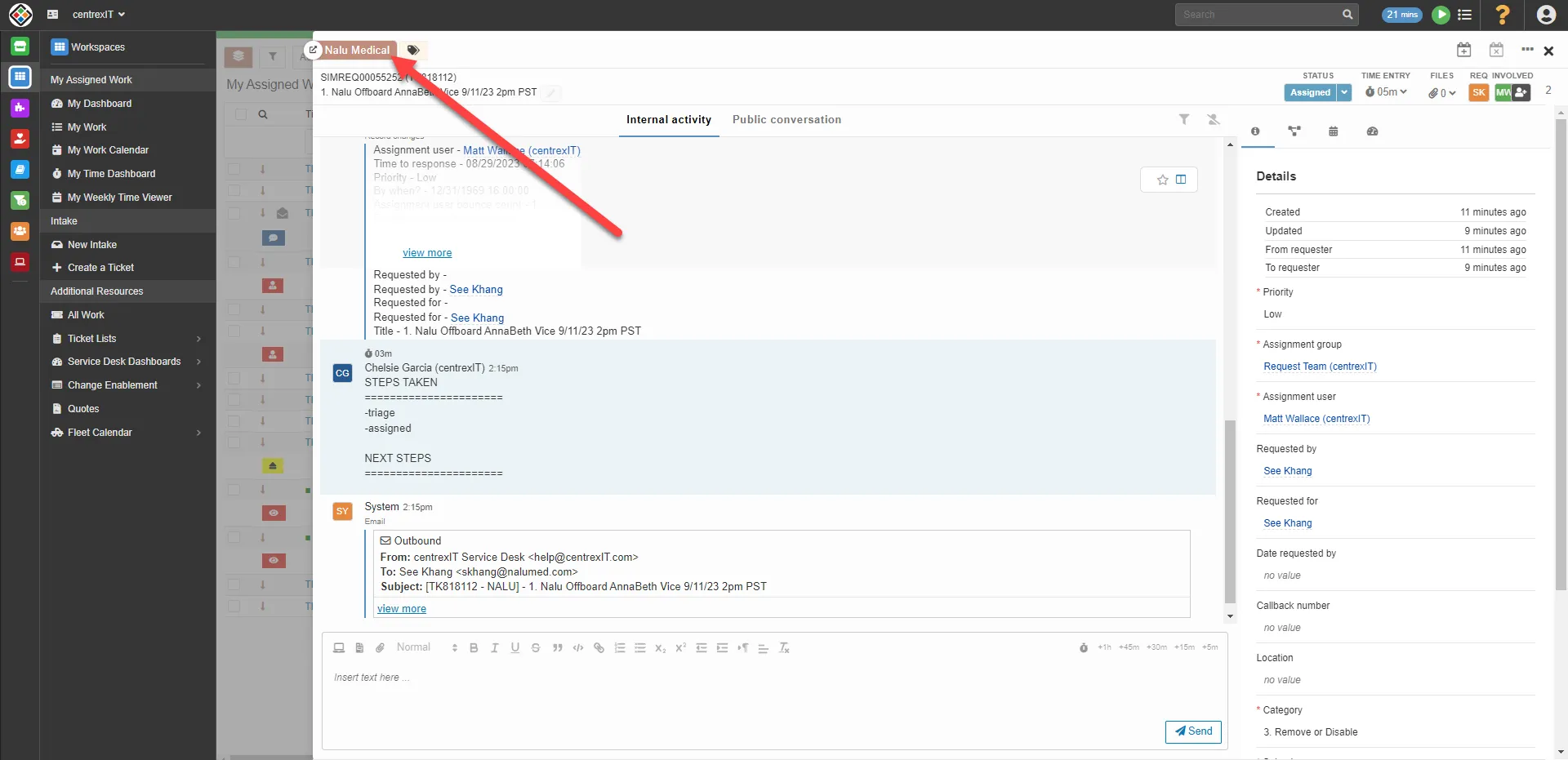
You can confirm that the company for the client is correct by checking the upper left corner, if you need to change it you can hover over the name to reveal a pencil and clicking that will allow you to edit.
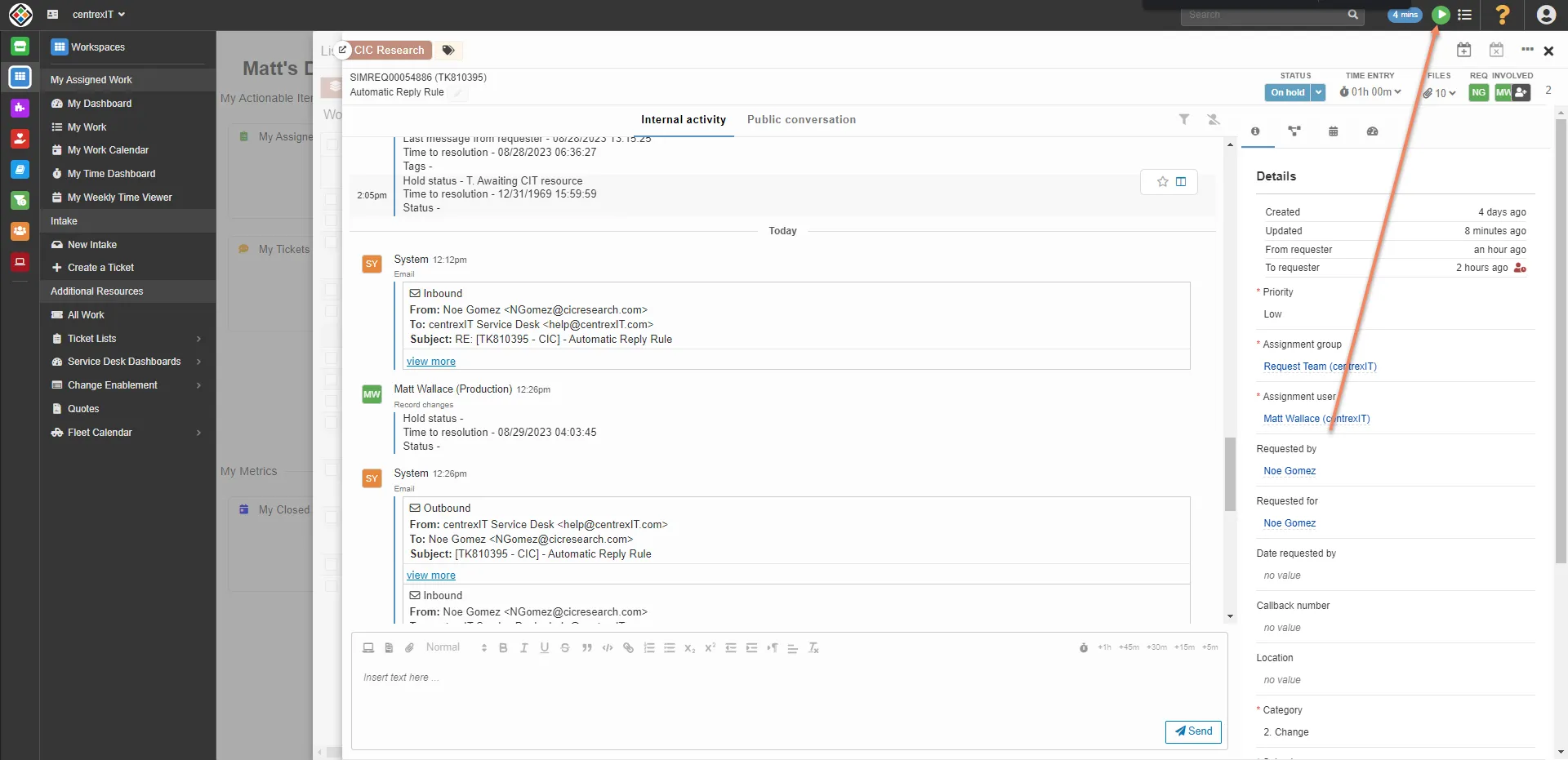
Start a timer when you start working on a ticket, you must have the correct company selected before doing so
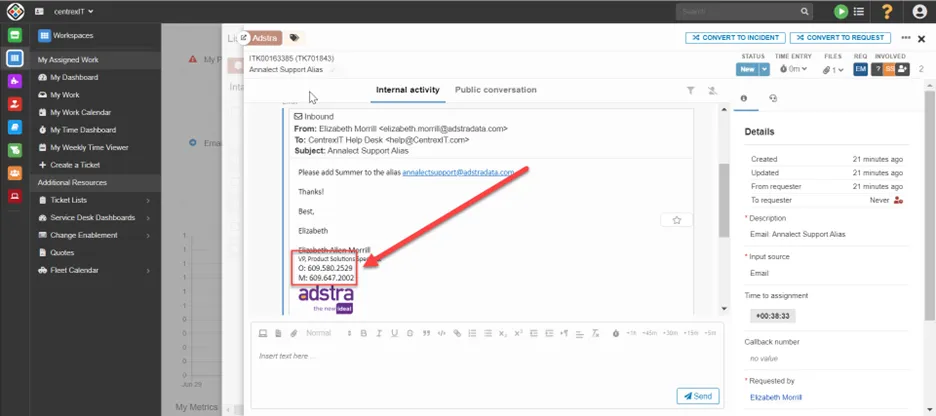
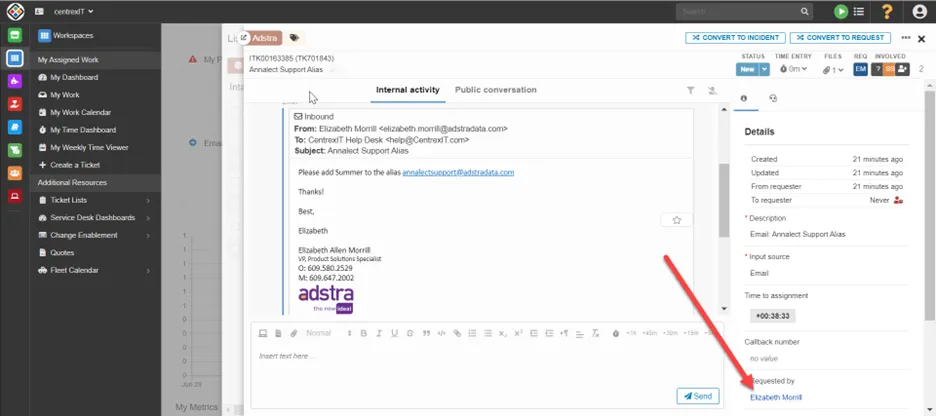
Confirm users contact information is accurate by looking at signature.
Click on the users name to open their contact card
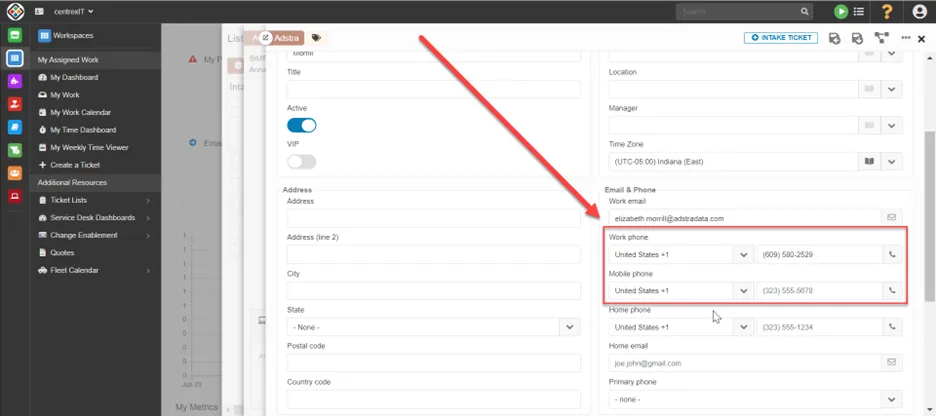
Update all information from the signature and click “save and go back” in the top right
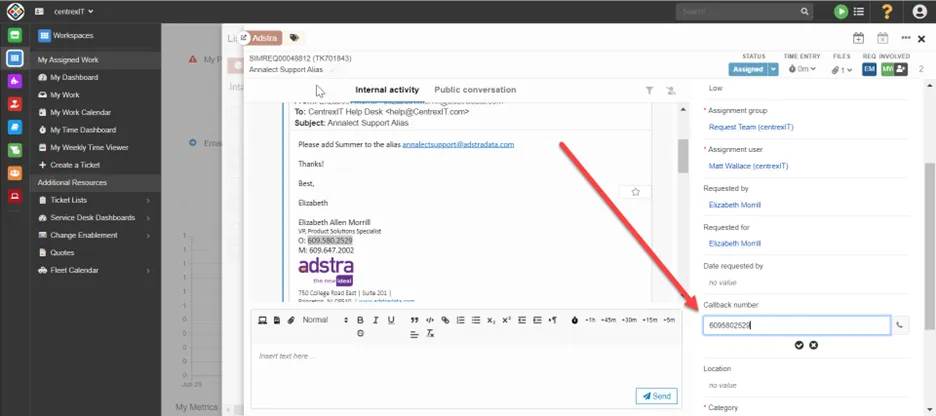
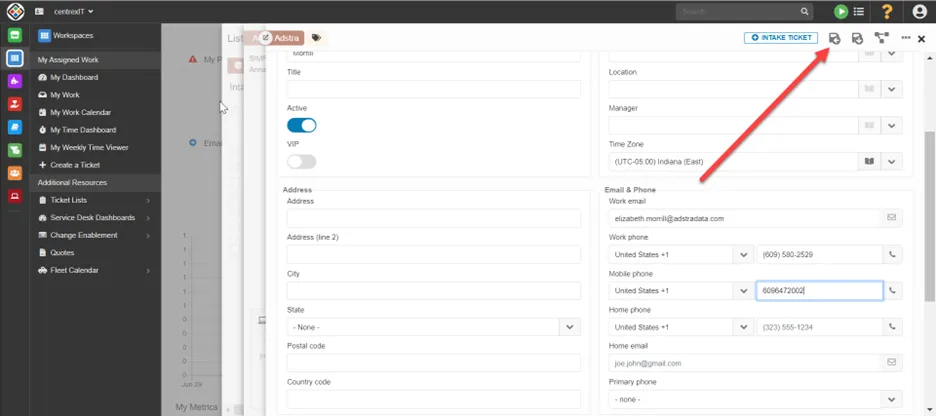
Convert the intake to a request or incident based on the information provided by the client.
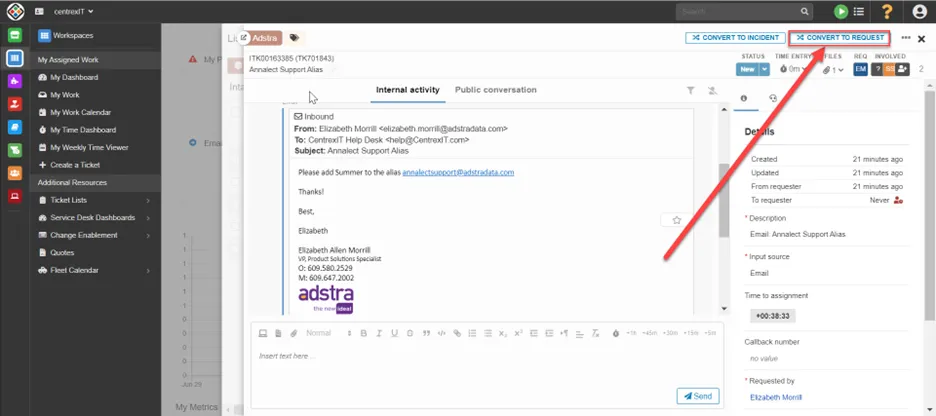
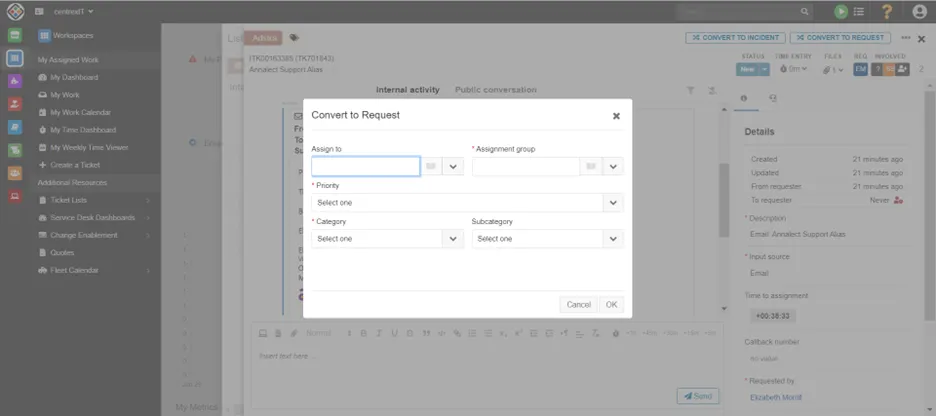
Assign to the correct group based on type of ticket, assign priority based on priority matrix, and select appropriate categories.
“Assigned To” is determined based on correct group, availability, experience and amount of work currently assigned.
If you are unsure of any of this information, reach out to the team leads for assistance.
Send out client communication in Public conversation using the “General First Touch” template. If there is no number listed add the question to the first touch email “Also, can you provide us with the best number to reach you at?”
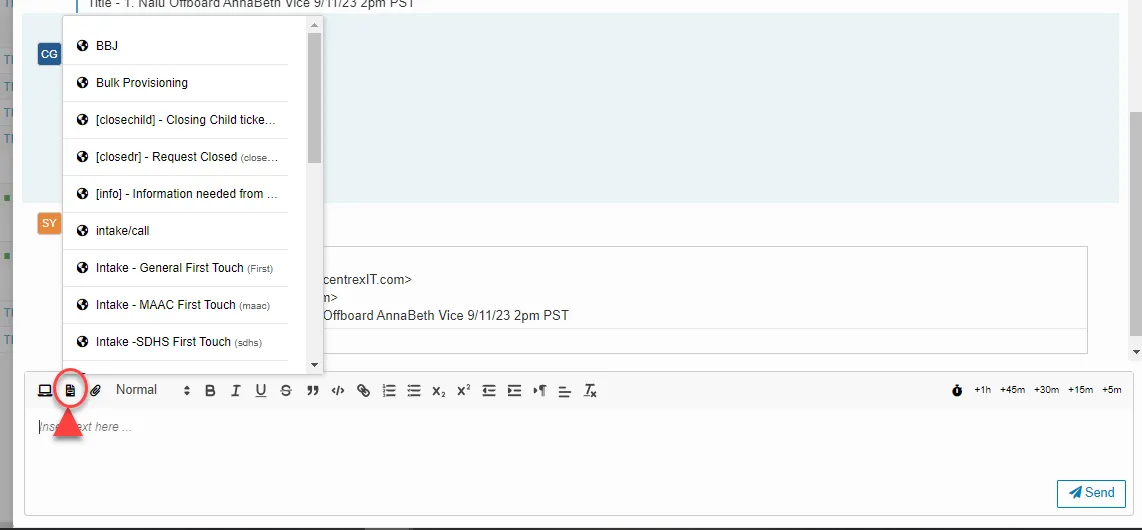
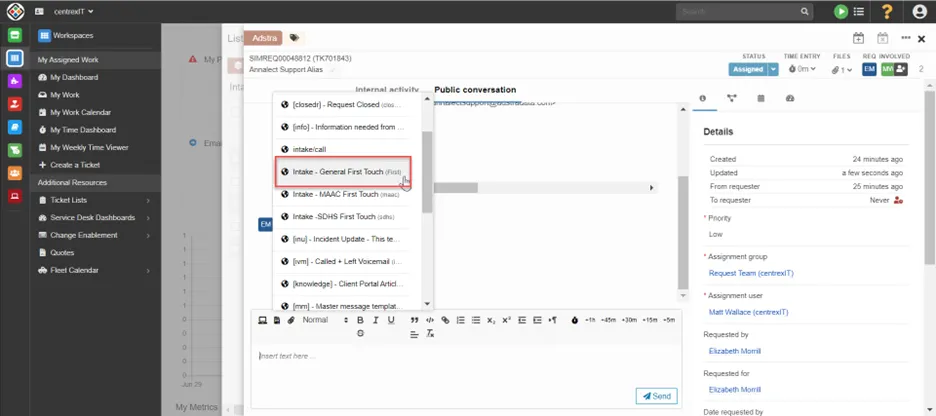
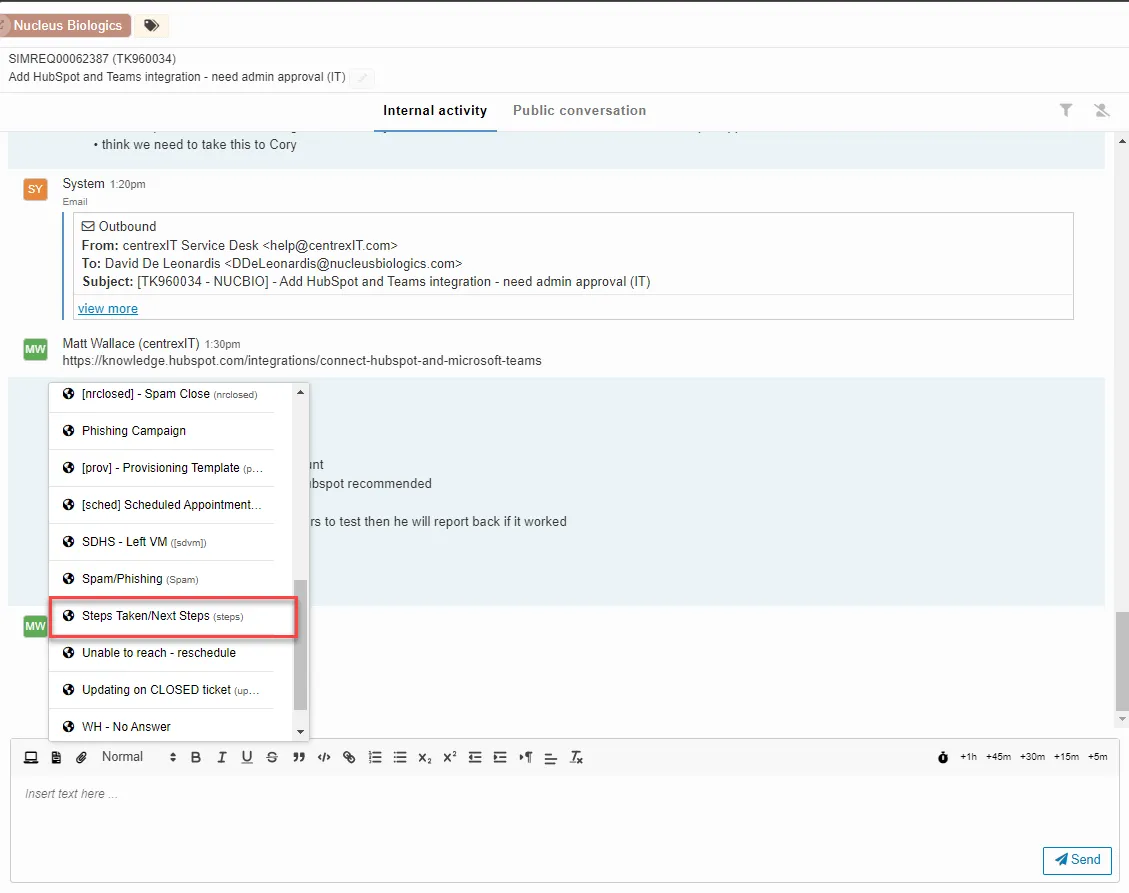
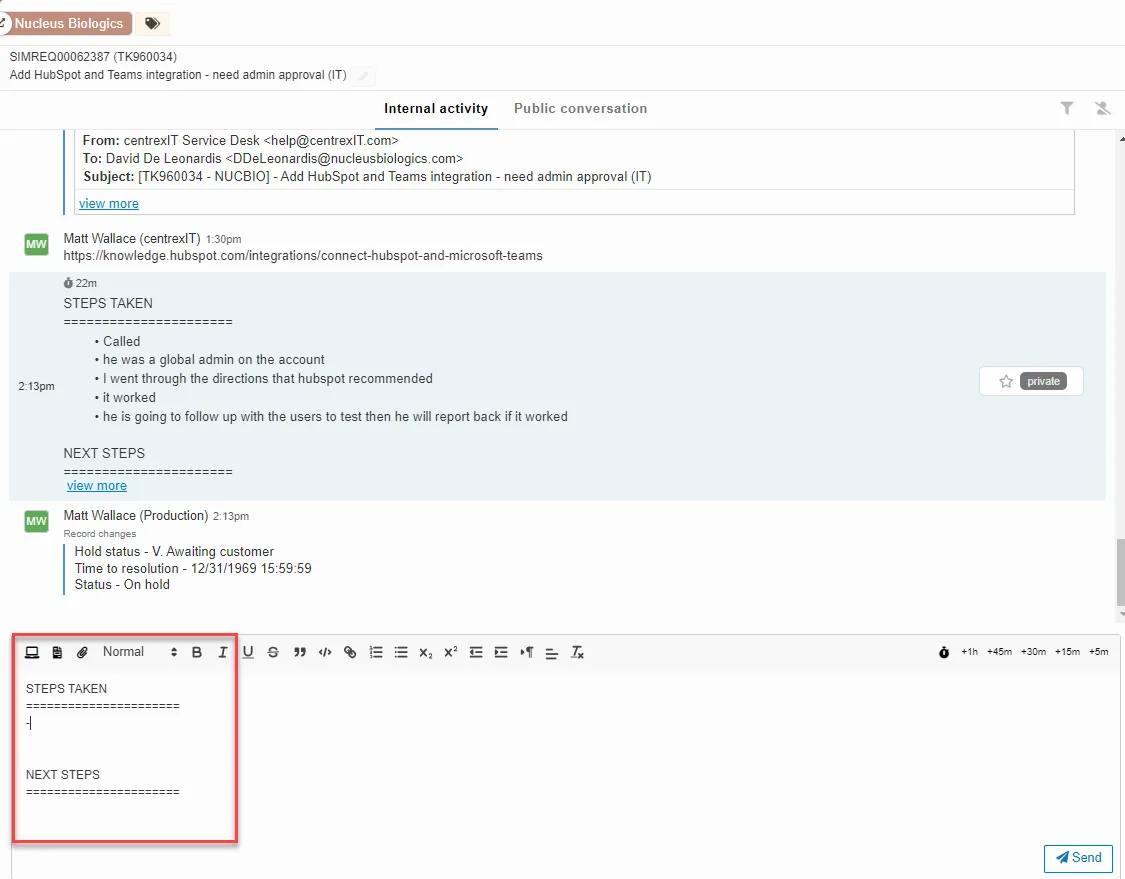
Once assigned enter any other relevant information on “Internal activity” using the Steps Taken/Next Steps template and send.
Process References:
Section titled “Process References:”- Create a relationship back to related process. Note: Please add KB relationships to core process, process, SOPs or other WIs on the right.