Purpose:
Section titled “Purpose:”Work Instruction is needed for the onboarding engineer to set up the configuration and pass information to the Pzzle team to complete the setup. This is how Pzzle knows who are active users in the system.
Scope:
Section titled “Scope:”New Client Onboarding
Responsibility:
Section titled “Responsibility:”Project Team, Pzzle Team
Completion Criteria:
Section titled “Completion Criteria:”Active User infomration is synced to Pzzle
Records:
Section titled “Records:”Output records are stored within Pzzle and viewable by the Pzzle team.
Steps:
Section titled “Steps:”1. Go to https://console.cloud.google.com2. Log in as admin account3. Select the Organization in the drop down4. Click Create new project5. Project name: Pzzle Integration6. Ensure Organizaton and Locaton are set to the client.7. Click Create8. Click APIs and Services, and then click Enable APIs and Services.9. Search for Admin SDK API and Add it10. Go to Credentials11. Create Credentials >> Oauth Client ID12. Fill out the sections in red as seen in screenshot
13. 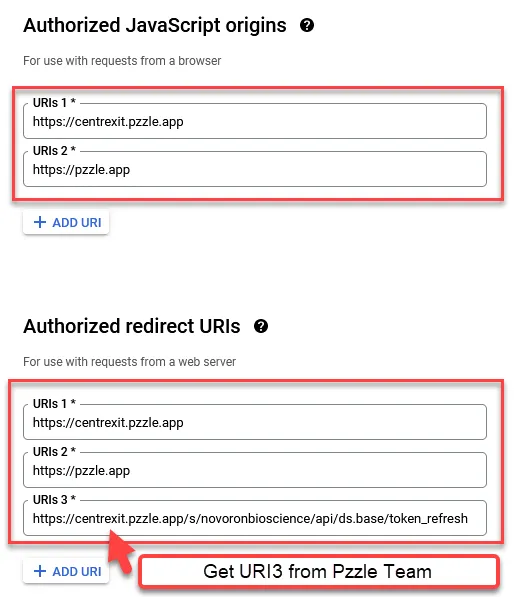14. Click Save. Copy the Client ID and the Client Secret. You will paste it to the Pzzle Ticket when you make the request.15. Click Oauth Consent Screen.16. Set App name to pzzle17. Set user support email to the admin account.18. Set App Domain to https://centrexit.pzzle.app19. Set Authorized Domain 1 to pzzle.app20. Set Developer email address to help@centrexit.com21. Add the following scopes as seen below:
22. 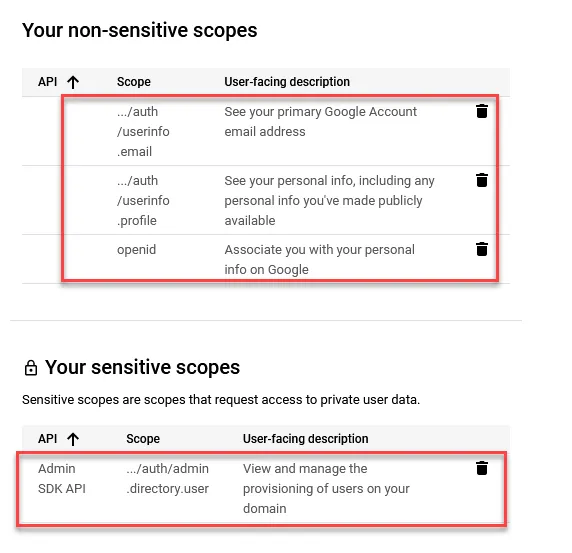23. Create new Pzzle ticket with the following prompt: Please create the Gsuite user sync to Pzzle for new client [clientname]. Admin SDK API has been added. Credentials and Oauth Consent screen has been confiigured. Admin creds can be found here [paste pwstateURL here].
Client ID: [paste clientID here Client Secret: [paste client secret here]
You will need to add the client-specific Authorized redirect URIs within the Google web app. Thank you."24. Pzzle team will configure the Sync integration on their end and will confirm once sync is successfully.Process References:
Section titled “Process References:”- Create a relationship back to related process. Note: Please add KB relationships to core process, process, SOPs or other WIs on the right.