Purpose:
Section titled “Purpose:”To create a standard for CSOC daily alert checking
Scope:
Section titled “Scope:”CSOC
Responsibility:
Section titled “Responsibility:”CSOC
Completion Criteria:
Section titled “Completion Criteria:”All daily alerts are checked and any incidents are created as needed.
Records:
Section titled “Records:”Pzzle
Steps:
Section titled “Steps:”- Login to Cisco Umbrella Dashboard.
- Click Security Summary and sort by each of the columns
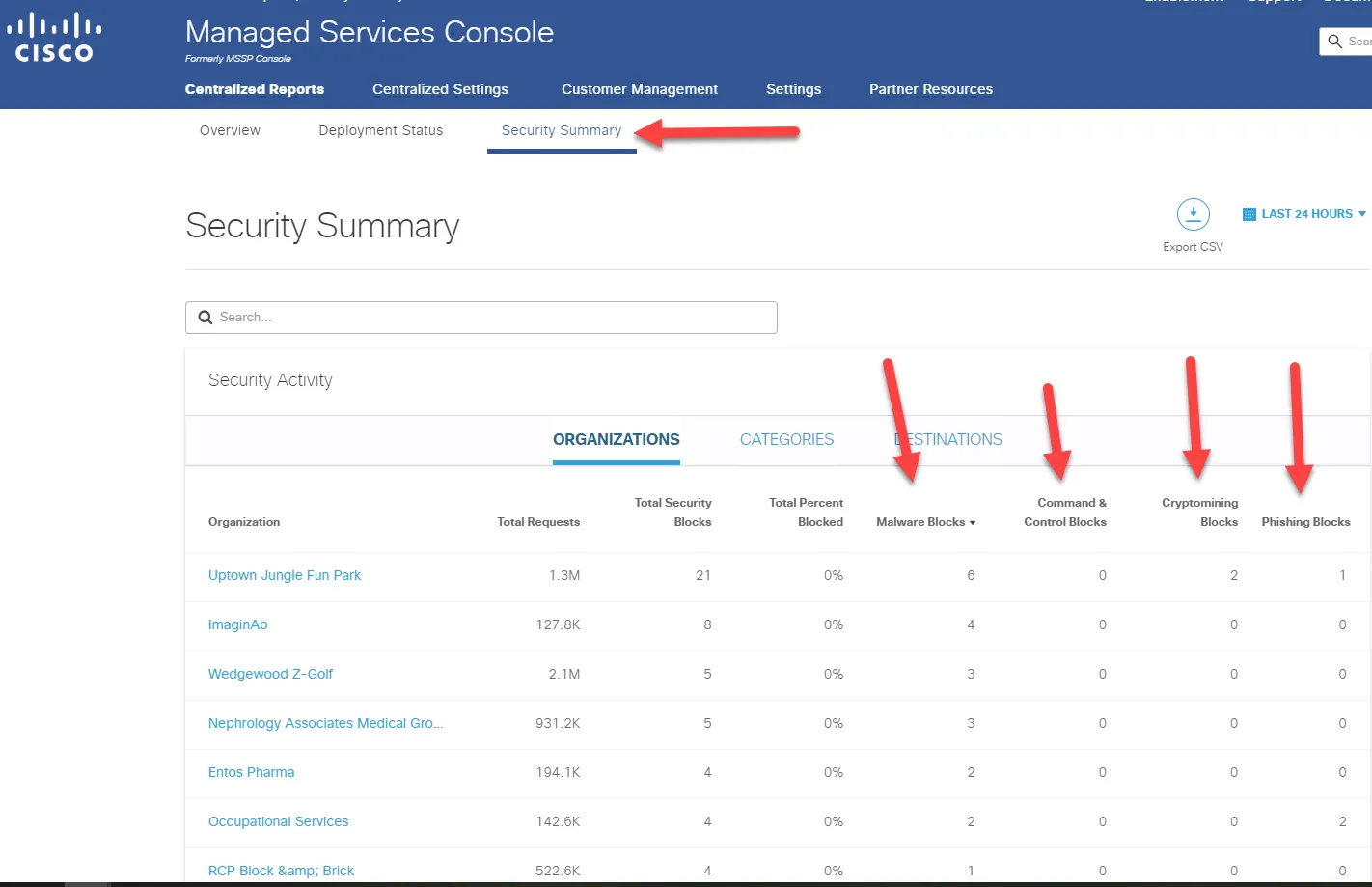
- The Command & Control blocks are the most important. If there are any, open an incident and investigate and remediate as needed. If there is an abnormal or high amount of blocks in another column (30+) open an incident and investigate and remediate as needed.
- Click Security Summary and sort by each of the columns
- Login to the SentinelOne Dashboard.
- Make sure you are on the global view and click on incidents
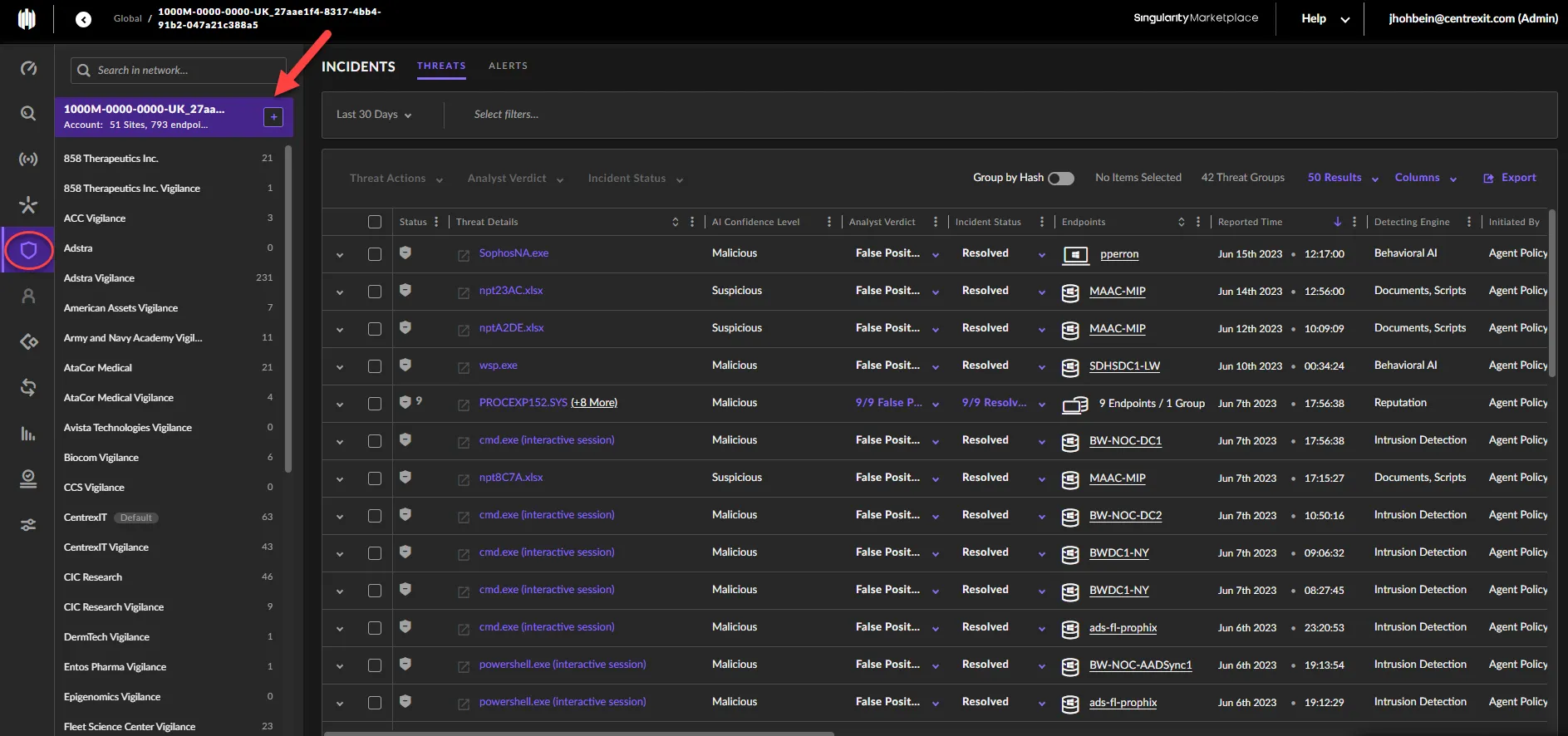
- If there are any threats that are not mitigated, open an incident and investigate and remediate as needed.
- Make sure you are on the global view and click on incidents
- Login to Pzzle and set the dashboard view to CSOC Dashboard
- (Link to CSOC Dashboard View)
- If there any errors with this view, please contact the Pzzle team as you may not have the permissions
- DarkwebID Alerts and SQ1 Critical/High alerts will appear in this view
- Review alerts based on P1-P4 and work from oldest to newest based on Priority.