Purpose:
Section titled “Purpose:”The purpose of this work instruction (WI) is to describe the steps required to add an agreement and its entitlements to a Customer in Pzzle. Ultimately this information will drive invoicing and consumption reporting.
Scope:
Section titled “Scope:”This task is performed by the Account Administrator. Agreements are records in Pzzle that describe the products and services a manageIT client is entitled to receive each month per the signed Service Agreement. A Line Item Agreement record describes a single entitlement from the Service Agreement a client is to receive on a monthly recurring basis.
Responsibility:
Section titled “Responsibility:”Account Administrator
Completion Criteria:
Section titled “Completion Criteria:”The completion criteria of this WI includes:
A new agreement record with all required fields populated and status equal to “Active.” The previous agreement and all its entitlements “End date” fields set to expire at 23:59:59 the day before the new agreement “Start date.”
Records:
Section titled “Records:”The fully executed service agreements are saved on the CIT server in O:\Client"Client Name”\Contracts folder In the future they will be saved in Sharepoint
Steps:
Section titled “Steps:”- Locate the customer you are wanting to add an agreement to in the “Companies” section of Pzzle
- Locate the “agreements tab” located on the lower half of the page
- Open the current active agreement record
- Using secondary action menu in the top right corner of the screen, “Copy” the agreement.
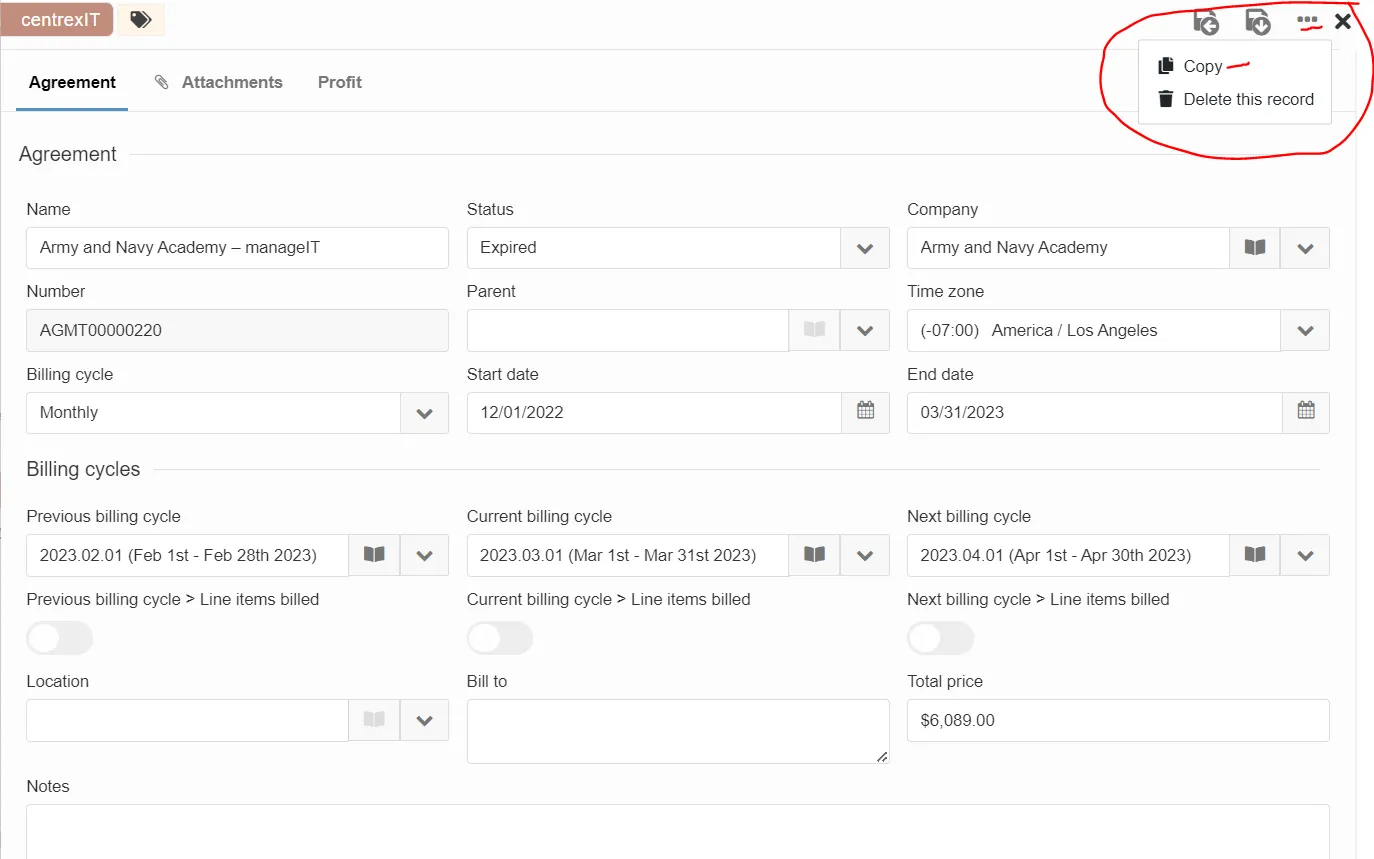
- In the agreement Name field type client name as seen in company name field – manageIT revXX
- Example: RCP Block & Brick – manageIT rev4.5
- Start date field: select billing start date
- End date field: select one year from billing start date
- Example: start: 11/1/22 End: 10/31/23
- In the Billing cycle section, modify the Start date to match the date the client will begin paying the new rates.
- Check that Agreement is still in “Draft” status.
- a. If yes, click “Save and stay here” button.
- b. If no, change status to “Draft” and then click “Save and stay here” button.
- This is considered the agreement detail page
- Click on line item agreement tab (near bottom of screen)
- Click the plus sign to add new line item agreement
- Select manageIT - item – Bundle (Choose the revision bundle you intend to use based on the calculator rates/version of the agreement you used to create the agreement in Google sheets.
- Click ok when screen pops up
- Click on manageIT line item that is now added under line item agreement
- Now you will edit the line items in each bundle to match the actual agreements (refer to signed agreement PDF’s and addendum’s if applicable)
- You will need to take the hours in the agreement and divide by 3 to get monthly allocation to enter into Pzzle
- Click on the pencil next to each entitlement and enter the monthly quantity of hours
- If the manageIT entitlement is “0” this means its turned off and will need to be invoiced if used. Enter the rate as seen in the standard hourly rates table on the agreement (schedule B).
- Get the device count from the agreement in the client system summary and assumptions (schedule C). Locate the number of devices field.
- Enter the quantity of devices in the system licenses and tools item
- Click save and return to previous page
- ManageIT subtotal in Pzzle should match $ in agreement fee summary on the manageIT Services schedule A1.
- If the agreement is now active set the status to “Active” – Active means there is no other agreement still under term.
- Click save
- Manually type in the total price in the total price field to match the manageIT amount. DS will be automating this in the future.
If there was a previous agreement in Pzzle that is expiring: Prepare Previous Agreement for Expiration:
- Open the current agreement record.
- On Billing tab in the Billing cycle settings section, modify the End date. It should be the day before the new rates start.
- Click “Save and return.”
Process References:
Section titled “Process References:”- Create a relationship back to related process. Note: Please add KB relationships to core process, process, SOPs or other WIs on the right.