Purpose:
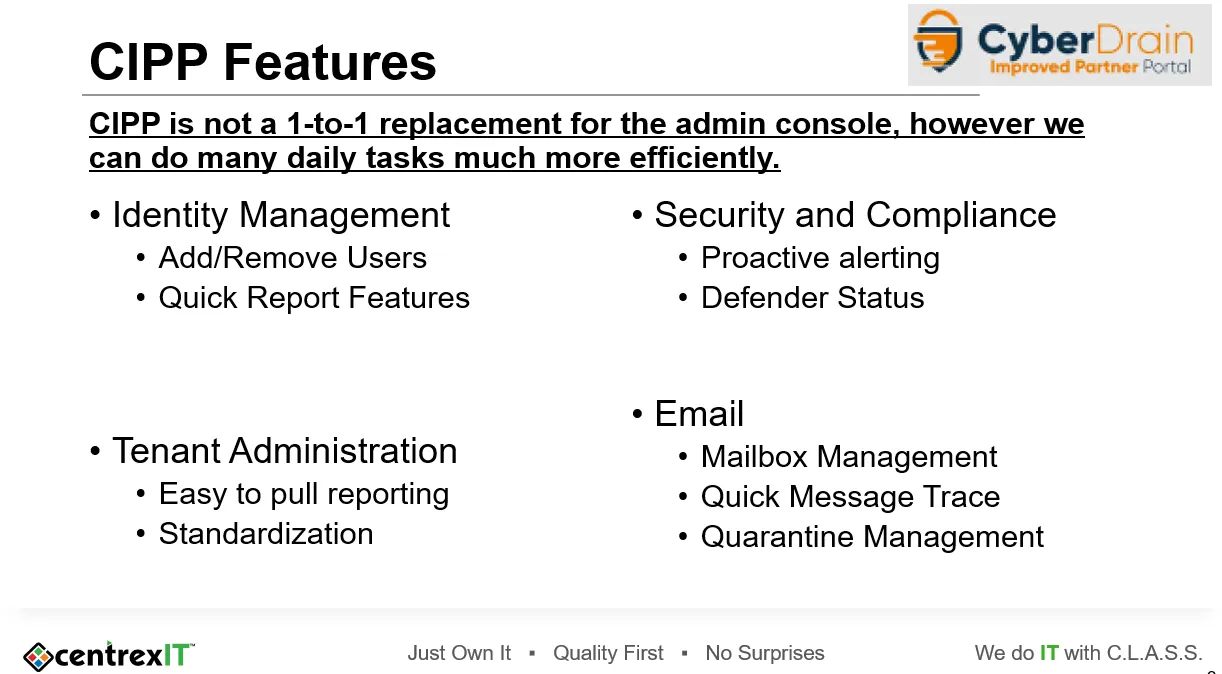
Section titled “Purpose:”This KB is an overview of how to get access and a basic overview of the tool.
Scope:
Section titled “Scope:”Technology
Responsibility:
Section titled “Responsibility:”Service Desk, vITM, vCIO, CSOC, Projects
About:
Section titled “About:”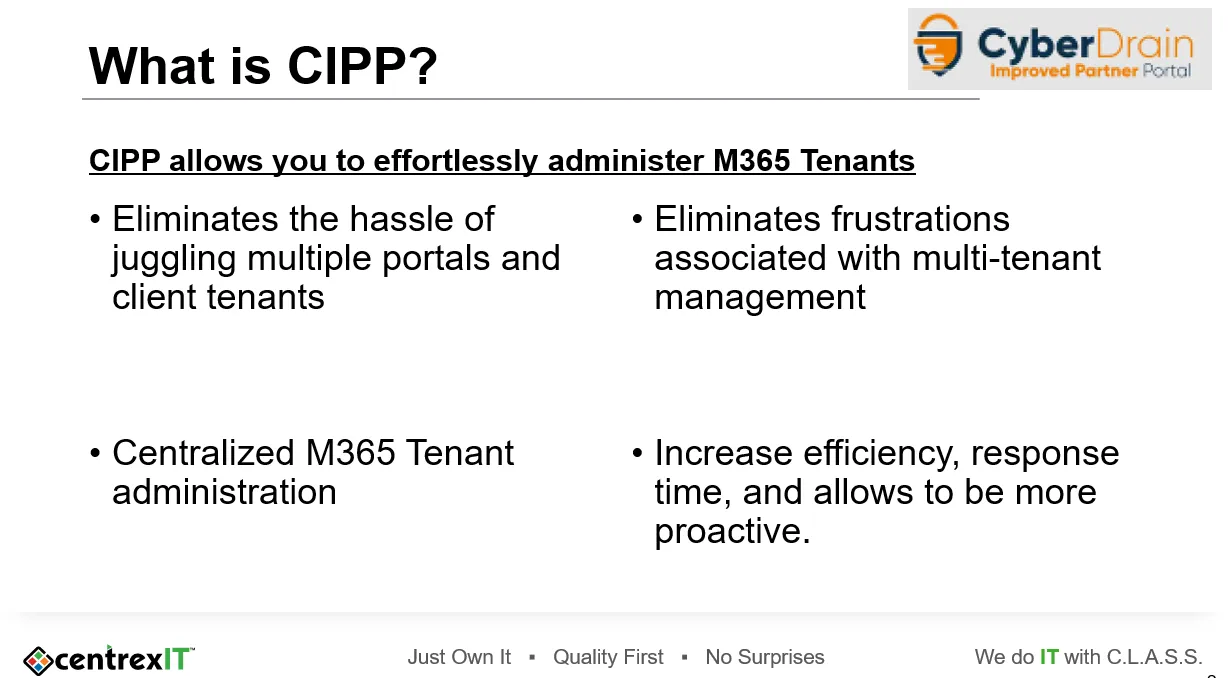
Procedure:
Section titled “Procedure:”- Get Access to CIPP
-
Contact Josh Hohbein or Bryan Bognot to get access
-
You will recieve an invite link. You will need to use a privledged account that will be created if you don’t have one.
-
Each department will utilize the tool differently please read the documentation and consult your department manager with how your team commonly interacts with CIPP.
- Accessing CIPP
-
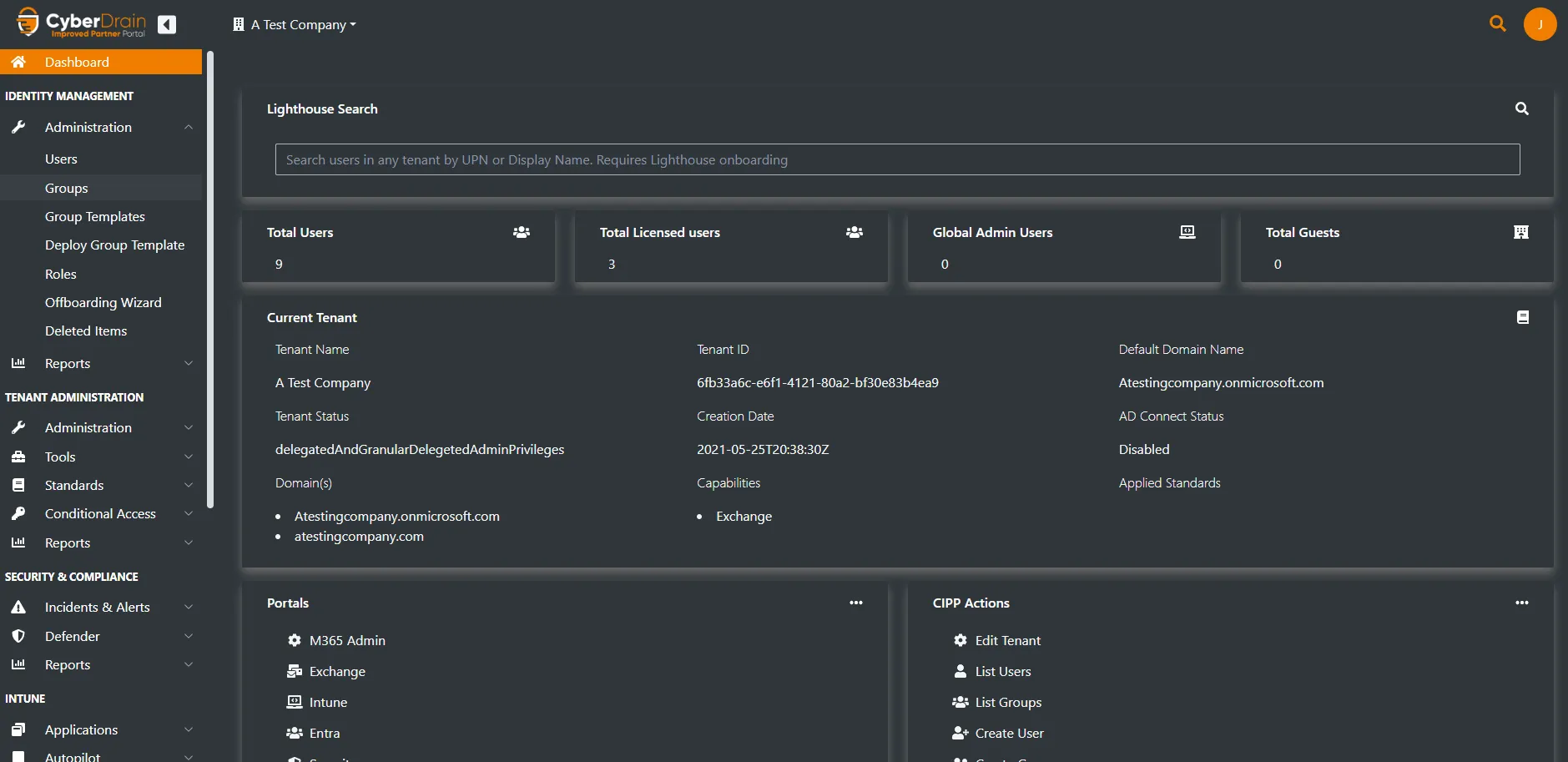
After the invite is accepted, you can access to the tool by going to CIPP.CentrexIT.com and logging in with your privledged account.
 -
Utilize the Drop Down to access the tenant you would like to manage
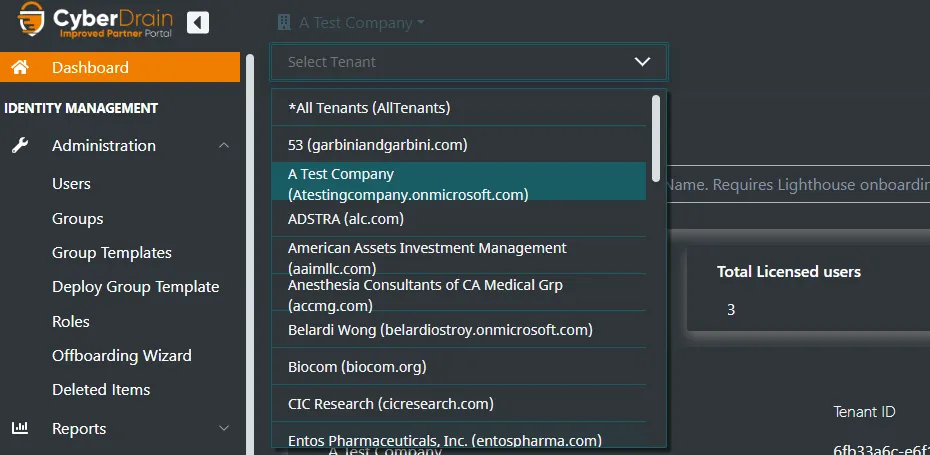 -
In order for a tenant to be managed by CIPP, they must have at at least one Microsoft 365 Business Premium, Microsoft 365 E3, Microsoft 365 E5 License.
-
We will NOT be utilizing the Standards section. Do NOT make any changes or apply any standards. This can break or make significant changes to our clients tenants.
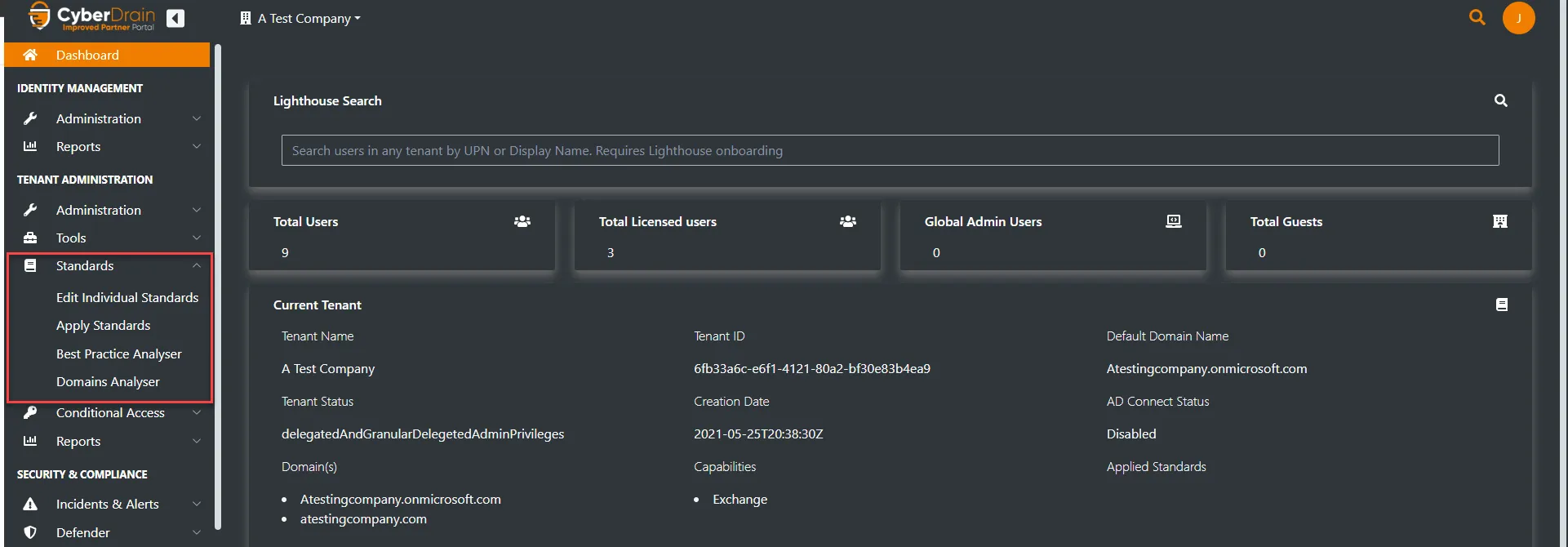
- Troubleshooting
-
Contact Josh Hohbein if you have any issues with the app.
-
If you have any feature requests please submit them to Josh Hohbein.
References:
Section titled “References:”- Please refer to the CIPP Documentation before utilizing the application - https://docs.cipp.app/