PROCEDURE This guide covers how to update NCentral.
REQUIREMENTS
-
Update NCentral NFR and verify Alert Ticketing is working between NCentral NFR and Halo Dev.
-
Contact Sierra Pacific Group to verify latest recommended version to update to. This group deals a lot with other clients running NCentral, and can immediately let us know whether the latest version is stable enough to not cause issues.
-
Access to NCentral Management Console on Port 10,000
-
Access to NCentral to download the update Partner Success Software Downloads Center (n-able.com)
-
Verify the current version of NCentral is listed under the supported upgrade version Announcing the GA of N-central 2022.7 | N-able Status
Prep Work
Section titled “Prep Work”- Verify Agents are up-to-date matching the NCentral Server Version
1a In NCentral, navigate to Help > Version Information. Confirm Version number matches agent version
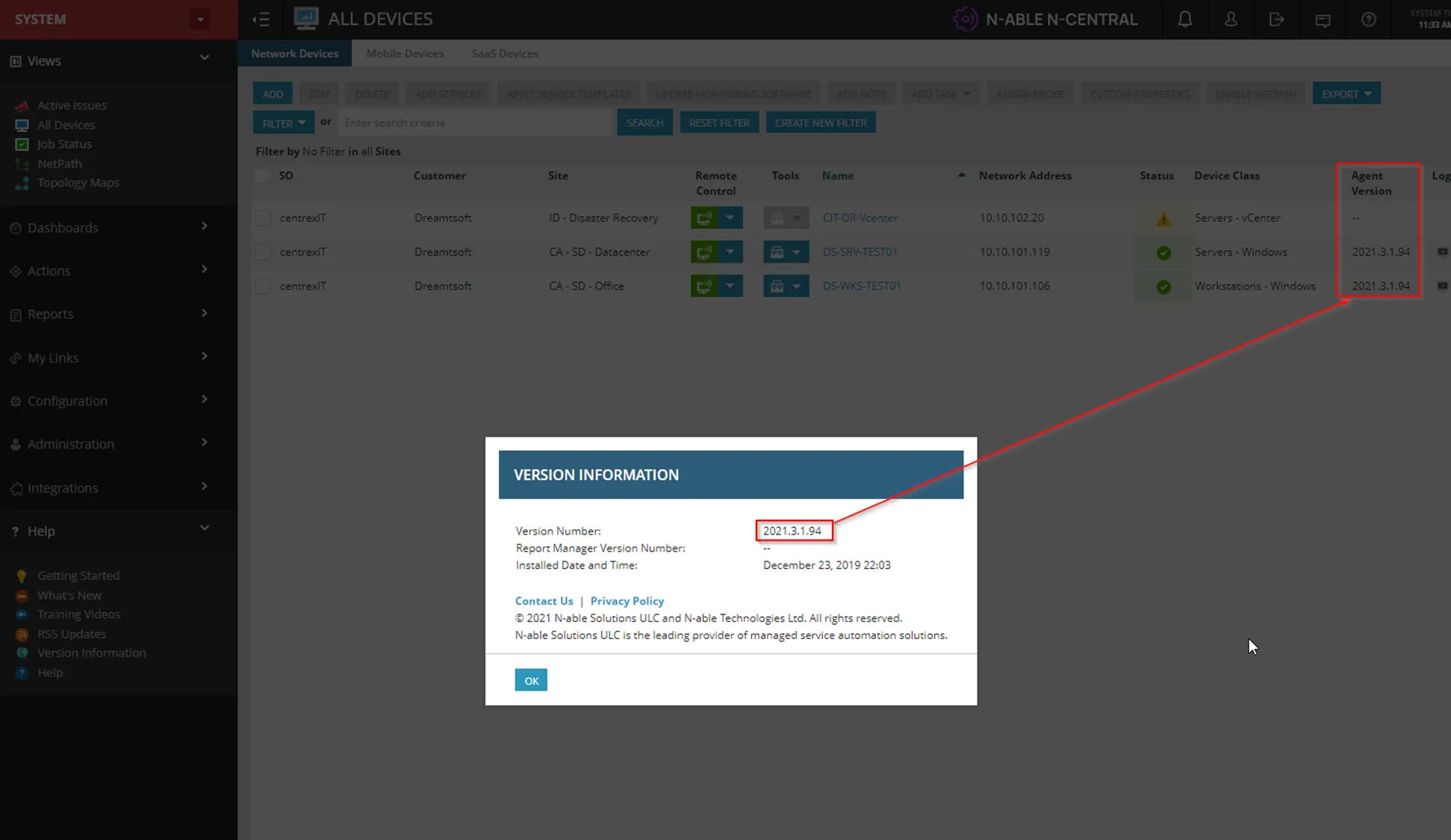
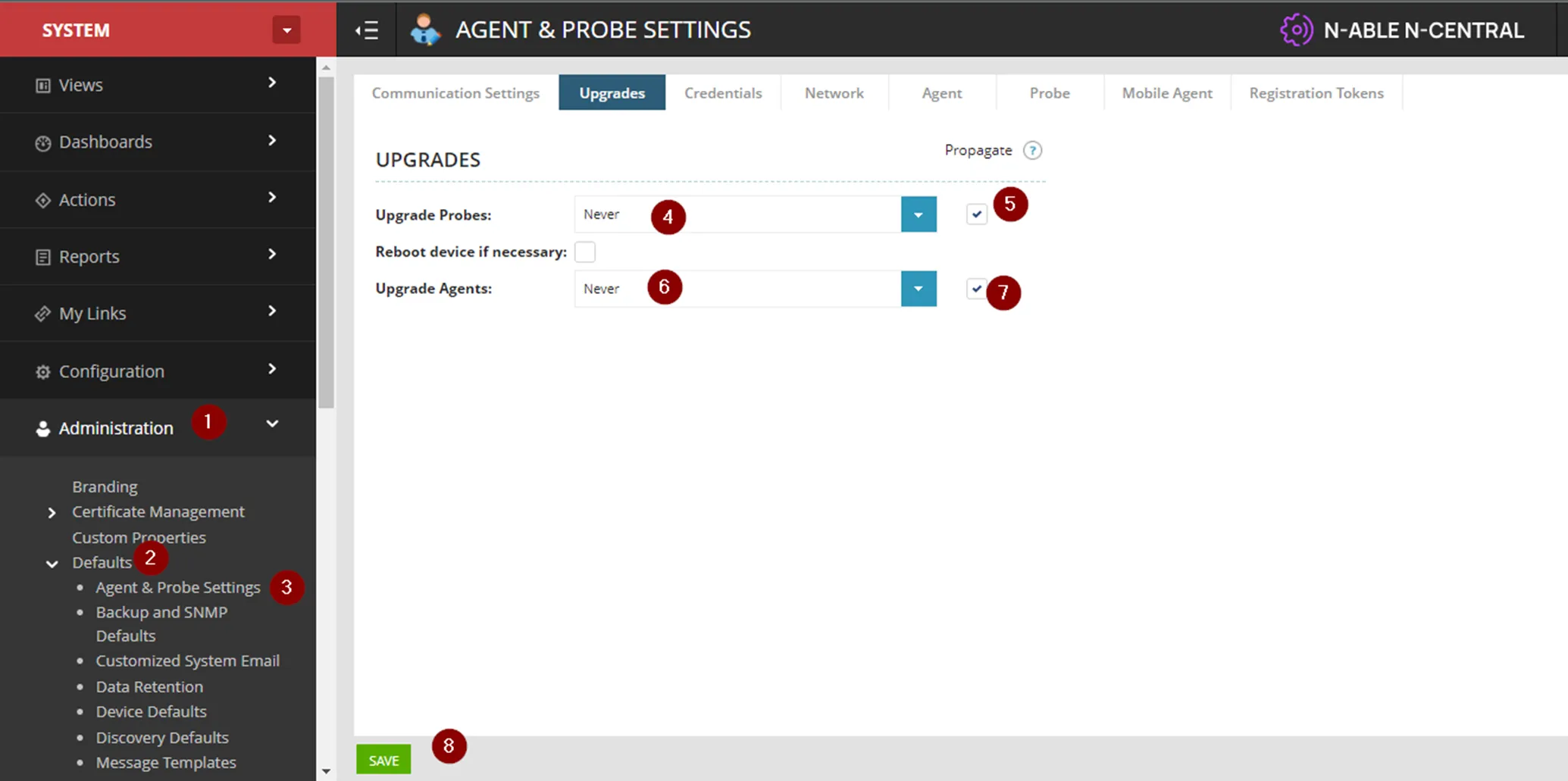
- Set Probe/Agents Upgrade to Never
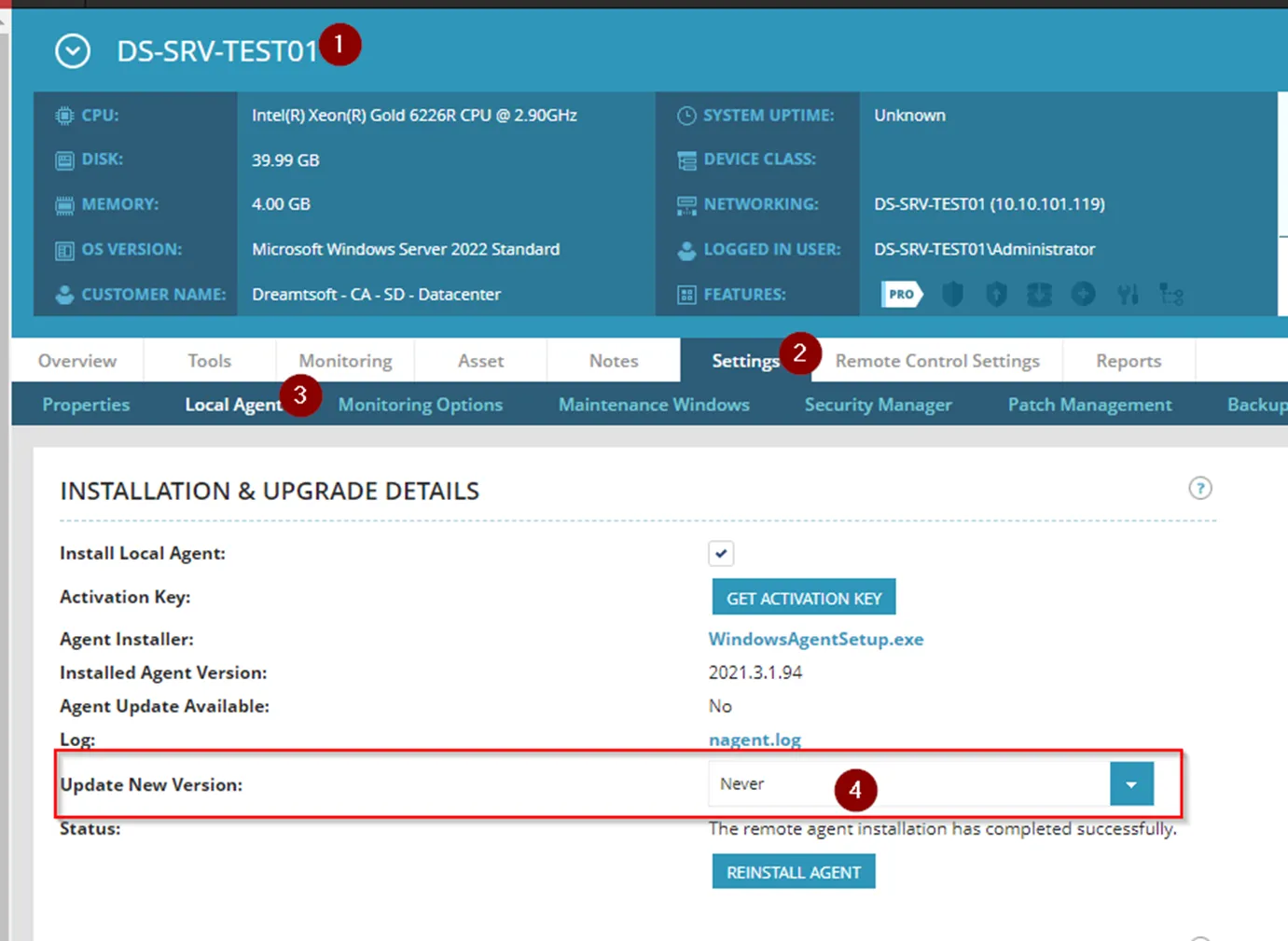
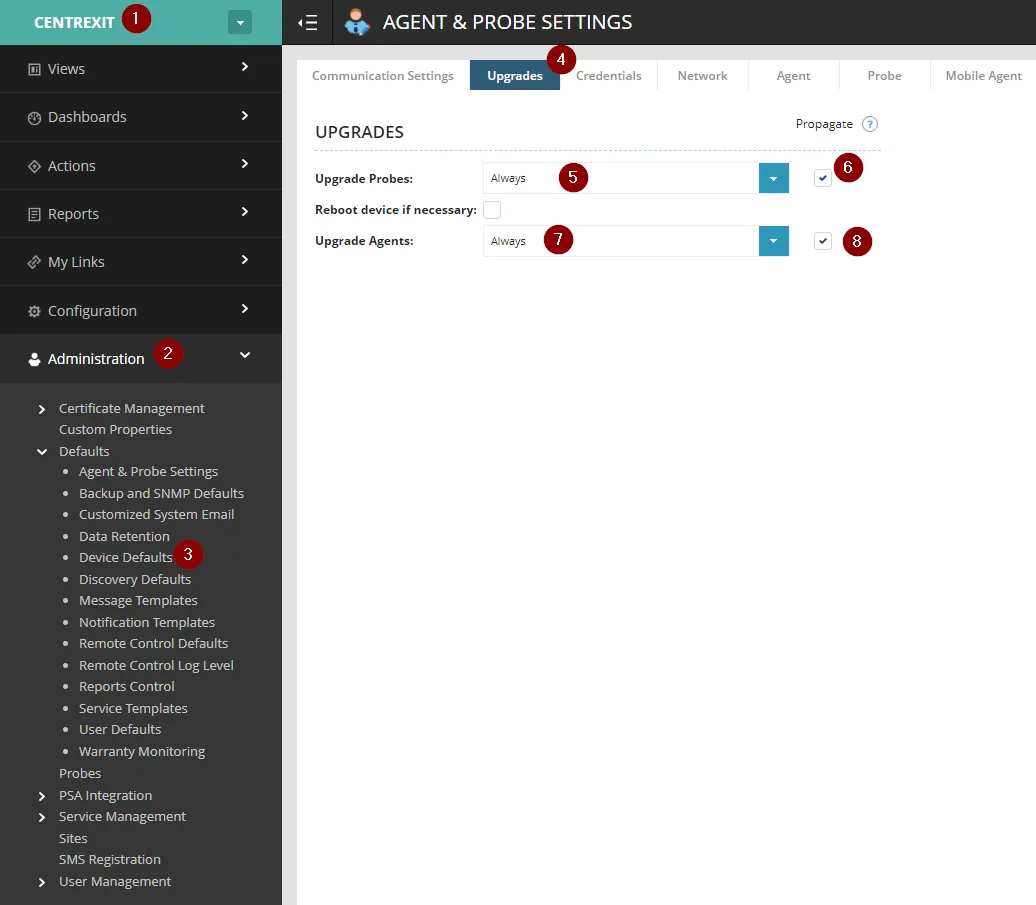
2a Navigate to Admistration > Defaults > Agent & Probe Settings. Set upgrade to Never for both probes and agents, and select Propagate. Then Click Save
2b You can verify the setting under a device. Navigate to Settings > Local Agent > Upgrade New Version:
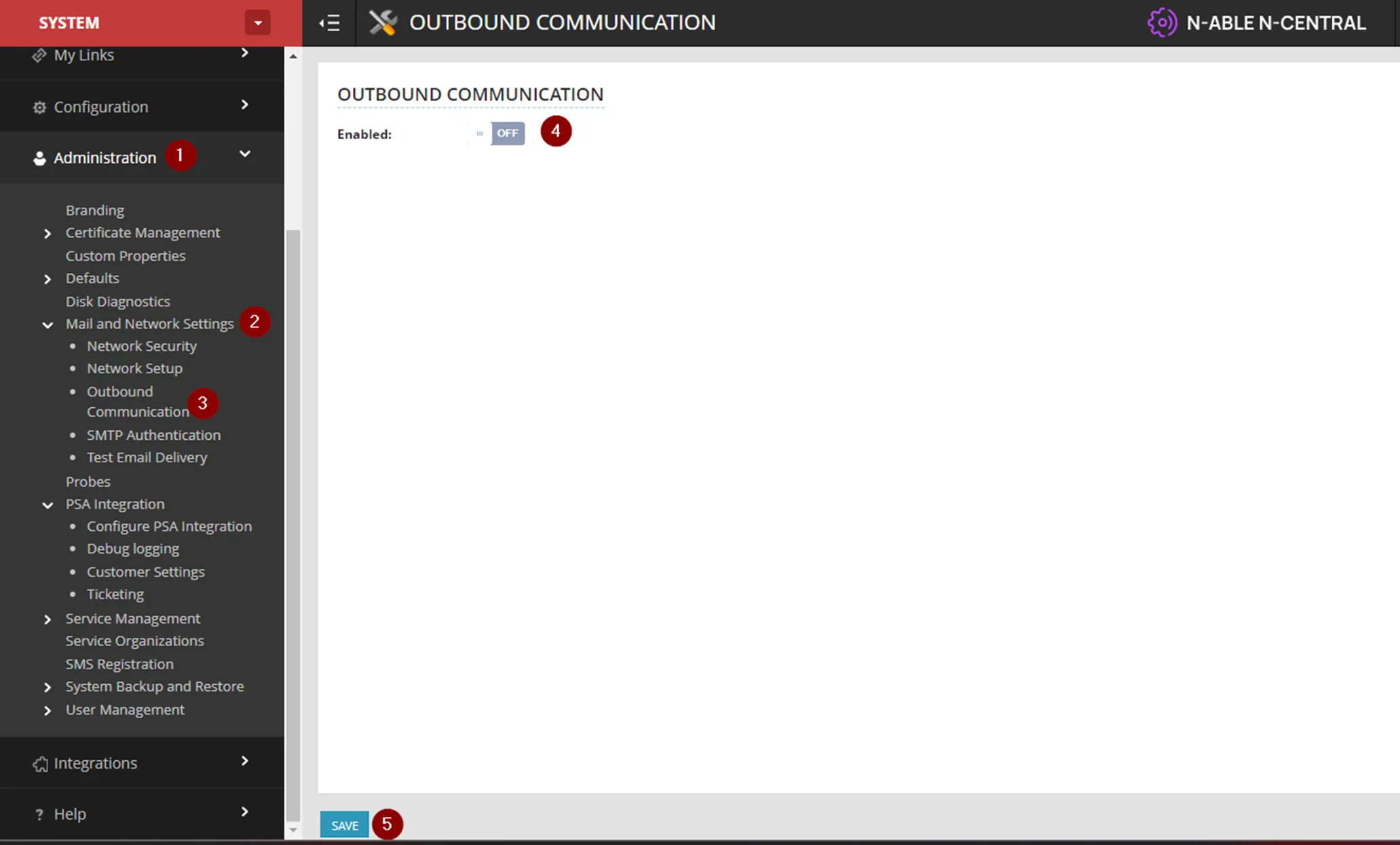
3 Disable Outbound Communication
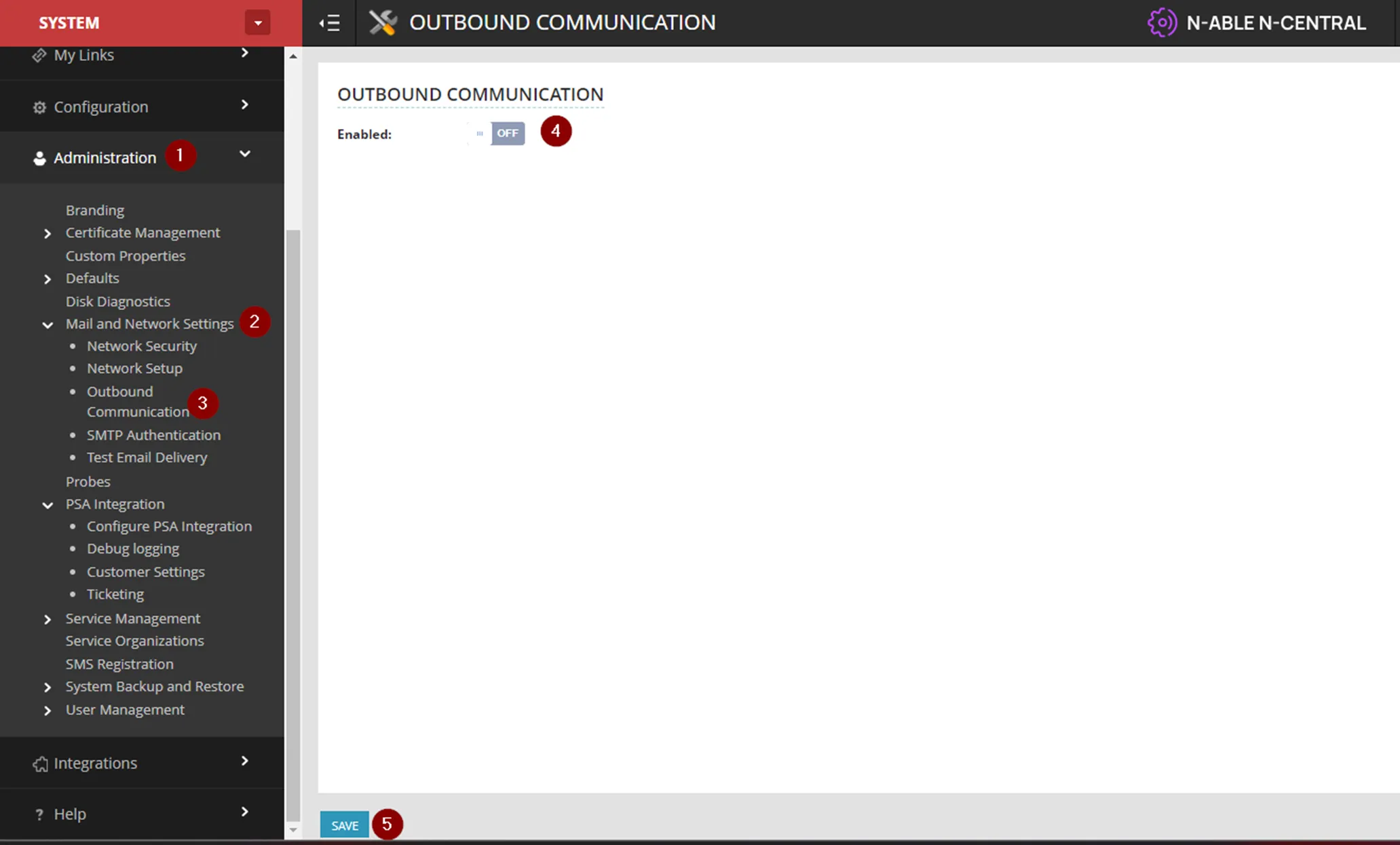
3a Turn off Outbound Communication to prevent notifications during the upgrade. This is so we do not have to set maintenance window for all critical devices that would normally alert the on-call engineer. Navigate to Administration > Mail and Network Settings > Outbound Communication:
4 Run a Manual Backup
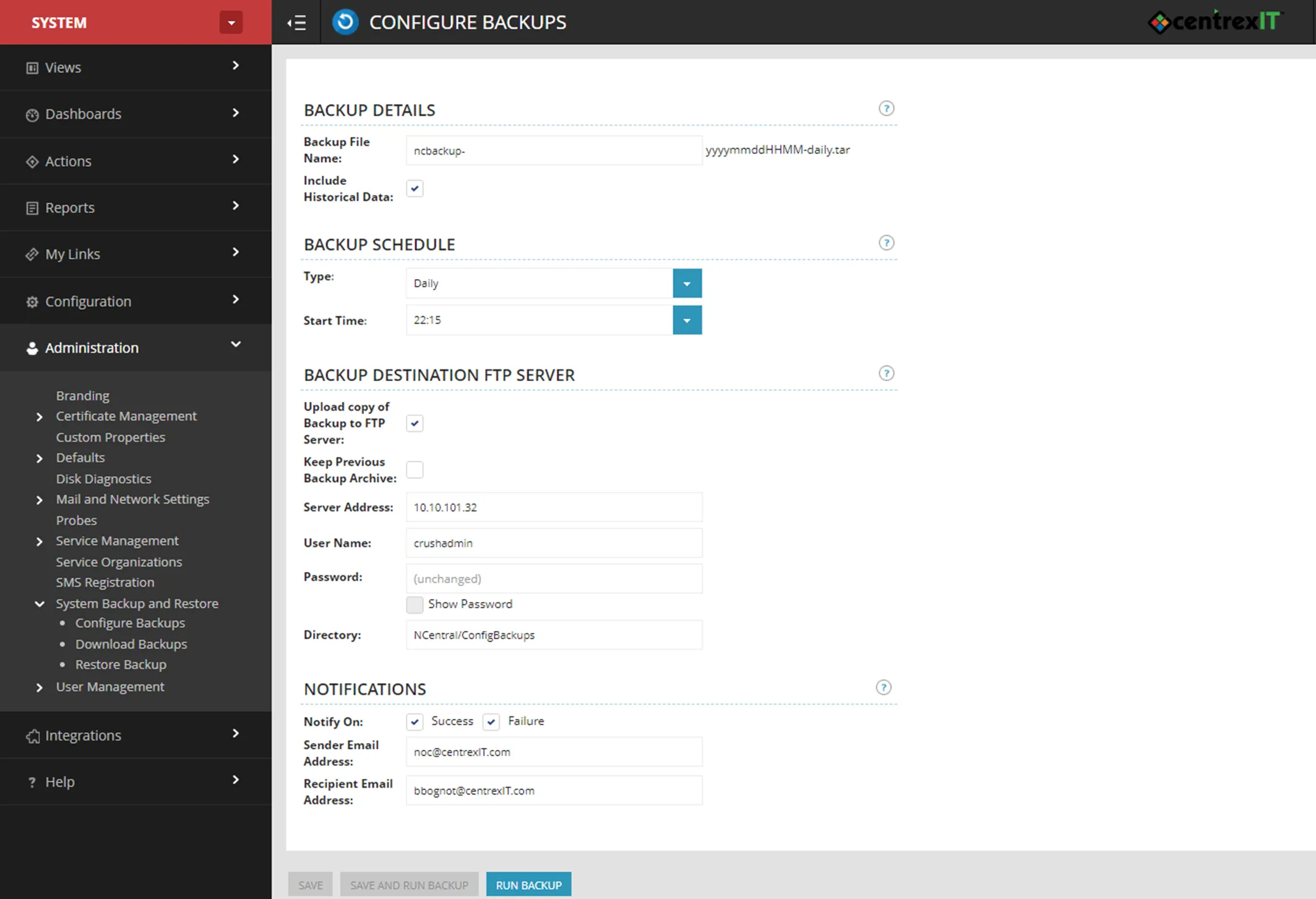
4a Run a manual backup. The backup destination is CIT-SFTP 10.10.101.32. Navigate to the System Level > Administration > Configure Backups > Run Backup
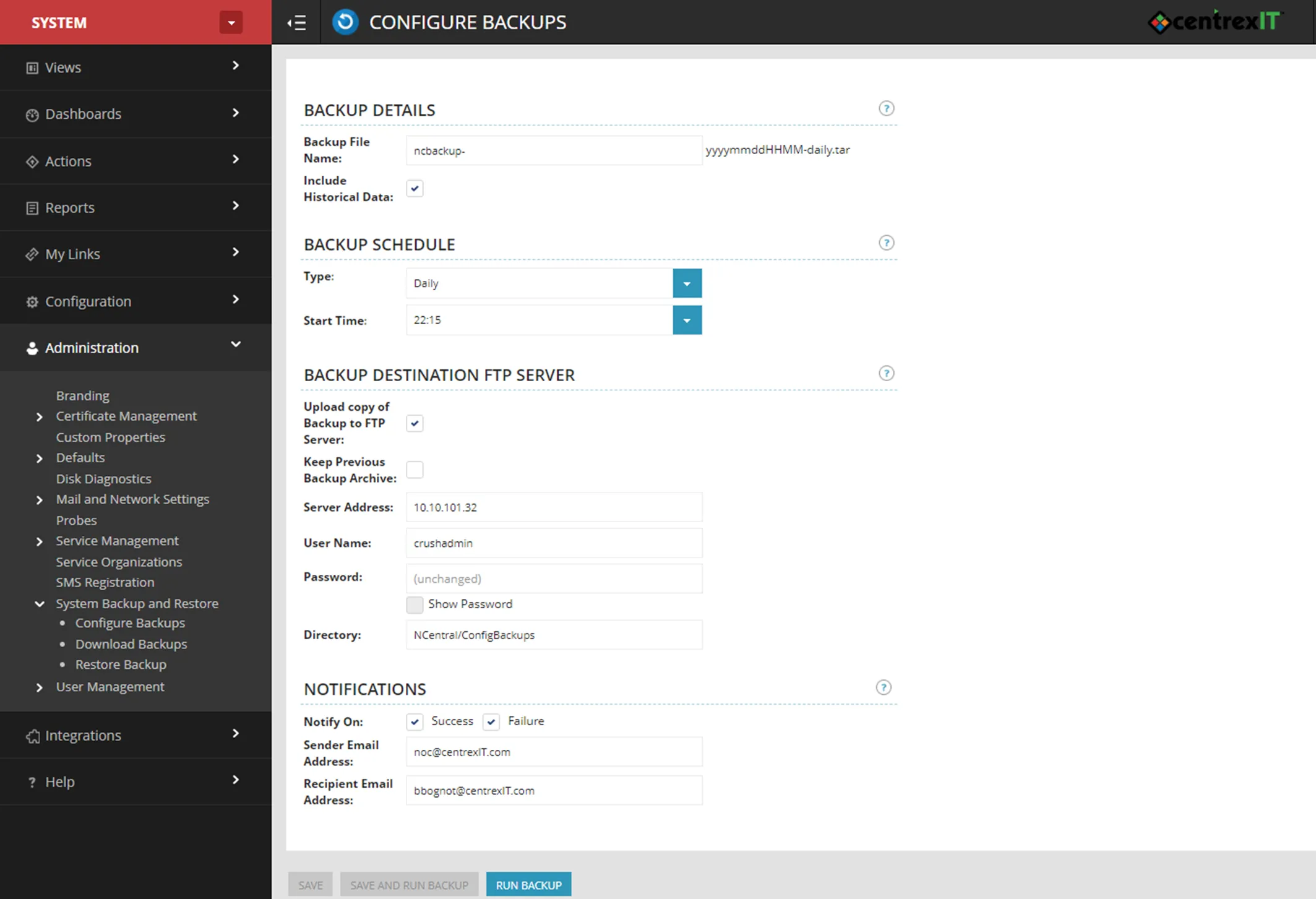
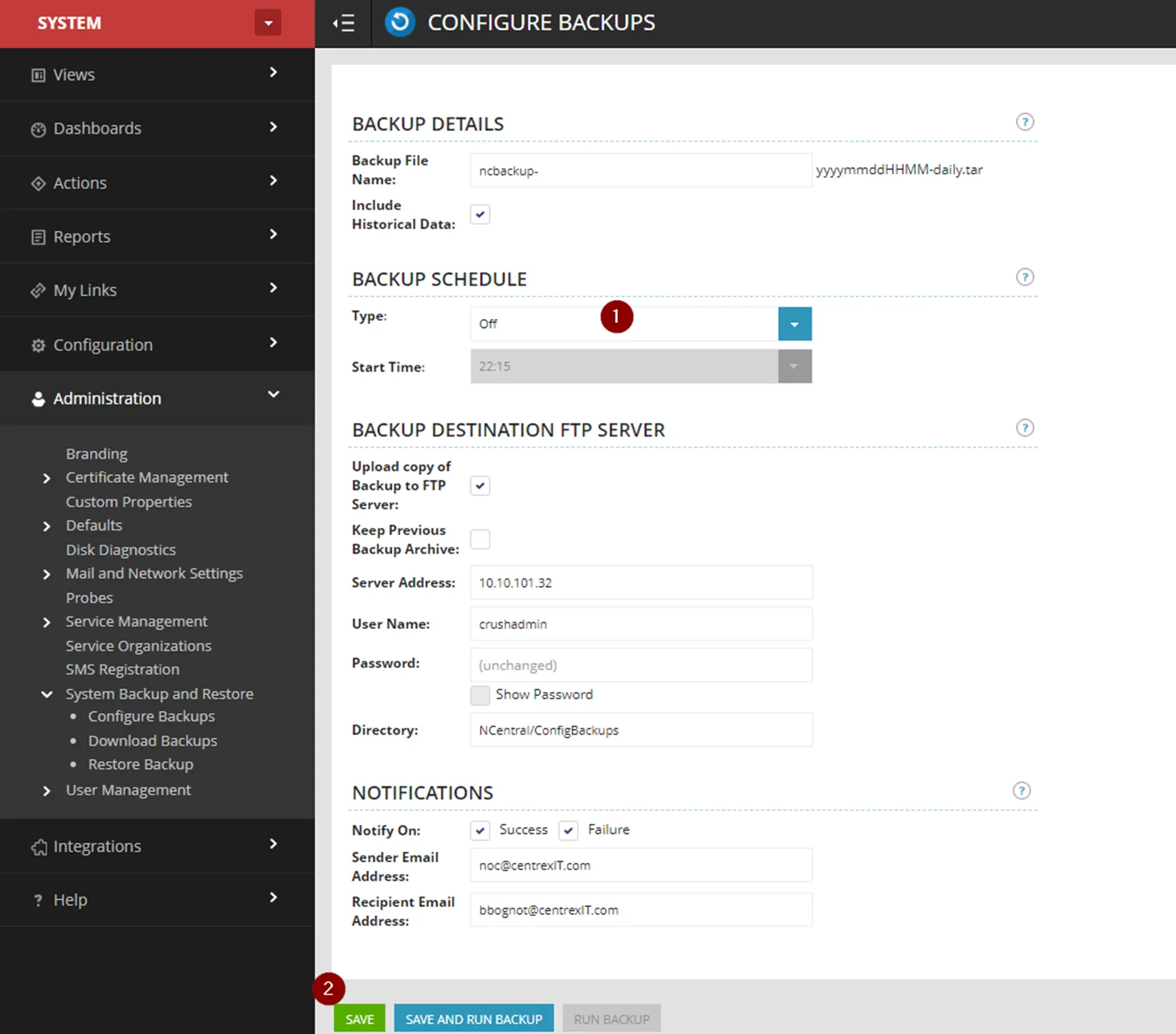
4b Once the backup completes, set the backup schedule to OFF
5 Run a Veeam Backup
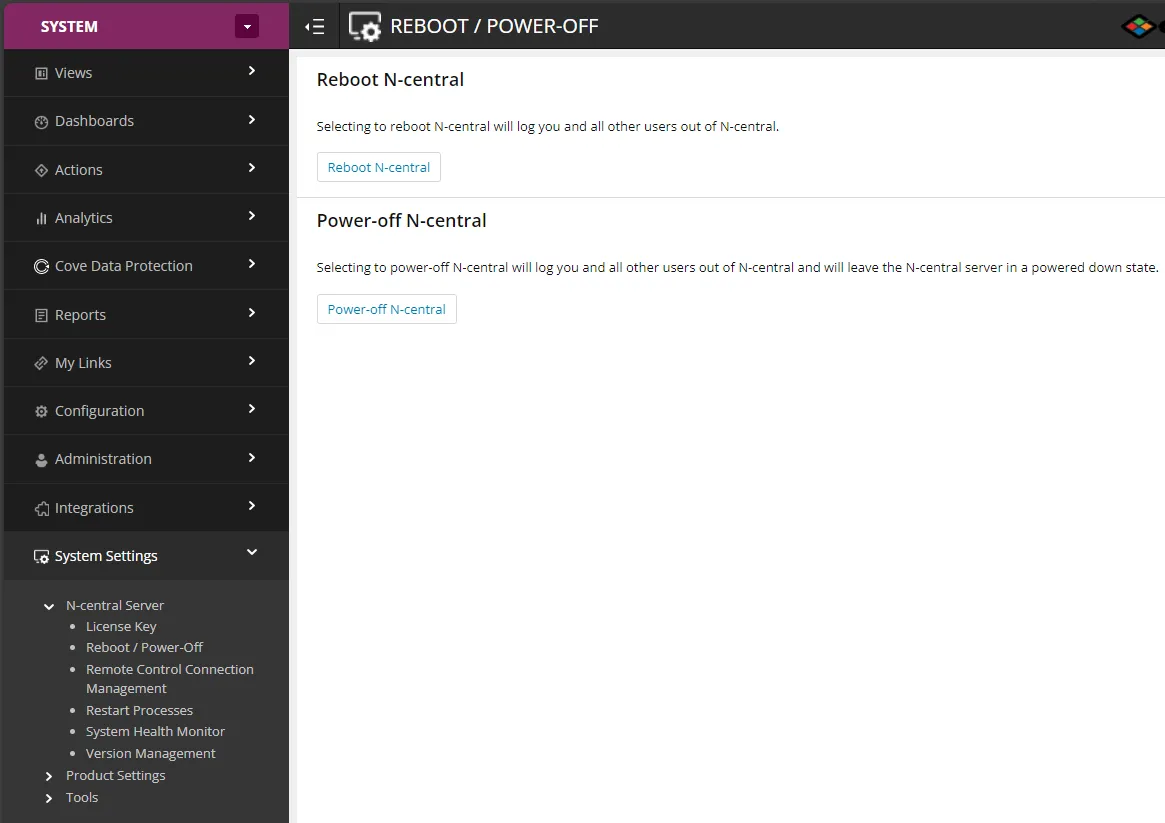
5a First Navigate to ncentral.centrexit.com and at the SYSTEM level, System Settings, N-central Server, Reboot / Power-Off, and shutdown the server. In this example, I have logged into the NFR NCentral Instance.
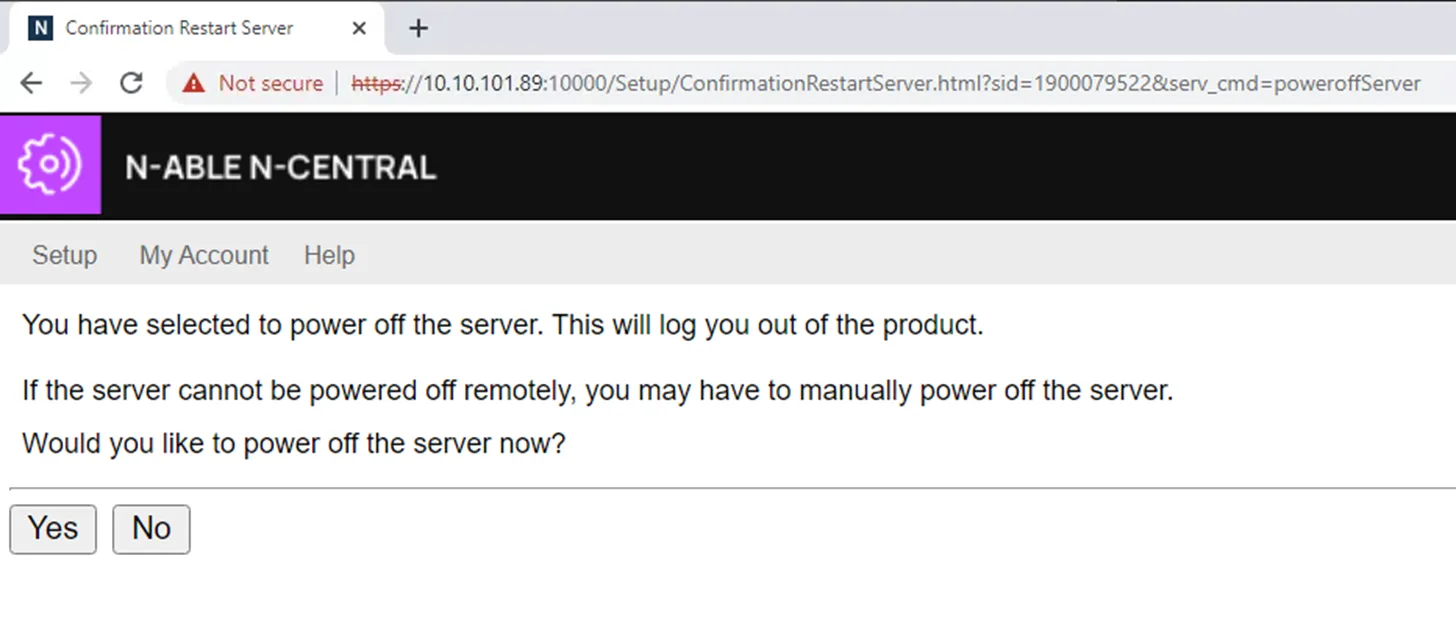
5b Confirm that you want to power off the server
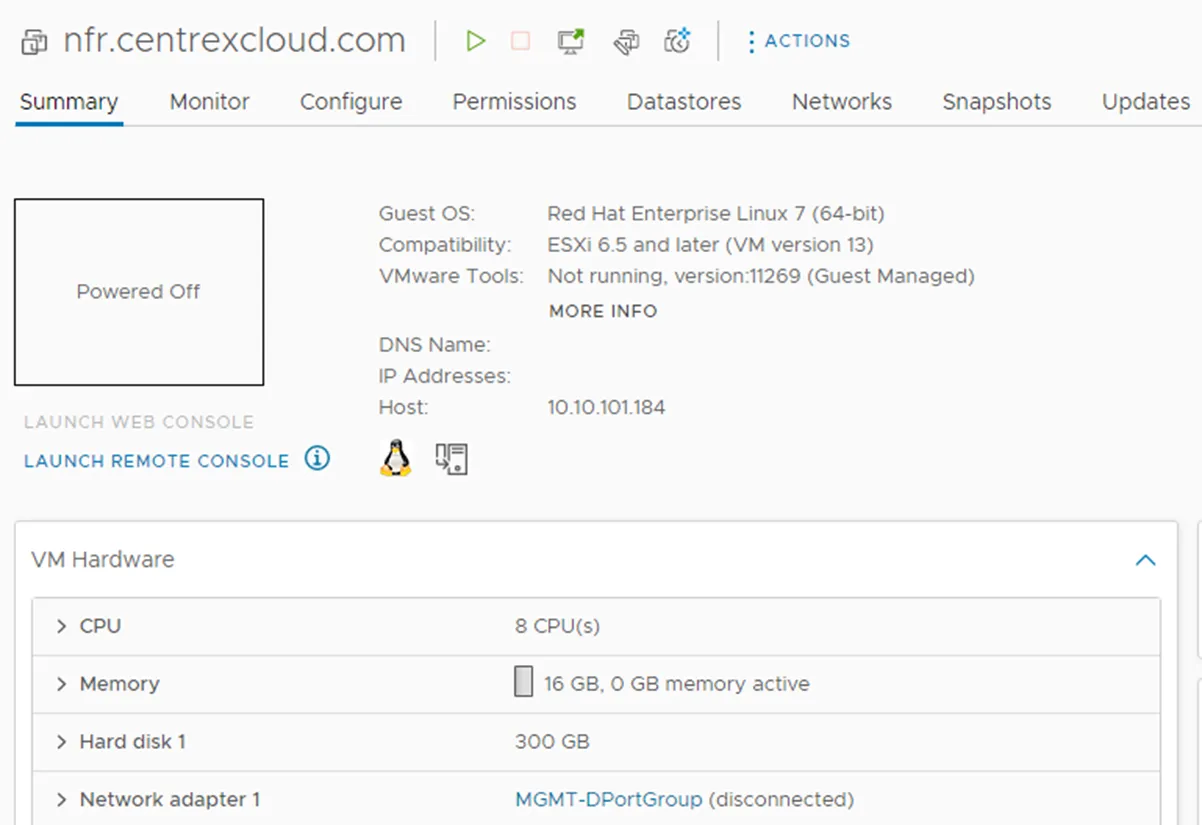
5c From vCenter, you can open a remote console to verify when the server is shutdown
5d Once you’ve confirmed the server is off, navigate to VBR to take a backup
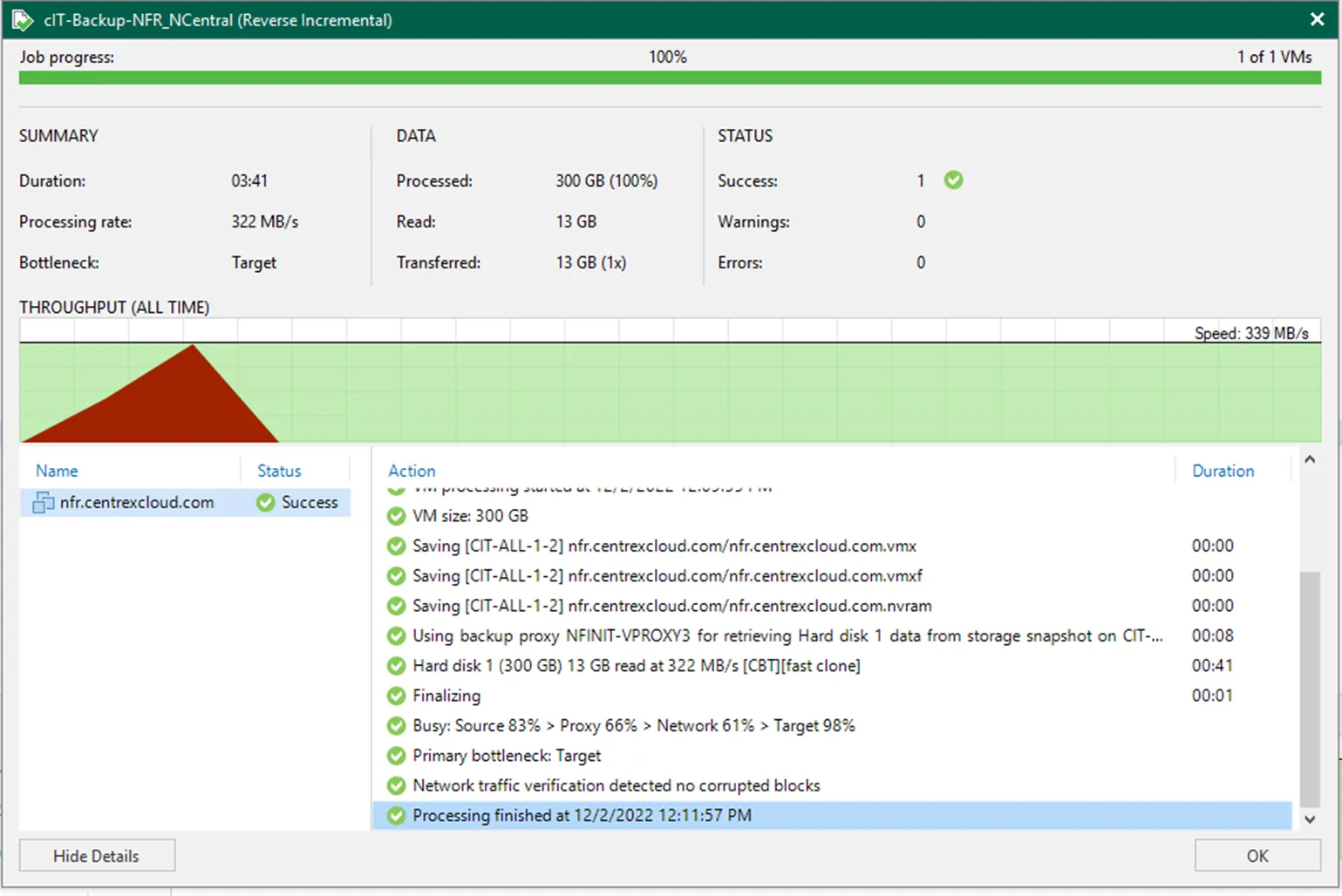
5e In this example, the NFR instance is under it’s own backup job, which I ran.
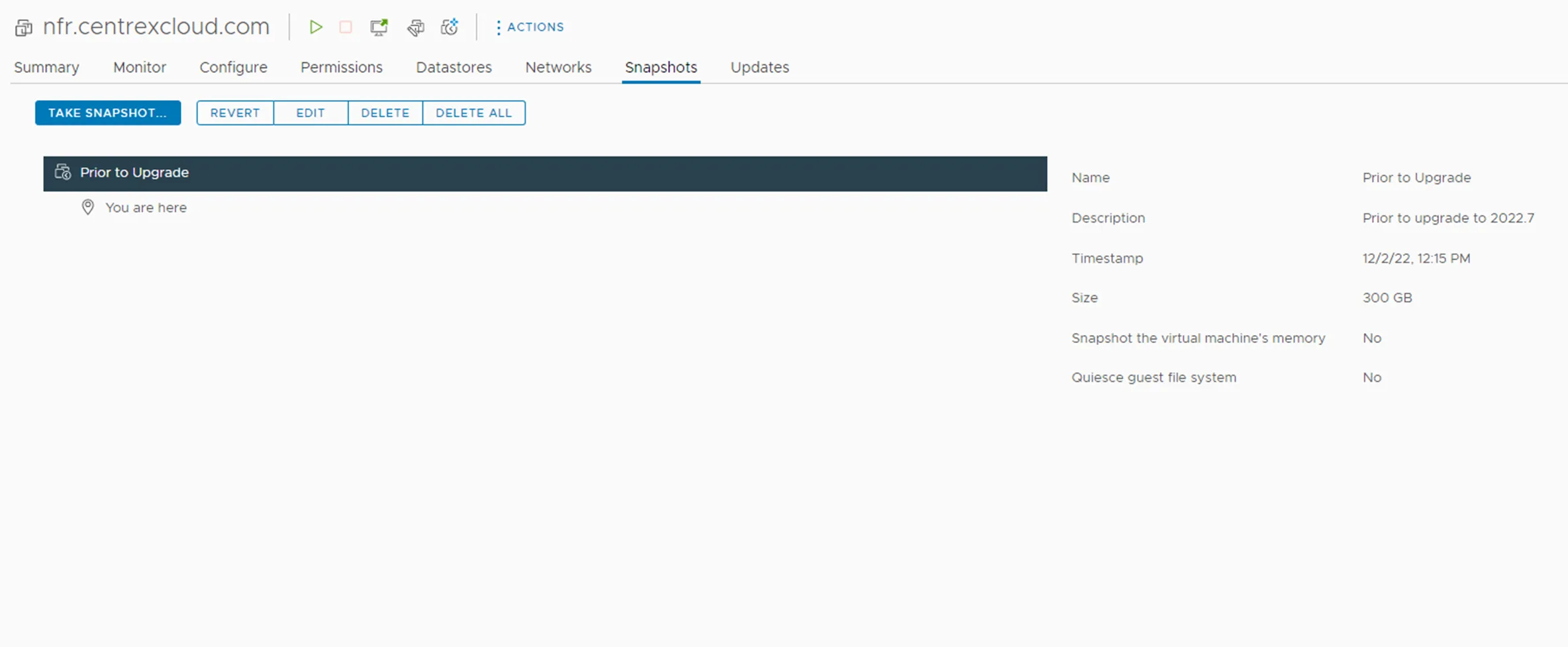
6 Take a VM Snapshot
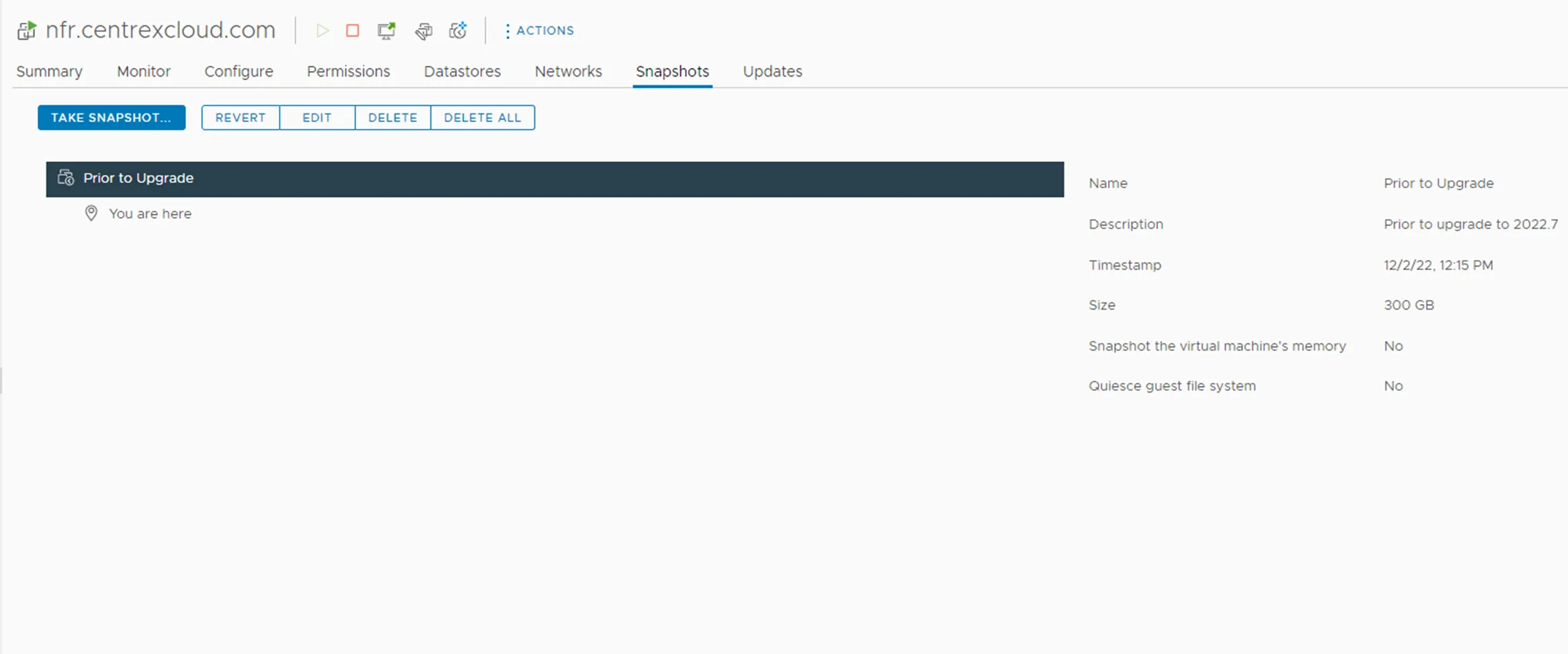
6a Take a VM Snapshot of the NCentral server. Here I am taking a snapshot for the NFR Instance prior to upgrading the server to 2022.7
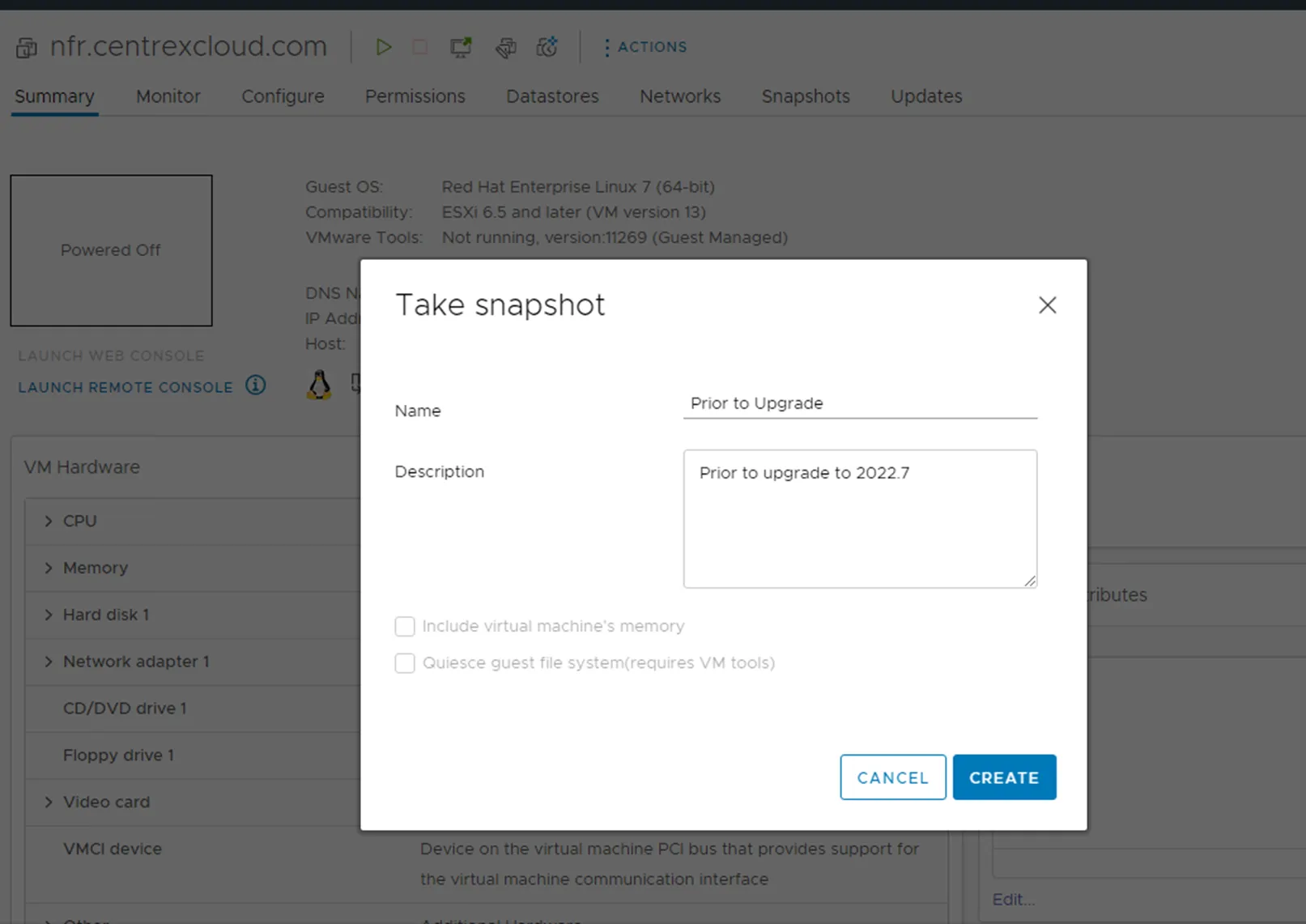
6b Make sure the snapshot is complete prior to powering the server back on. This will make rolling back to the previous version easier.
Upgrading NCentral
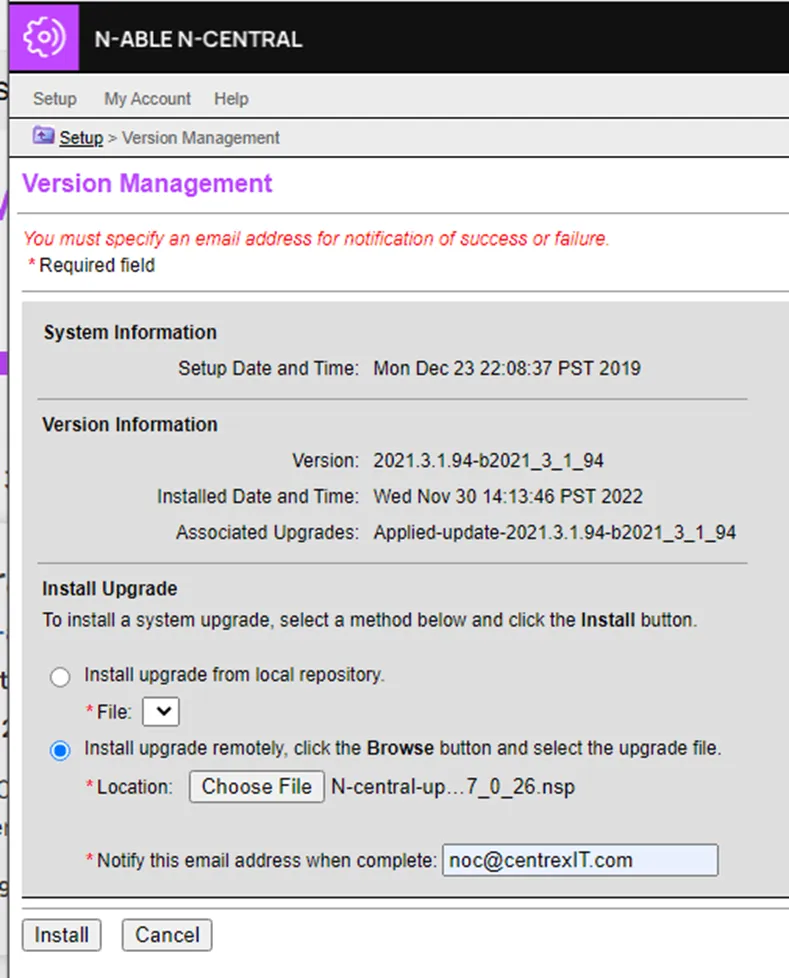
Section titled “Upgrading NCentral”1 Navigate to ncentral.centrexit.com, SYSTEM Level, System Settings, N-central Server, and Version Management
1a In this example, we are upgrading NCentral to 2022.7. We are currently running version 2021.3.1.94. Absolutely make sure the current version, is supported for upgrading to the target version.
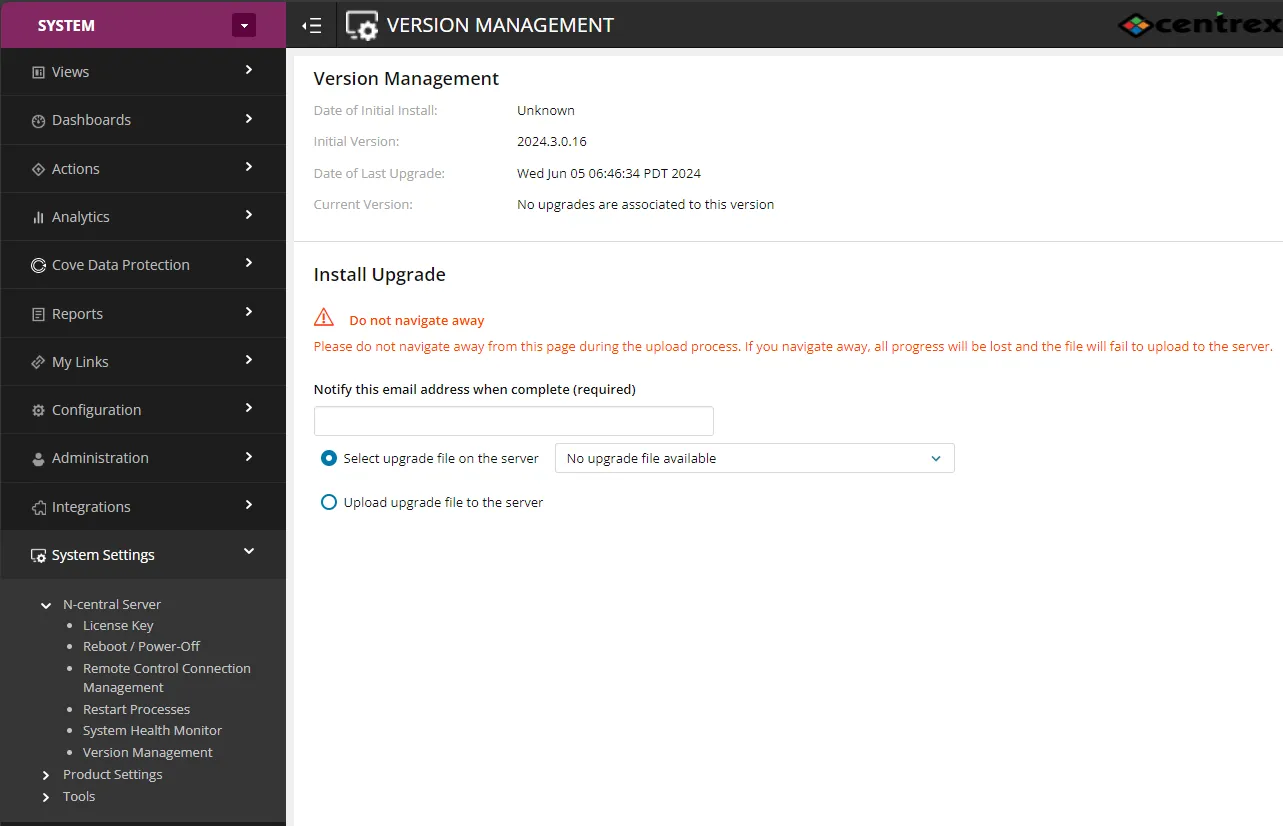
1b Announcing the GA of N-central 2022.7 | N-able Status
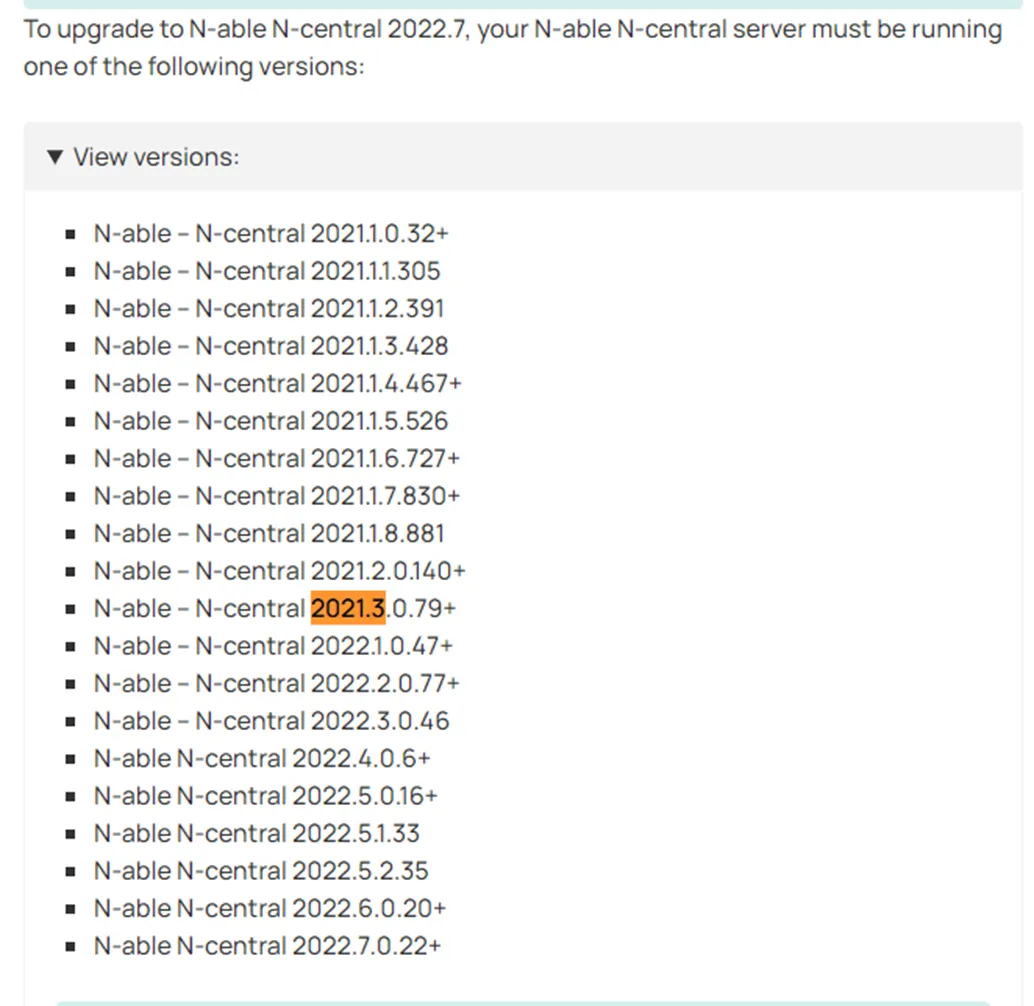
1c Under Install Upgrade, click choose file and select the download
Downloading the update files can be found here Partner Success Software Downloads Center (n-able.com)
1d Next Click install:
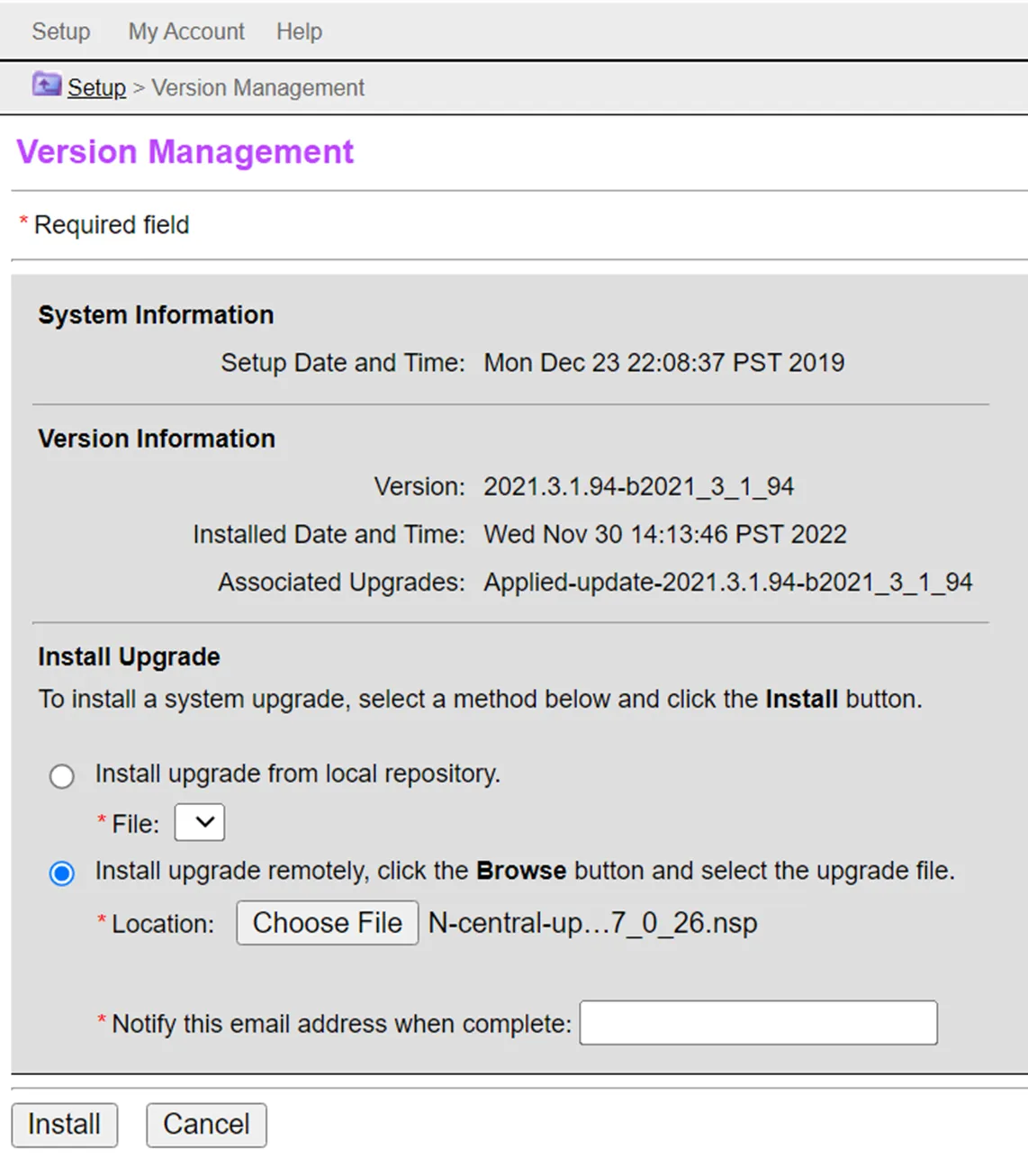
1e But make sure to enter an email address for notifying when the job completes, otherwise it throws an error message:
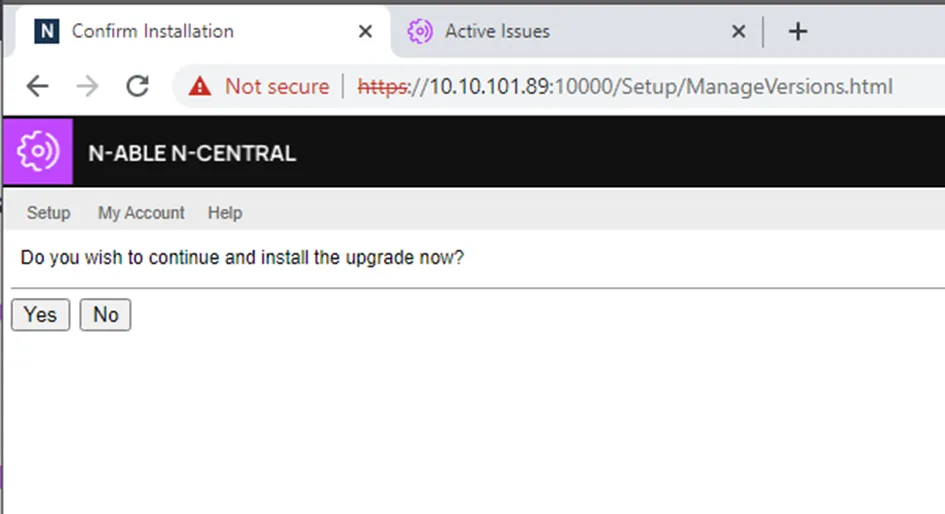
1d Final confirmation for starting the upgrade
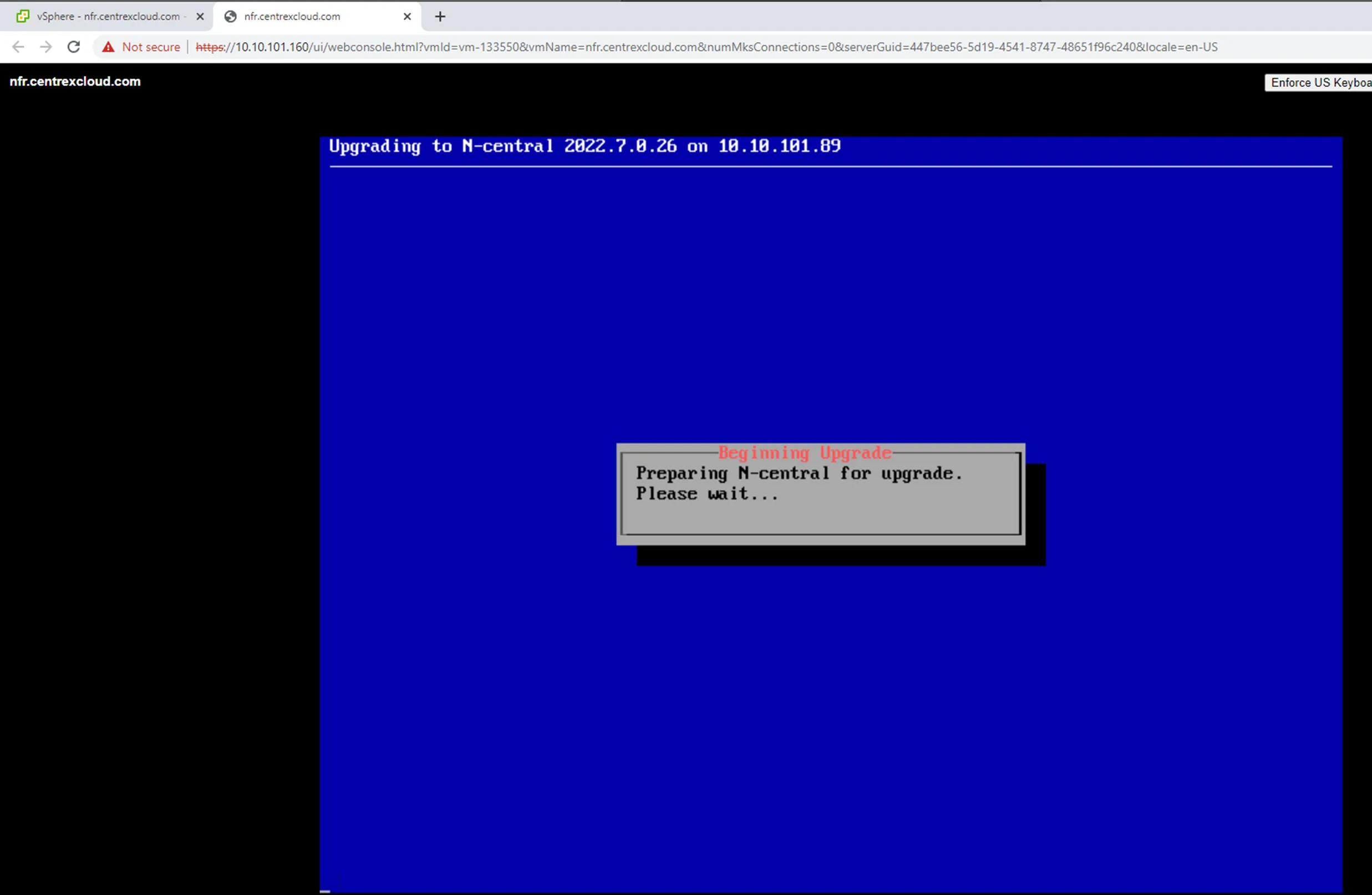
1e If you wish, you can monitor the upgrade from the VM Remote Console through vCenter:
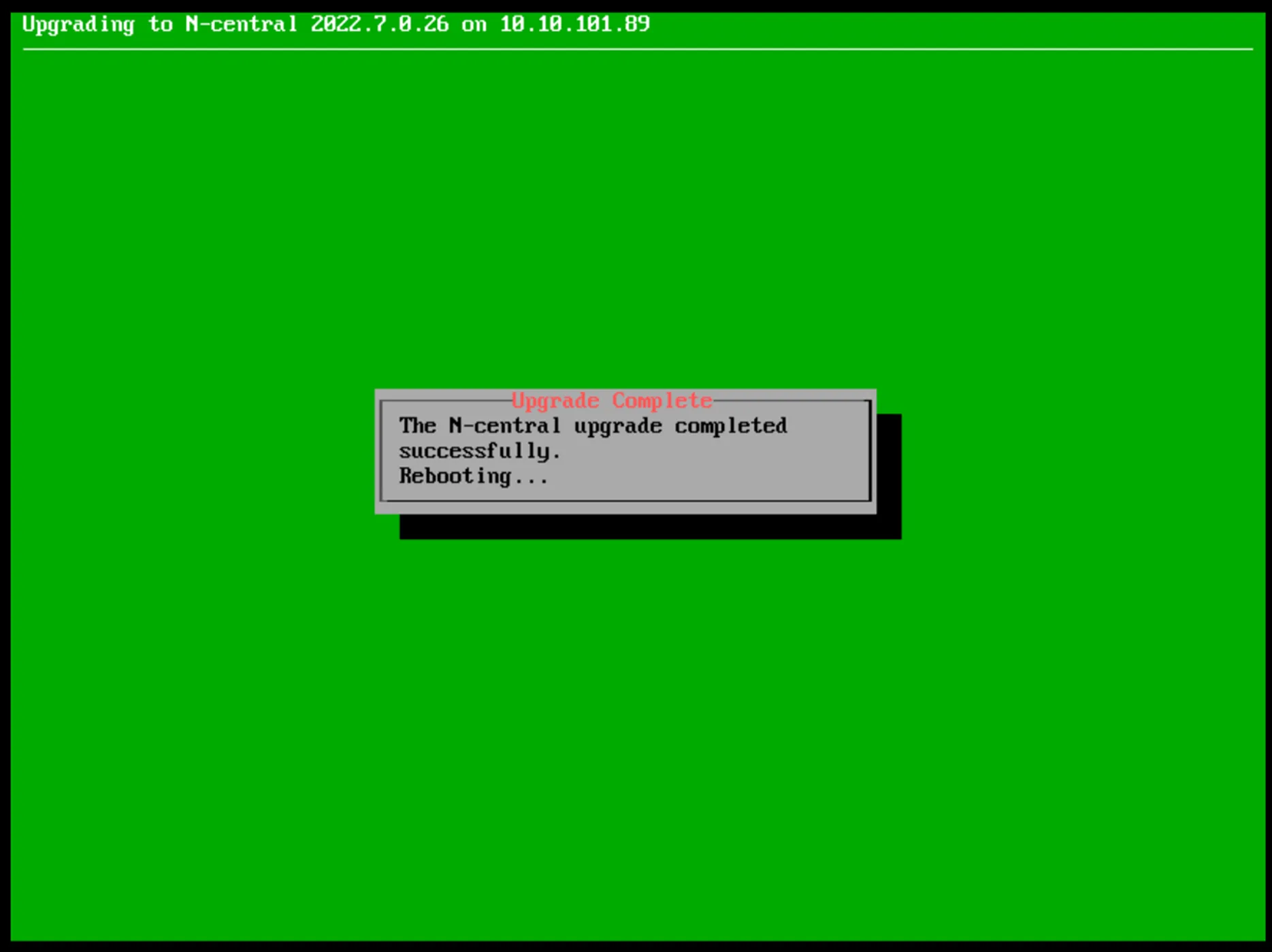
1f Splash screen on NCentral VM will confirm the upgrade has completed
1g Confirm NCentral Version reflects the version you updated to
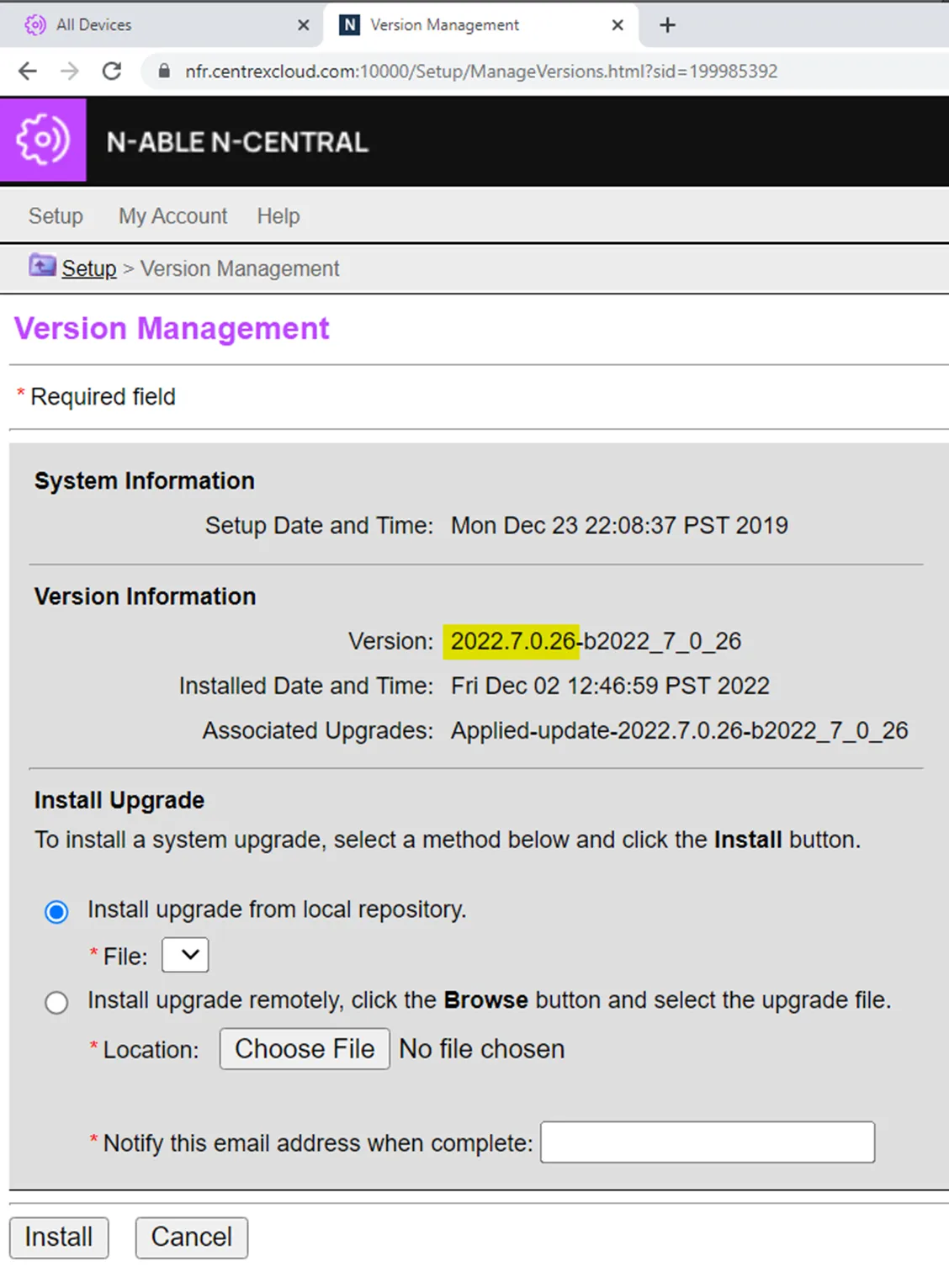
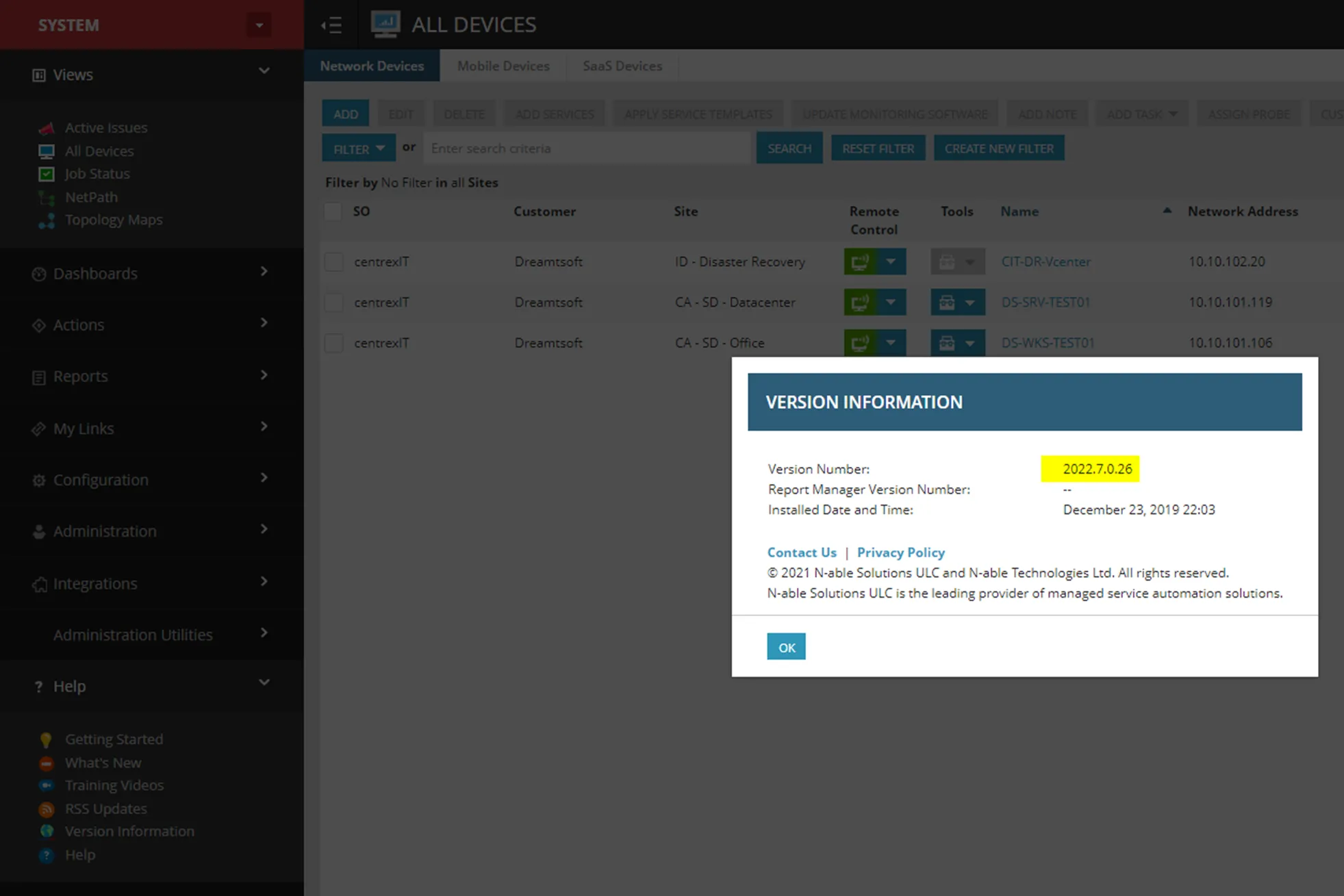
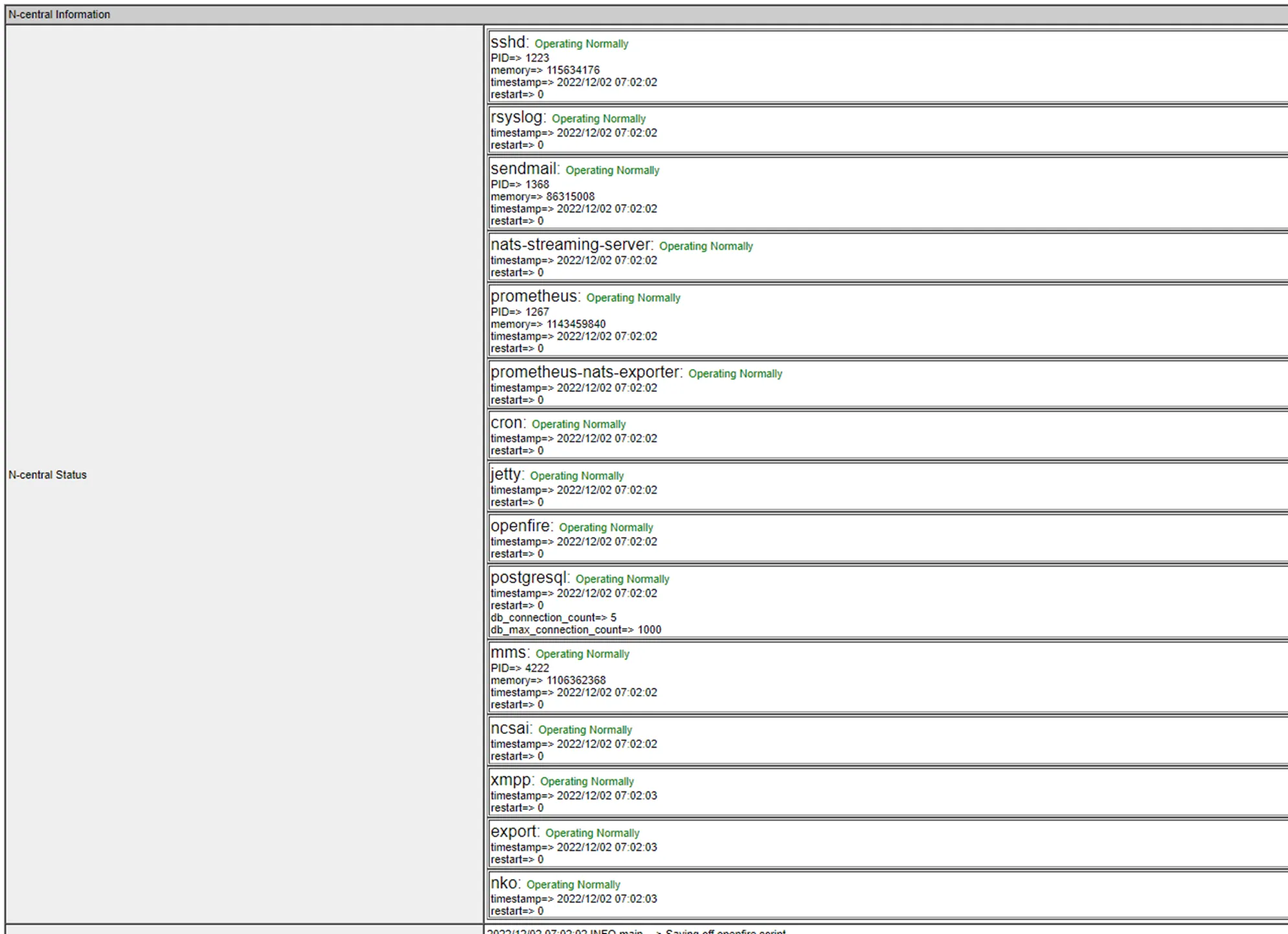
1h In the Management Console, Navigate to Services and confirm all are operating normally
**NOTE: If any service is failed, contact SolarWinds support 1-855-679-0817**
1i Once, everything has been confirmed to be working, go back to vCenter and delete the snapshot
2a On the next day, go down to each client in NCentral and set agent & probe settings to upgrade. Navigate to the client > Administration > Defaults > Device Defaults > Upgrades, set to Always and propagate then click save.
2b Re-Enable Outbound Communication
3c Re-enable backup daily schedule
REFERENCES
Download NCentral Update: Partner Success Software Downloads Center (n-able.com)
Upgrade NCentral: How To: Upgrade N-able N-central