On Call/Afterhours Escalation Process
I. Before going on-call. Ensure your NCentral filter is set to view active issues.
Alerts are generated from services monitored by a Probe. The probe collects the information and reports on it. All alerts from all clients can be viewed from the Service Organization (SO) level. The default filter would show every service issue, and we (in the Service Desk) only need to act on the following services: Connectivity, VPN Tunnel (Cisco), and Windows Service – Windows Software Probe Service. This document will demonstrate how to configure the service filter to view the services we monitor during after-hours.
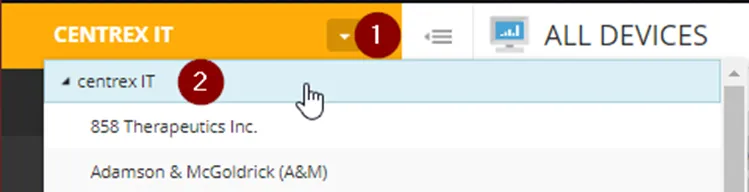
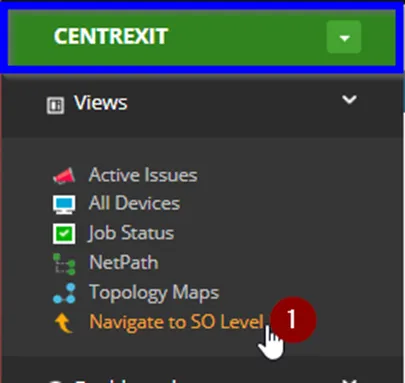
1. Within NCentral, verify that you are at the SO Level which is colored coded by Purple.
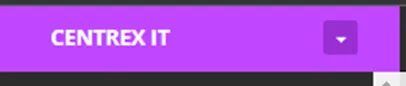
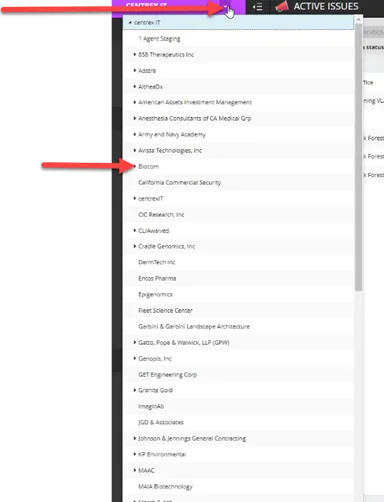
a. One method to get to the SO Level is click on the drop drown and select “Centrex IT”
b. A second method, is while at a Client Level (Color coded by Green), click on the link “Navigate to SO Level”
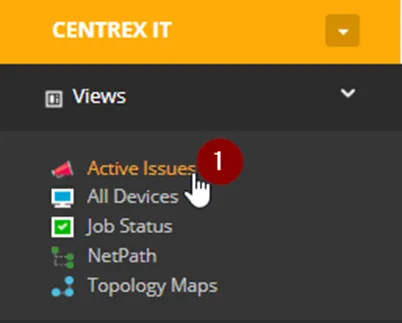
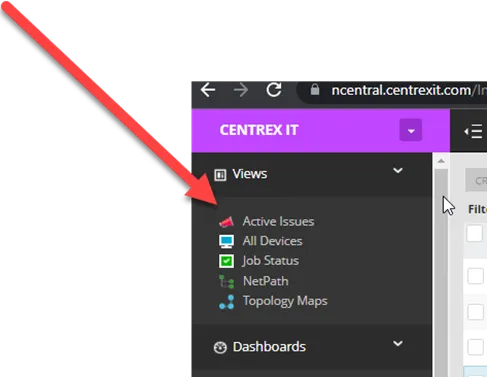
2. Once you’re at the SO Level, Click on “Active Issues”
3. There is a collapsed menu on the right side titled “Show Filter” click on it to expand the menu.
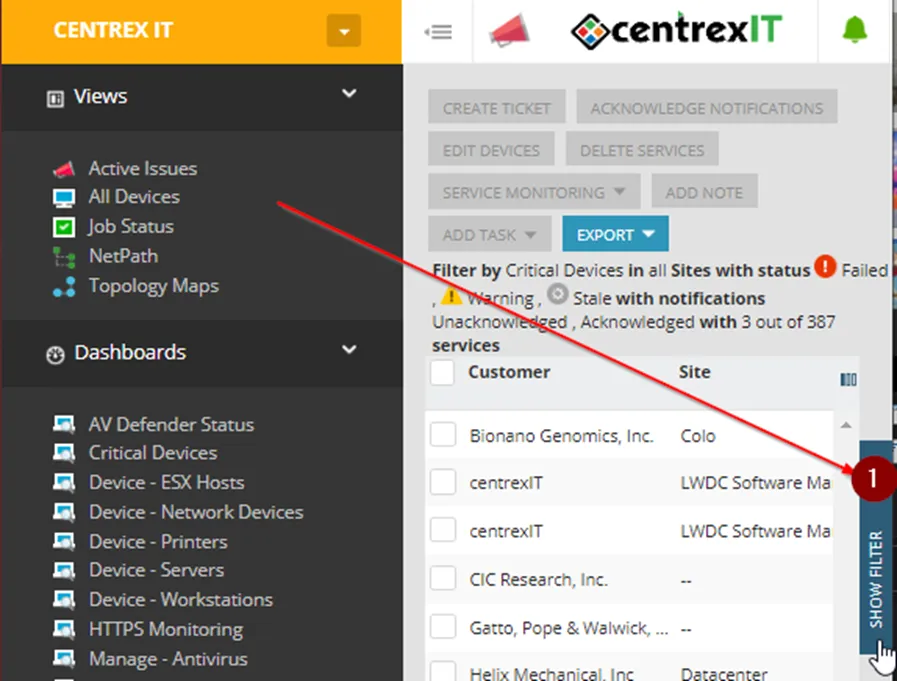
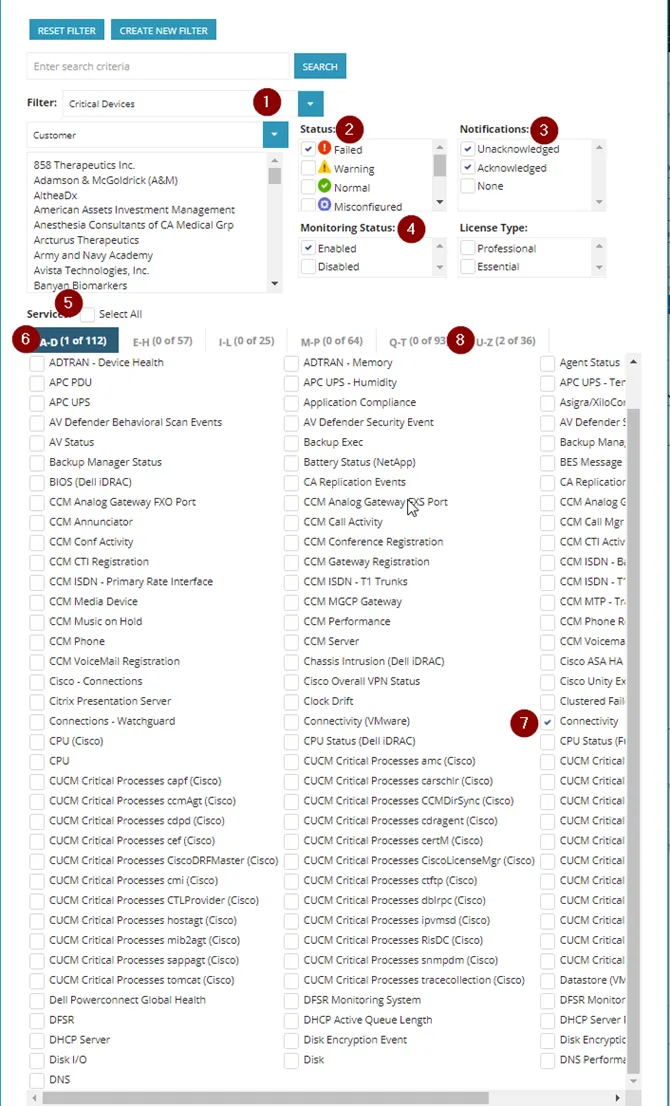
4. Here we will configured the following settings:
a. Filter: Critical Devices
i. If you do not see this filter, do the following:
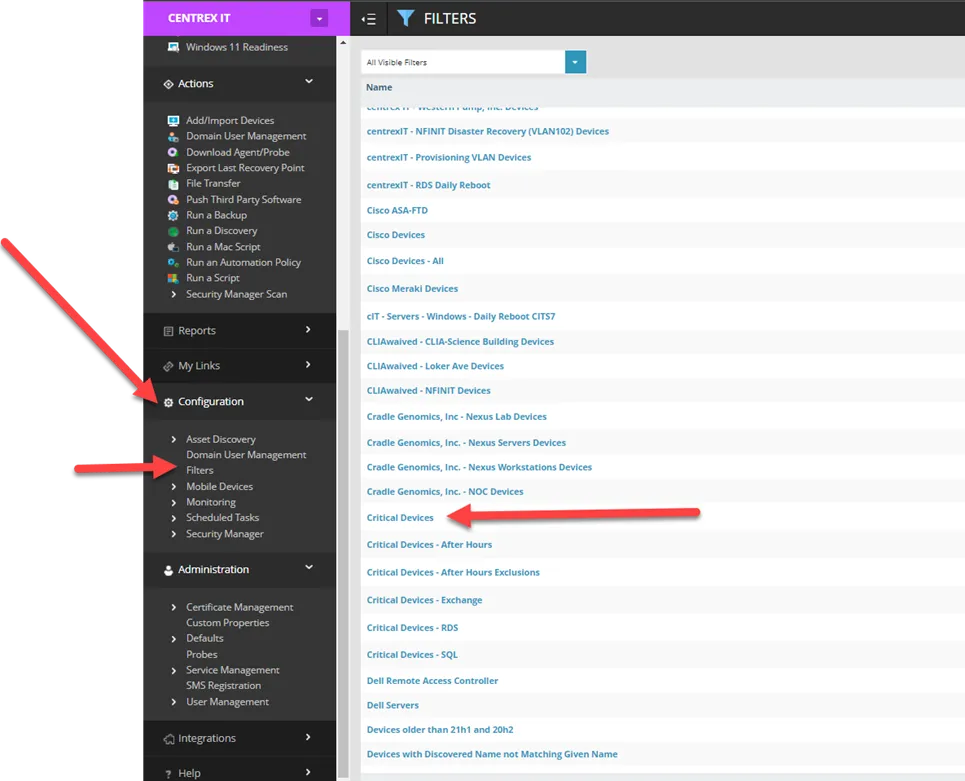
ii. Click “Configuration”, and select “Filters”, scroll, and “Critical Devices”
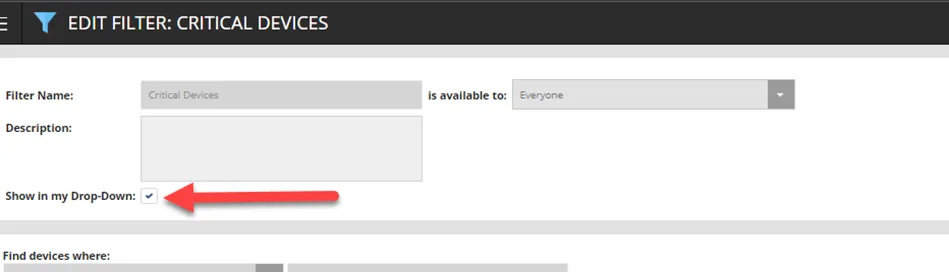
iii. Check the box “Show in my drop-down”
b. Status: Failed, Stale
c. Notifications: Unacknowledged, Acknowledged
d. Monitoring Status: Enabled
e. Services: Uncheck “Select All”
f. Under tab “A-D: Connectivity
g. Under tab “U-Z”: VPN Tunnel (Cisco) and Windows Service
5. Click on Hide Filter to collapse the menu, and you can verify the filter is in place with the settings that were configured, on the top menu bar.

6. You have now configured Ncentral properly to view active issues.
The General workflow for on call:
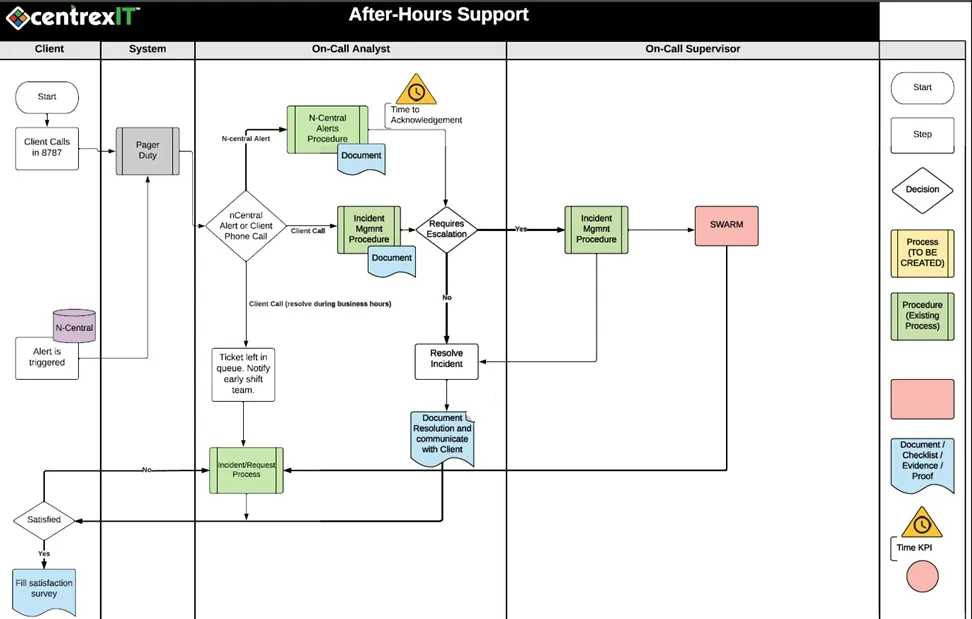
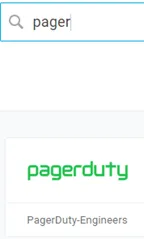
II. PagerDuty is an SaaS that will take over the voicemail for afterhours calls, and Ncentral Alerts. Everyone in Service Desk will have access to PagerDuty log in from OneLogin. If PagerDuty does not appear on your dashboard you can search for it and it should appear such as this:
Once you launch PagerDuty, you will first arrive at the Incident Dashboard which will display by default the “Open” incidents.
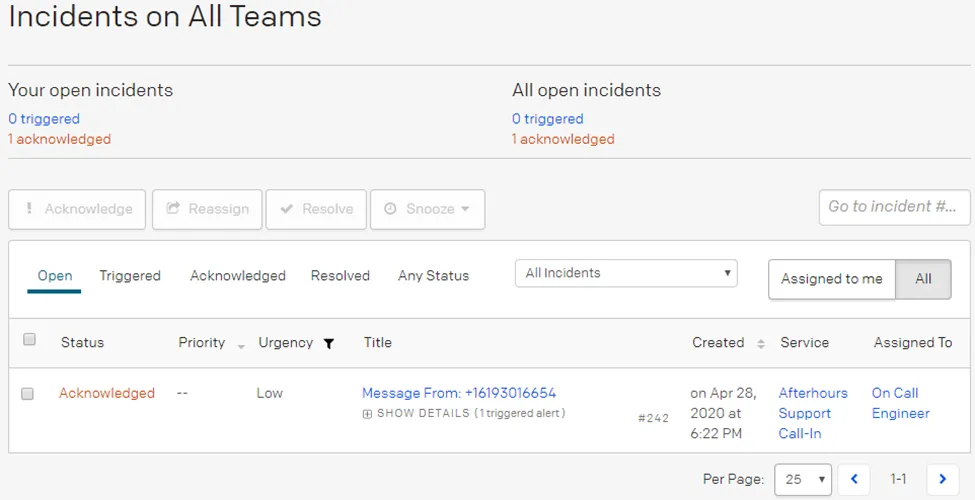
The statuses for incidents can be the following: Triggered, Acknowledge, or Resolved.
1. Triggered is for all new incidents that have not been reviewed and will follow the set notification and escalation policies. These notification policies are currently set as:
a. Immediately Email TechTeam, Call and Text the Primary On-Call Engineer
b. 10 Minutes after no action, Text the Primary On-Call Engineer
c. 15 Minutes after no action, Call and Text the Secondary On-Call Engineer
d. Repeat notifications after 30 minutes of no action
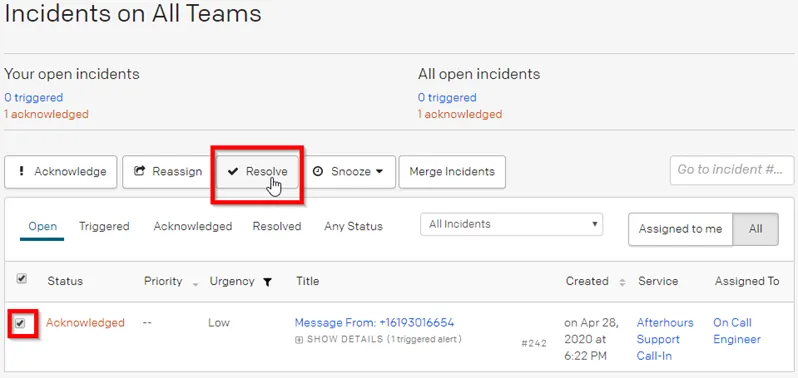
2. Acknowledge will stop the Notification Policies and means the Primary On-Call Engineer has reviewed the incident.
3. Resolved will close the incident.
Incidents can be escalated if needed, which will then follow the Escalation Process of notifying the on-call Escalation.
Notifications
Afterhours support voicemails will be accessible from the PagerDuty console. When a voicemail is left, the notification will go to TechTeam email, followed by an immediate call and text message to the Primary On-Call Engineer. The call will come from the PagerDuty phone number +1 (415) 212-7102 and text message from +1 (415) 212-4879. It is advised to add these two numbers to your address book. The process for handling the afterhours support calls is the following:
1) A call will notify the Primary On-Call Engineer’s cell phone. The notification will contain information of the caller ID’s phone number and voicemail was left. This will be followed by an automatic prompt to acknowledge the alert, mark the alert as Resolved, or to escalate the call to Escalation Engineer which would be the Supervisor.
2) At this point, the Primary On-Call Engineer can either review the Incident from the Email to TechTeam, or by launching PagerDuty from OneLogin.
a. From the email to TechTeam, click on View Incident.
b. If you are not already logged into PagerDuty, after clicking the link you will be prompted to log in. This can either be done through OneLogin, or using the PagerDuty credentials found in 1Password
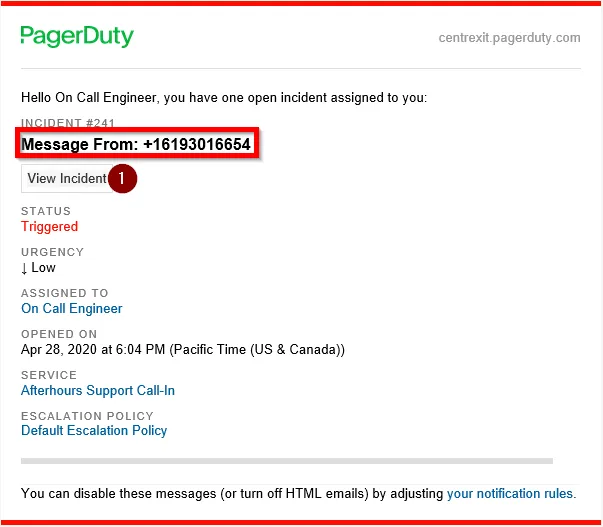
c. You will then arrive at the Incident page and can review the voicemail by clicking on Listen to Recording.
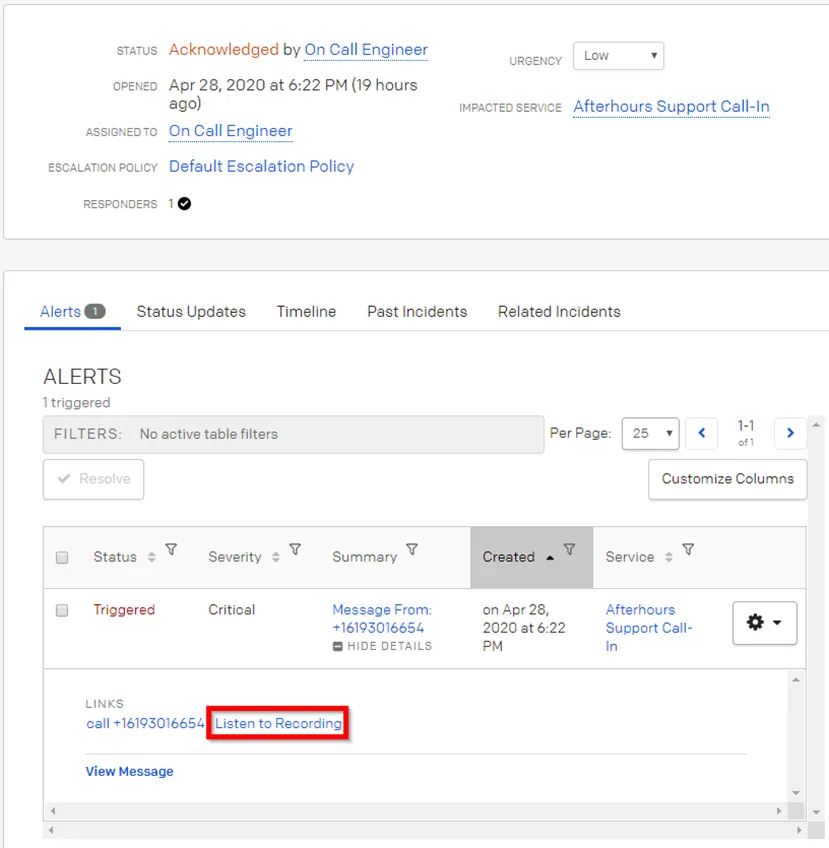
3) After reviewing the voicemail, you will create a ticket for afterhours. Please see next steps.
Create ticket for afterhours call
Reply to the email from Pager Duty and email techteam@centrexit.com with a bcc to help@centrexit.com
Update the subject line to include the nature of the request
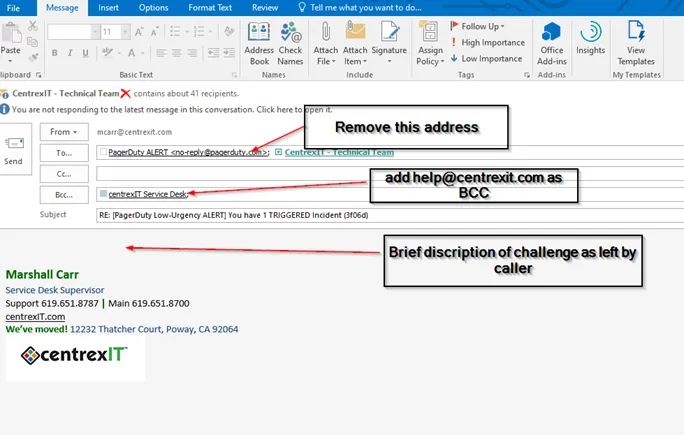
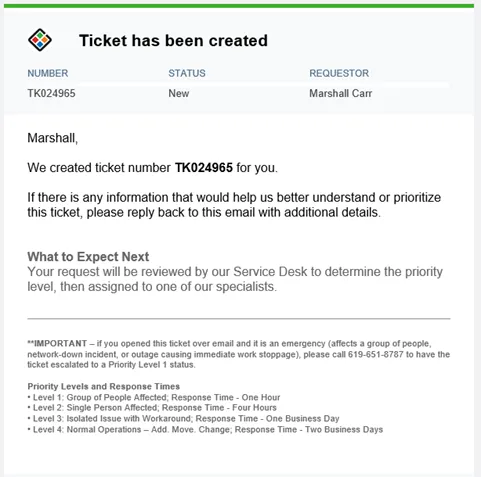
This will generate a ticket in Halo.
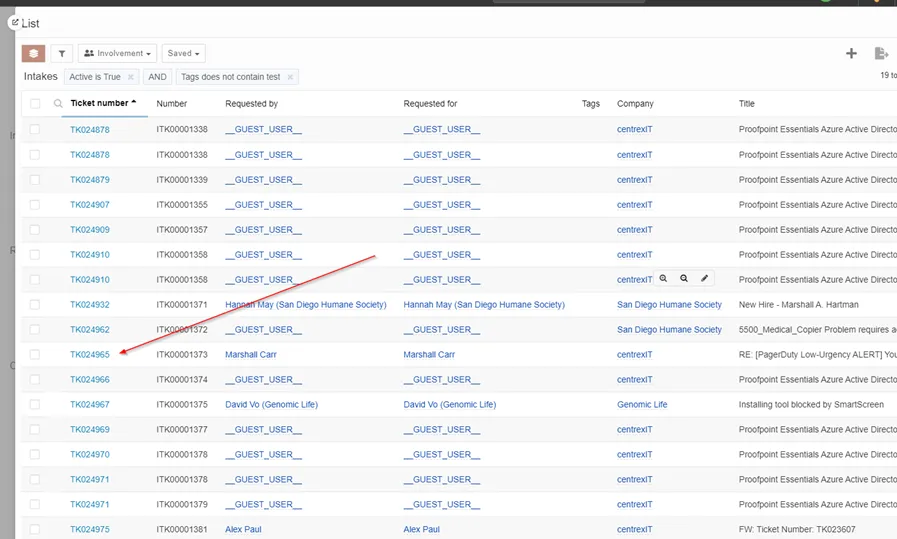
Log into Halo, go to “Workspaces” then, “My Dashboard”
Select “Service Desk”, then open “Email & Phone Tickets”
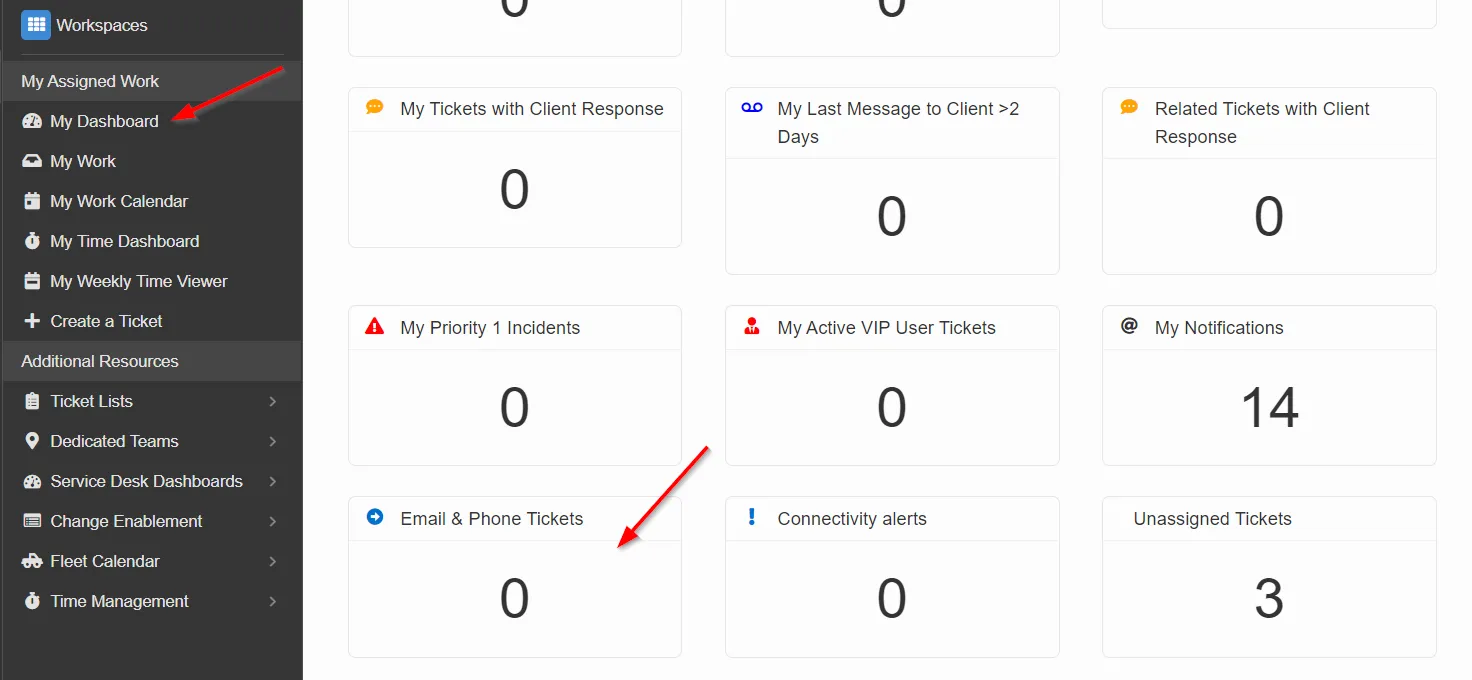
Find your ticket, and click on the ticket number, that will pop out the ticket
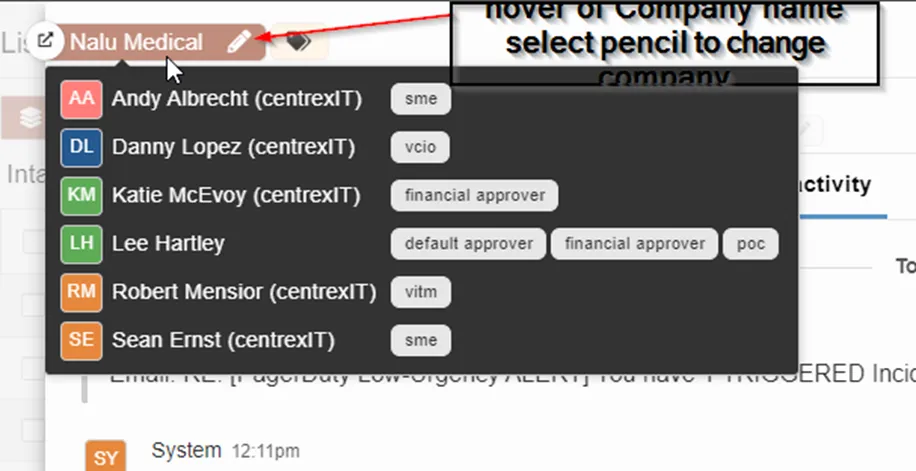
Hover over company name, select pencil to change company
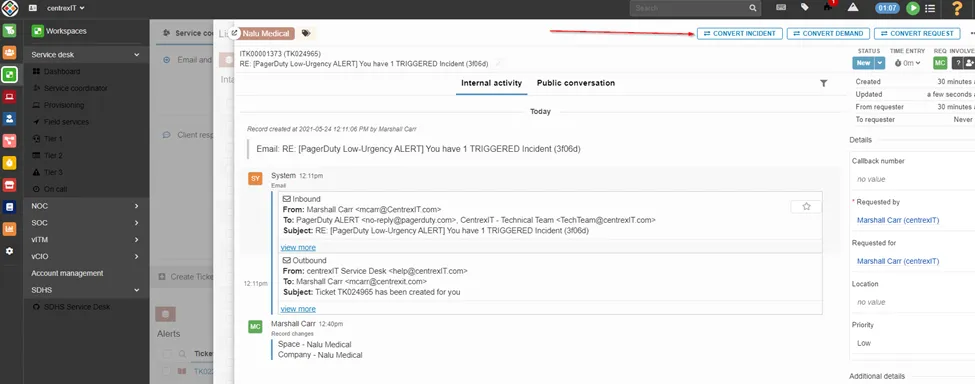
Select to convert to incident
Triage ticket, following:
KB00003086
Call user and work ticket, if able to resolve, resolve with user and close ticket following standard procedure. If unable to resolve, call your on-call escalation for next steps and to see if a swarm is needed or if it can wait until business hours.
When capturing your afterhours time, you must ensure to capture the Subtype as “SD Remote Support AH” or “SD Onsite Support AH”. If you are a dedicated engineer, you must change your Work Type to “Support Engineer”.
4) After resolving the support call, follow up with an Email to TechTeam notifying that the call was resolved, and go back to PagerDuty to mark the incident as resolved.
Notifications from Ncentral alerts
These will arrive as a Phone call and Text message to the Primary On-Call Engineer, and an email to the tech team distribution list. Before working with the alert, reply to PagerDuty email and remove all except for techteam@centrexit.com to notify team you are actively working the ticket.
The process in Pager duty is same for alerts. Once acknowledged in pager duty, go to Ncentral “Active Issues” (See page 6)
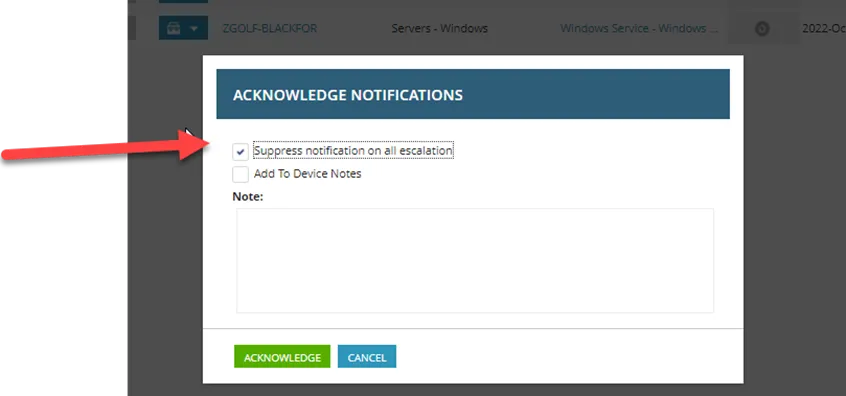
For the alert you are working, you must acknowledge and suppress alerts. Click the bell under “notifications”

Check box for “Suppress notifications on all escalation”. The purpose of this is so NCentral does not ring pager duty again.
Log into Halo, go to “Workspaces”, then go to “My Dashboard” and select “Connectivity Alerts”

Triage ticket, following: KB00003086
ENSURE YOU CONVERT THE ALERT TO AN INCIDENT AND TRACK TIME ON THE INCIDENT. DO NOT TRACK TIME ON THE ALERT.
When capturing your afterhours time, you must ensure to capture the Subtype as “SD Remote Support AH” or “SD Onsite Support AH”. If you are a dedicated engineer, you must change your Work Type to “Support Engineer”.
Work ticket to ground the issue (verify power, if possible, ISP, etc.)
If you can resolve, close ticket.
If confirmed issue is due to ISP, client, or power, you must notify POC of company (if you have not spoken to yet), vITM and on call escalation. If known issue, you should place devices in downtime until outage is over or until 6am next business day, whatever comes first.
Follow up with an Email to TechTeam notifying that the call was resolved, placed in downtime, or in progress and go back to PagerDuty to mark the incident as resolved.
To downtime device in Ncentral, go to the client OU in Ncentral
For example, we will do Biocom:
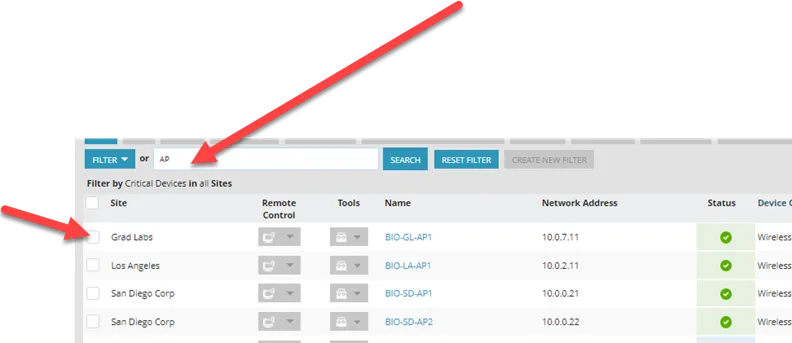
Search for device, then check box of device(s) you want to downtime
“Add Task” “Maintenance” “Add New Maintenance Window” “Downtime”
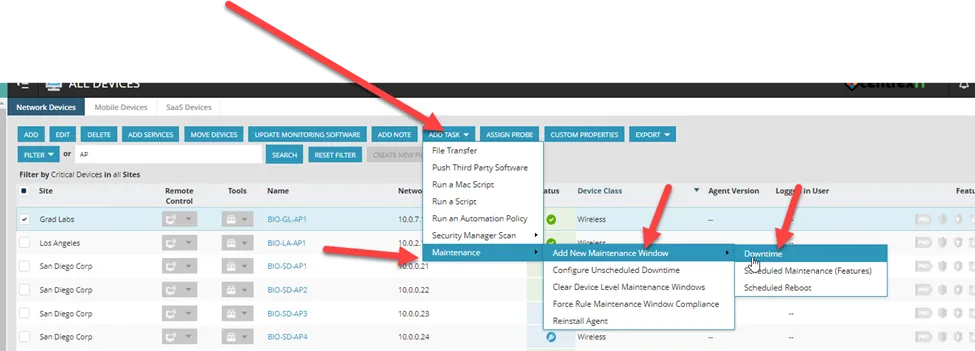
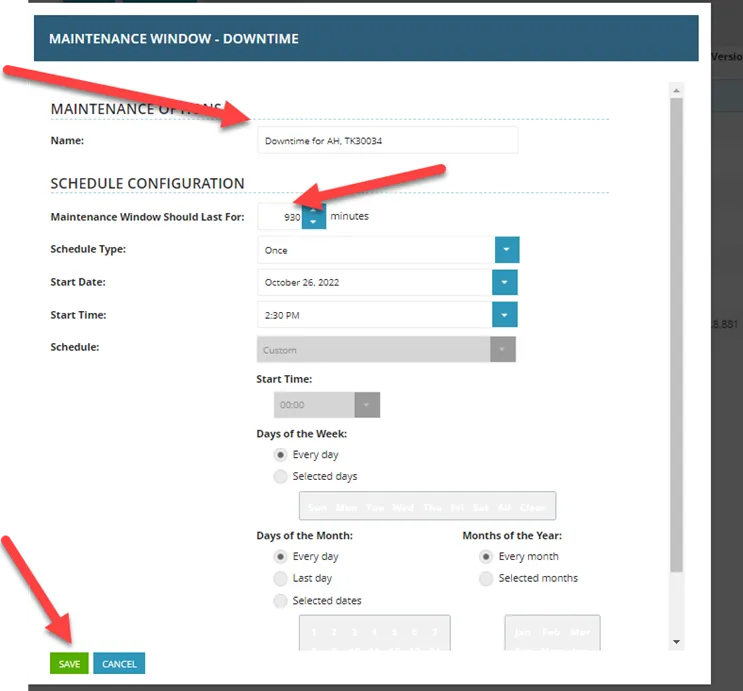
In “Name” reference ticket and why it is being placed in downtime. Downtime is in minutes. Downtime until known outage is over, or until 6am next business day, example is am next business day.
**Alerts and calls received after hours must be responded to immediately but no later than 1 hour. If unable to resolve alert or ticket, CALL your on-call Escalation, if they are unavailable within 30 minutes, immediately reach out to another Team Lead. If none are available, call the Service Desk Manager. If the on-call escalation is unable to resolve, a Swarm MUST be made in Microsoft Teams, with the following:
· On call tech
· On call escalation
· Service Desk Manager
· vITM
· vCIO
· Technical resources from other departments as needed (NOC, Cloud, Projects, etc.)
If the Swarm takes you away from being primary on-call, you must notify your back up so they may be available.
Employee Signature Date
Team Lead Signature Date