PROCEDURE To install or re-install the NCentral Agent using a generic Company Installer.
REQUIREMENTS
-
Administrative access on local computer to manage software.
-
Download installer “Staging-WindowsAgentSetup.exe” reference attachments in this KB
-
Service Desk to own install or re-install piece
-
Centralized Service to own moving devices to Customer/Site in NCentral
STEPS
Re-installing agent
Section titled “Re-installing agent”**NOTE** If agent is not currently installed, proceed to Install Agent section.
- Launch “Programs and Features” by opening a run window “Win +R”, enter “appwiz.cpl”
- Select Windows Agent publisher N-Able Technologies and click Uninstall
- Follow the uninstallation Wizard until complete
- Proceed to Install Agent
Install Agent
Section titled “Install Agent”- Copy “Staging-WindowsAgentSetup.exe” to local computer.
- Run installer clicking next to confirm all default settings
- Once the agent installation is complete, the device should show registered under company “1 Agent Staging”
- Navigate to “1 Agent Staging” in NCentral to verify the device is there
- Please note that if this in an agent re-install, the device my not automatically appear in the list of devices. Proceed to Step 4
- Notify Centralized Services in a new Halo Simple Request providing the to where the device needs to be moved to:
- Device Name:
- Customer:
- Site:
Move Device
Section titled “Move Device”**NOTE** The following procedure shall be handled by Centralized Services
- Select the device by click on the check box, then click on Move Devices
-
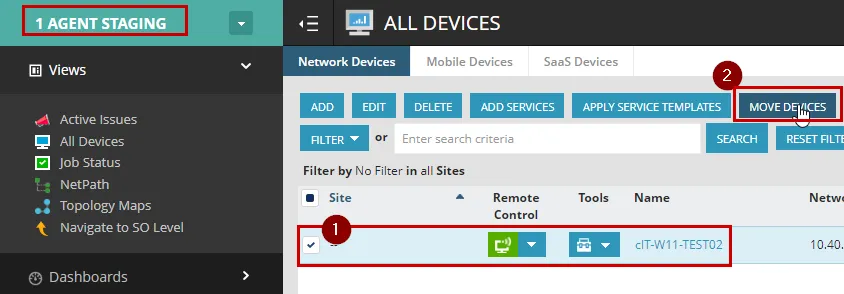
- Select from Customer list the Customer that this device belongs to. For this example we are using Customer Test. Next Select the Site that the device belongs to. For Example, if the client has different locations such as San Diego and San Francisco, choose the corresponding Site that the device is located.
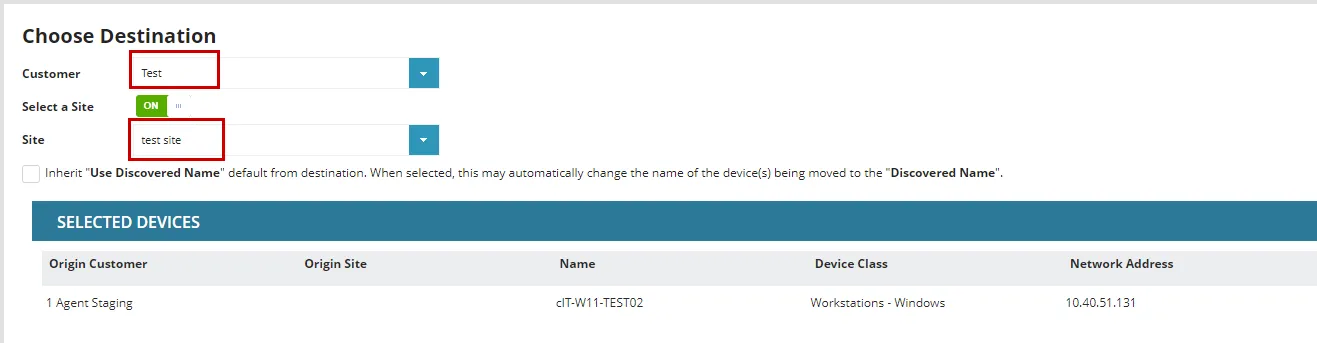
- Click Next, accept the defaulted associated Probe listed for the Customer, and Click Next
- At the Summary page click Finish, then click Close at the popup window
- Verify the Device is now located at the targeted Customer chosen in Step 5
REFERENCES
Any additional resources such as external links.