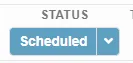
This KB details the different on hold options to use when setting the ticket to the correct status. The options drop-down menu can be accessed by selecting the drop-down menu arrow for the blue status type at the top right of the ticket page. Note: Putting a ticket on hold pauses the SLA.
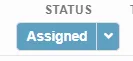
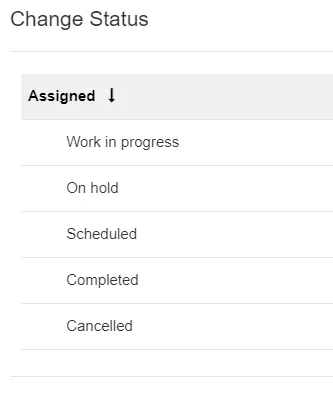
1. In the box that opens, select the Change Status option.
2. Click on the downward-facing arrow to open the Subcategory and Hold status drop-down menu.
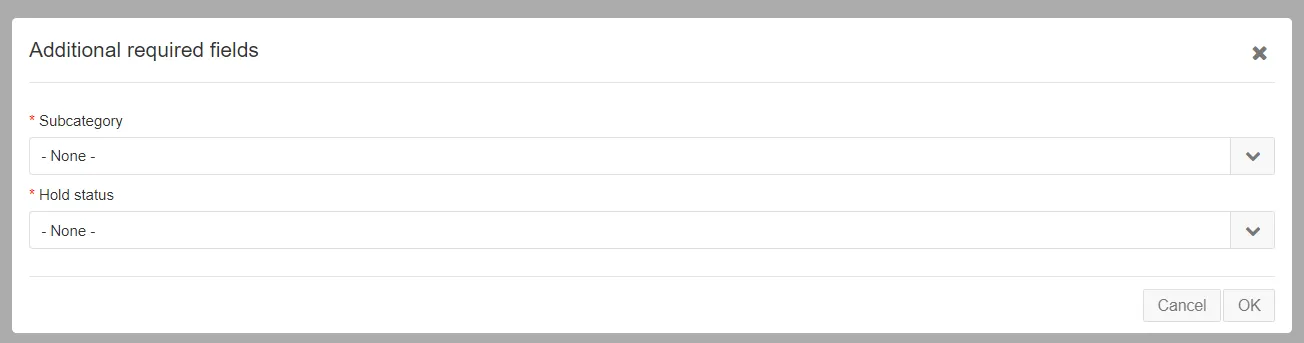
Below is a list of all the hold options available, followed by the definitions for what situations they’re applicable for.
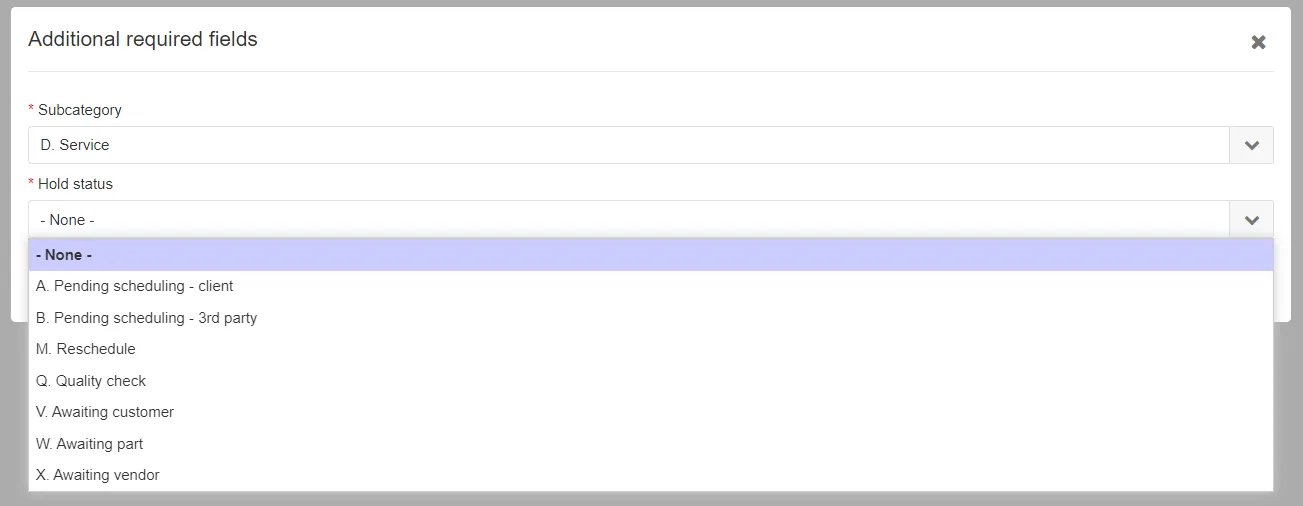
A. Pending scheduling - client — Ticket owner is awaiting communication from the client concerning when to schedule the ticket to be worked on.
B. Pending scheduling - 3rd party — Ticket owner is awaiting communication from a third party (such as a vendor) concerning when to schedule the ticket to be worked on.
M. Reschedule — The ticket owner or the client has decided to reschedule when the ticket will be worked on.
Q. Quality check — The ticket has been assigned to a tech to perform a quality check that will confirm that the task(s) completed in the ticket were completed correctly. Common examples of this are user creation and user termination requests.
V. Awaiting customer — Ticket owner is waiting on customer response.
W. Awaiting part — Ticket owner is waiting to receive hardware or software needed to address the ticket.
X. Awaiting vendor — Ticket owner is waiting on vendor response.
3. Select the appropriate option and then click OK. The ticket status will then change to “On hold” status.
NEXT we will review the “Scheduled” status options.
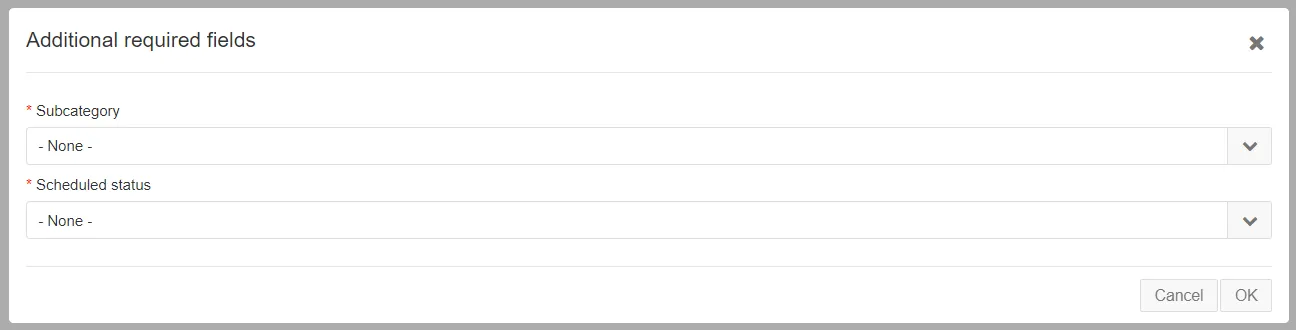
1. Click on the downward-facing arrow to open the Subcategory and Scheduled status drop-down menu.
Below is a list of all the Scheduled options available, followed by the definitions for what situations they’re applicable for.
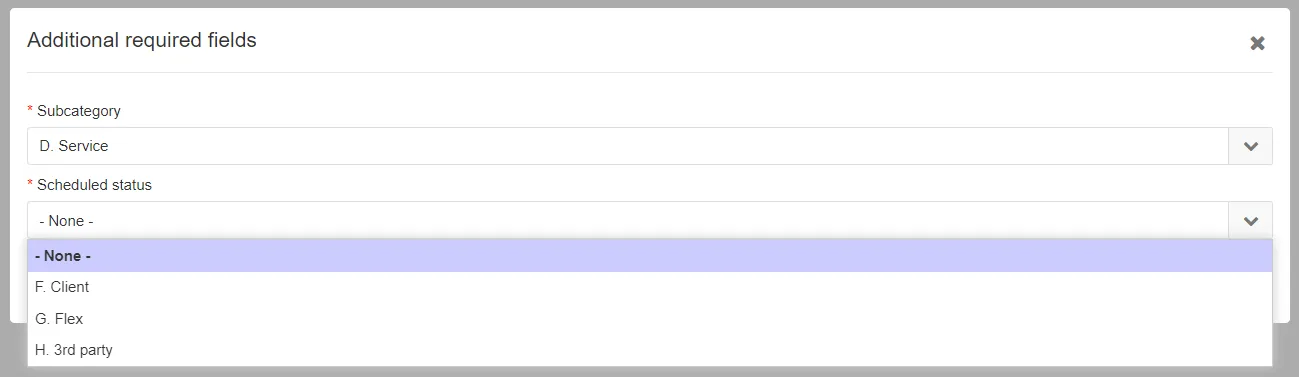
F. Client - Ticket has been scheduled for an appointment with an end user.
G. Flex - Ticket has been scheduled for an appointment NOT with and end user. These appointments can be moved throughout your day as needed, but must be completed by EOD.
H. 3rd party - Ticket has been scheduled for an appointment with a 3rd party.
3. Select the appropriate option and then click OK. The ticket status will then change to “Scheduled” status.