PROCEDURE
This guide explains how to setup OTP Generator for websites that require MFA/2FA.
REQUIREMENTS
Access to PasswordState and modification access to Website Entries.
Familiarity with setting up MFA/2FA for accounts.
Screenshot tools such as Greenshot or Snagit
STEPS
- Navigate to the Client > then to Websites list > then click on the password item, for this example I am using Google Workspace.
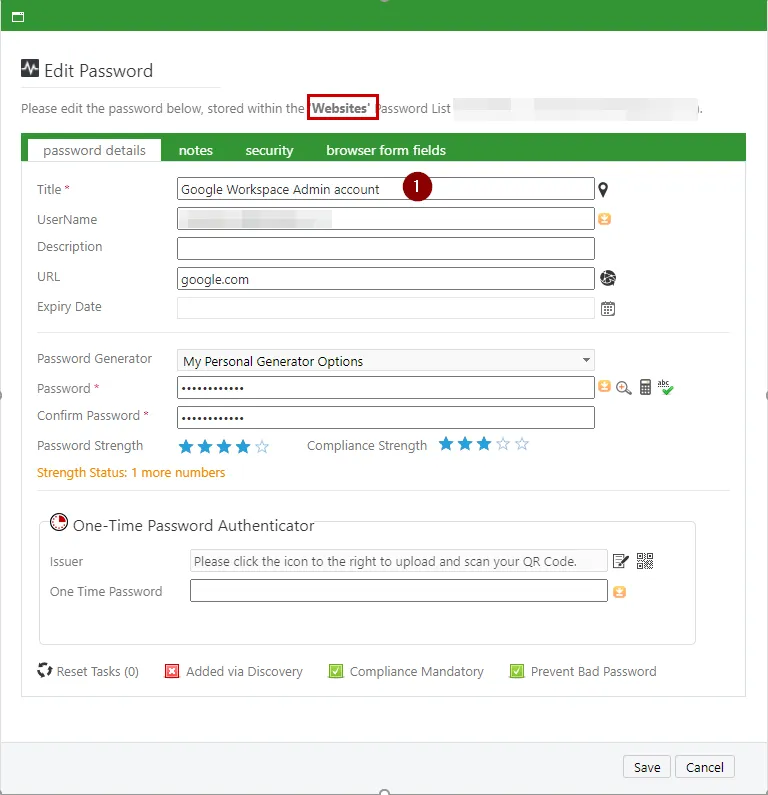
- Next, log into the website account you selected. For this example, I am logging into the Google Workspace Admin account.
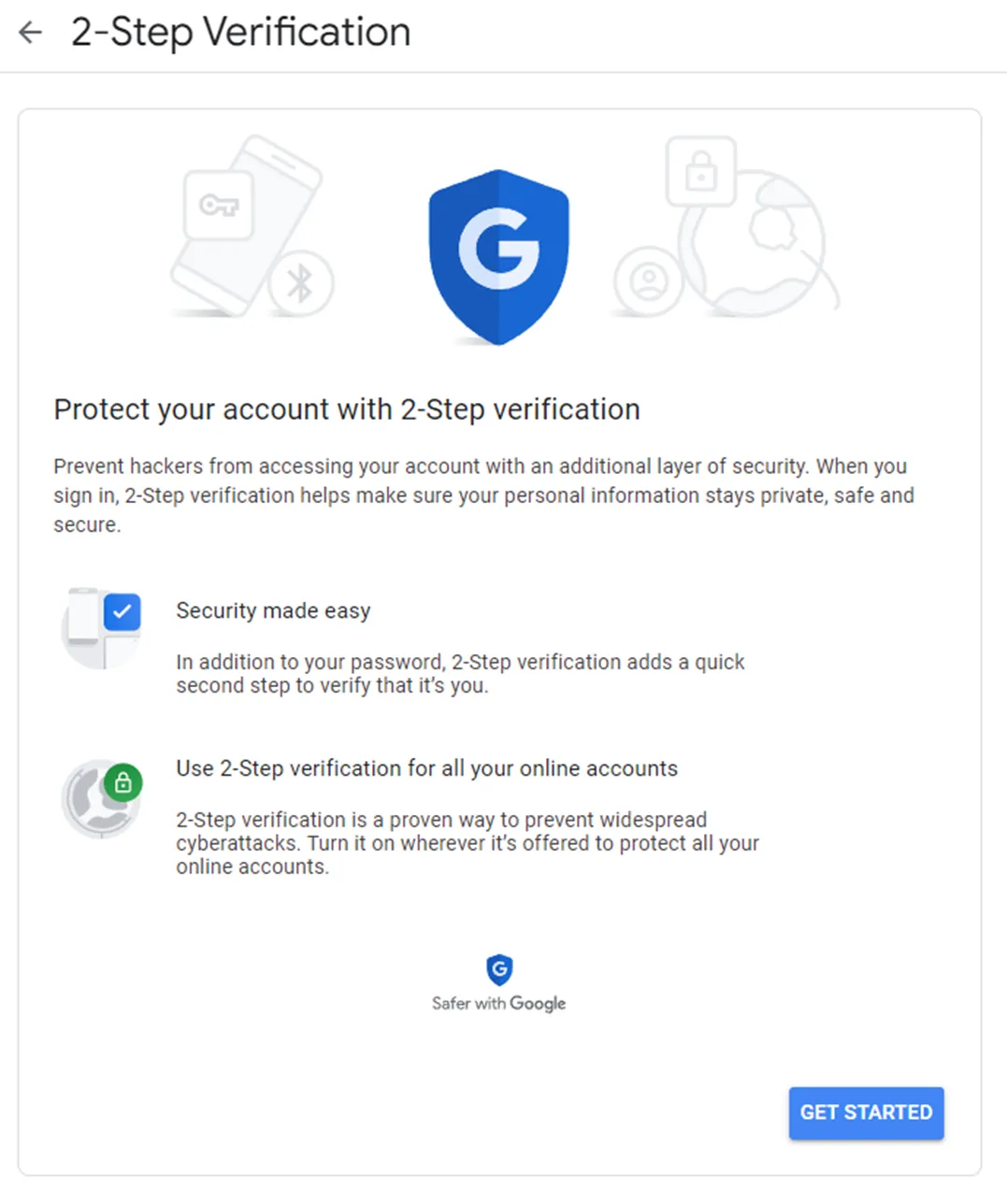
- To access the MFA/2FA options for the account on Google workspace, navigate to Google Account > Security > Under “Signing in to Google” select 2-Step Verification > Get Started.
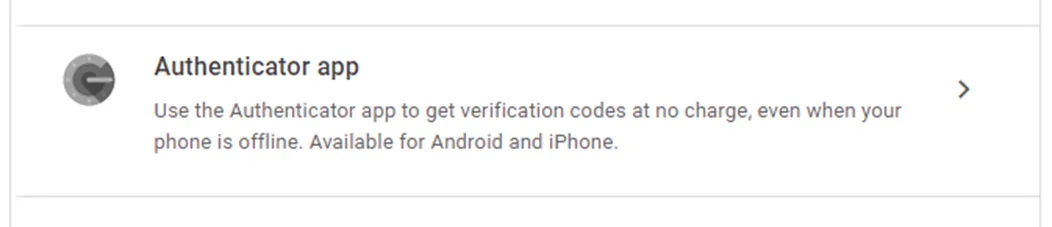
- Select Authenticator App
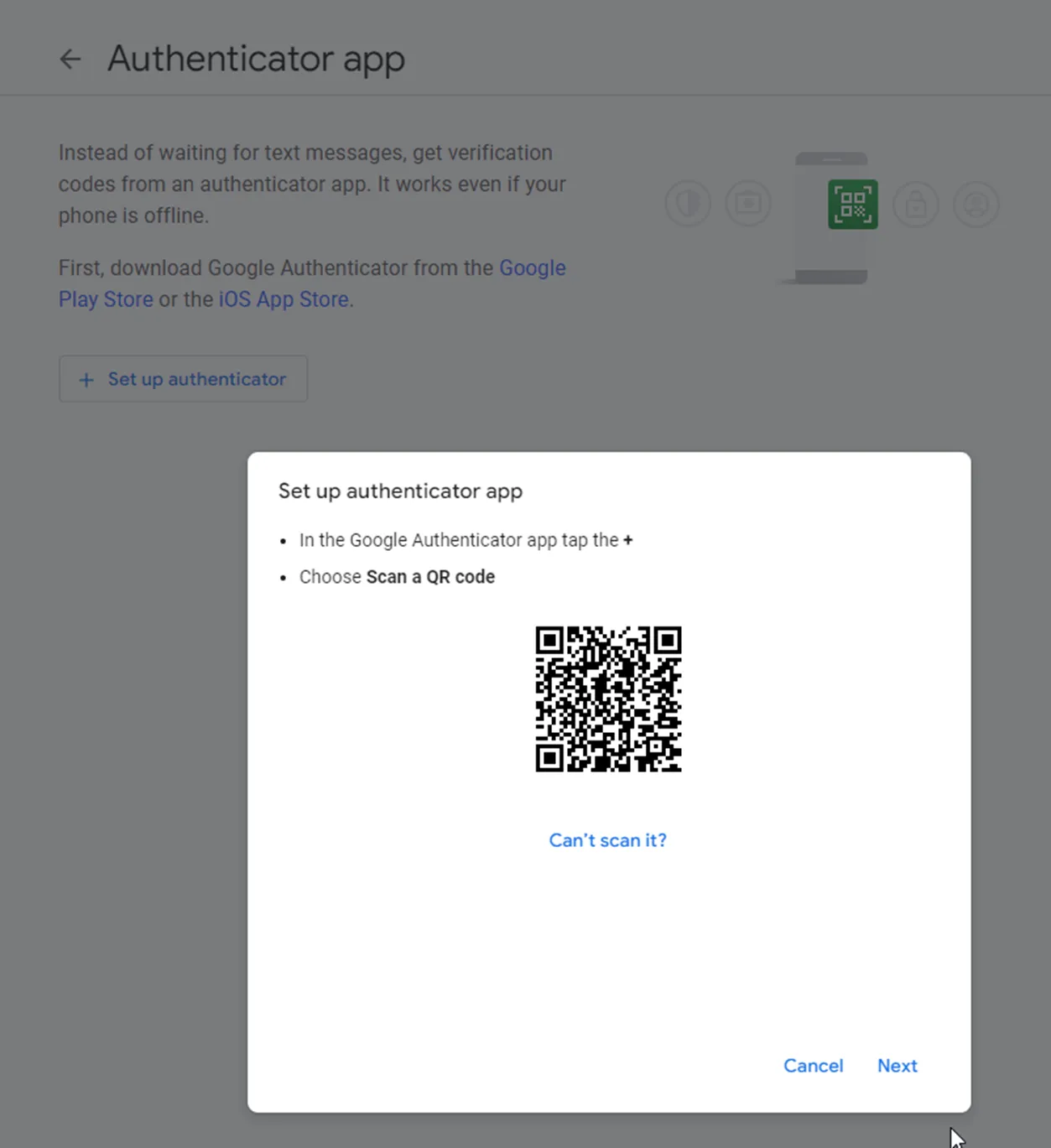
- The Setup for Authenticator App will present a QR code, take a screenshot of the QR code using a tool like Snagit or Greenshot so you can save the QR image as a file.
- Once you have saved the screenshot of the QR Code as a file, go back to PasswordState. Within the PasswordState item, navigate down to the “One-Time Password Authenticator” field, and click on the QR Code button. Once you click on the QR Code button, navigate to folder and file of the screenshot you took of the QR Code. Select the file and open.
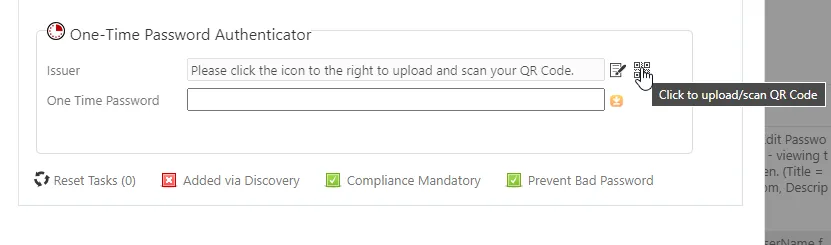
- You should now see a code listed.
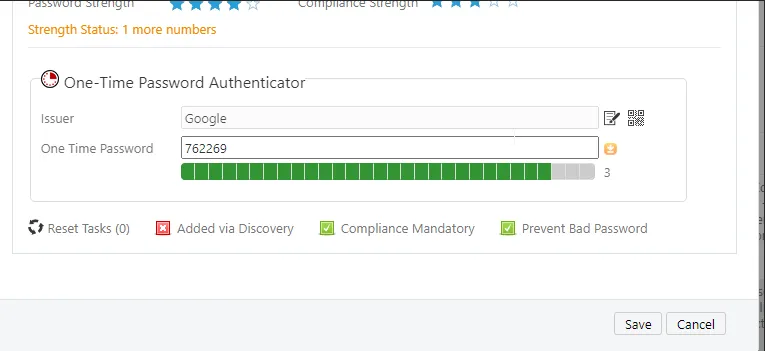
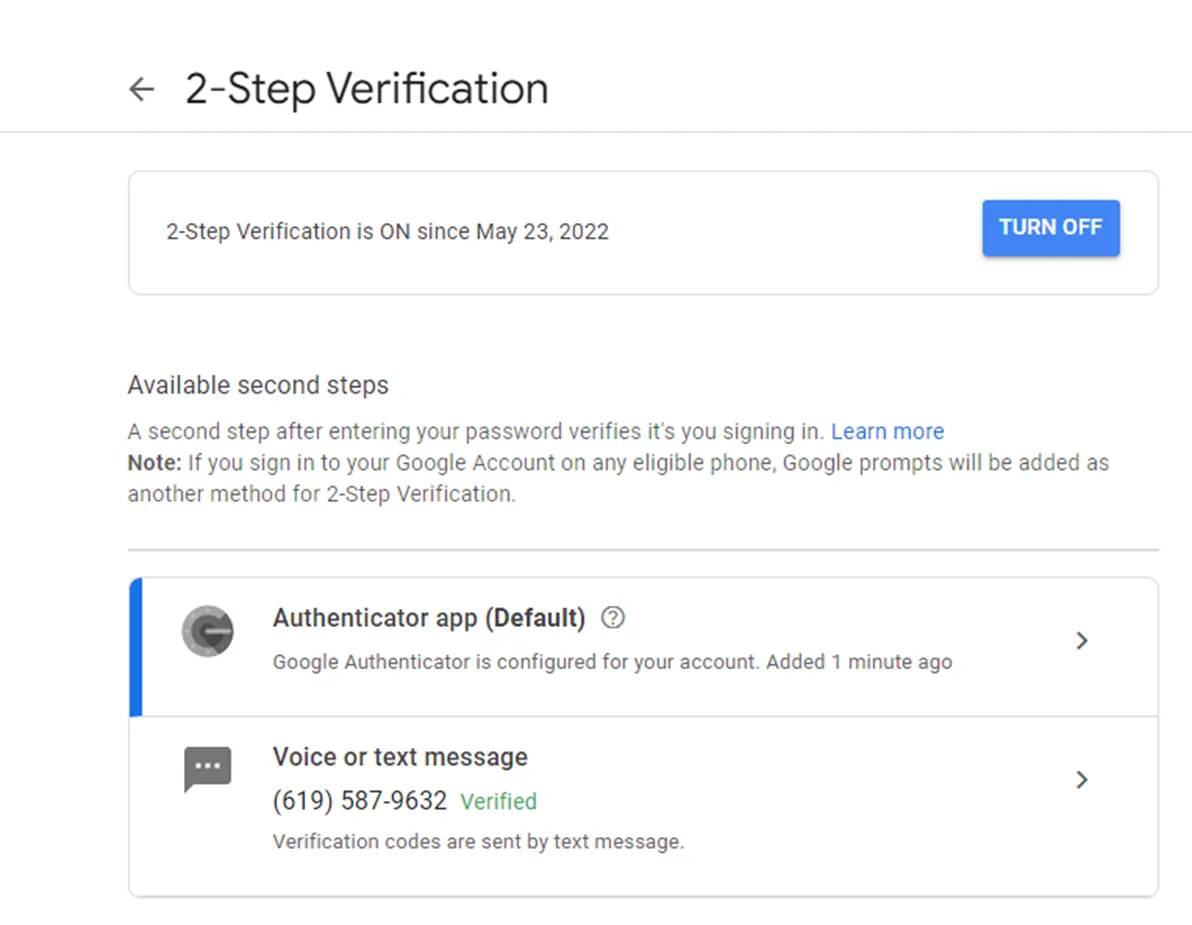
- Take that code back to Google Workspace and enter it into the “Set up authenticator app” wizard. This should complete the Authenticator App setup in Google Workspace, and you’ll now see the following on the screen.
- Back at PasswordState, click Save to finalize the changes to the “Google Workspace Admin account” entry.
REFERENCES
Turn on 2-Step Verification - Computer - Google Account Help