- This process allows for billable time entries in pzzle to be pushed to connectwise to be invoiced.
- Locate the company RecID number in connectwise
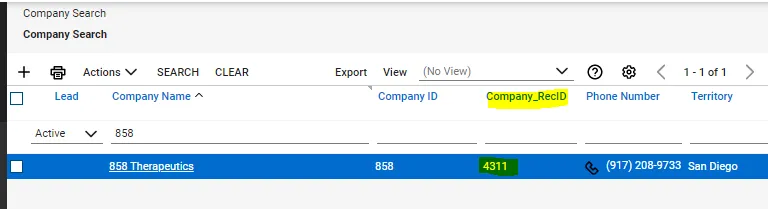
- Open connectwise, go to company search, go to view and make sure you add “Company_RecID” to your columns list
- search for the company
- grab the number for the company in the Company_RecID column
- Add the time charge code by going to connectwise, System, setup tables
- Locate the charge code table under time and expense category
- Search for charge code and open table
- Add new entry by clicking +
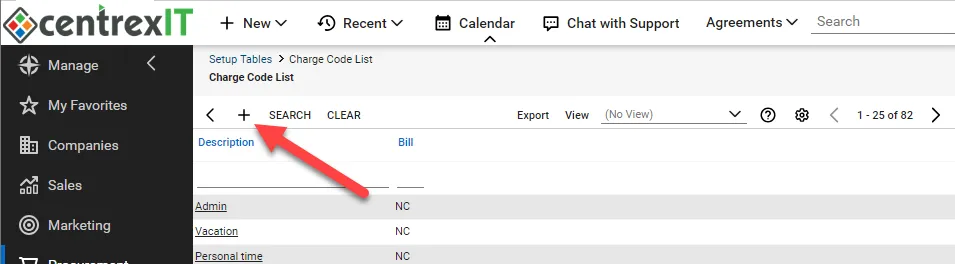
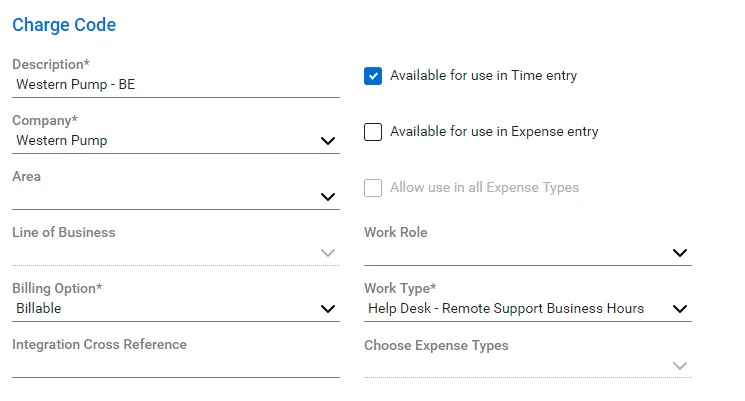
- Create new entry with the following fields
- Description = Client Name - BE
- Company = select client from drop down
- Billing Option = Billable
- Available for use in time entry = Check this box
- Work Type = Help Desk - Remote support Business hours
- Example:
- Locate the next charge code number in Pzzle
- Go to pzzle, companies, customers
- Filter all connectwise schema clients by clicking on the filter and adding a filter for Schema contains Connectwise
- Select all clients and export list as csv
- open csv and find “connectwise_default_chargecode” column and filter and sort small to large and find the last number.

- The next available number is the charge code you would use in the next step. IE if the highest number is 111, use 112.
- Open Pzzle, go to the company page and click the add schema button
- add connectwise schema
- fill in the details with the Company_RecID in the Connectwise company ID field

- Add the charge code from above to the charge code field.
- save and close
- DONE!