This article will teach you how to create a new signature in MS Outlook. It assumes you already have Outlook installed on your computer and you know basic navigation and shortcuts.
The Templates are attached to this article in the file “Updated centrexIT email signature.msg.”
Step 1: Open New Email to access signature options
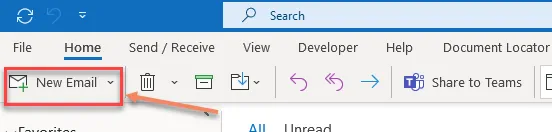
Section titled “Step 1: Open New Email to access signature options”Start by selecting “New Email” in Outlook
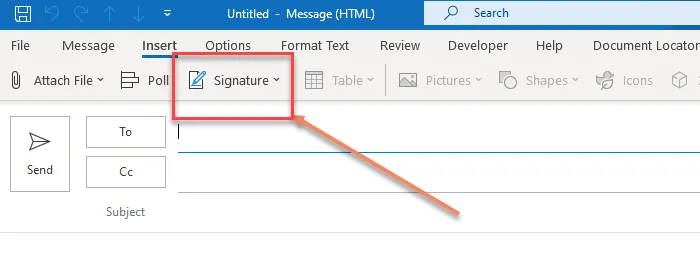
When the new email message opens, select the “Insert” tab. Go to the “Signature” dropdown and select “Signatures…” to create or modify a signature.
Step 2: Create a New Signature
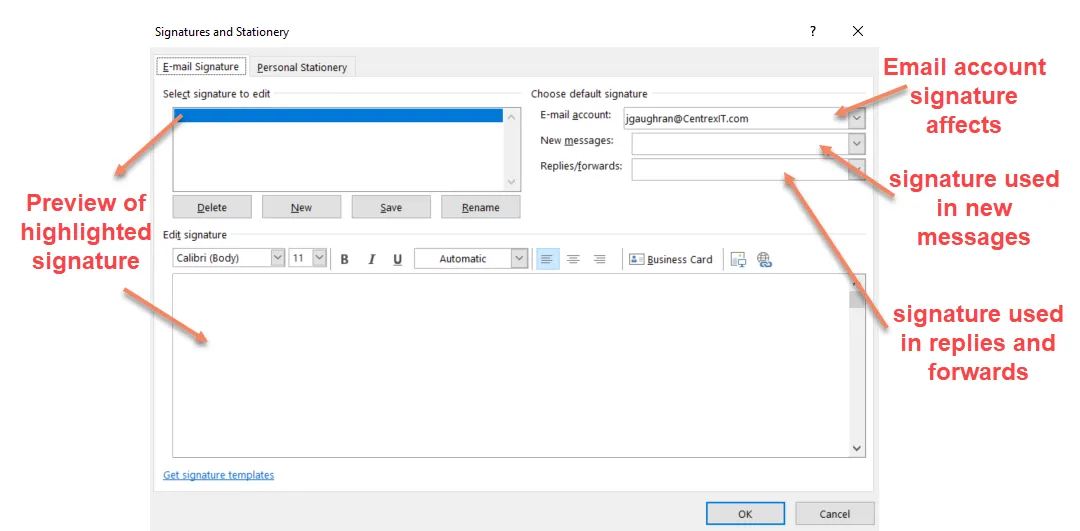
Section titled “Step 2: Create a New Signature”The “Signatures and Stationary” options allow you to build a collection of signatures that can be used in different email accounts. You can set the default signature for new messages and for replies or forwards.
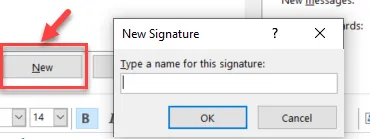
First, click “New” to create the new signature. A pop-up will appear and ask you to type a name for the new signature. Type a name and hit “Ok”
Next, you can create a custom signature by typing your personal information in the “Edit Signature” box or copying a standard centrexIT template into the box.
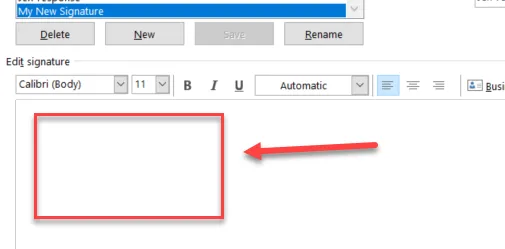
Step 3: Using a centrexIT Template
Section titled “Step 3: Using a centrexIT Template”To use a standard centrexIT style, copy the signature you like from the sample email…
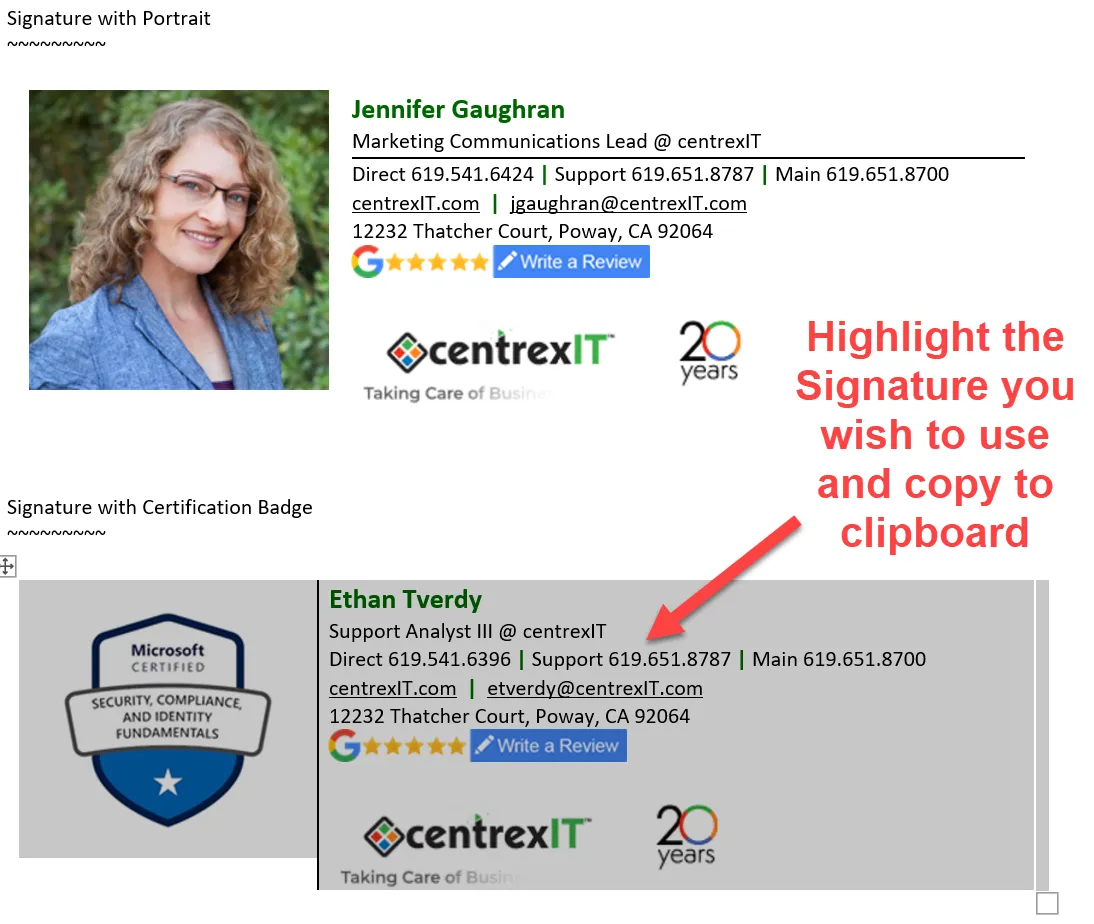
…then paste it in the “Edit Signature” box.
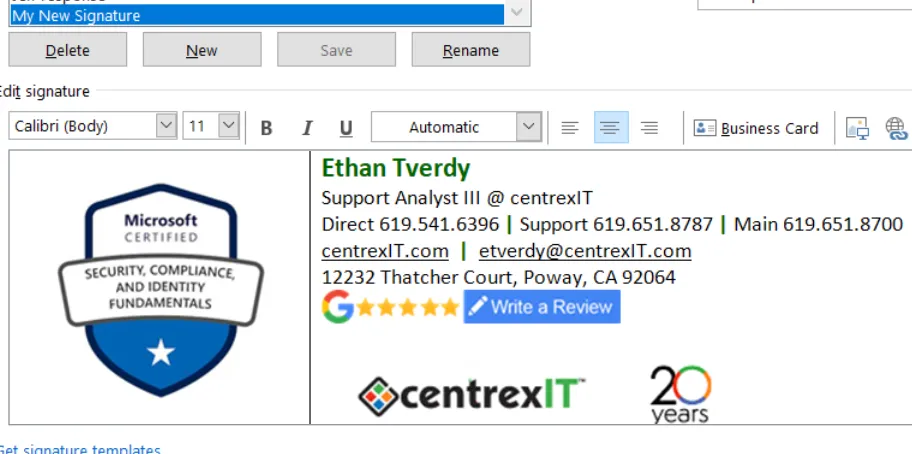
In this example the new signature you just created, “My New Signature,” uses the “Signature with Certification Badge” template.
Next, customize the information in the template with your own information and click “ok”.
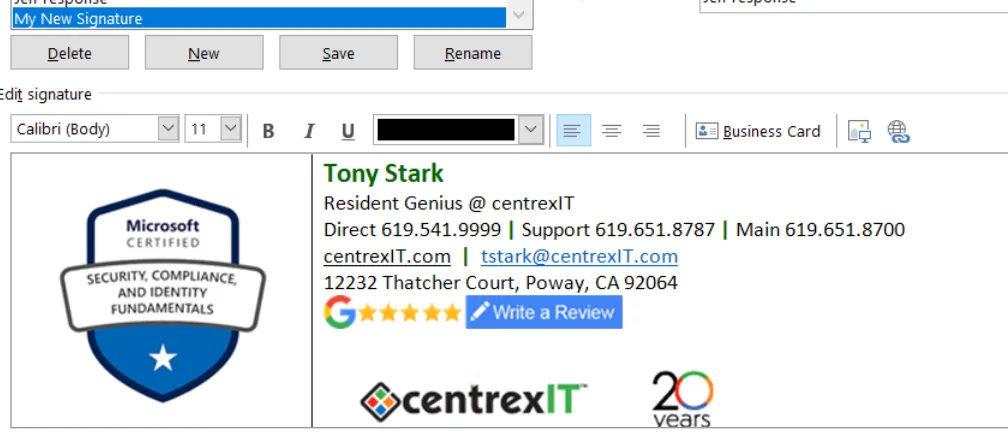
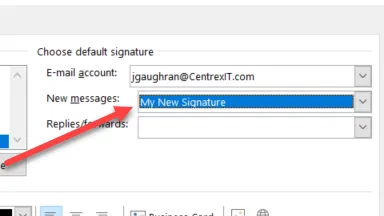
Step 4: Set your new signature as default
Section titled “Step 4: Set your new signature as default”Now that you have your new signature, you can set it as default for new messages or replies.
Optional: Signature with portrait or certification badge
Section titled “Optional: Signature with portrait or certification badge”If you are client-facing and see value in including your portrait, or if you want to include an image of a certification badge, please work with Jennifer to get your portrait formatted to the right resolution and size for the email.