Procedure
Section titled “Procedure”The goal of this work instruction is to cover how to add N-Central filters to your person List of Filters. Everyone starts off with the same default filters that come with N-Central. The use of filters helps to quickly find devices that we need to review, for instance if we want to view all devices with or without the application Adobe Acrobat. A filter can quickly be applied at the “All Devices” view to find those computers that match the filter criteria.
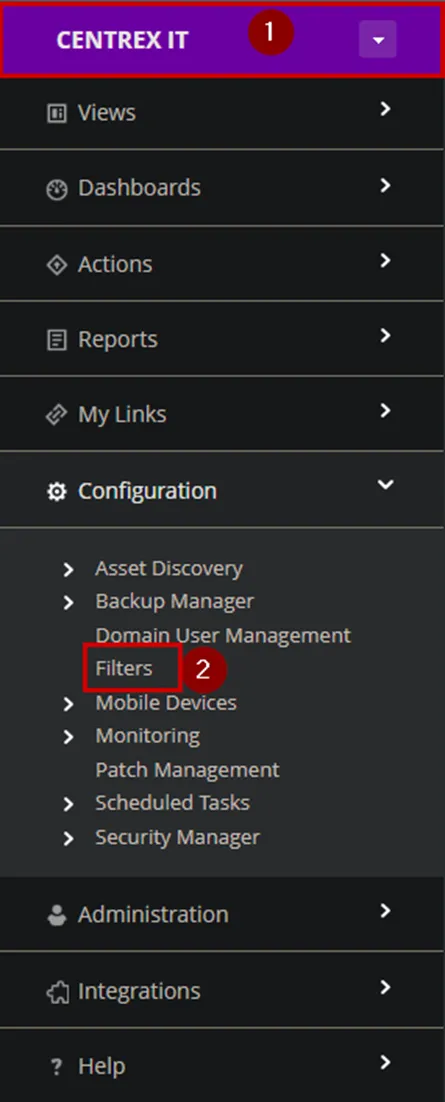
1. Starting at the SO Level in N-Central (color coded purple), Navigate to Configuration > Click on Filters
2. For this example, I want to add the filter that tells me all of the Workstations and Laptops that are not on Windows 10 Version 21H2. I used CTRL+F to find the filter that matches the criteria I am looking for. As we can see the filter I want is “Workstations Laptops not on 21H2”.
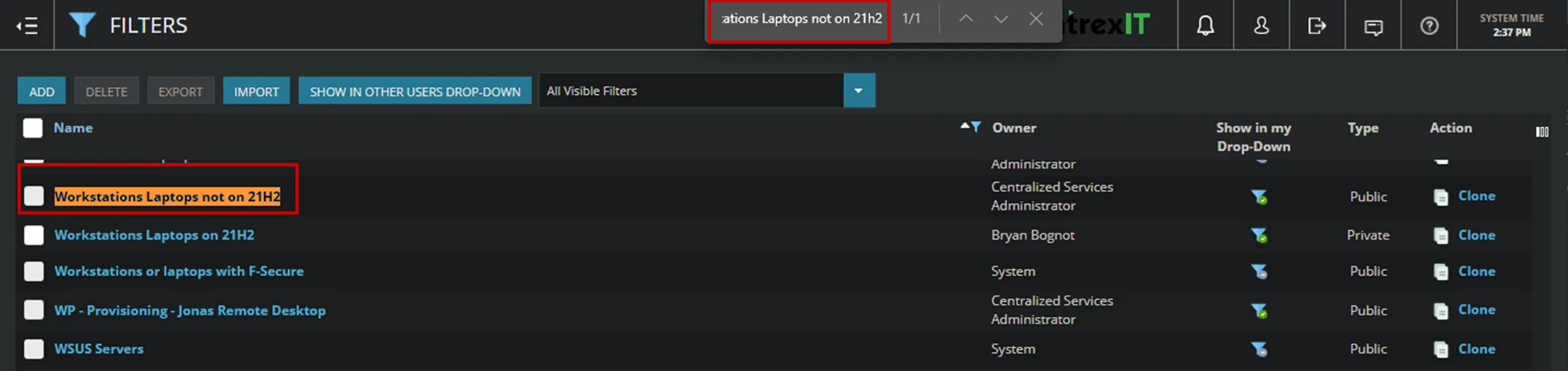
3. Now that we have located the filter we want, to add to our list of filters, Move your cursor to the Funnel Icon under the column “Show in my Drop-Down”. Click on the Funnel Icon, and now instead of a Minus Sign there will be a Green Check mark next to the Funnel Icon.


4. To utilize the filter. Navigate back to Views > click on All Devices
5. Next click on FILTER > click on the drop down to view your list of filters > Navigate to the filter “Workstations Laptops not on 21H2” and click on it.
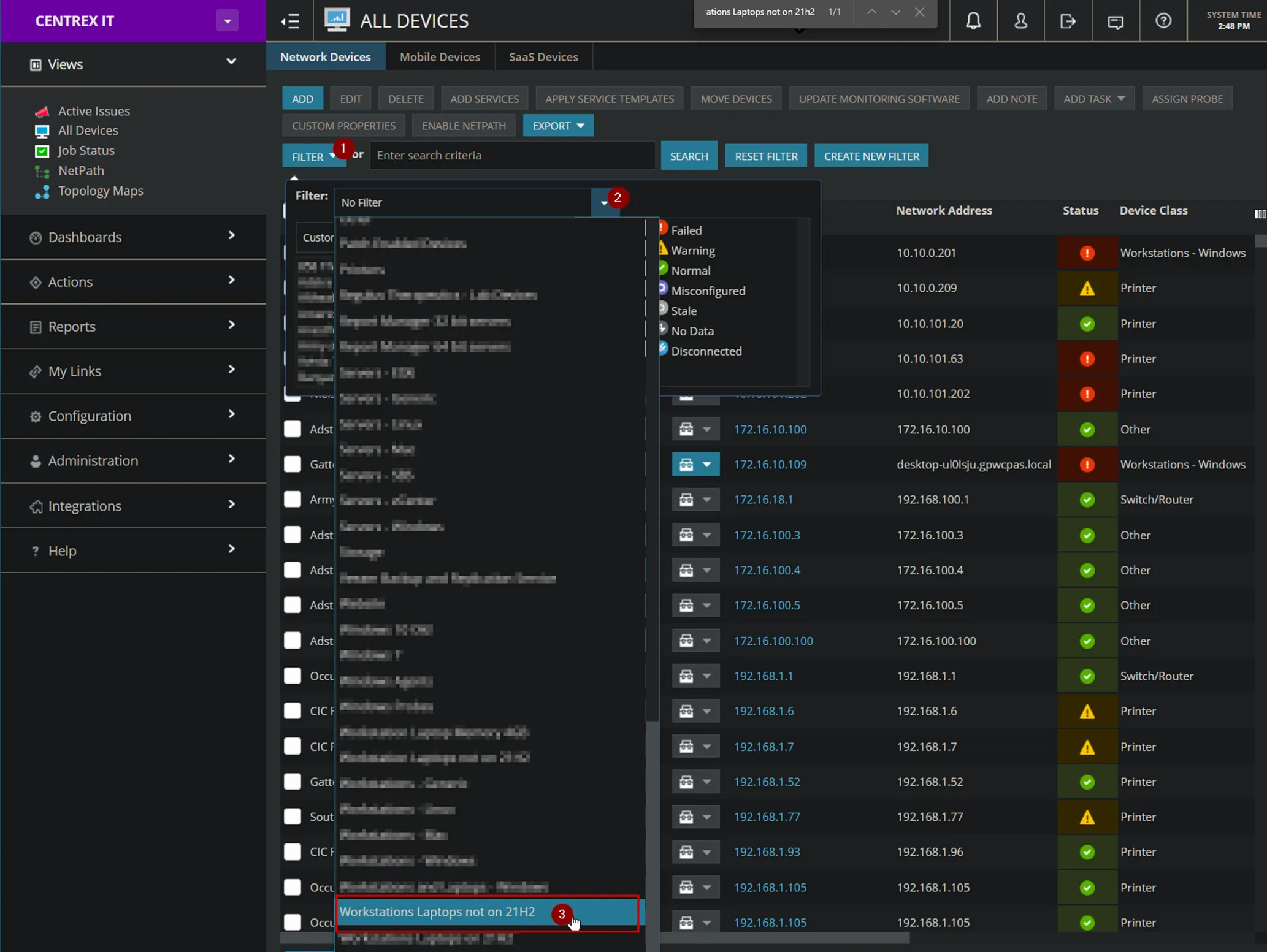
6. Now all of the devices listed match the filter criteria.