STAGING This is not the live site
Client Portal - Basic Navigation | centrexIT Knowledge Center
Loading...
centrexIT
Knowledge Center

CentrexIT Client Portal - Basic Navigation

KB00001995
Kellee Blair Work Instruction 1 min
Publishedv1

To understand how to navigate inside the IT Care Portal.


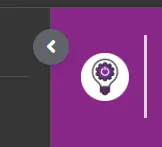
![](/images/kb/526fce55f1b27a1879012b0029e314a2.webp) ### Left Navigation Area
  • Click the <, a less than symbol, to open or close the navigation menu.

    </td>
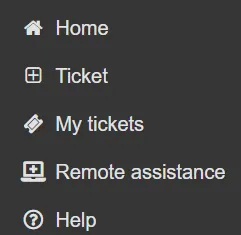
![](/images/kb/671732e3d99ea489752b5488116c0209.webp) ### IT Care Portal Home Menu
##### All Users
  • Home – the portal view

  • New ticket – to submit a new ticket

  • My tickets – check on my tickets

  • Remote assistance – get remote technical support

  • Help – view help articles, including portal training

    </td>
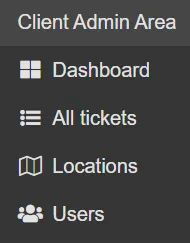
  • ![](/images/kb/12849857f564afa88702981c99378b37.webp) ##### Admin Users ***This menu is visible to Admin users only. Admins are determined by your organization and not centrexIT.***
    - Dashboard – visual display of graphs and calculations that represent tickets, ticket types, users,
    and locations
  • All tickets – including My tickets in addition to all tickets across the organization

  • Locations – a list of company locations

  • Users – a list of company employees and other system users

    </td>
  • ![](/images/kb/4ebee9b2700db76460e72712d6b6f467.webp) ##### Ticket Form View: Field Definitions
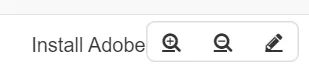
    - Clicking the magnifying glass will open or close slots that can be used to help filter or sort data
  • Ex: Title – “password” will filter all tickets where password is used in the title

    - Ticket number – a unique number assigned to each ticket
  • Title – pulled from the “Summary” either from the ticket request form or email subject line

  • Editable field – hover over the title to locate the pencil and click

  • Change the title to better define the need and click the save icon

    - Requested by – the user that requested the ticket
  • Requested for – the user that needs help that may or may not be the requested by user

  • Priority – system calculated value based on urgency

  • Status – shows the status of a ticket

  • Hold status – if the ticket status is on-hold, the reason will be present

  • Ex: On hold – Awaiting part

    - Created – the date the ticket was created
  • Updated – the last time the ticket had any update activity

    - Location – currently associated with where the user is located assuming that is where the need is
    located
    - Hover over each slot to locate this icon (+ - pencil) the quick filter and editor to find two
    magnifying glasses and if editable, a pencil
  • Icon+ – click to sort on all like items

  • Ex: Click on the + over a priority setting to find all tickets with the same priority

    - Icon- - removes like items and excludes them from the view
    - Pencil – an editable field that can be changed by the admin (if pencil is not showing, it is not
    an editable field)
    ##### Ticket Form View: Field Definitions
    - The open area on the left is the communication area. This is where you can see the communication
    between all users associated with the ticket.
    - The area on the right is the details area. It includes four different areas used to store ticket
    information.
    <table border="1" cellpadding = "10" cellspacing = "10">
    <thead>
    <tr>
    <th>Field Name</th>
    <th>Editable?</th>
    </tr>
    </thead>
    <tbody>
    <tr>
    <td>Ticket Number</td>
    <td>No, system generated</td>
    </tr>
    <tr>
    <td>Title</td>
    <td>Yes</td>
    </tr>
    <tr>
    <td>Requested by</td>
    <td>Yes</td>
    </tr>
    <tr>
    <td>Requested for</td>
    <td>Yes</td>
    </tr>
    <tr>
    <td>Location</td>
    <td>No, contact your support analyst</td>
    </tr>
    <tr>
    <td>Category</td>
    <td>No, contact your support analyst</td>
    </tr>
    <tr>
    <td>Subcategory</td>
    <td>No, contact your support analyst</td>
    </tr>
    <tr>
    <td>Priority</td>
    <td>No, contact your support analyst</td>
    </tr>
    <tr>
    <td>Hold status (only displayed when ticket is on hold)</td>
    <td>No, contact your support analyst</td>
    </tr>
    </tbody>
    </table>
    </td>
  • Field Name Editable?
    Created date No, system generated
    Updated date No, system generated
    Resolution date No, system generated
    Field Name Editable?
    Watching Yes, add an active company user
    Vendor Yes, if Vendor exists. If Vendor does not exist, contact your support analyst