How to add a DNS entry for client’s public facing DNS record on GoDaddy:
Section titled “How to add a DNS entry for client’s public facing DNS record on GoDaddy:”- Log onto GoDaddy with the client’s log on
- Click on the drop down and select Manage DNS
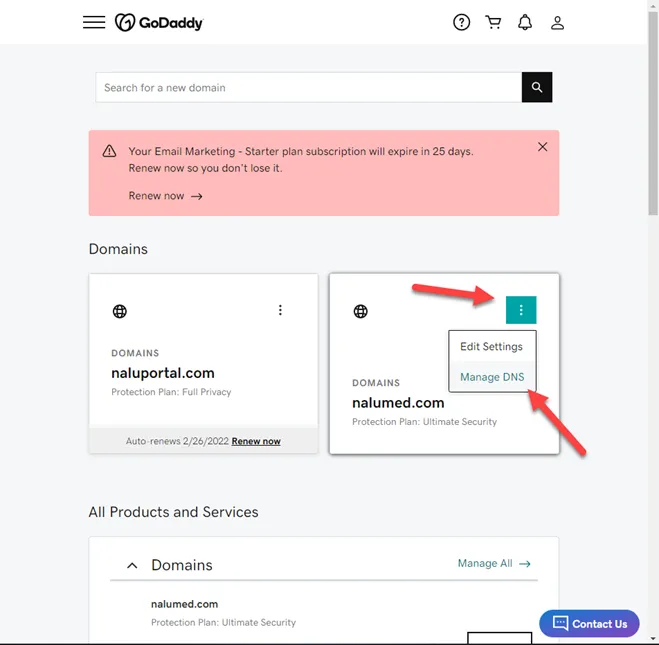
- If the request is to add an entry with an IP, that would be an A record
- If the request is to add an entry pointing to a FQDN, that would be an Alias or CNAME
- Under “DNS Management”, scroll down and click “Add”.
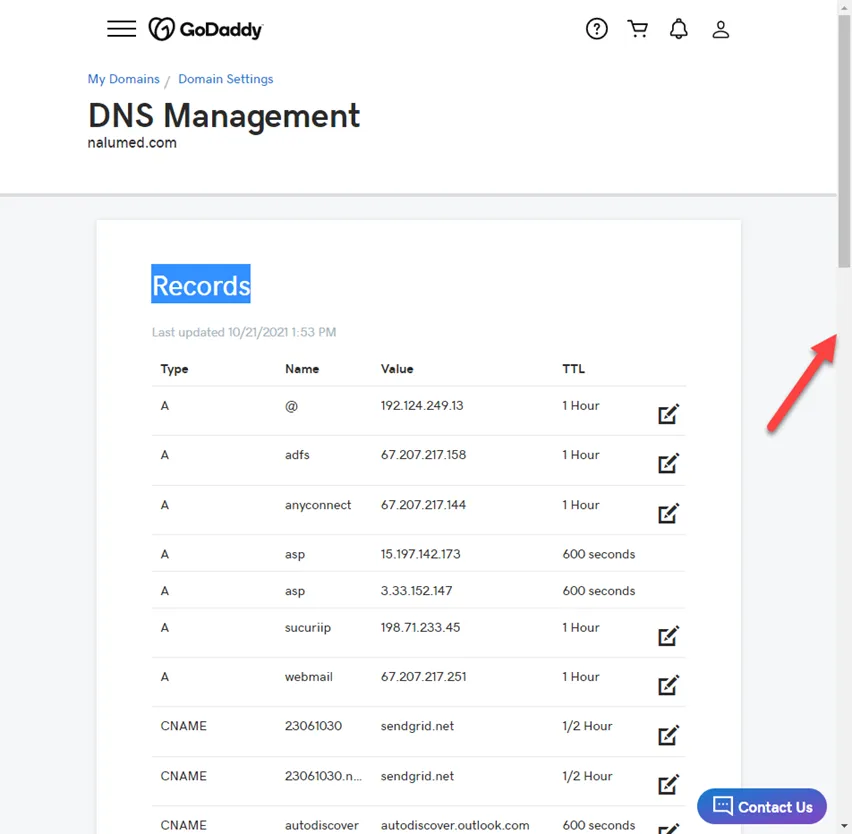
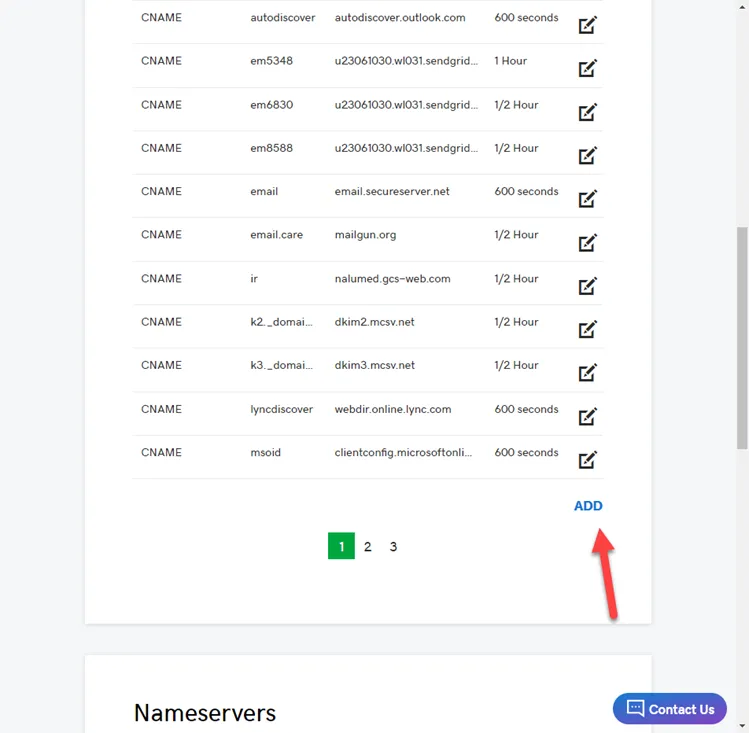
- Click Add
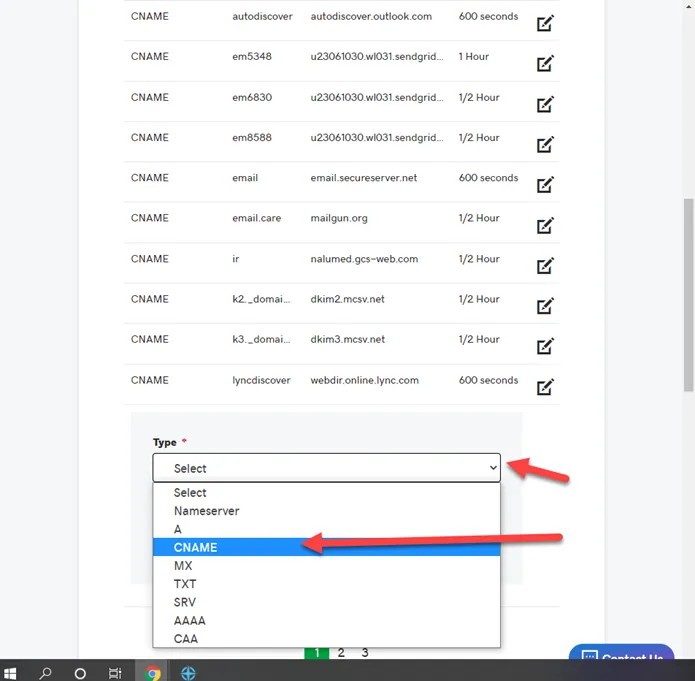
- Click on the drop down and select the appropriate record type
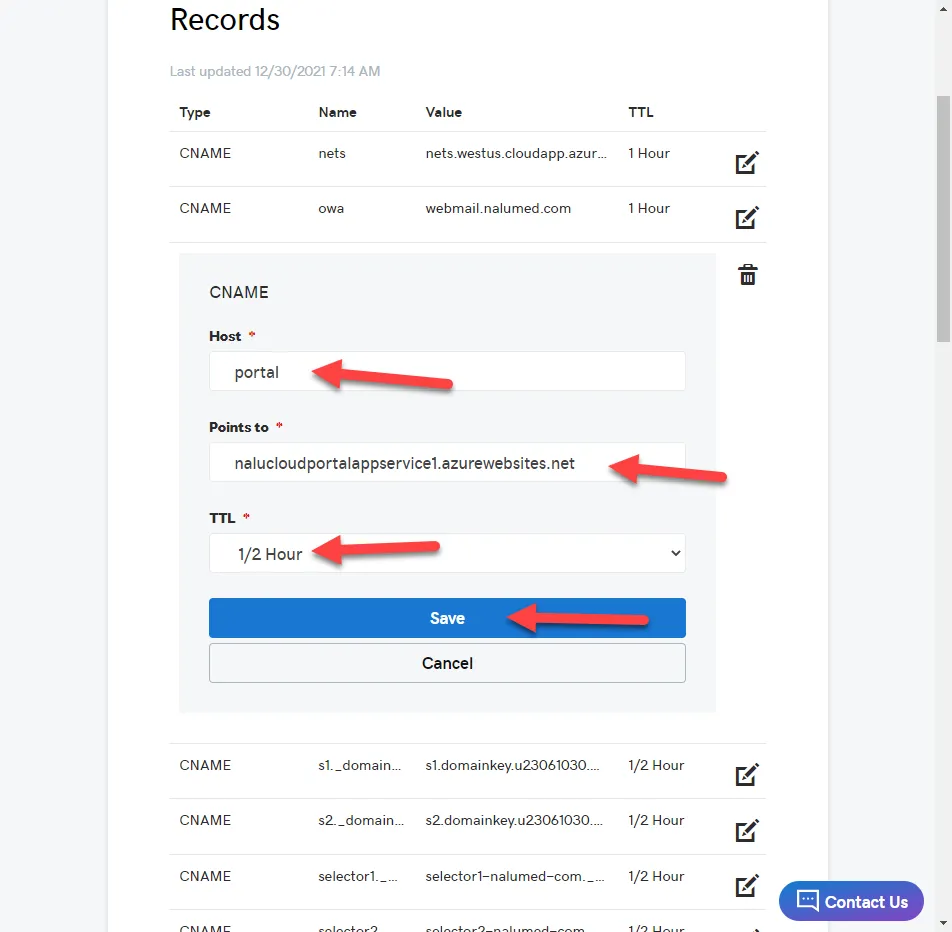
- Put in the host name (That should be the name that’s reflecting of the client’s public domain). Put in the points to (in this case this is a CNAME record pointing to an other URL/site). Please also change the TTL to ½ hour. Then click save.
- ** Please note: We encourage to use copy and paste to ensure the accuracy.
- ** Please note that for CNAME record and A record, you only need to the first part of the address. The domain name is understood by system and append automatically. For example, I need to add an entry for “Portal.nalumed.com”, I would only need to put Portal in the name field
- ** Please note: CNAME is for an Alias name pointing to an existing host with an A record
- ** Please note: If asked for an A record, you would put in the IP.
- Update client asking them to test in about an hour’s time and confirm if it’s working correctly.