Issue: Snagit recording only show a green screen with no audio when trying to play back recording in Snagit Editor.
Section titled “Issue: Snagit recording only show a green screen with no audio when trying to play back recording in Snagit Editor.”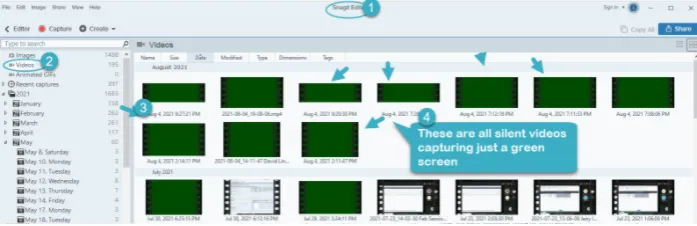
Fix: Snagit 2018 and Later
Section titled “Fix: Snagit 2018 and Later”1. Exit Snagit and the Snagit Editor. Confirm that they are not running in Task Manager.
2. Press Windows+R on your keyboard to open the Run window.
3. Type the following and click OK: Regedit
4. Browse to HKEY_CURRENT_USER\Software\TechSmith\Features\snagit.
5. Click the Snagit folder.
6. Right-click the AllowHwVideoEncoding item on the right and select Modify.
7. Change the Value data field from 1 to 0, and press OK.
8. Close the Registry Editor, and open Snagit, and try a new recording.
The issue should now be resolved.