PROCEDURE This is the process used when there is a need to create a problem ticket (PRB) from an Incident (INC) that needs to be escalated to the CAPA team to follow up with a formal incident response or CAPA. IThis article also shows the user where to enter time on the PRB ticket.
Note: A user can also create a new PRB that is not associated with a ticket. This process is the creation of a problem from a ticket.
REQUIREMENTS
A incident ticket is required for this process. Status can be any.
STEPS
To create a Problem ticket:
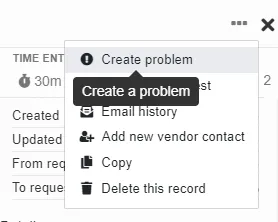
- From the INC, click on the three dots in the upper right corner and select Create problem from the dropdown menu
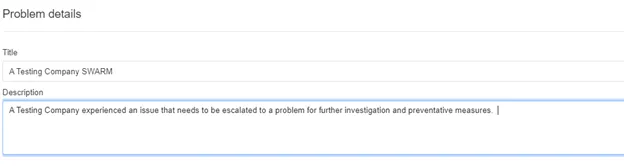
- A new slide-out will open to add the Problem details
- Fill in the title of the problem and the description below, then click OK
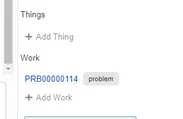
- Once the PRB is creaed, user will see the INC ticket along with the attached work record
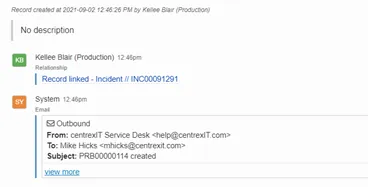
- To access the PRB for time or to begin the CAPA process, simply click on the PRB link. NOTE: The creation of the PRB sends an email to CAPA process owner.
To report time on a Problem ticket:
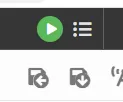
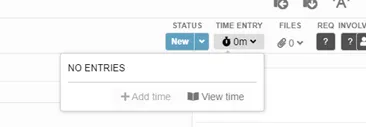
- Simlar to adding time to any piece of work, the User can use the green start timer button, clicking on the clock to add time, or adding notes and time in the chatbox at the bottom of the screen.
REFERENCES
NA