Note: You have to be on the CentrexIT network to reach vSphere, not the VPN. The Utility and Management PC can be used for this in ScreenConnect.
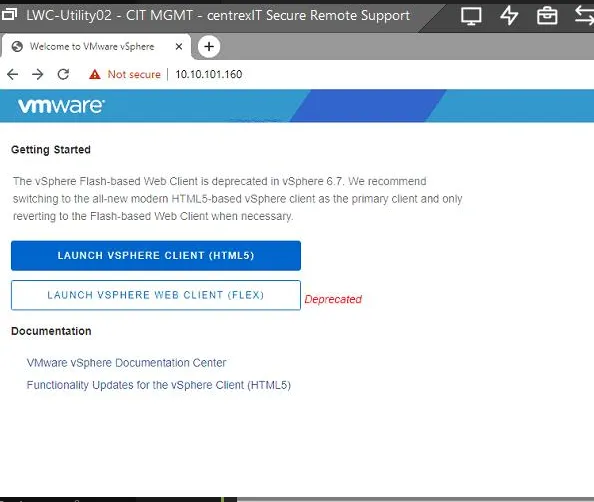
1. Browse to 10.10.101.160.
2. Select Launch vSphere Client (HTML5).
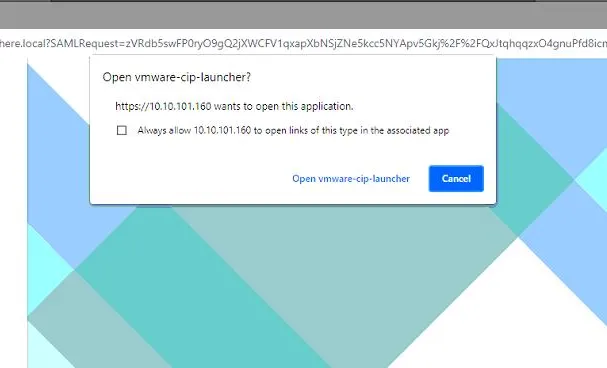
3. Select “Open vmware-cip-launcher”.
4. Check the box for “Use Windows Session Authentication”.
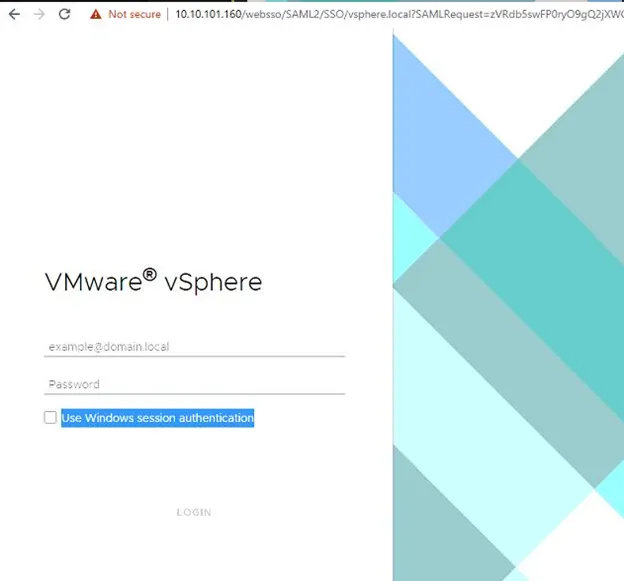
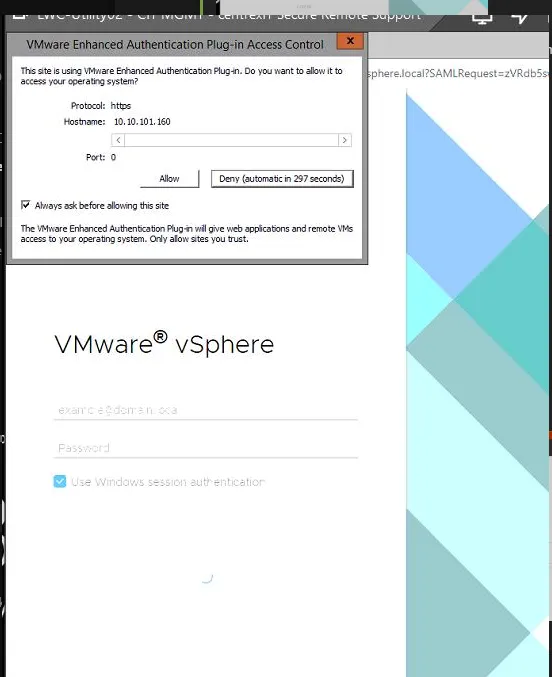
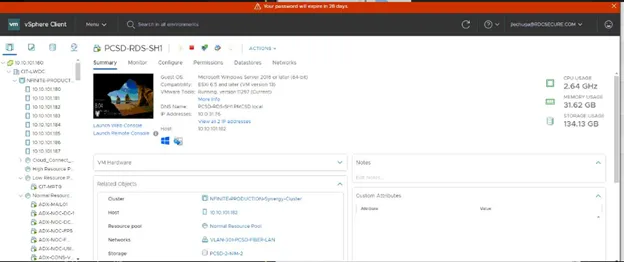
5. After login, a pop-up will come up; click “Allow” on it. After this, you’ll be able to access Centrex’s vSphere environment.