PROCEDURE This article covers resetting the password for the default Administrator account for HPE iLO, by utilizing VMware ESXi Host. This process has been confirmed to work on ESXi version 5.x and 6.x, running on HPE Servers with iLO ver 3, 4, and 5.
REQUIREMENTS
-
Enable SSH access on ESXi Host
-
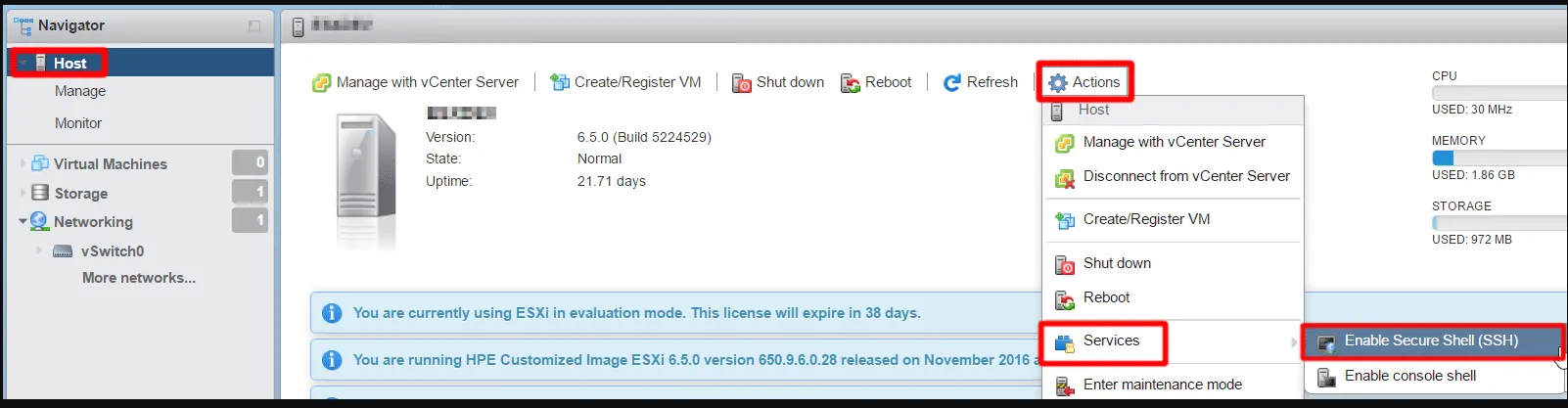
STEPS
- Open putty, create an SSH session to the ESXi host IP address, and log in using the root account.
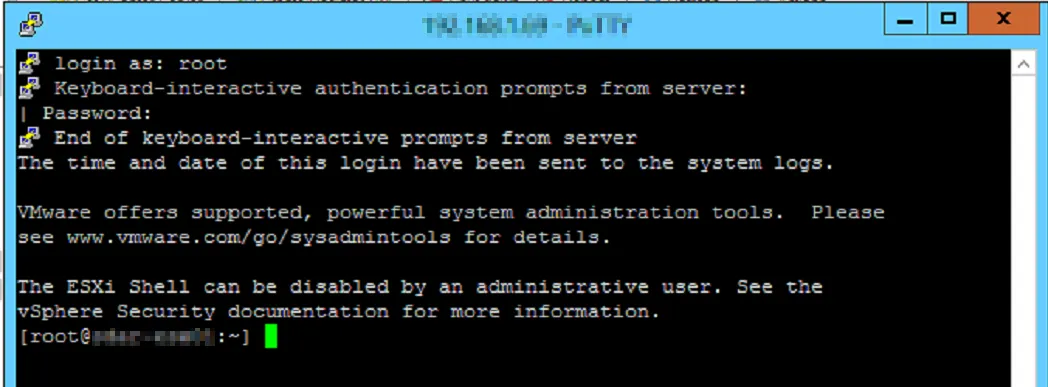
- Change directory by running the cmd: cd /opt/tools/
- next run cmd ls to verify the utility hponcfg is present

- NOTE: The alternative directory for hponcfg is /opt/hp/tools
- Create a file named pwreset.xml with the below info and add the new password in the password section:
- To create the file, enter the cmd: vi pwreset.xml (this will open a new file named pwreset.xml in vi text editor)
- type the letter i which will allow you to enter text
- Copy and past the xml code below. Note, if you leave the default text, the password will be “password”.
- Hit the “Esc” key on your keyboard, then enter :wq to save and quit
<RIBCL VERSION="2.0"><LOGIN USER_LOGIN="Administrator" PASSWORD="unknown"><USER_INFO MODE="write"><MOD_USER USER_LOGIN="Administrator"></MOD_USER></USER_INFO></LOGIN></RIBCL>- Commit the updated administrator password information from the file (pwreset.xml) to ILO using the below command
- ./hponcfg -f pwreset.xml
- A successful execution of the script will output the following:
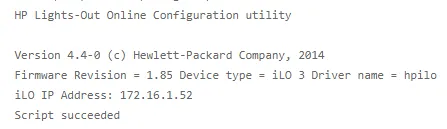
- Note: The iLO IP Address line will be unique to the iLO management IP address that you are working on
- Now you should be able to log into the Administrator account in iLO with the password “password”.
REFERENCES
Reset the HP iLO Administrator password with hponcfg on ESXi | vcloudnine.de