You can replace all VMCA-signed certificates with new VMCA-signed certificates. This process is called renewing certificates. You can renew selected certificates or all certificates in your environment from the vSphere Client.
Prerequisites
Section titled “Prerequisites”For certificate management, you have to supply the password of the administrator of the local domain (administrator@vsphere.local by default). If you are renewing certificates for a vCenter Server system, you also have to supply the vCenter Single Sign-On credentials for a user with administrator privileges on the vCenter Server system.
Procedure
Section titled “Procedure”- Log in with the vSphere Client to the vCenter Server connected to the Platform Services Controller.
- Specify the user name and password for administrator@vsphere.local or another member of the vCenter Single Sign-On Administrators group.
- If you specified a different domain during installation, log in as administrator@ mydomain.
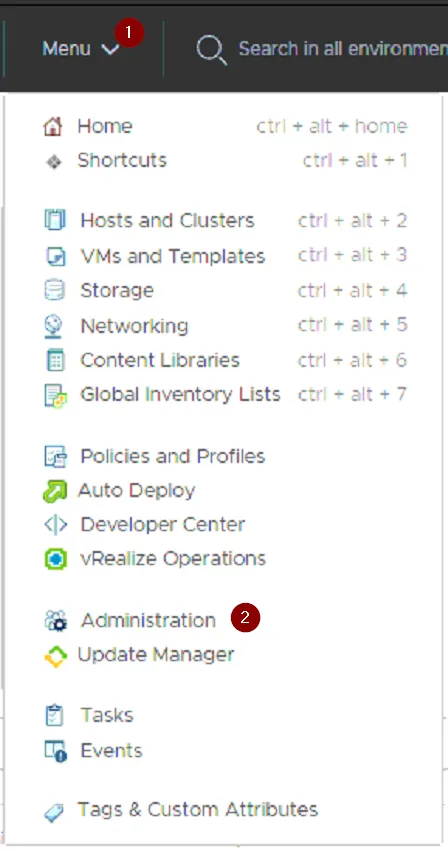
- Navigate to the Certificate Management UI.
- From the Home menu, select Administration.
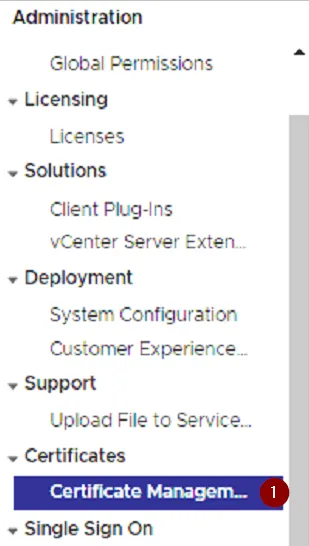
- Under Certificates, click Certificate Management.
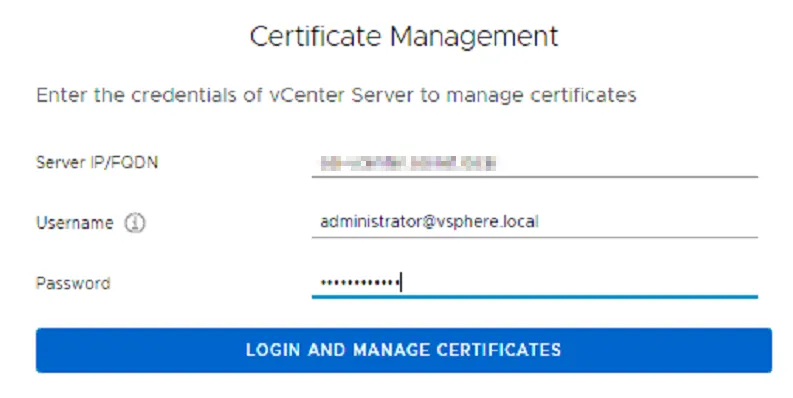
- Enter the credentials of your vCenter Server.
- Renew the machine SSL certificate for the local system.
- Select Machine SSL Certificate.
- Click Actions > Renew.
- Click Renew.
- A message appears that the certificate is renewed.
- (Optional) Renew the Solution User certificates for the local system.
- Under Solution Certificates, select a certificate.
- Click Actions > Renew to renew individual selected certificates, or click Renew All to renew all solution user certificates.
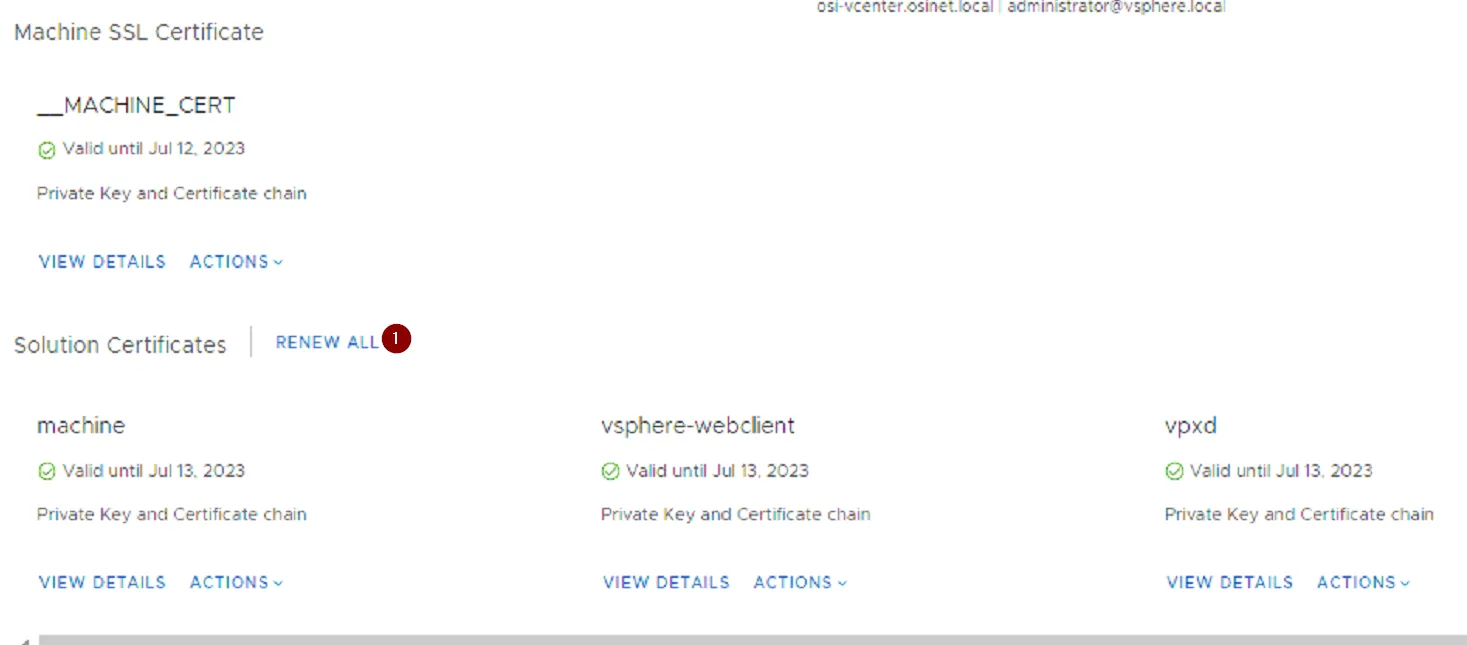
- A message appears that the certificate is renewed.
- If your environment includes an external Platform Services Controller, you can then renew the certificates for each vCenter Server system.
- Click the Logout button in the Certificate Management panel.
- When prompted, specify the IP address or FQDN of the vCenter Server system and user name and password of a vCenter Server administrator who can authenticate to vCenter Single Sign-On.
- Renew the machine SSL certificate on the vCenter Server and, optionally, each solution user certificate.
- If you have multiple vCenter Server systems in your environment, repeat the process for each system.
What to do next
Section titled “What to do next”Restart services on the Platform Services Controller. You can either restart the Platform Services Controller, or run the following commands from the command line:
- Log into vCenter Access Management Interface https:\\
:5480 - Use vCenter Root credentials
- Navigate to Access > Click Edit > Enable SSH
- Open Putty and SSH into
- Run the commands below:
service-control —stop —all service-control —start —all
- Verify certificate on vcenter webpage is now updated.
- Log into vCenter Access Management Interface https:\\
:5480 - Navigate to Access > Click Edit > Disable SSH
References:
Section titled “References:”Replace Certificates with New VMCA-Signed Certificates from the vSphere Client (vmware.com)