General system specification guidelines:
Section titled “General system specification guidelines:”- 2 Dual Core CPU performs better then single Quad Core CPU.
- Lightweight application on a RDS session host will use an average of 100 MB RAM per user . Additional 4GB RAM should be considered for the operating system. For example, (100 users * 64 ) + 4000 = 10.4 GB, i.e., 12GB RAM. Each application will then add more memory per user, which will need to be added to the calculation.
- Recommended number of concurrent sessions per server is between 30-40.
- Storage read-write operations are one of the important parameters for deciding the number of concurrent sessions. Application virtualization and shared VDI requires continuous read and write operations, so consider IOPS calculation. Average usage of applications & Shared desktops uses 6 IOPS/user.
- 10 RDS sessions per CPU core is the optimum performance limit.
- 128 Kbps is the ideal bandwidth per RDS session. Bandwidth will vary based on the
- RDS performance is significantly enhanced when running x64 hardware and operating system. Please refer to the Performance optimization guide for more information for better RDS performance.
- Remember that enabling Desktop Composition will have a significant impact on resource usage and will affect server capacity negatively.
- When running RD Session Host servers in a virtualized environment, make sure the processor supports paging at the hardware level (RVI for AMD, EPT for Intel).
Best Practice for Deploying UPD
Section titled “Best Practice for Deploying UPD”Referencing https://www.amorales.org/2019/03/making-user-profile-disks-better.html
User Profile Disks (UPDs) are great for load balanced RDS farms since it allows users to seamlessly roam from server to server. The goal of this article will be to configure the RDS and file servers in a way that maximizes performance and reduces the likelihood of UPD disconnects.
Use FSLogix
Before you even consider deploying UPDs you need to be aware of this limitation. On Server 2012 and 2016 (Server 2019 does not have this issue, but it doesn’t support Office), the Windows Search index is machine wide. This means that when a UPD is disconnected, the user’s index data is deleted. The result is that the next time the user logs into the RDS and opens Outlook, their search index will need to rebuild. This will become a major issue when you have 5+ users on a server and the index throttles itself. You could disable the index back off, but it will lead to performance issues and it won’t actually fix the issue.
The solution is to configure FSLogix Office 365 containers. What they have done is create their own “UPD” that stores all the user’s Outlook and index data. The next time the user signs into the server, their index will load instantly.
Location of Servers
In order to reduce latency and the likelihood of a UPD disconnect; the server hosting the UPD share should be on the same VMware host as the RDS servers. This might not always be possible based on your configuration, but it is ideal since it keeps all the network traffic within VMware.
Use ReFS for the UPD drive
Using ReFS as the file system of the drive that will host the UPDs will improve VHDX performance. This will be evident when creating UPDs(first login) and when they need to expand. More info here.
Set all your servers to High Performance
Make sure that all your servers are set to a High Performance power plan. This will make sure that none of the power settings lead to disconnections.
Compact your UPDs
UPDs are dynamic VHDX files that can expand up to 20GB by default. The UPD automatically expands any time the user adds data to it, but it never compacts once data is removed. As a result, you may end up with a ton of blank used space.
The script below can be configured as a scheduled task on your file server. It will go through your UPD share and compact any VHDX files that are not in use.
Disable Share Caching
Disabling share caching can prevent some rare situations where the UPD fails to dismount from the RDS server. It also has no negative effects since there is no need to cache the UPD files.
Go to the Caching Settings of the profile disk share and select “No files or programs from the shared folder are available offline”.
need new screenshot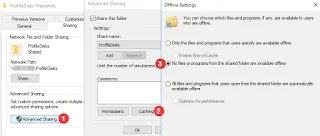
Restart your RDS servers after the File Server
If you have scheduled restarts, make sure that the RDS servers restart after the File Server. If a user left their session open on the RDS and the file server restarts, their session will get stuck. Restarting the RDS servers after the file server ensures that all sessions are cleared.
Delete Inactive Printer Ports
Don’t do this on 2019 servers! It will break redirection.
There is an issue where printer redirection ports don’t get cleared out when users log out. This can result in long login times. This article says that it only affects 2008 R2, but I have seen 2012 and 2016 servers with thousands of unused ports. Thankfully there is an application that can delete them.
- Download InactiveTSPort from the archive https://archive.codeplex.com/?p=inactivetsport.
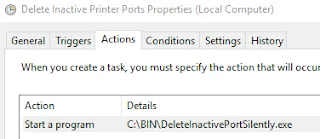
- Go to the releases/1 folder and rename the file “46d7de43-82ec-4984-b550-6580a82ee735” to “DeleteInactivePortSilently.exe”
- Create a scheduled task that runs the exe every few days.
Delete bad folders under the Users Folder
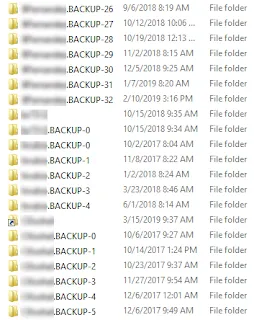
Have you ever looked at your C:\Users folder and seen a ton of .BACKUP-0 folders? I have a possible cause of the issue on the next point. These .BACKUP-## folders can lead to some issues like Outlook not being able to find the .OST of a user when launched.
Set the script below as a scheduled task that runs every morning. Where or which script? There are two links below? The script uses DelProf2 to delete all the folders under the C:\Users directory. This will only delete profiles of users that are not logged in. I exclude the UvhdCleanupBin folder since its purpose seems to be a bit of a mystery.
Create scheduled Task Remove-UPDOldProfilesScheduledTask.ps1
Log users out of the Server before restarting it
This is a bit of speculation, but I believe that the .BACKUP-## folder issue is caused by restarting the server while UPDs are attached. If you restart servers on a schedule, then it might be worth creating a script that logs all users out of the RDS before it is restarted.
Delete old firewall rules at logoff
Every time a user logs into an RDS server several firewall rules are created. These rules are never deleted and over time you will have thousands of unnecessary rules on all your servers. These rules can lead to performance issues and crashing. Also, the rules will show up even if you have the firewall disabled.
Install KB4467684 and create a GPO that creates the following reg key:
HKEY_LOCAL_MACHINE\SYSTEM\CurrentControlSet\Services\SharedAccess\Parameters\FirewallPolicy
DeleteUserAppContainersOnLogoff (DWORD)
Value: 1
The next time a user logs in and back out of a server the rules will be cleared. More info here.
Redirect Common User Folders
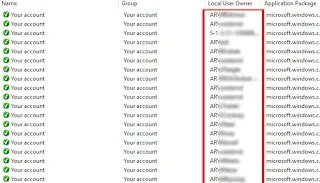
Use folder redirection to store common user folders (Documents, Desktop, Downloads, etc.). This will allow you minimize the size of UPDs and it will make management easier. For instance, if you upgrade from Server 2012 to 2016 you will only need to worry about user settings and not their documents.
AV Exclusions
Make sure to exclude VHDX files from your AV, and make sure that they actually show up on the client’s exclude list. In my case simply excluding *.vhdx files from ESET did not do the trick. I had to create the exclusions below.
\\SERVER\*.vhdx (File Server)
\\EXAMPLE.COM\*.VHDX (DFS namespace) (you only need this if you’re deploying FSLogix)
L:\*.vhdx (Local drive on the file server)
Storing data on the UPD
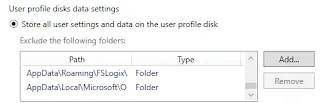
The RDS session properties give you two choices on how to store data. “Store all user settings and data on the user profile disk” and “Store only the following folders on the user profile disk”. I opt for “Store all user settings and data on the user profile disk”, as this ensures that none of the user’s data is lost.
If I need to exude something I use the exclude list.
Start Menu not working?
Excluding the paths below and creating the reg key might help with the issue. See thread with more info here and here.
Exclude:
AppData\Local\Packages (Folder)
AppData\Local\Microsoft\Windows\Usrclass.dat (File) (This is supposed to cause users to lose their default apps, but I have not seen that occur).
After some testing I have confirmed that the notification area icon settings will not persist across sessions if Usrclass.dat is excluded. All non system icons will be hidden again the next time a user signs in.

Reg key:
HKCU\Software\Microsoft\Windows\CurrentVersion\ImmersiveShell\StateStore\ResetCache
DWORD
1