1. Login to the customer’s Office 365 portal. Navigate to the admin center and click Groups -> Active groups -> Add a group. (Microsoft 365 group)
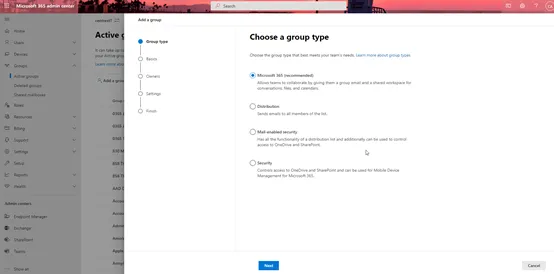
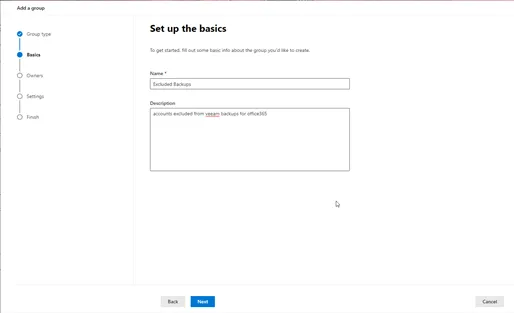
2. Name the group “Excluded Backups” and click Next.
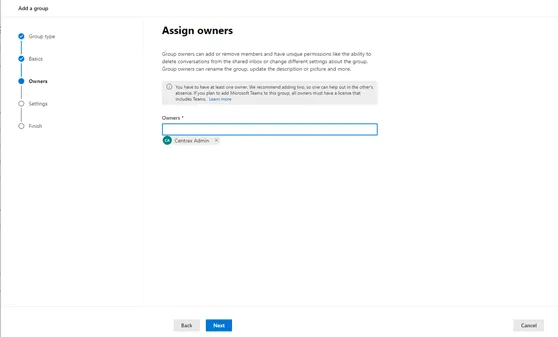
3. Add the admin account of the tenant as an owner and click Next.
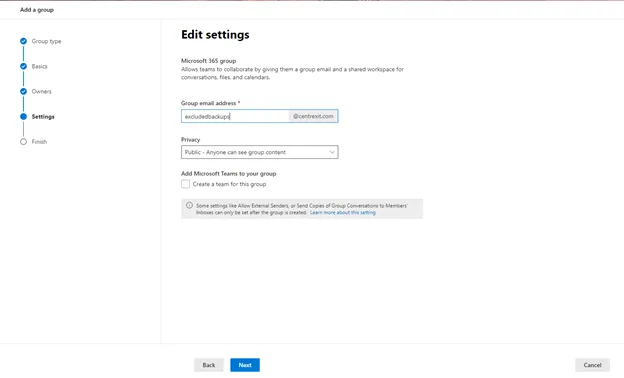
4. Set the group email address to be the name of the group and click Next.
5. Review and finish.
Adding excluded users
Section titled “Adding excluded users”1. Initially the easiest way to add excluded users is to go to the active users view and filter out the unwanted.

2. Click filters and select unlicensed users. Scan through the list and mass select the ones needed to exclude, click the 3 dots on the menu (…) and hit manage groups. Select the excluded backups group and add users
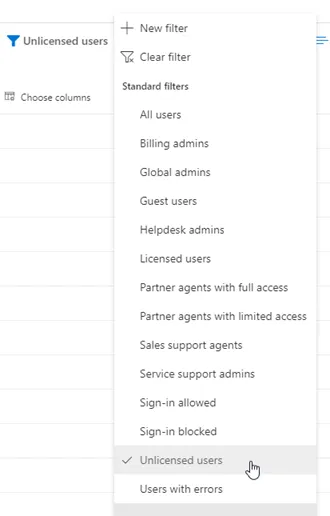
3. This will take care of most exclusions; you can also filter by sign in blocked. Be careful not to add groups to the excluded group. IE all staff group, as this will exclude all users in said group.