Purpose:
Section titled “Purpose:”Please use this WI to offboard an Adstra employee. This process is initiated once HR or Management submits an M365 Termination Form. Details on the automated process below:
-
M365 Form Management
-
HR and Adstra Management can submit offboarding requests by using this form User Termination Form
-
Located under HR and IT TAR M365 Team > Forms > User Termination Notification
-
IMPORTANT: Internal use only DO NOT share with HR or Adstra Management! If a form needs to be updated or troubleshooting needs to occur the editable form can be reached here: Editable User Termination Form
-
M365 Powerautomate Flow Management
-
Uses the centrexit.ops@adstradata.com account for connection flows (1Password > Websites > M365 CentrexIT Ops Account
-
Termination Flow location: Adstra M365 (centrexit.ops) > Power Automate > My Flows > Shared with me > Termination Notification Flow
Scope:
Section titled “Scope:”-
Service Delivery
-
Customer Satisfaction
Responsibility:
Section titled “Responsibility:”-
Service Delivery
-
vITM
Completion Criteria:
Section titled “Completion Criteria:”-
IMPORTANT: Adstra Stage One: Steps 1-13
-
IMPORTANT: Adstra Stage Two: Steps 14- End
Records:
Section titled “Records:”-
Halo Ticket
-
Entry in Adstra’s M365 Form Responses:
Requirements:
Section titled “Requirements:”- 1Password > Domain\Service Accounts > Terminated Employee’s AD Password
Adstra Stage One – Cutoff Access
Section titled “Adstra Stage One – Cutoff Access”-
Connect to CL-DC01 or ADSTRA-DC2 via ScreenConnect / NCentral.
-
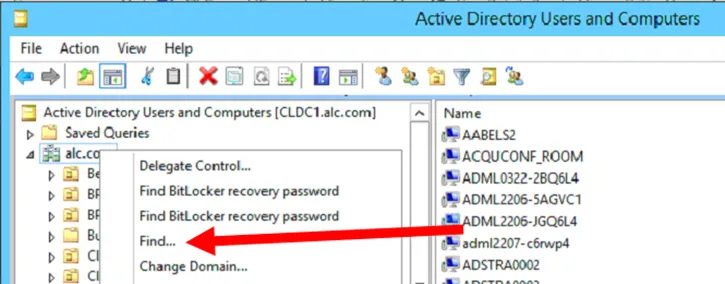
Start with Active Directory (AD), locate the terminated user by right clicking the domain and selecting find
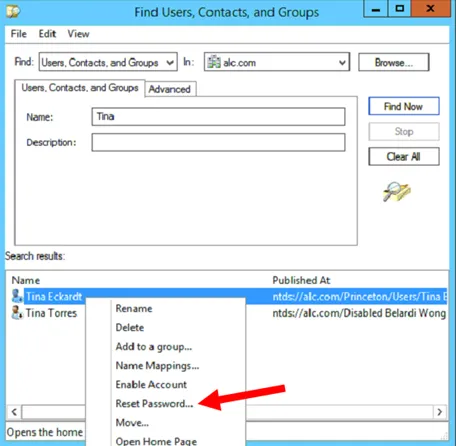
- Search for the user, then right click their name, hit reset password. Reset the password using the “Terminated Employee’s AD Password” from 1Password > Domain\Service Accounts
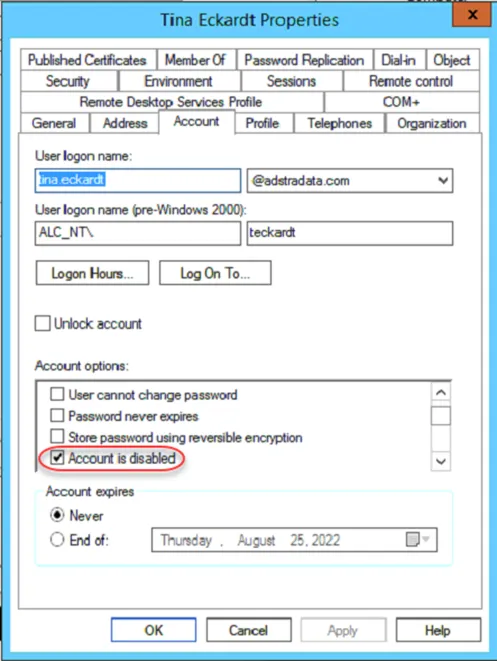
- Once reset, double click the user’s name, then go to the Account tab. Under account options, check the “Account is Disabled” selection. Hit Apply, followed by OK to close out of the users AD Profile.
- Run ADSync via Powershell as administrator. Follow KB00003642 to run from Adstra DC
-
To run the ADSync through “ADVM-AAD” VM via ScreenConnect / NCentral
-
Open Powershell as an Admin
-
Run the following commands:
-
Import-Module ADSync -
Start-ADSyncSyncCycle -PolicyType Delta -
NOTE: If you get an error that a sync is already running wait 10-15minutes
- Log onto Portal.office.com with the M365 Global Admin (GA) Account provided in 1Password (Review Requirements Section)
- Then navigate to the Admin console.
- Navigate to Users > Active Users then search for the terminated user.
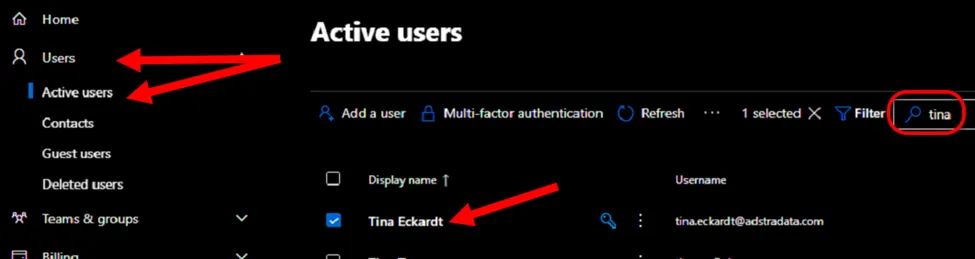
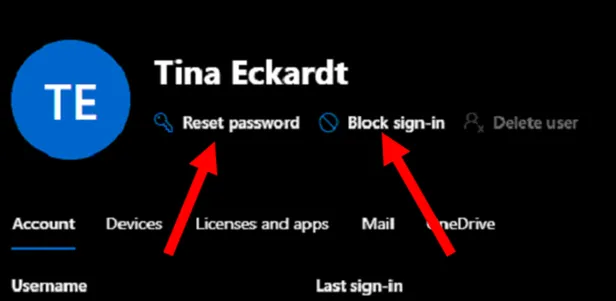
- From the user’s profile, reset the password using the Terminated Employee’s AD Password in 1Password (reference Requirements Section) and select Block sign-in (if sync hasn’t already set to block)
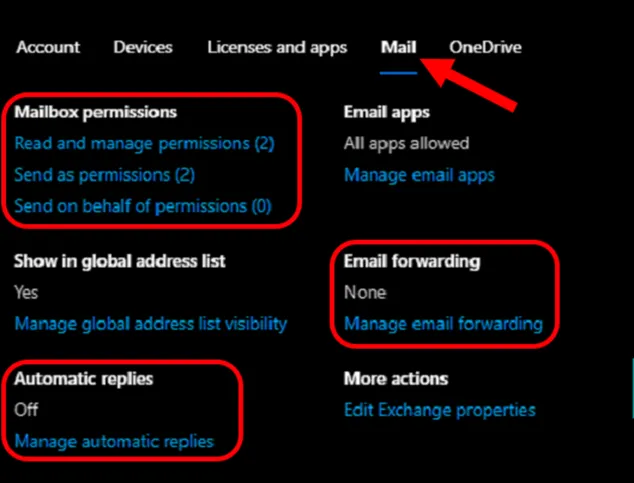
- Under the Mail tab, ensure any requested automatic replies, forwards, and delegations have been granted on this terminated user’s mailbox based on the User Offboarding Request.
-
Under the Mail tab, ensure any requested automatic replies, forwards, and delegations have been granted on this terminated user’s mailbox based on the User Offboarding Request.
-
IMPORTANT: Verify terminated user does not have a Belardi Wong Active Directory & M365 Account (reference KB00003626)
-
Schedule time to perform Stage Two below
-
STAGE TWO START: Connect to CL-DC01 or ADSTRA-DC2 via ScreenConnect / NCentral.
-
Open Active Directory (AD) and locate your user from their respected OU. (alc.com > location > users)
-
Under the Account tab, verify the user’s account is still checked as “Account is disabled.”
-
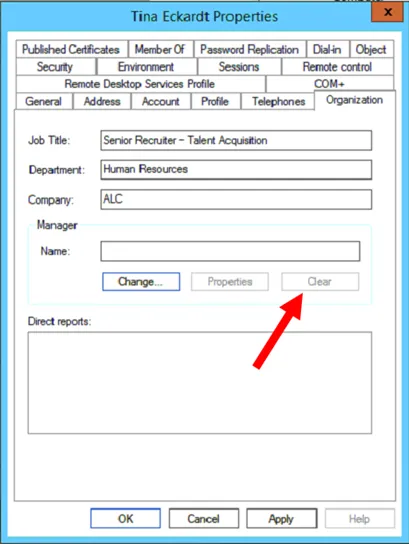
Go to the Organization tab, then under the Manager field, hit Clear, then Apply to save.
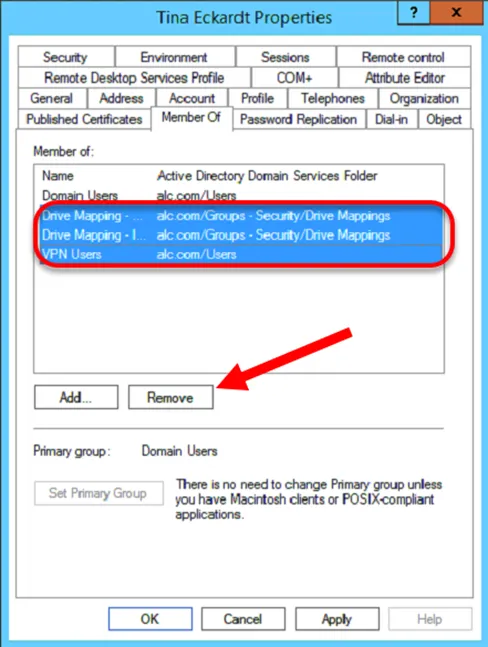
- Next, go to the Member Of tab, select all security groups and hit Remove (Remember to record each group within the offboarding ticket). Hit Apply once complete. Example below:
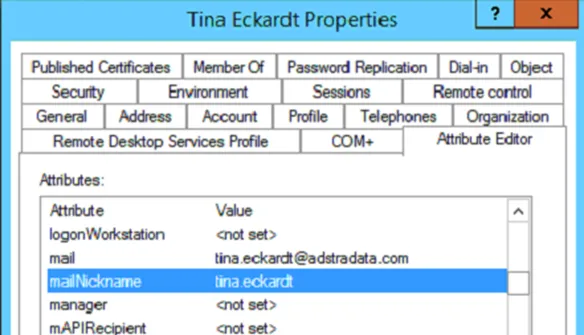
- Next, go to the Attribute Editor tab, start with searching for mailNickname and verifying it is updated to the username of the terminated account. If not, update to username.
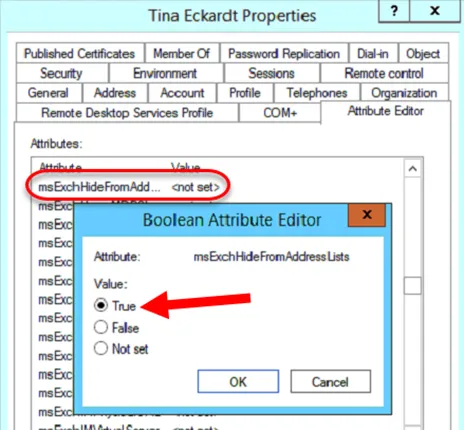
- Next, search for msExchHideFromAddressLists then set the value to True. Hit OK, Apply, then OK again to close out of the user’s AD Profile.
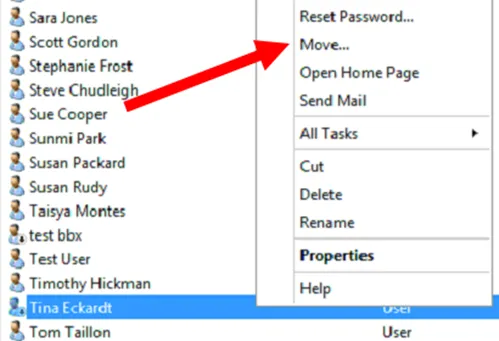
- Right-click the Name of your Terminated User, then select Move.
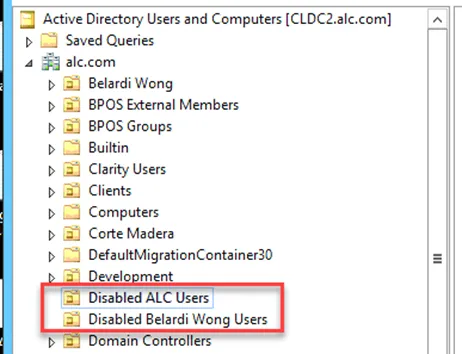
- Relocate the User’s profile to the applicable OU
-
Adstra:
-
alc.com > Disabled ALC Users
-
Belardi Wong
-
alc.com > Disabled Belardi Wong Users
- Hit OK once complete.
- Run ADSync via Powershell as administrator. Follow KB00003642 to run from Adstra DC
-
To run the ADSync through “ADVM-AAD” VM via ScreenConnect / NCentral
-
Open Powershell as an Admin
-
Run the following commands:
-
Import-Module ADSync -
Start-ADSyncSyncCycle -PolicyType Delta -
NOTE: If you get an error that a sync is already running wait 10-15minutes
- Log onto Portal.office.com with the M365 Global Admin (GA) Account provided in 1Password (Review Requirements Section)
- On the left-hand side of the page, navigate to the Azure Portal.
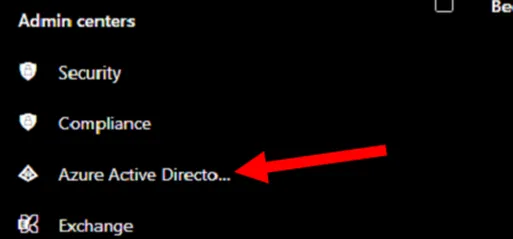
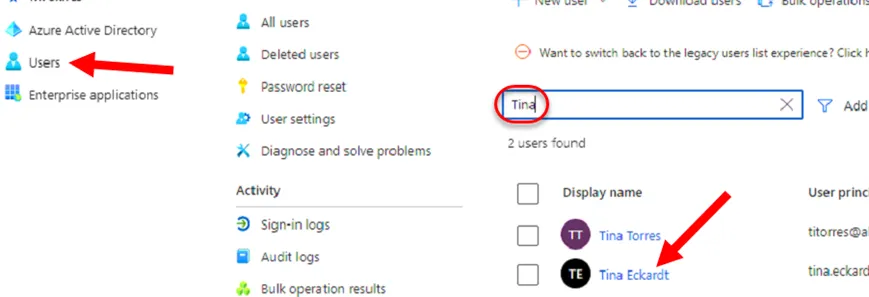
- From the Azure portal, go to the Users tab on the left-hand side, then search and select the terminated User.
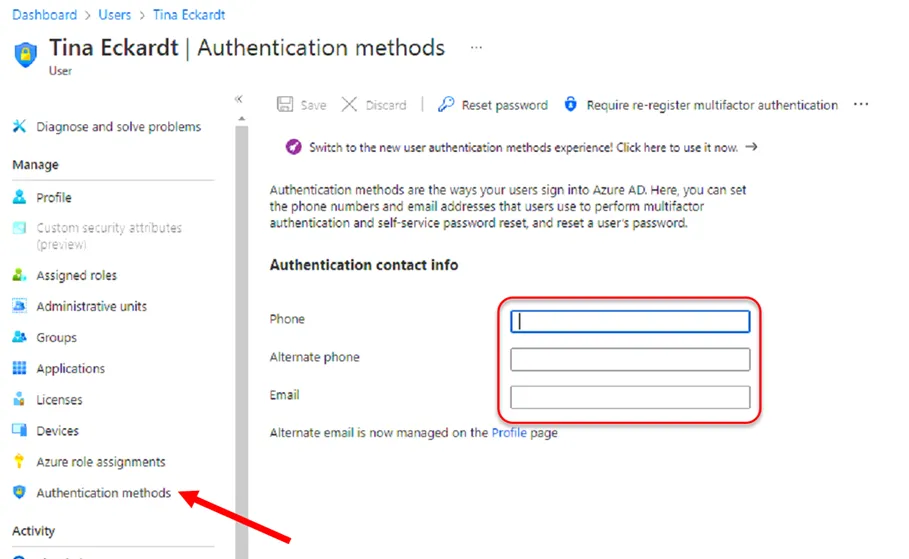
- From the User’s page, select Authentication Methods on the left-hand side. Verify all contact information is removed and recorded in the offboarding ticket.
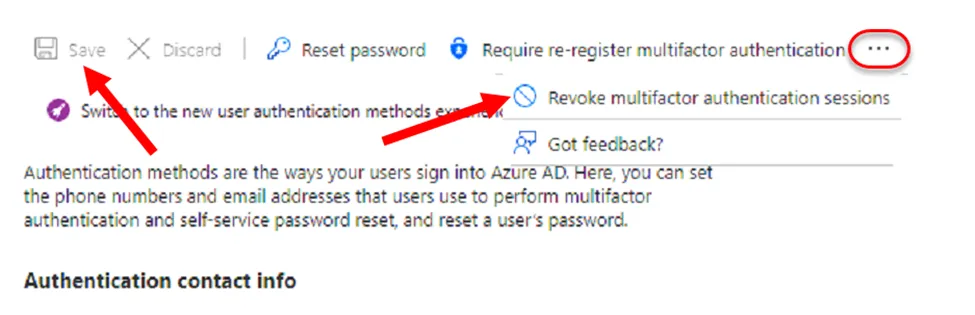
- Select the 3 dots at the top, then select Revoke MFA Sessions. Hit Save once complete.
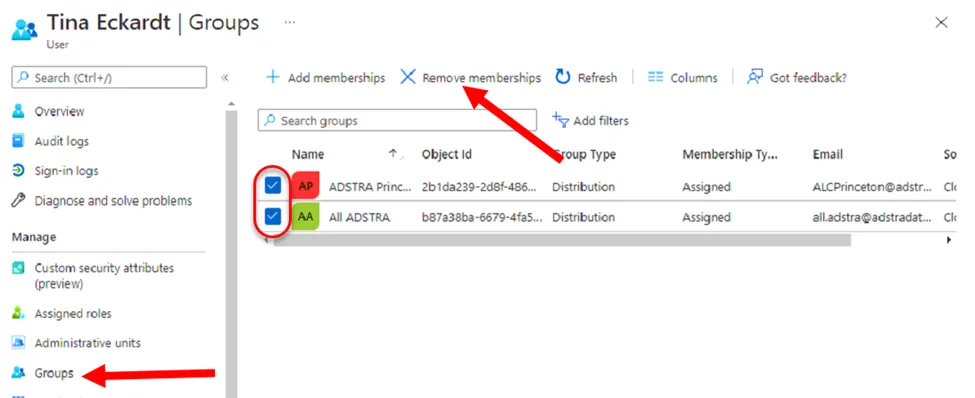
- Navigate to the Groups tab on the left-hand side. Then check all groups (record them all in the ticket) and Remove Memberships. Close out of the Azure portal once complete.
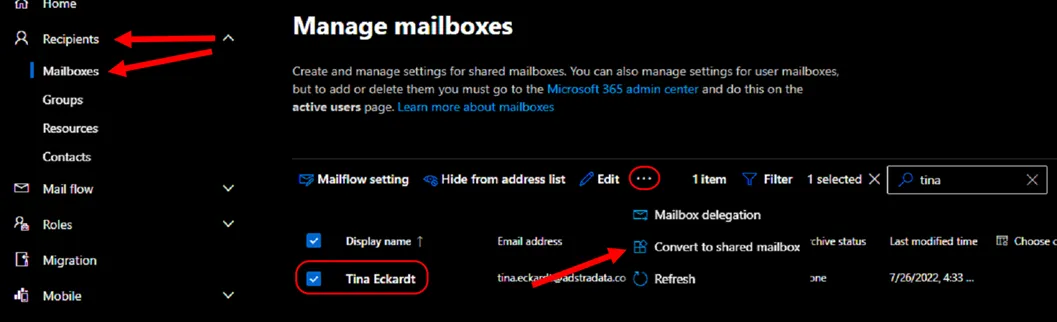
- Once back to the Admin page, select Exchange on the left-hand side.
- Under Recipients > Mailboxes search for the terminated user. Select the user, hit the 3 dots close to the search bar, and then hit Convert to shared mailbox. Confirm conversion.
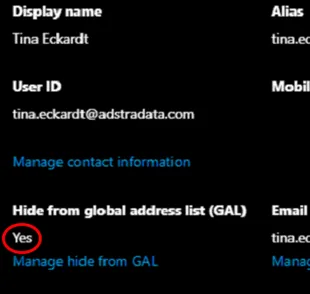
- Refresh the page and relocate the user. Under the General tab, verify user is hidden from the GAL. (This is managed within AD, simply verifying 365 updated properly)
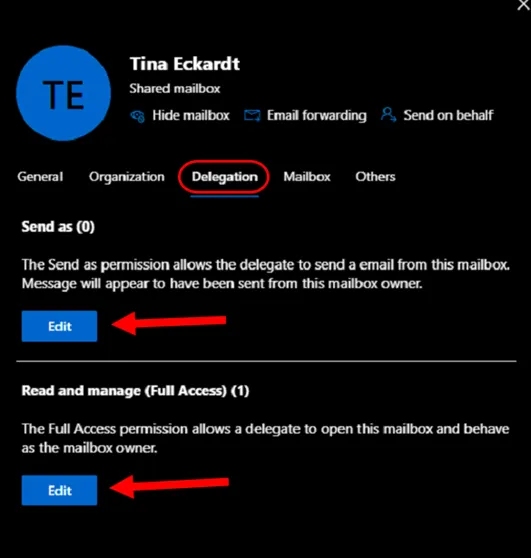
- Next, confirm mailbox access under the Delegation tab based on the Offboarding Request/Ticket.
- Under the Mailbox tab, or the Email Forwarding option, confirm email forwarding based on the offboarding request/ticket. Return to the Admin Portal once completed.
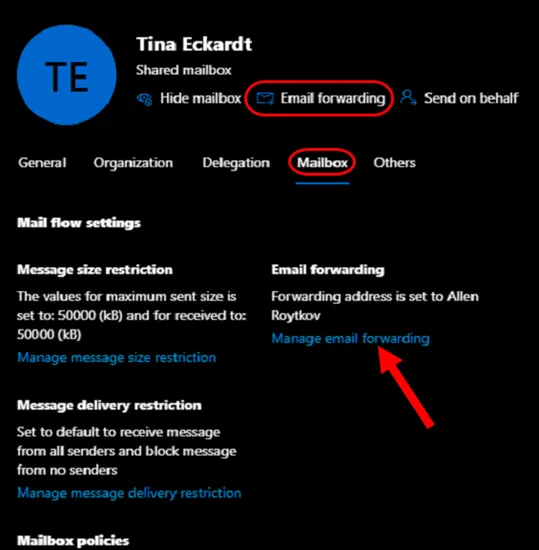
- Refresh the Admin Portal, then search for the terminated user through Users > Active Users.
- Under the Licenses and apps tab, remove all licenses attached to the user. Make sure to hit Save Changes
- IMPORTANT: Client Managed PBA Removals
- If software removal is provided on the offboarding request reference KB00002035 to contact the appropriate PBA Owner to recover requested license.
- DUO Account Removal: On a web browser, log into https://admin-e7946d67.duosecurity.com/ credentials in 1Password (Reference Requirements Section)
- Select Users on the left-hand side, then search for your terminated user.
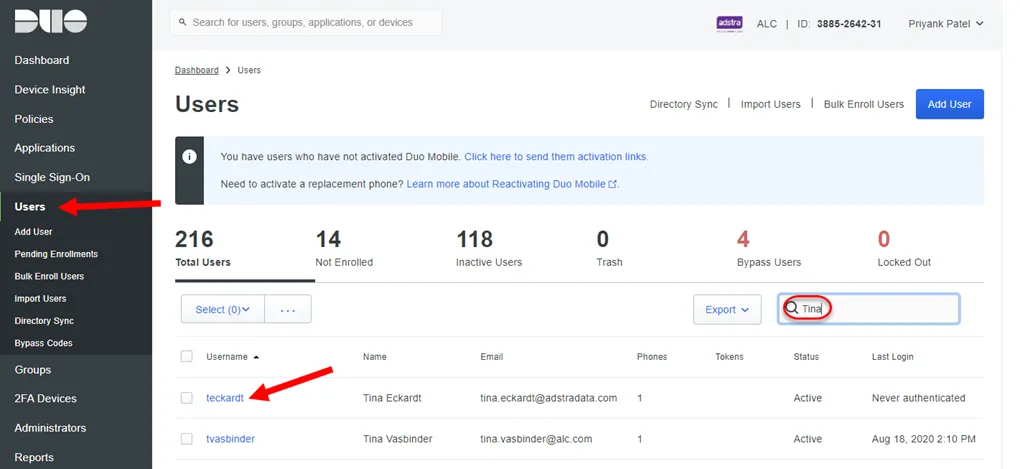
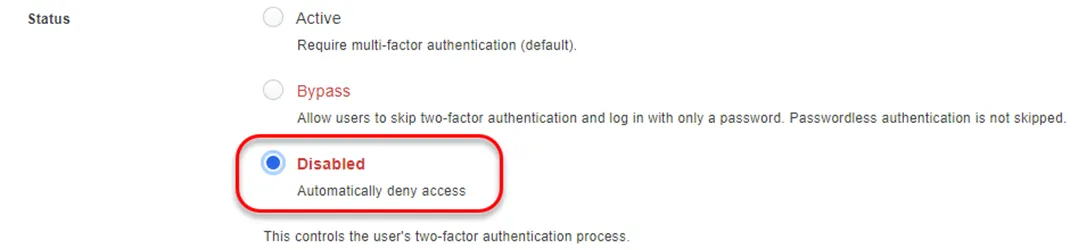
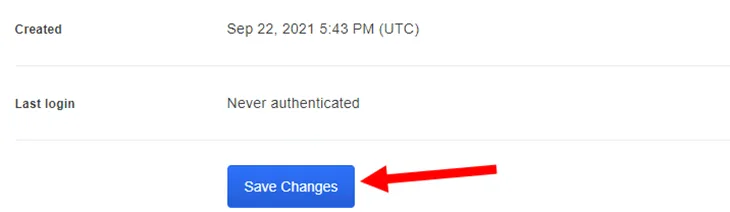
- Under the Status field, select Disabled, then scroll down and hit Save Changes.
-
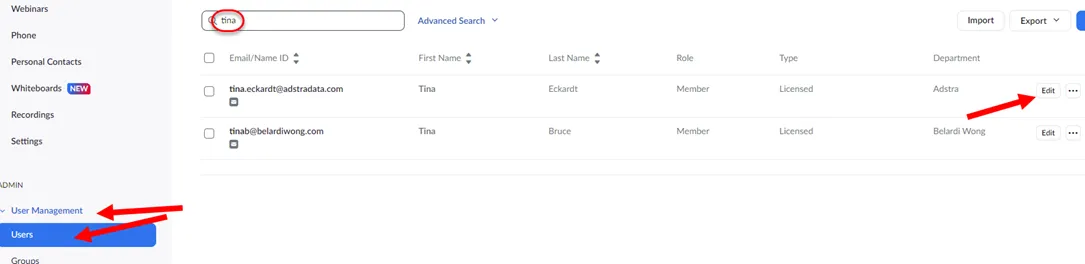
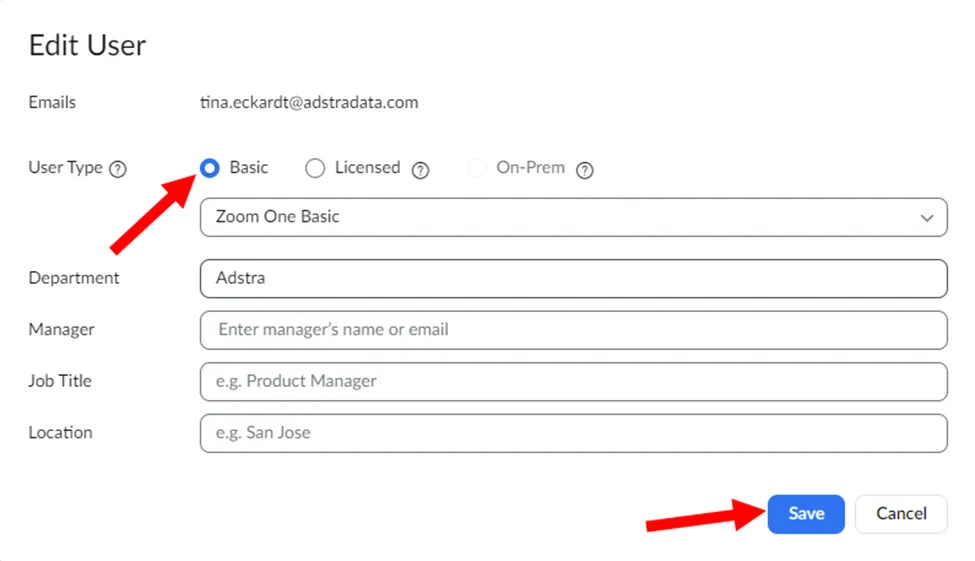
Zoom Account Removal: On a web browser, sign into https://zoom.us/signin credentials in 1Password (Review Requirements section).
-
Under User Management > Users search for your terminated user. Once found, hit the edit option, and remove their license (if they have one/swap to basic). Hit Save once complete. -
-
-
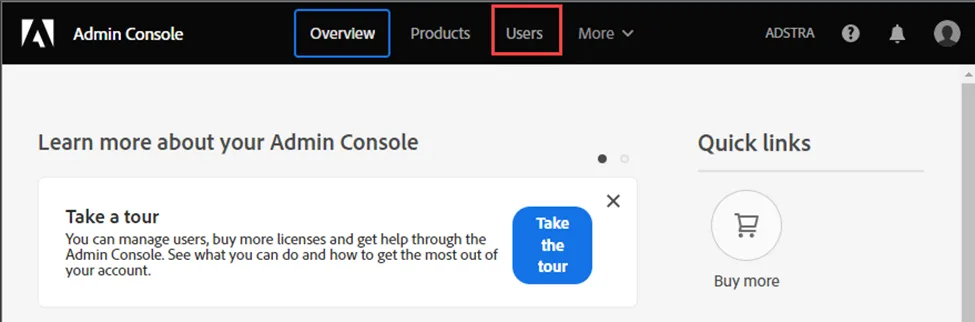
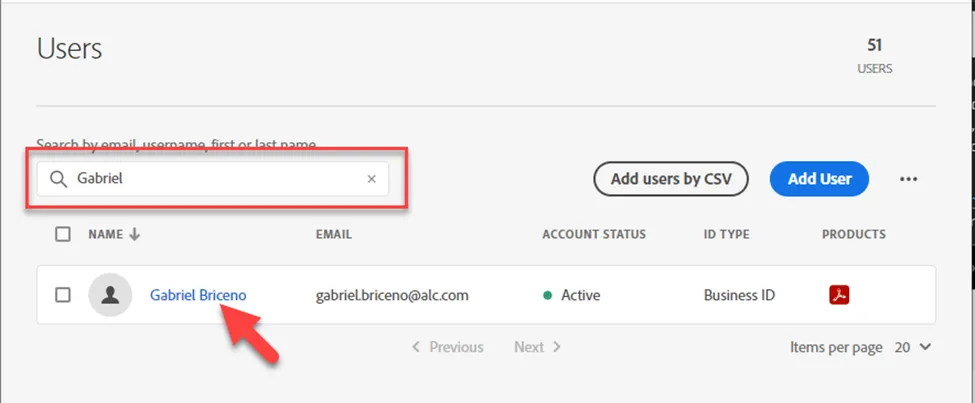
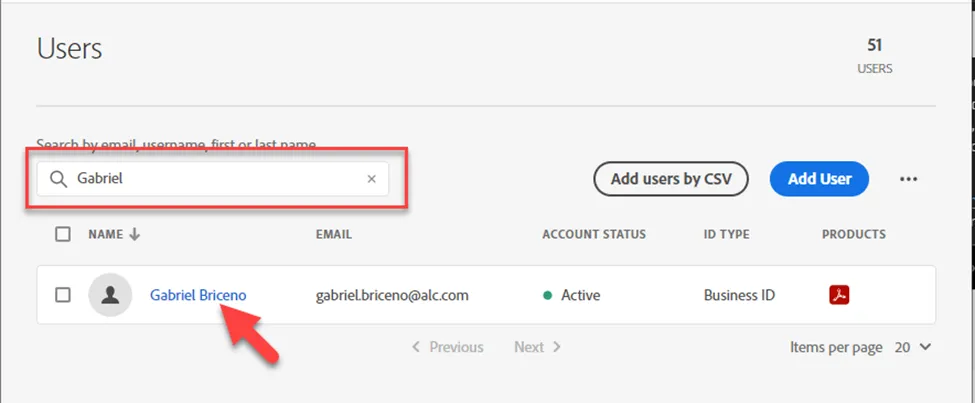
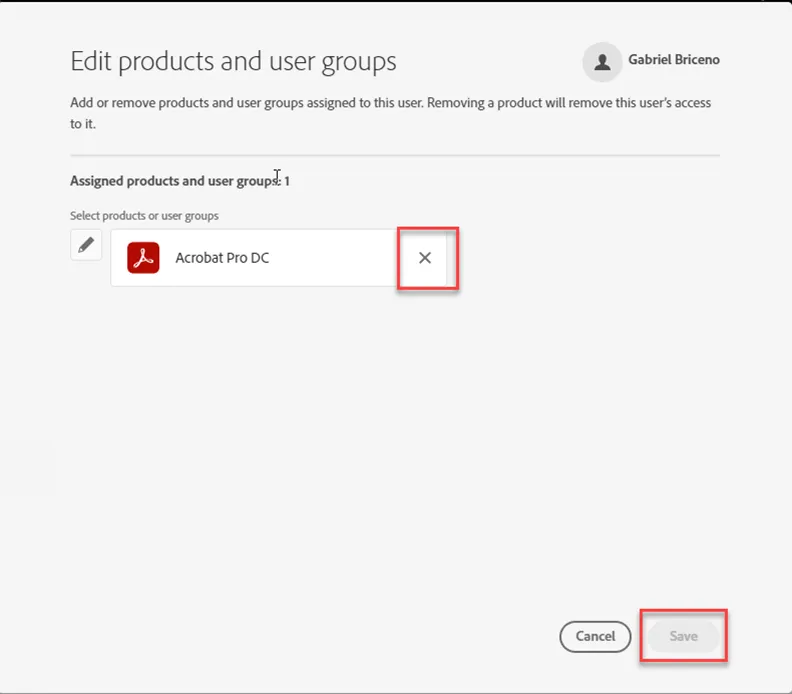
Adobe: On a web browser, sign into Admin Console (adobe.com) credentials in 1Password (Review Requirements section)
-
Go to Users > [Search Name] > [Select Name] > … > Edit > Delete > Save
- For the equipment return, start by checking the warranty status of the device via NCentral.
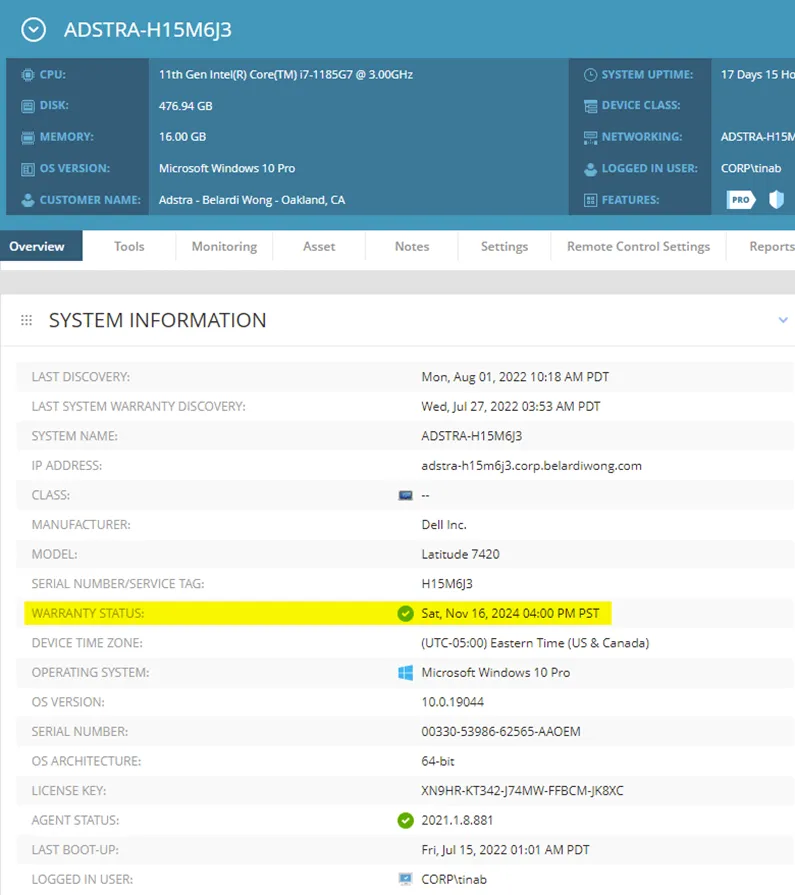
- IMPORTANT: Provide Sara Jones (Sara.Jones@adstradata.com) the following information in the ticket. Most of this information can be derived from NCentral (search by username) but you can ask the vITM for assistance as well! Contact number and Personal Email should come in via the termination request.
-
Best Contact Number:
-
Mailing Address:
-
Personal Email Address:
-
Warranty Status:
-
Serial Number:
-
Asset tag:
-
Package value: $100
-
Package weight:
-
Package Dimensions:
-
Contains a battery, e.g. laptop w/ lithium ion battery: Yes
- Update the information above in the closing public side of the ticket, verify Sara Jones is added to the ticket.