Review and use the offboard form submitted to complete the user termination.
Account
Section titled “Account”-
Login to Google workspace. Credentials are in 1Password. admin.google.com
-
If the option under Email is checked to reset the password follow these steps.
-
Once logged in to the workspace admin center, click on Manage in the Users section.
-
Here you will locate and click on the user account.
-
Here you will reset the user password and create a generic one and send it back to the requester.
-
If you need to set up an email forward, follow these steps.
-
In the google admin center, navigate to Apps>Google Workspace>Gmail
-
Locate and click the Default Routing
-
Add another rule
-
Email email address for the email you wish to forward.
-
Check Add more recipients under Also deliver to then Add
-
Here you will enter the email address you wish to forward to. Then click save
User Data
Section titled “User Data”-
If the account access just needs to be disabled, login to https://console.jumpcloud.com/login/admin (credentials in 1Password)
-
From here go to Users under user management
-
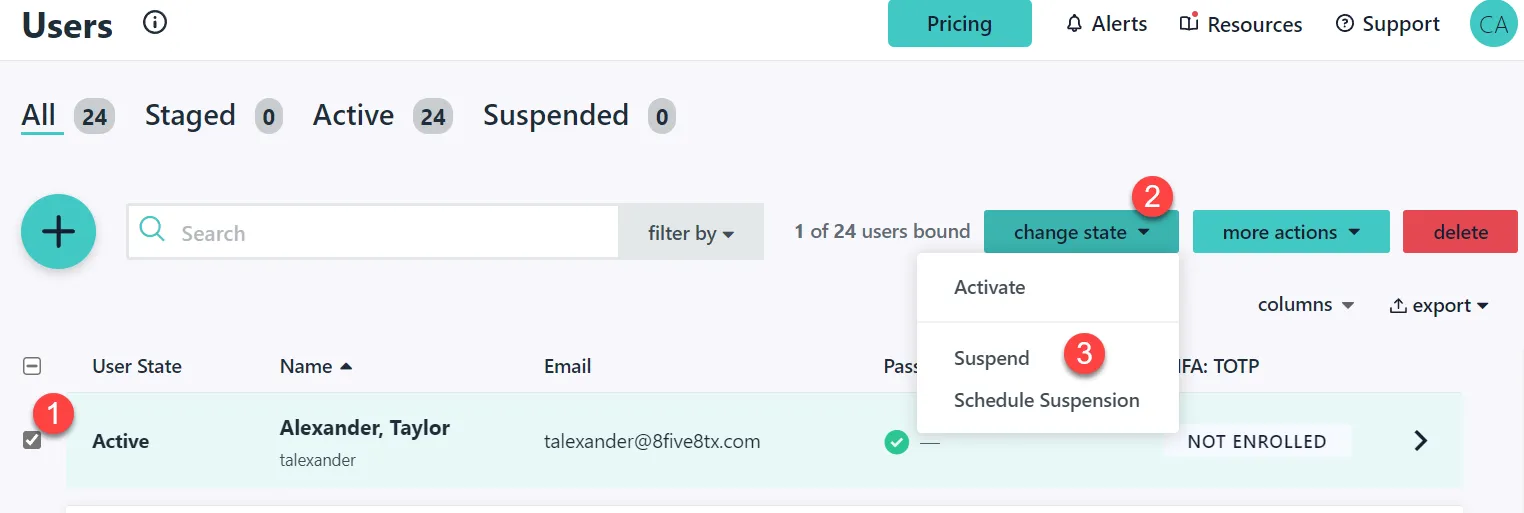
Locate the user, click change state and click suspend.
-
If the user profile data needs to be deleted off the MacBook, we can pick it up for reprovisioning.
-
If the data needs to be copied off to data storage, you will need to ask Kim Russell where to put this and document it in your TK.
Dropbox
Section titled “Dropbox”-
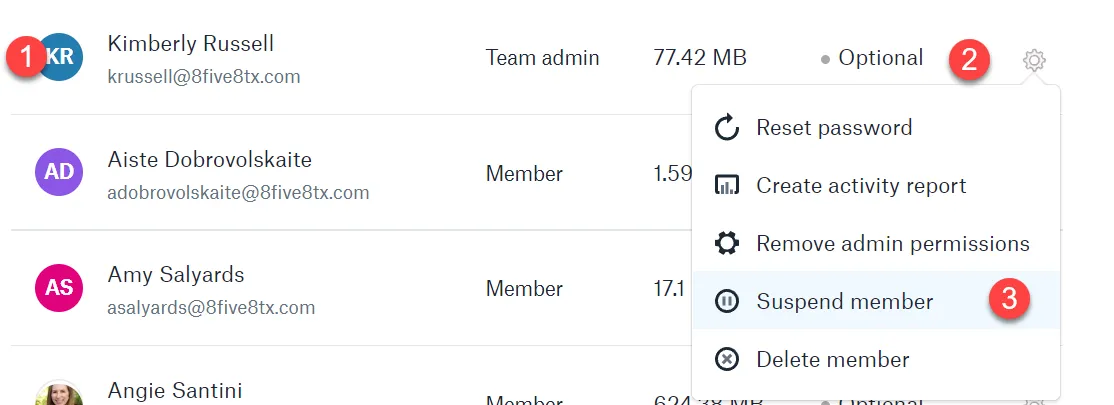
Disable/Block login.
-
Login to Dropbox and block user login
-
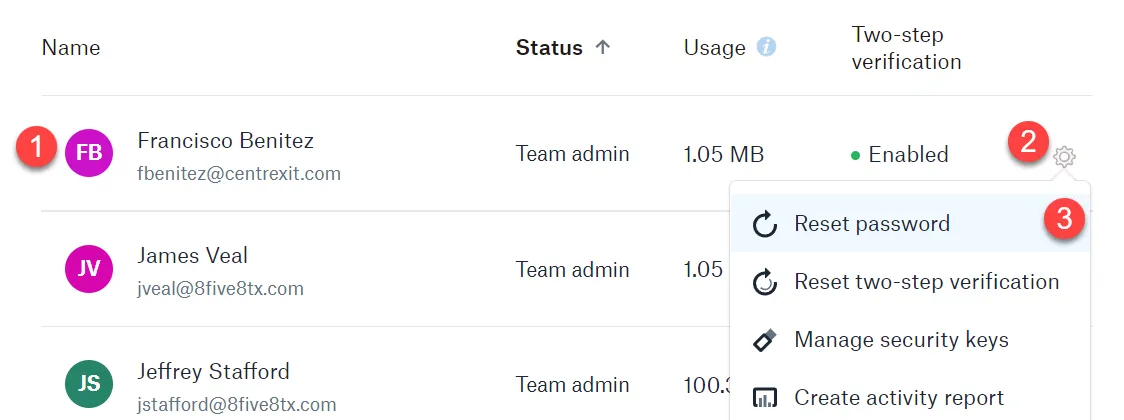
Reset password and grant access.
-
Login to Dropbox and reset the user password, and provide to the requester.
Hardware
Section titled “Hardware”- Schedule a pick-up if requested.