PROCEDURE
Follow these steps to install the document locator (DL) client on your computer.
REQUIREMENTS
Must be able to connect to centrexIT VPN and have a user setup in Document Locator
There is also a limited number of simultaneous user connections, so if you have an error with licensing, try and another time or use the web version at https://cit-doc
STEPS
To Install the DL Client
1. Connect to cIT VPN of your choice
2. Browse to \\cit-doc\DOC\Document Locator\Client Installer
3. Run dl_client72SP3-x64.exe

4. Click Next
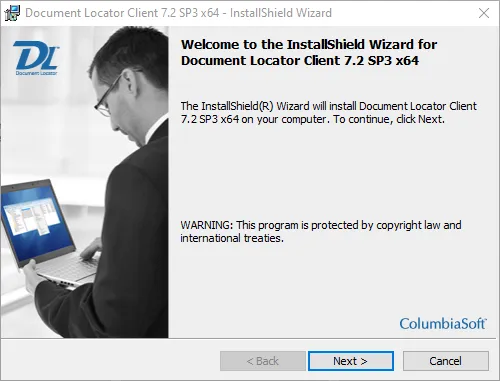
5. Accept the agreement, click next
6. Enter Customer Information
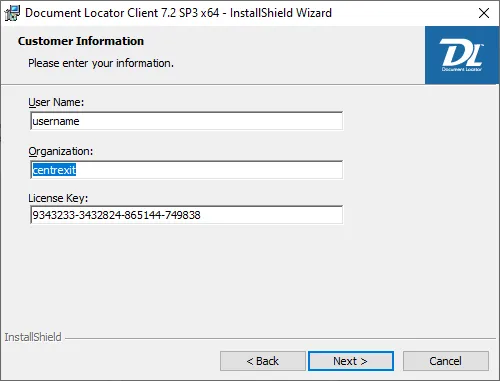
a. Username (your cit username without any domain info)
b. Organization: centrexIT
c. License Key: 9343233-3432824-865144-749838
7. Click next
8. Click next
9. Click Install
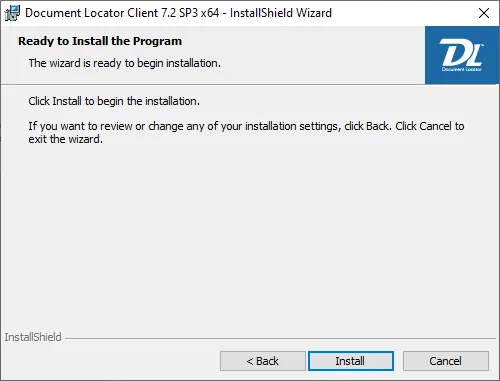
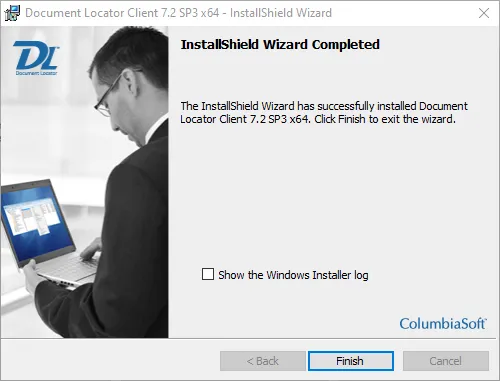
10. Click Finish
11. Go to desktop and find the Document Locator Icon

12. Right Click, select Manage Repositories, or add repository
13. If you do not have the DocRepo1 repository, add it.

a. File, Add Repository
b. Use Trusted Security, Check this box
c. SQL Server Name: cit-sql.rdcsecure.com
d. SQL Server Database Name, click the drop down on the right and select the DocRepo1 Database
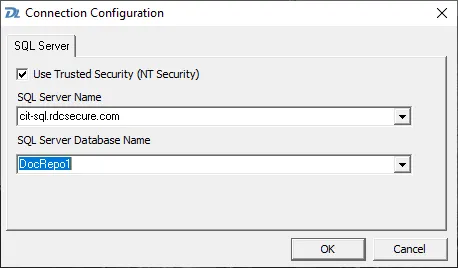
e. Click OK
14. You should now have a repository named DocRepo1 in your list of repositories.
15. Close the box and then double click the Document Locator icon on you desktop.
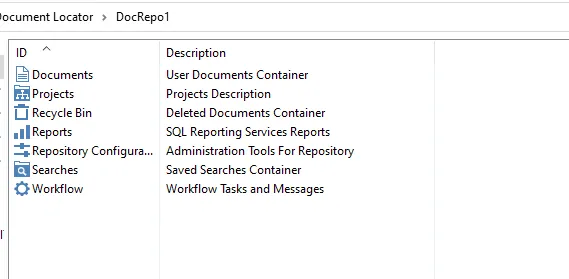
16. You should see DocRepo1, double click that.
If it doesn’t open, retry, if it still doesn’t open check your VPN, if you are sure you are on the VPN and you cannot connect, call Mike!

17. You should now see the Document Locator Options